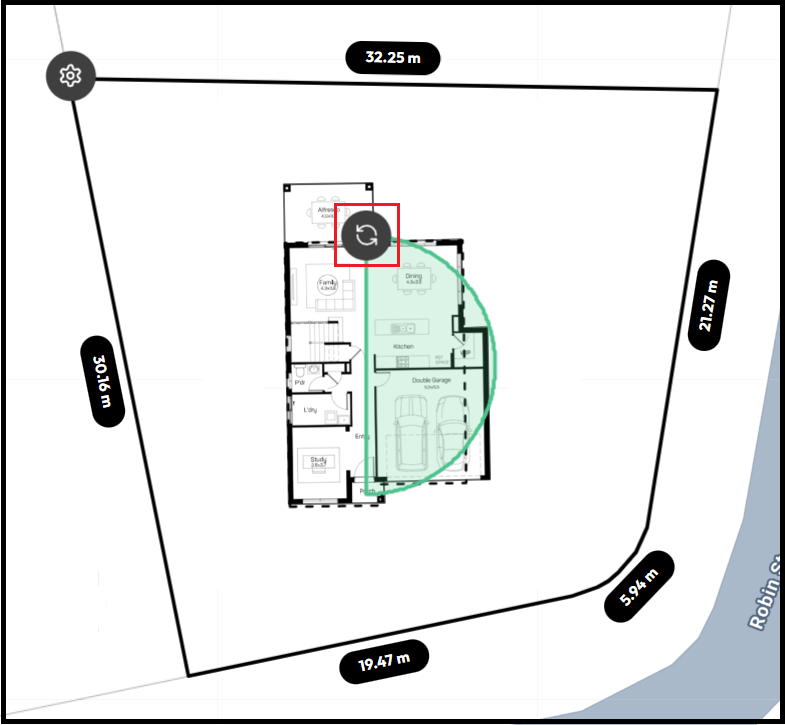
Move the Design
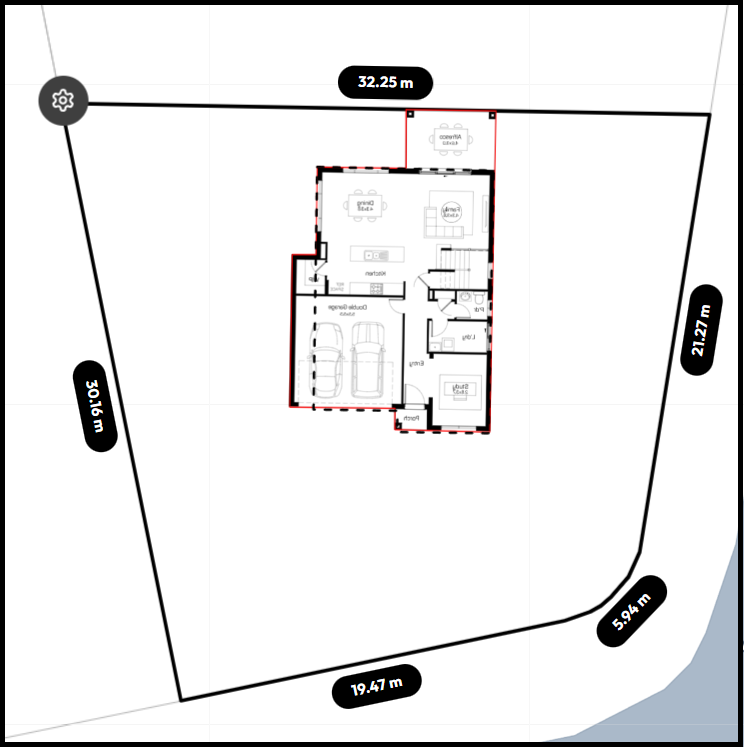
- Click & hold the Design, then drag to move it around the property.
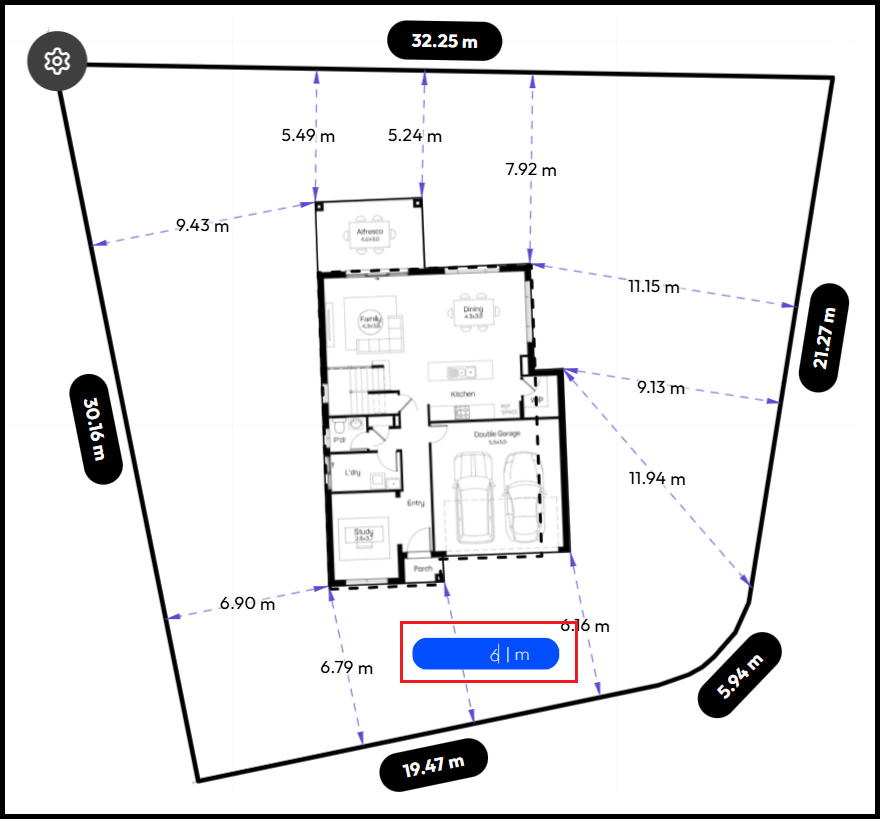
- Click on any of the dimensions to edit the distance.
- Enter the new distance & press Enter on your keyboard.
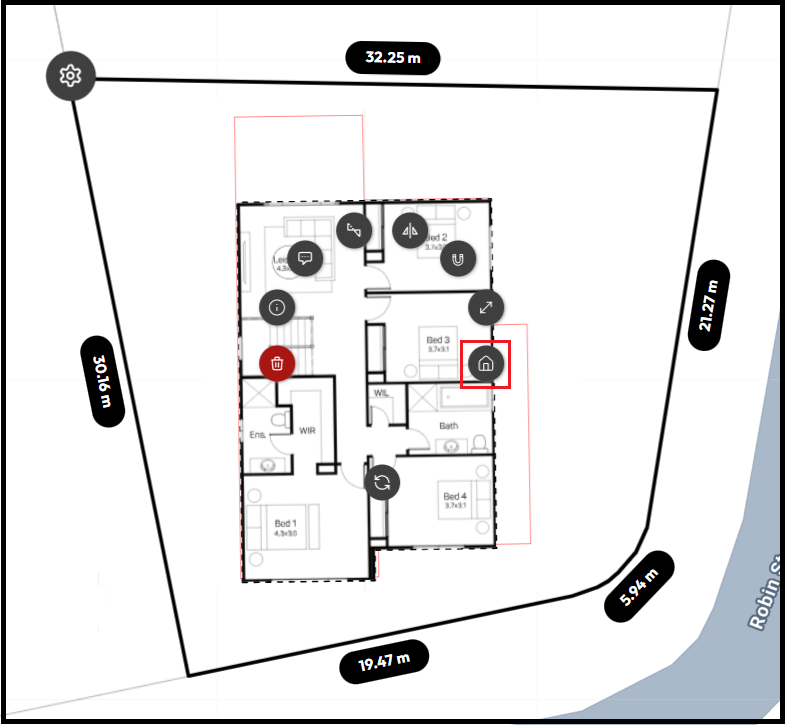
- Left click on the proposed build to access the Design Menu.
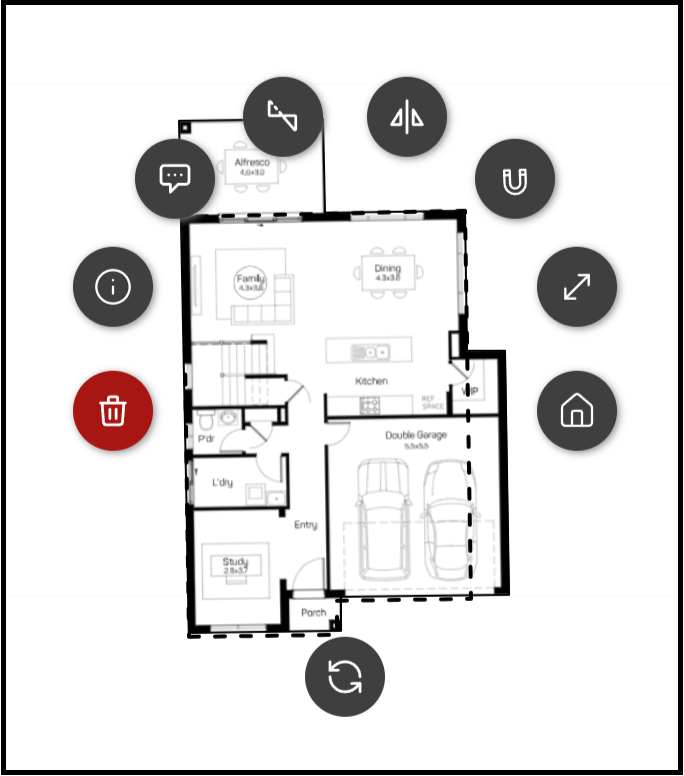
 | Delete Structure - Removes the design from the property. |
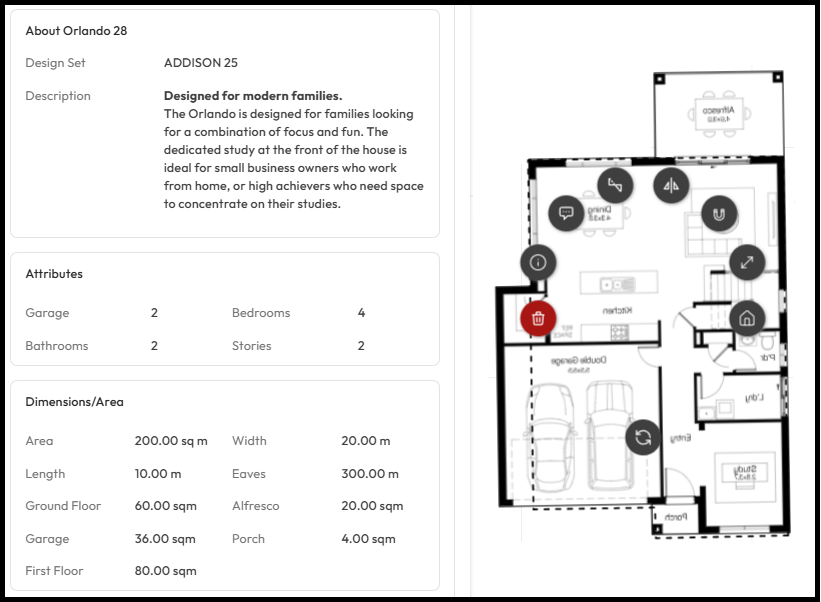
 | Info - View all of the Design details in the left panel. |
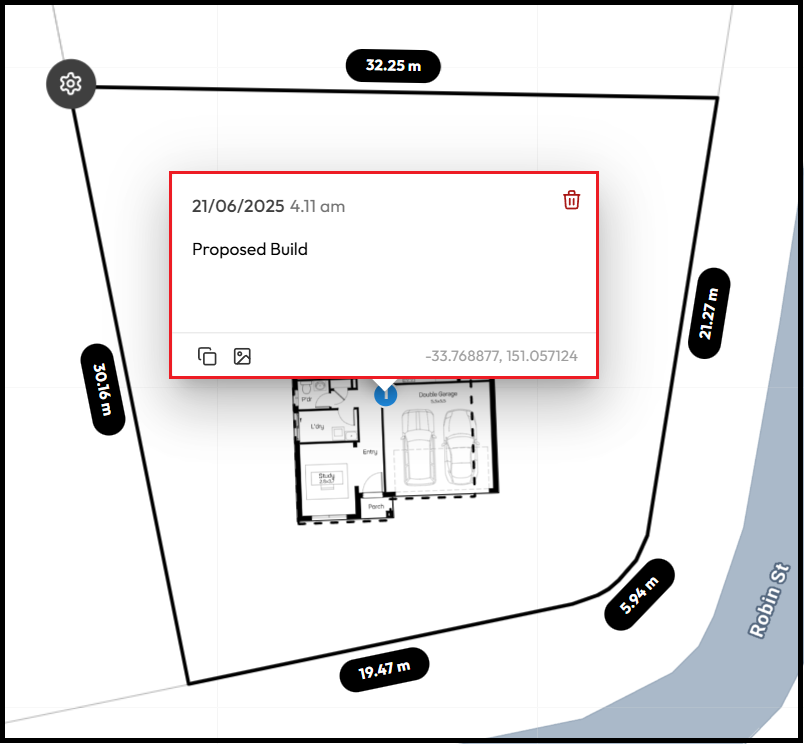
 | Add Annotation - Creates a note bubble that can be positioned anywhere on the site. |
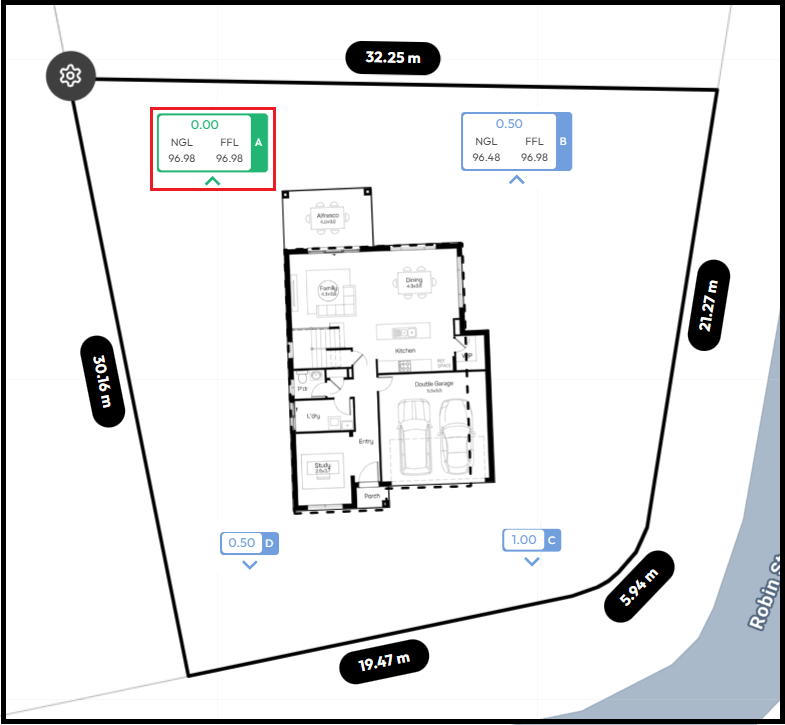
 | Elevation - Toggles the ground levels & displays height changes at the four outer corners of the build. |
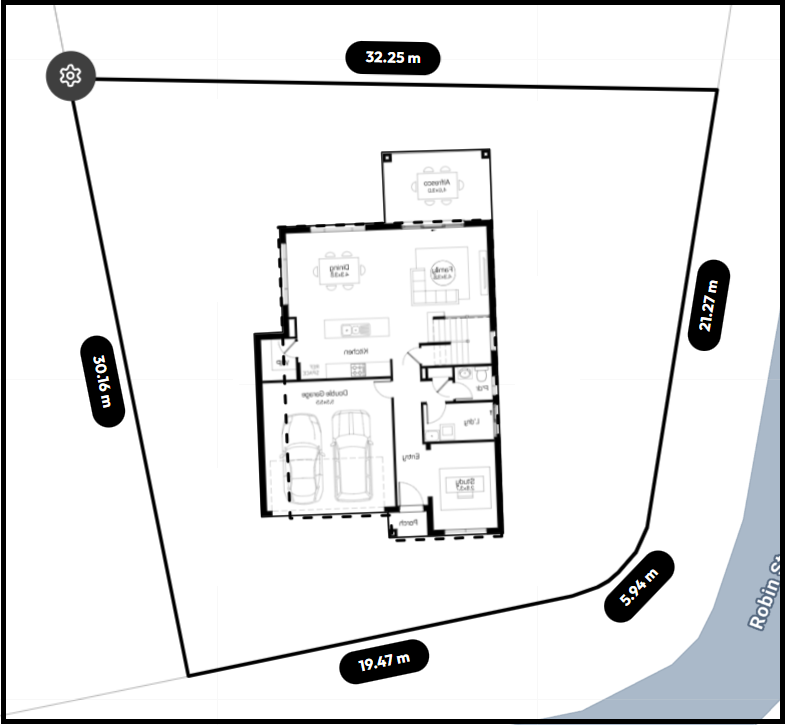
 | Flip - Mirrors the design. |
 | Snap - Easily align any design with a boundary. |
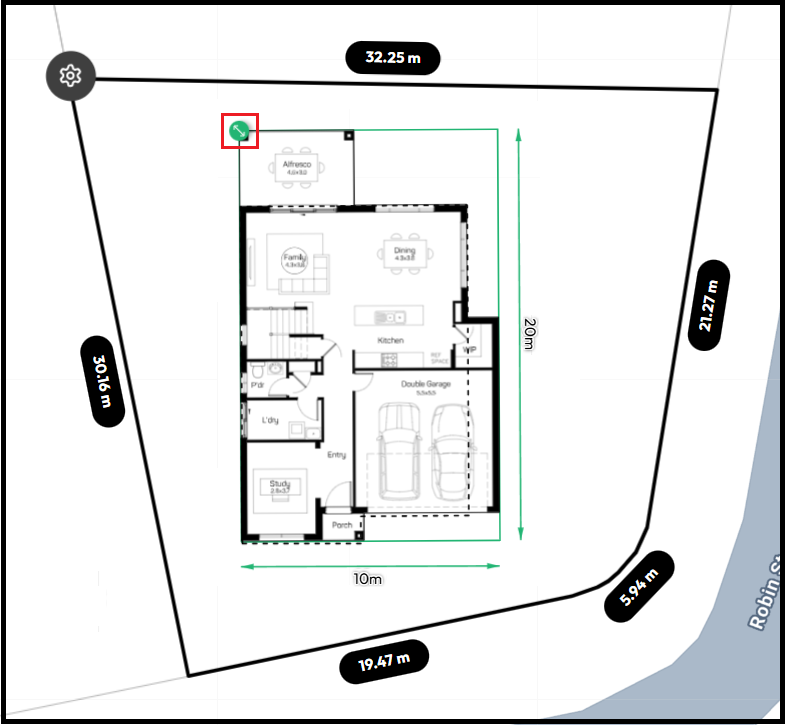
 | Resize - Check if the design is scaled correctly. |
 | Floor - Cycle between Ground & First Floor. |
 | Rotate - Click & hold to turn the design 360 degrees in any direction. |
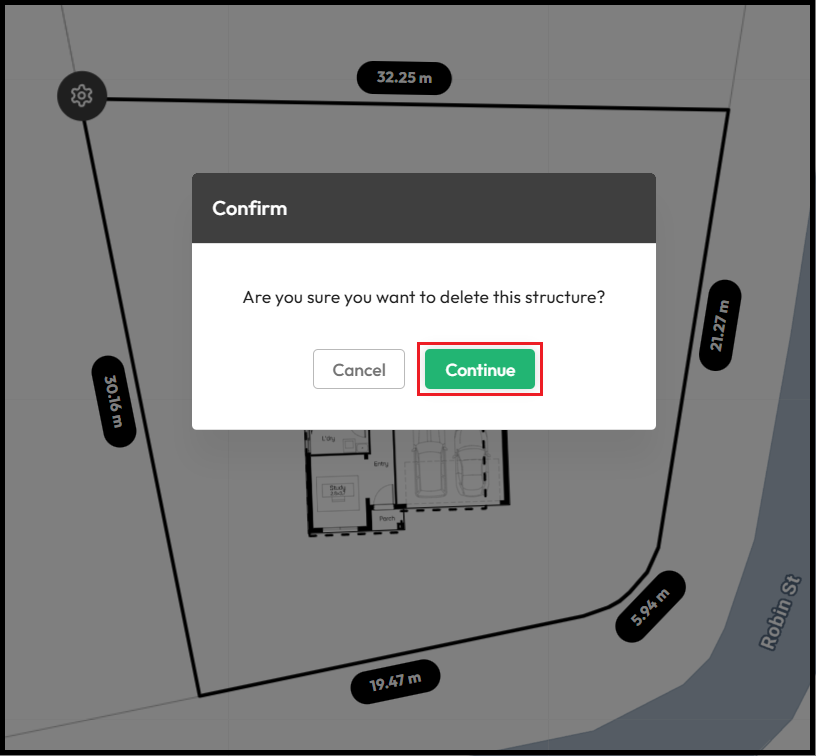
Delete Structure
- Click Continue to remove.
- Click Cancel to keep.
Info
Add Annotation
-
Drag your mouse to the desired location.
-
Left-click to place the annotation.
-
Add text & images as needed.
Elevation
Flip
Snap
- Activate the Snap feature.
- Drag the design to a boundary for it to align.
Resize
- Click & Hold the Green Arrow to increase or decrease the size.
Floor
- Click the House Icon to view the First Floor.
Rotate
- Left click & hold on the Rotate button.
- Move your mouse to adjust the rotation.