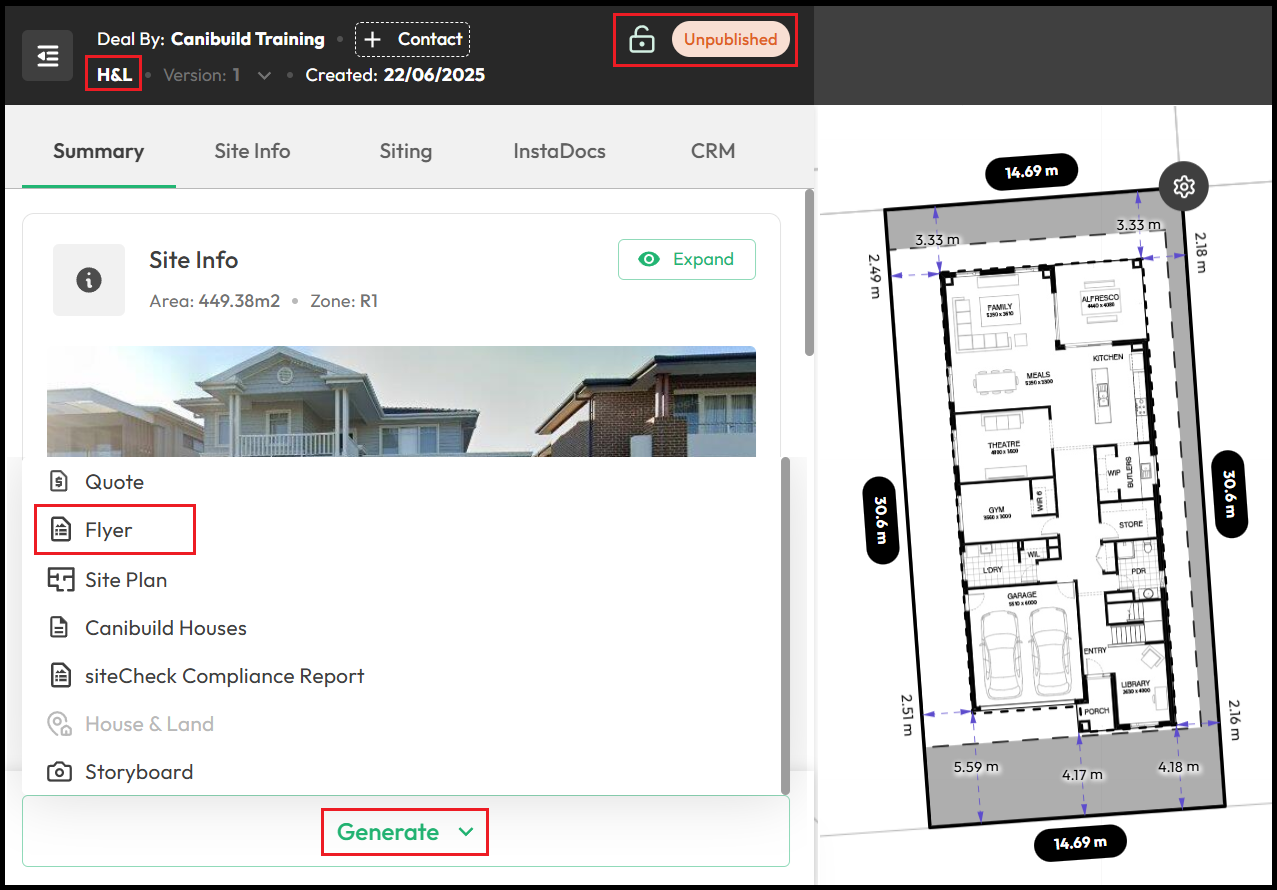
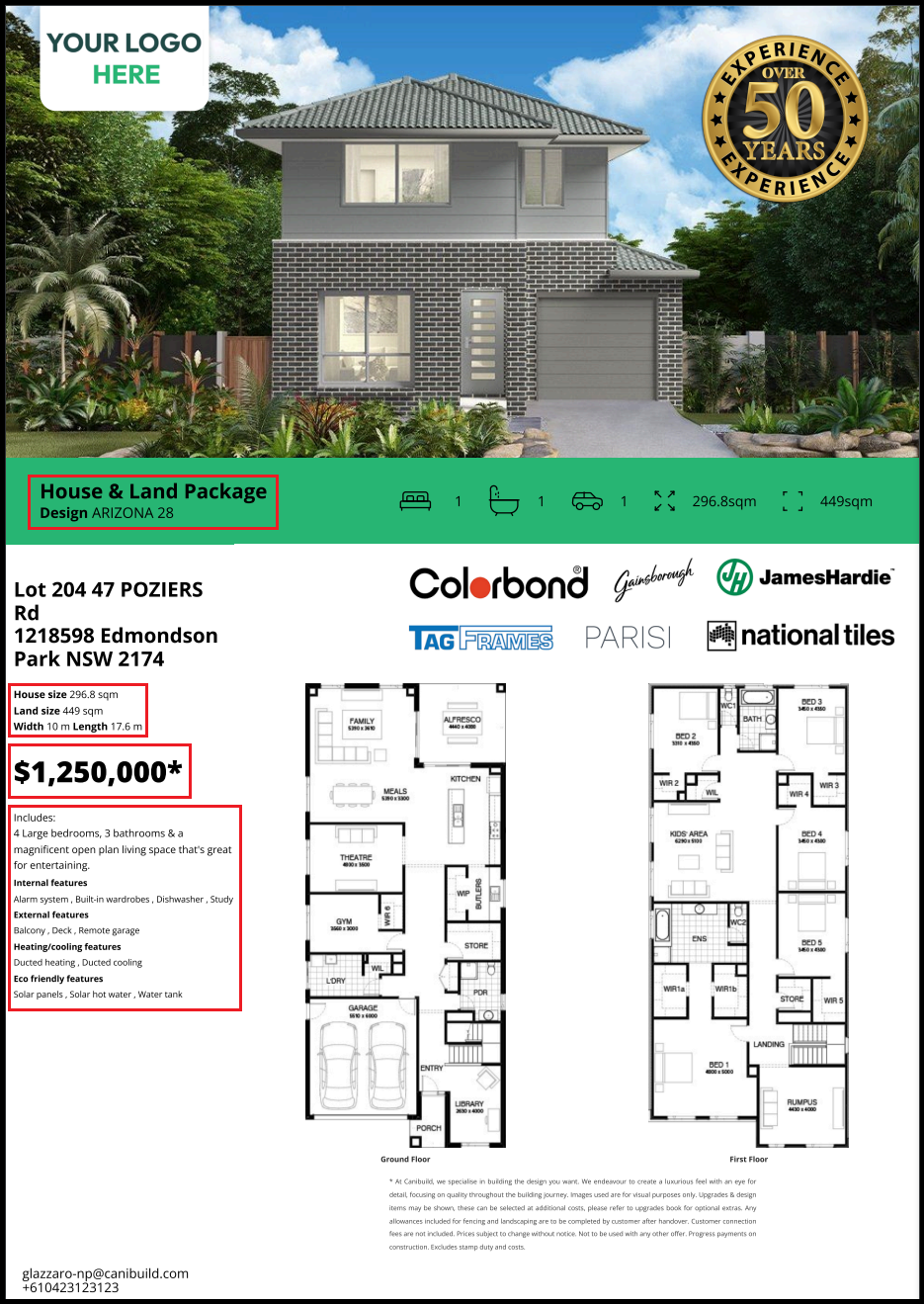
This article will guide you through the steps to package a deal on any site & generate a House & Land (H&L) flyer, publish the package to realestate.com.au if you have an account, or add the package to the ShowLot.
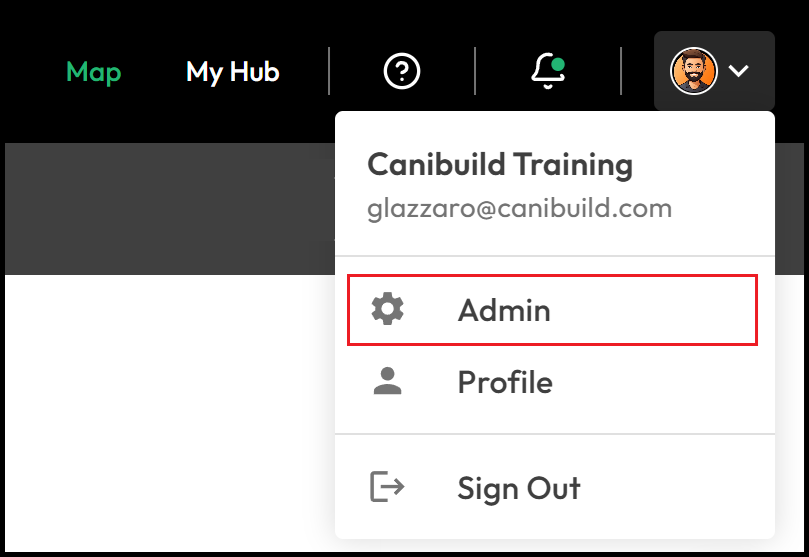
- To access the Admin section Click on your initials on the top right corner of the screen.
- Select Admin from the dropdown menu.
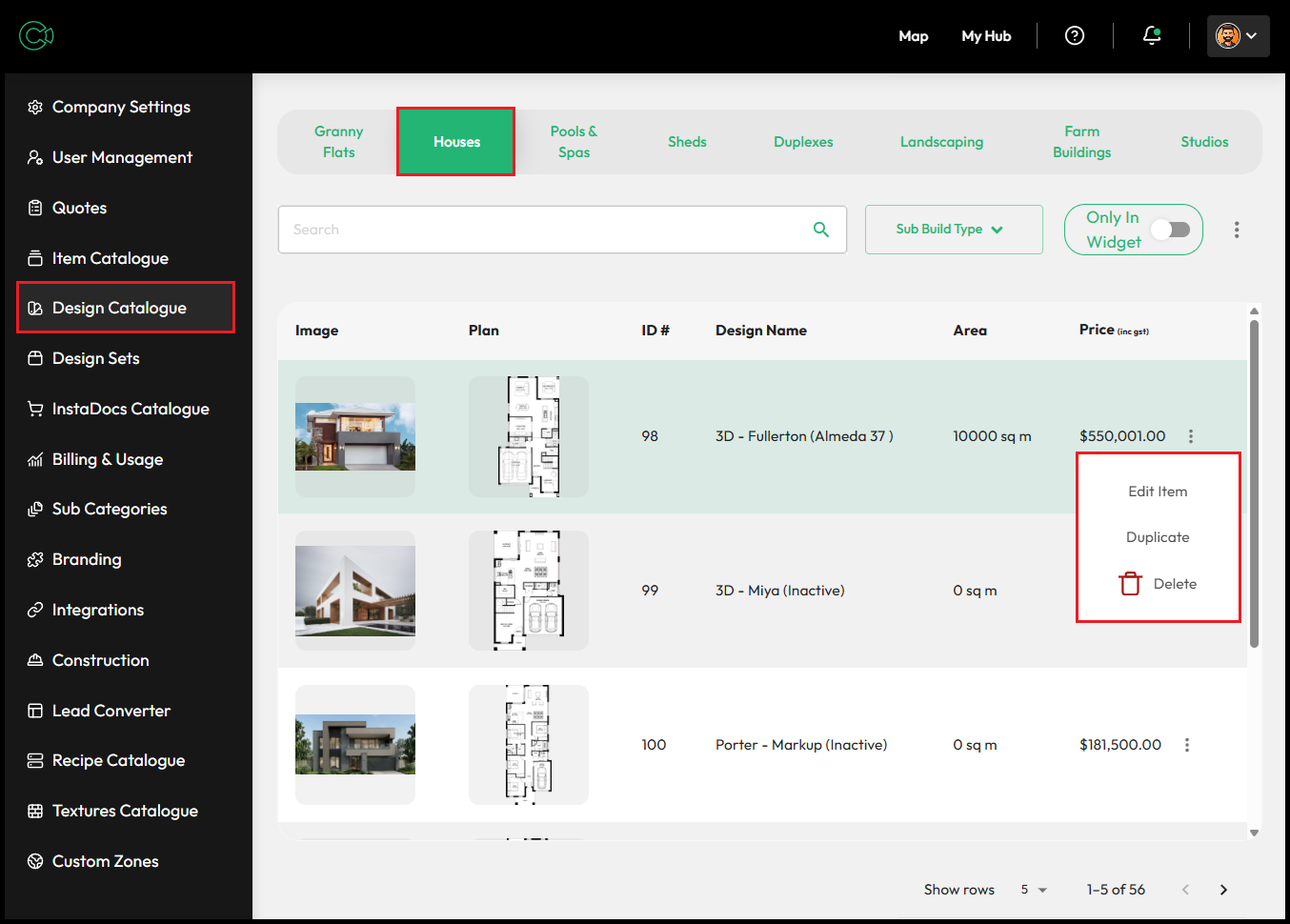
- Click Design Catalogue.
- Select the Houses Build Type.
- Click the three dots on a Design.
- Select Edit Item.
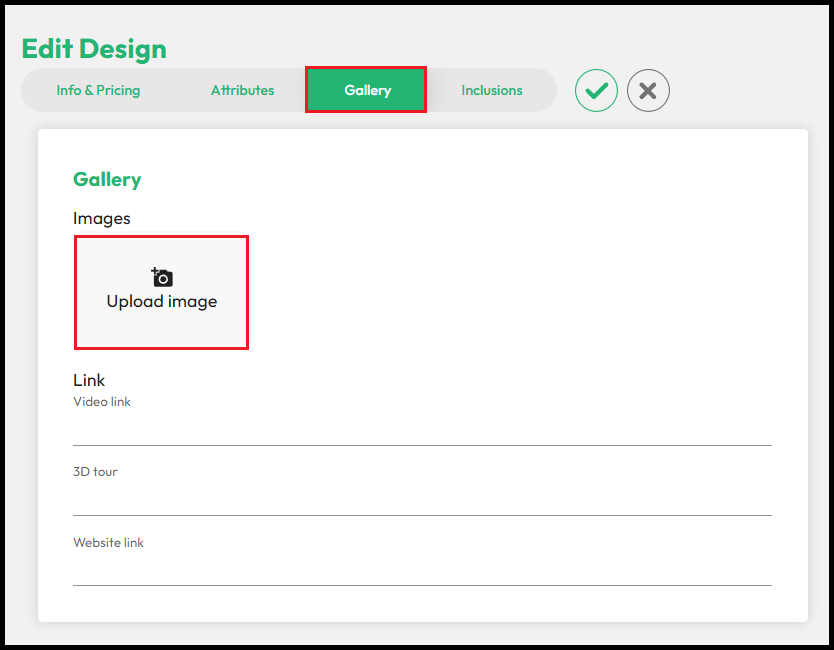
- Select Gallery.
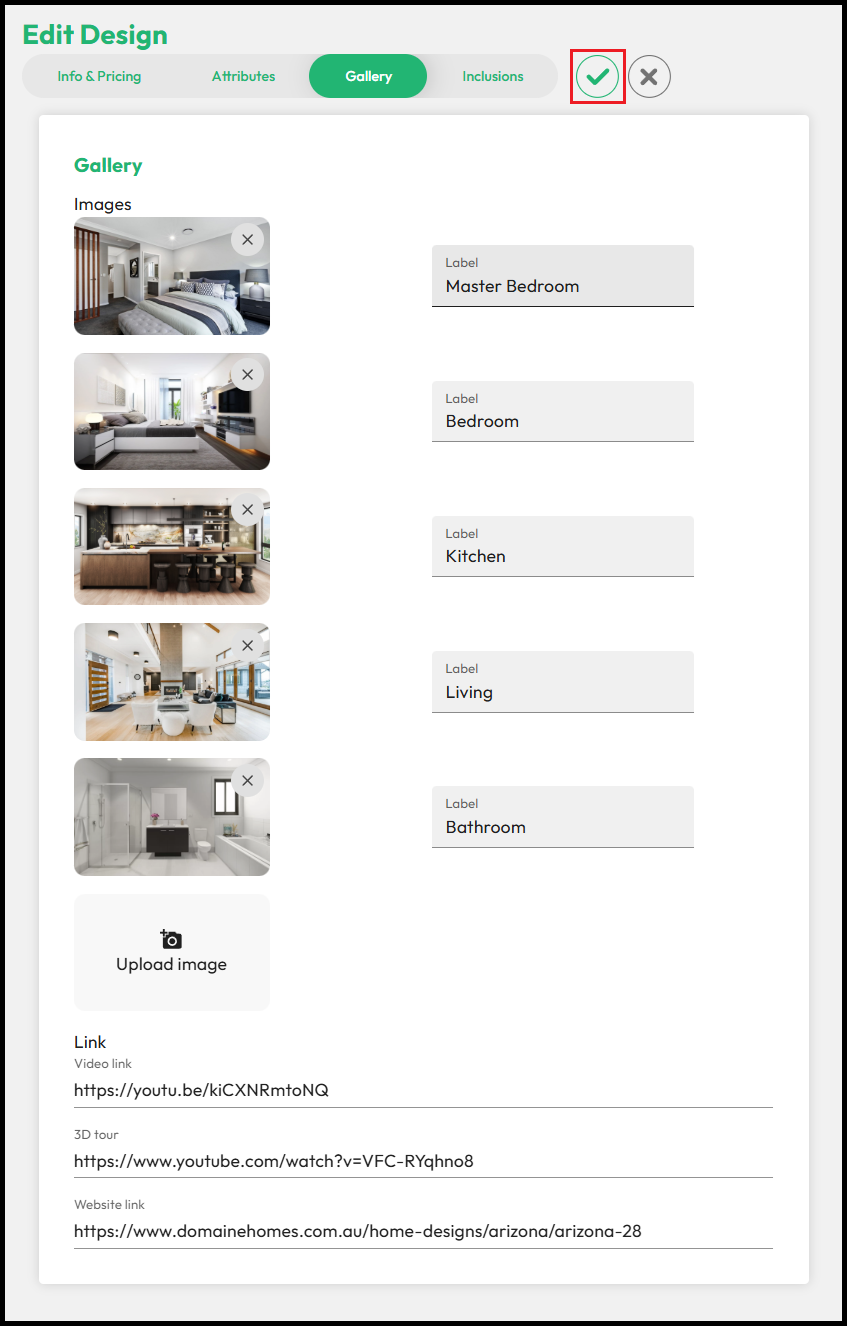
- Click Upload Image to add additional photos.
- Add a Video Link, 3D Tour or Website Link.
- Click the Green Tick when complete.
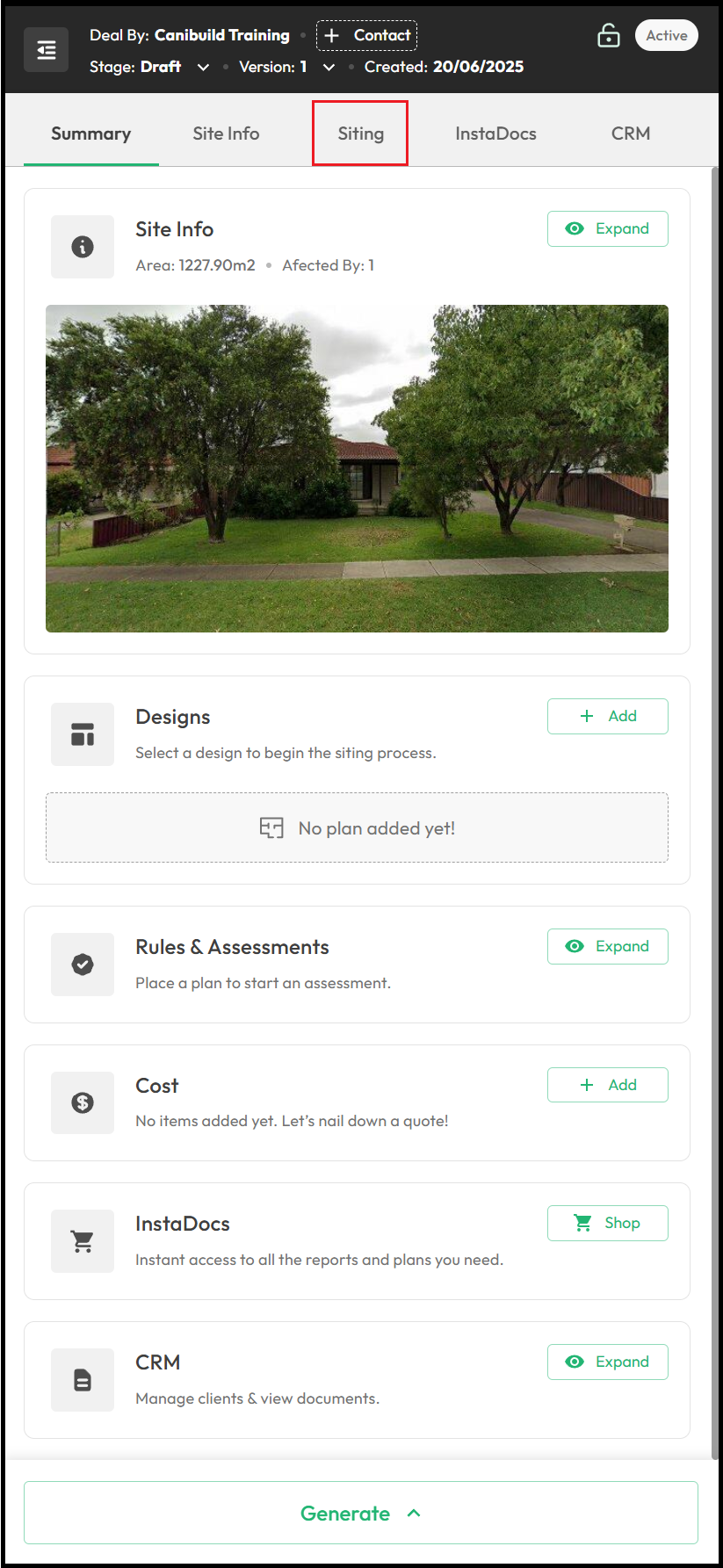
- Click Siting on the left panel.
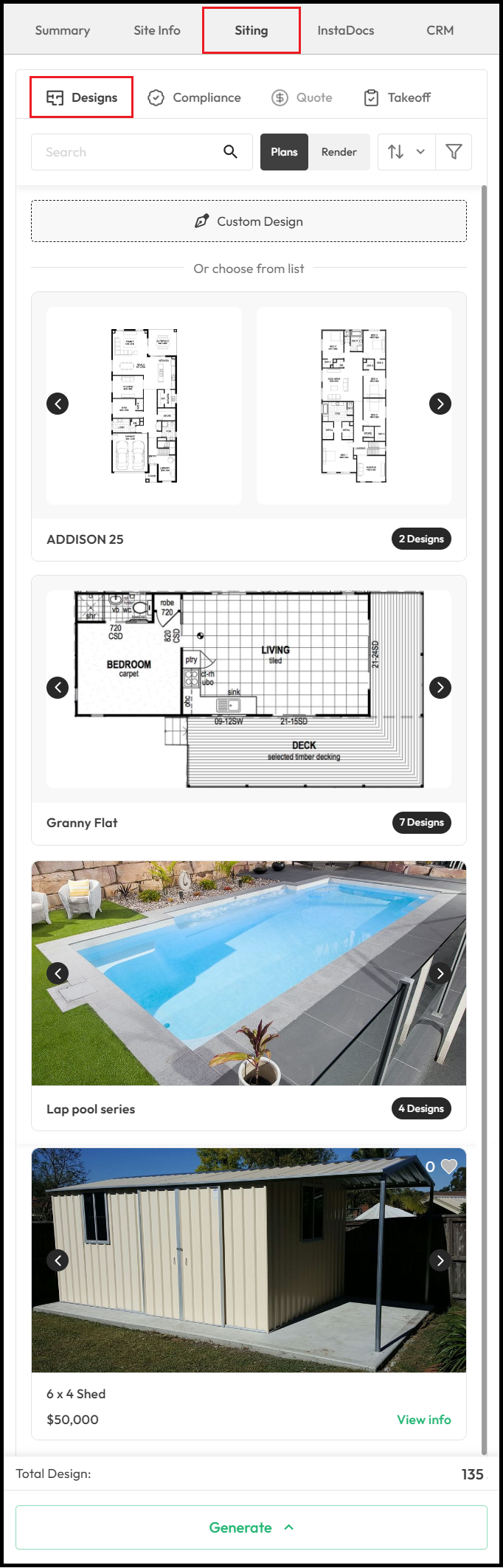
- Click Designs.
- Select a House.
- Select Facades.
- Click the Plus (+) icon to select a Facade.
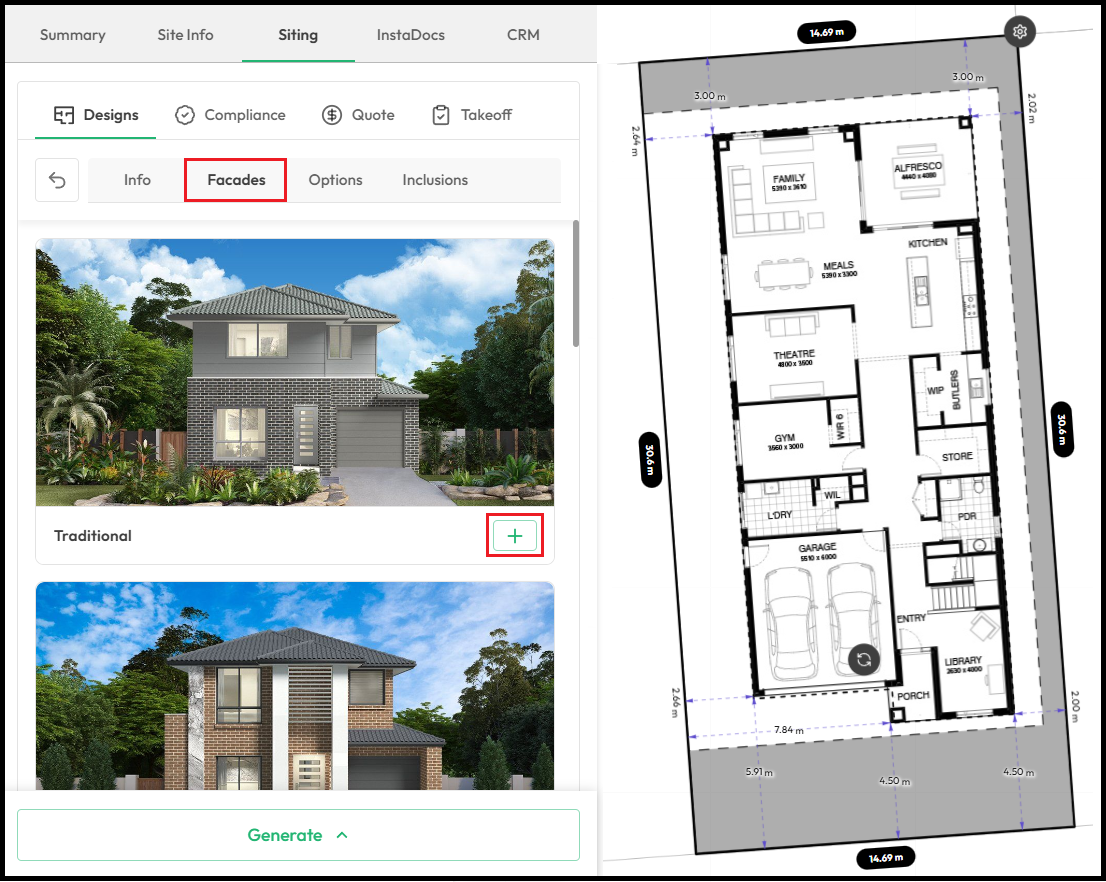
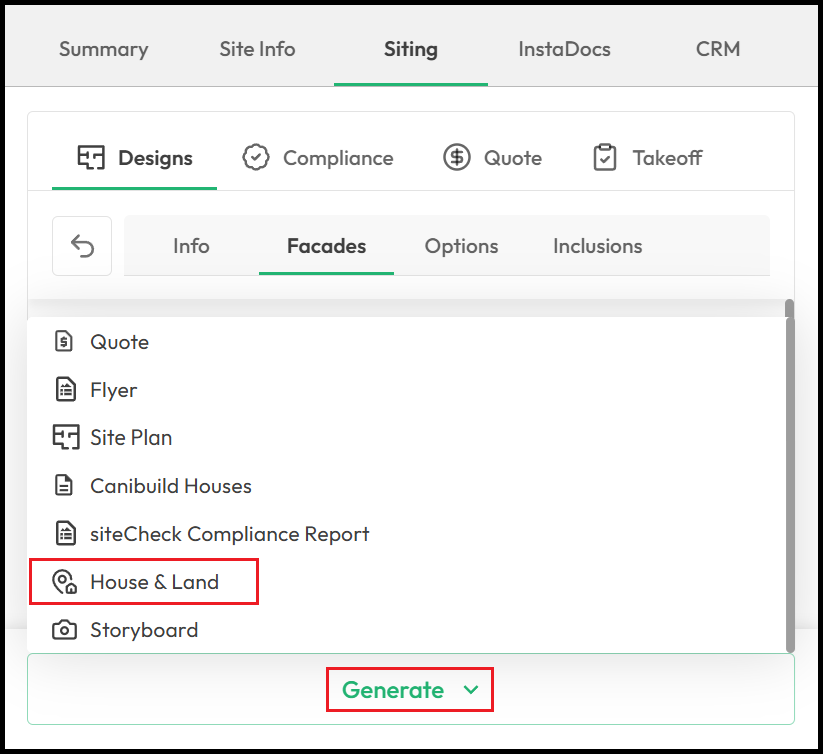
- Click Generate on the left panel.
- Select House & Land from the list of Documents.
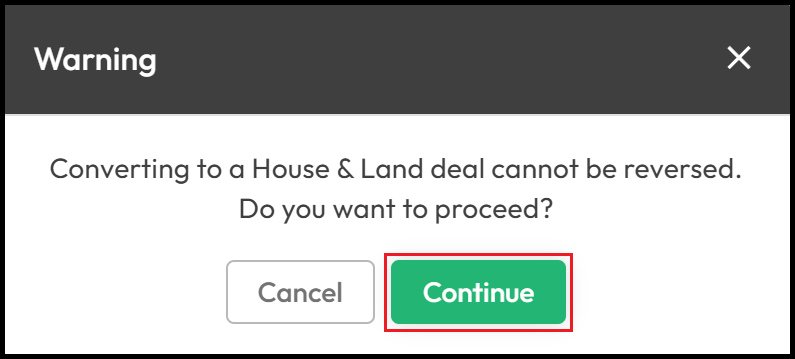
- Click Continue.
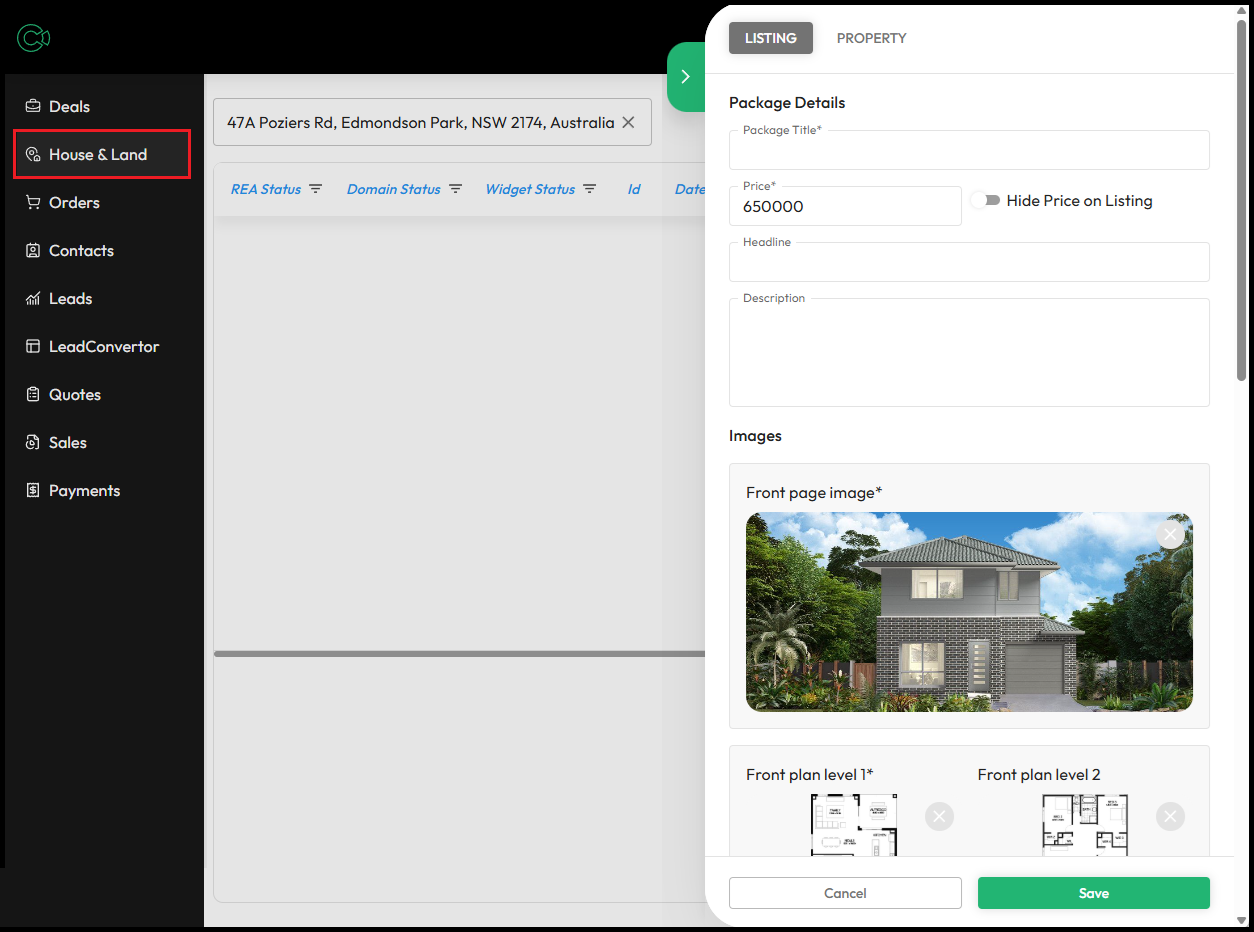
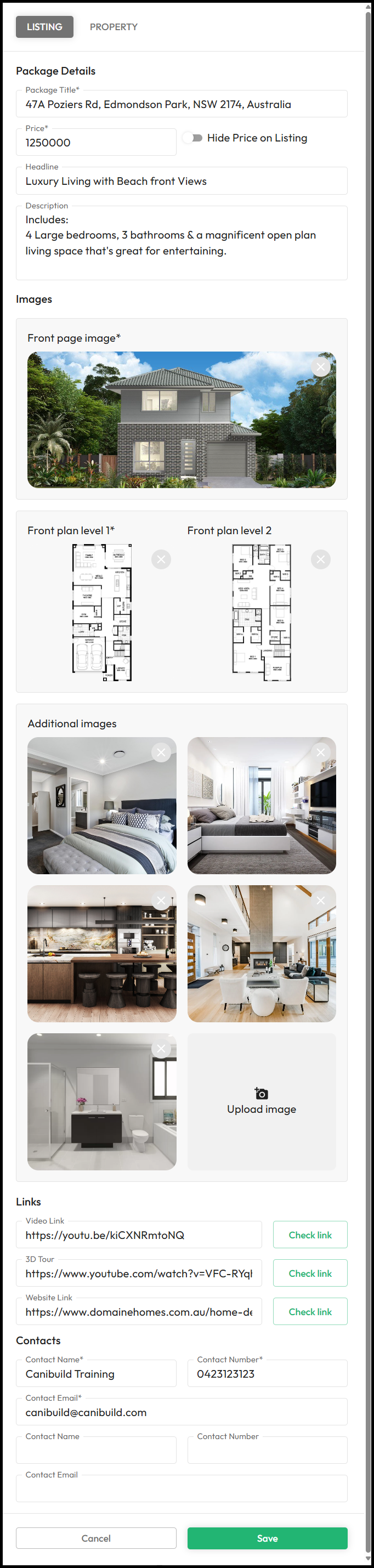
- Populate the Listing & Property Details.
Listing
-
Populate Package Details.
- Enter a Package Title.
- Enter the total price of both House & Land.
- Add a Headline.
- Populate the Description with as much engaging detail as possible.
-
Images will display the Floor Plan & Facade if selected.
-
Click Upload Image to add additional images.
- Will populate automatically if added to Gallery.
-
Populate Links
- Will populate automatically if added to Gallery.
-
Add Contacts.
- Contact 1 will auto populate from Profile info.
- Contact 2 is optional.
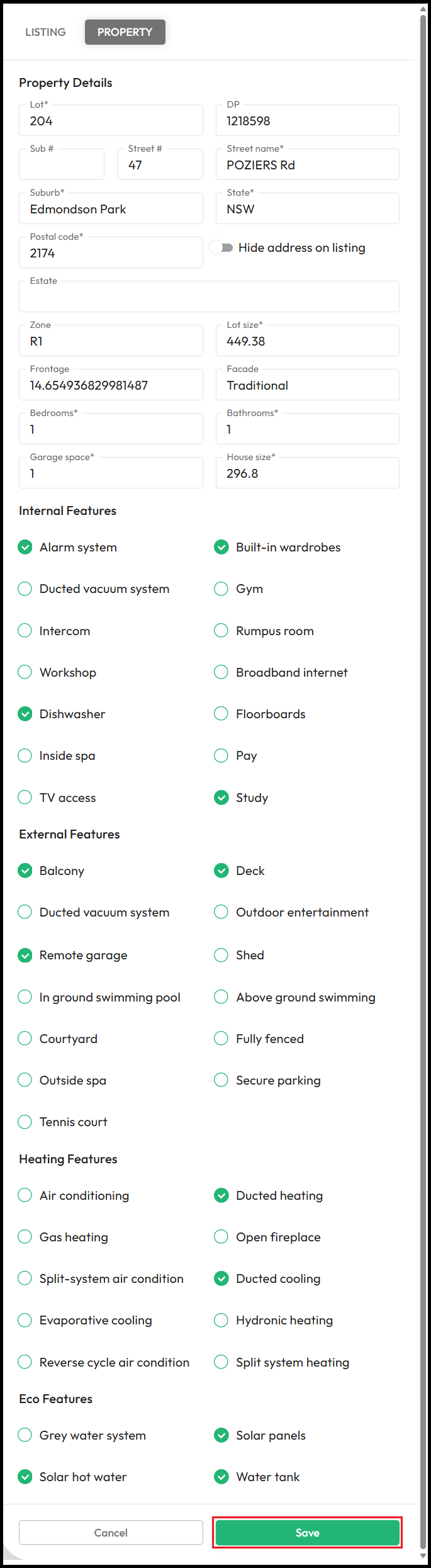
- Click the green circles to select relevant Internal, External, Heating/Cooling, & Eco Friendly features.
- Click Save.
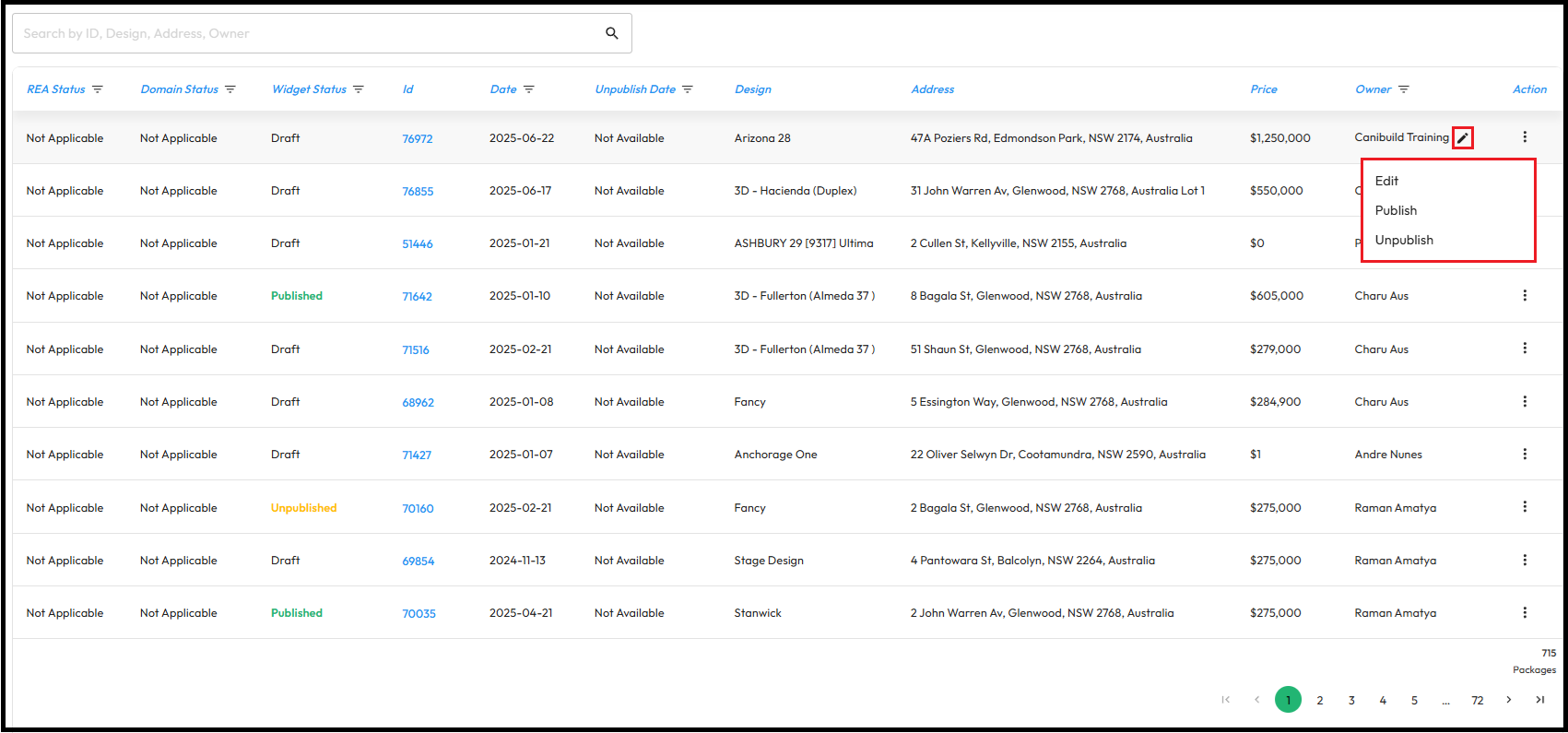
- Click the Pencil to Edit package Owner.
- Click the three dots to:
- Edit
- Publish
- Unpublish
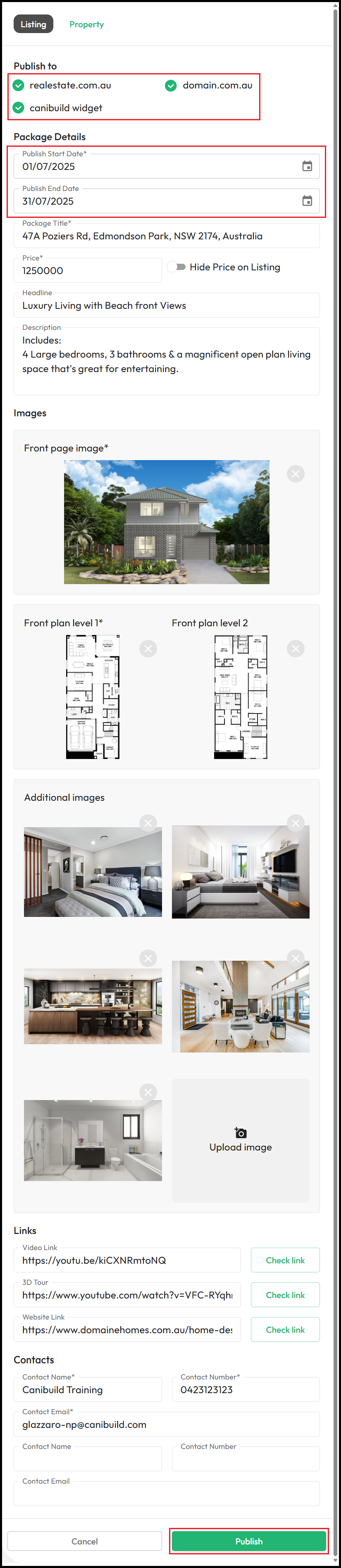
- Select Publish to:
- realestate.com.au
- domain.com.au
- canibuild widget
- Select Publish Start & End Date.
- Double check all other details before publishing.
- Click Publish.
Generating the H&L Flyer.
- Return to the address.
- Click Generate.
- Select Flyer.
- Click the Padlock to lock the Deal.