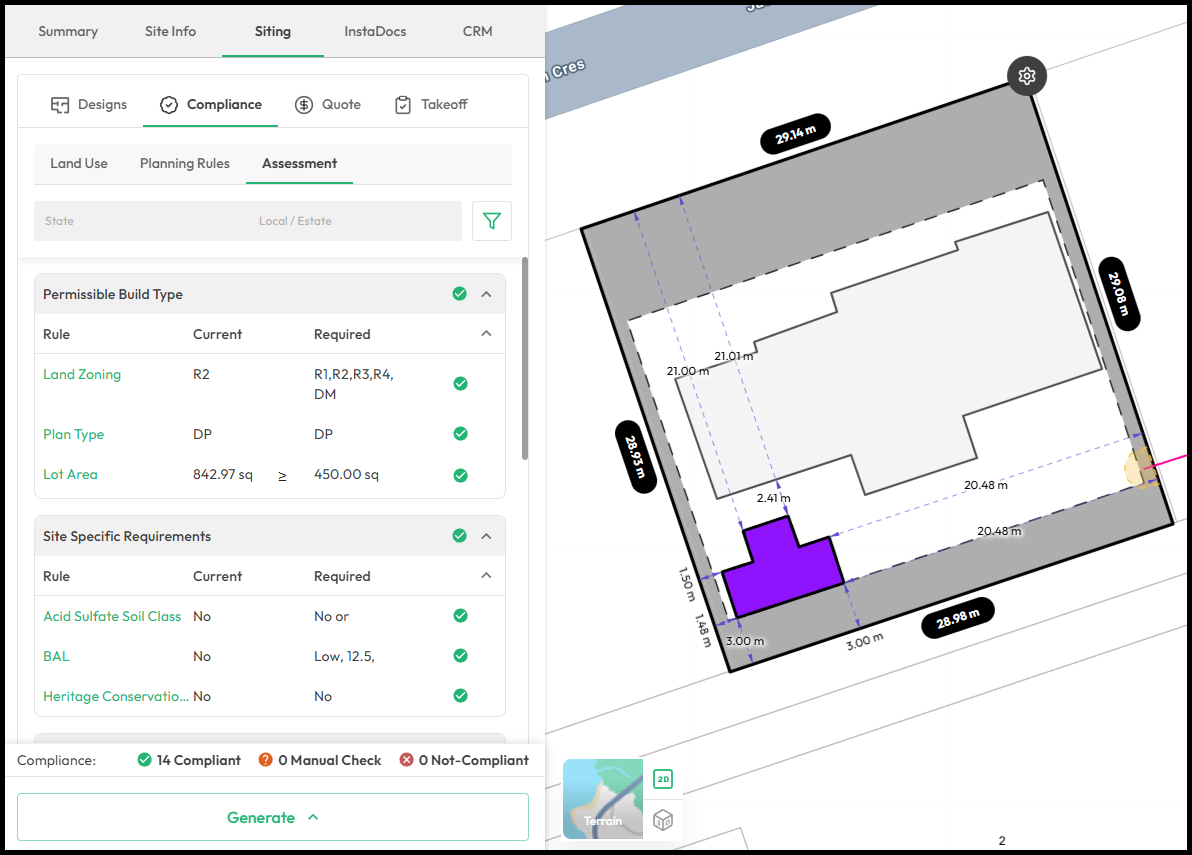
This article will guide you through the process of using the Polygon tool to accurately draw shapes on the property & assign them a specific Build Type to display the property setbacks & compliance.
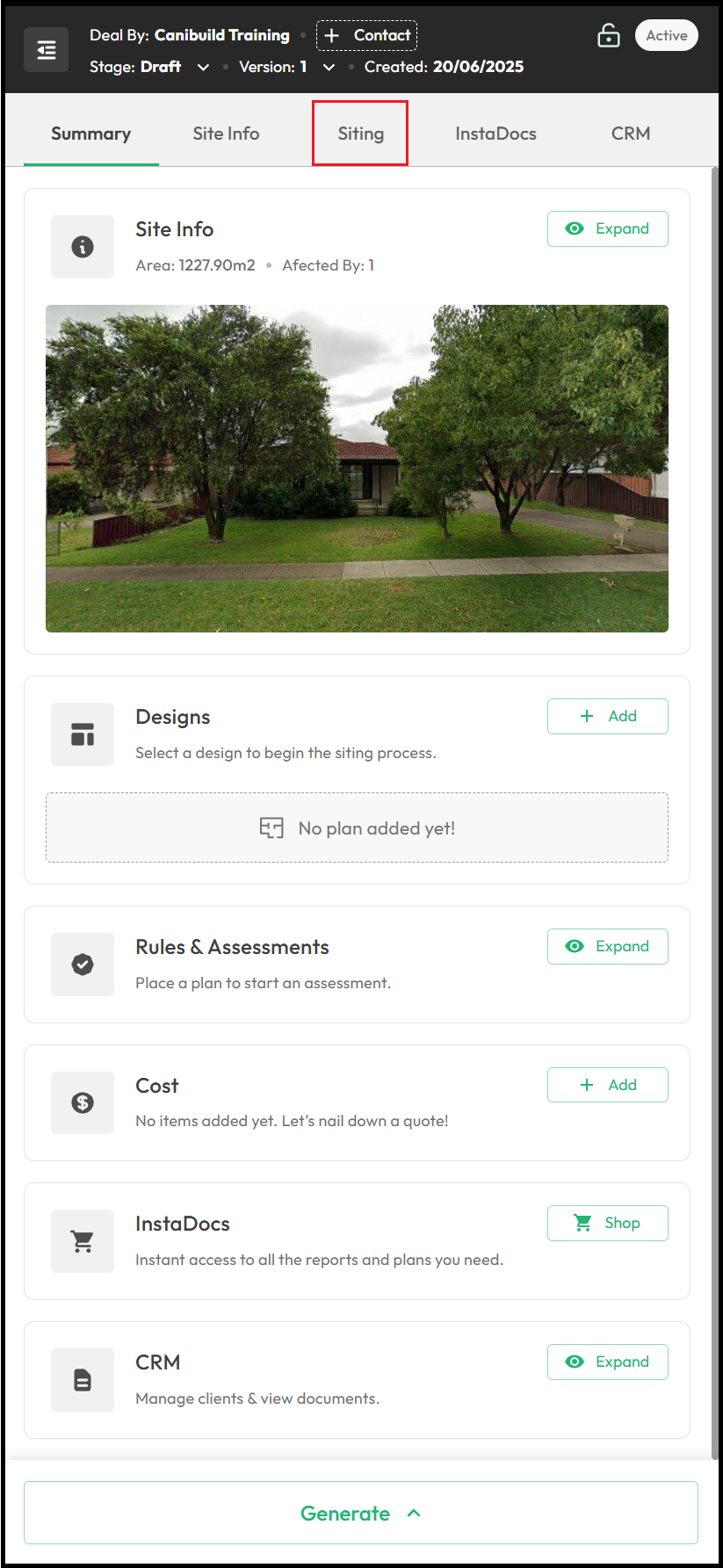
- Click Siting on the left panel.
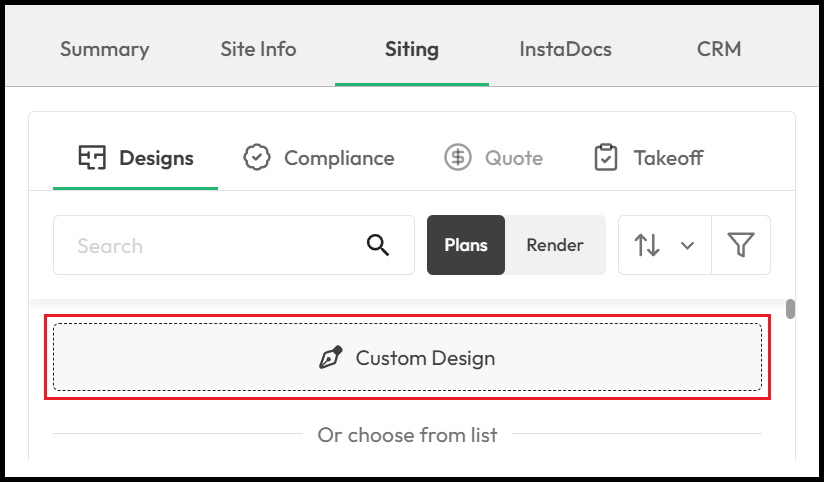
- Select Designs.
- Click Custom Design or the Polygon tool.
Enter Method
-
Select the Draw Curve Polygon / Polygon tool.
-
Select the Snap feature.
-
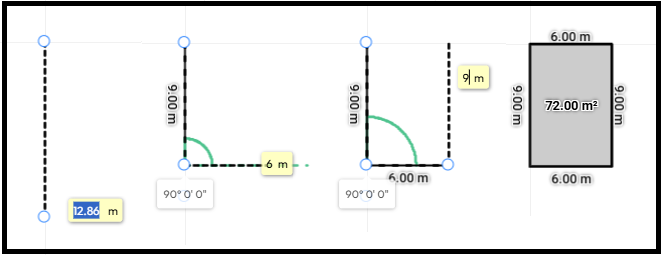
Click anywhere on the screen to start.
-
Drag the line vertically down & release the mouse.
-
Press Enter / Return on the keyboard & type the dimension of the line.
-
Press Enter / Return again to lock in the dimension.
-
Press Esc to remove the previous point.
-
Repeat on each line as necessary to complete all four sides of the square or rectangle.
-
To terminate, click on the starting point.
Action Box
-
Select the Draw Curve Polygon / Polygon tool.
-
Click anywhere on the screen to start.
-
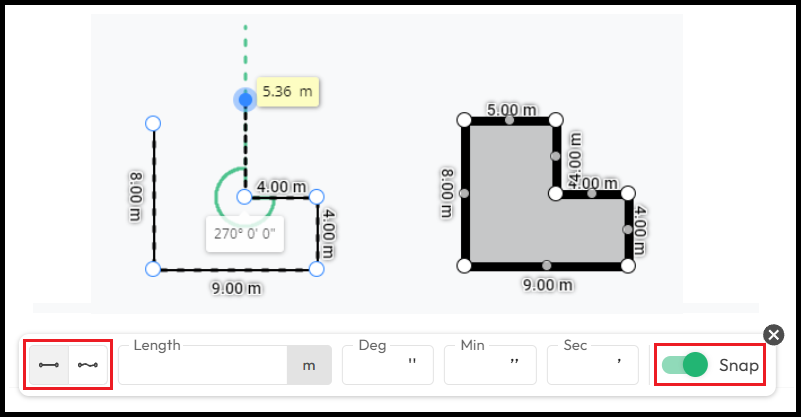
Use the Action Box to alternate between straight / curved lines.
-
Toggle to activate the Snap feature.
-
Enter a dimension & angle into the Action Box.
-
Repeat on each line as necessary.
-
Press Esc to remove the previous point.
-
To terminate, join the last point with the starting point by entering the exact length & angle, or clear all values from the Action Box & click the starting point.
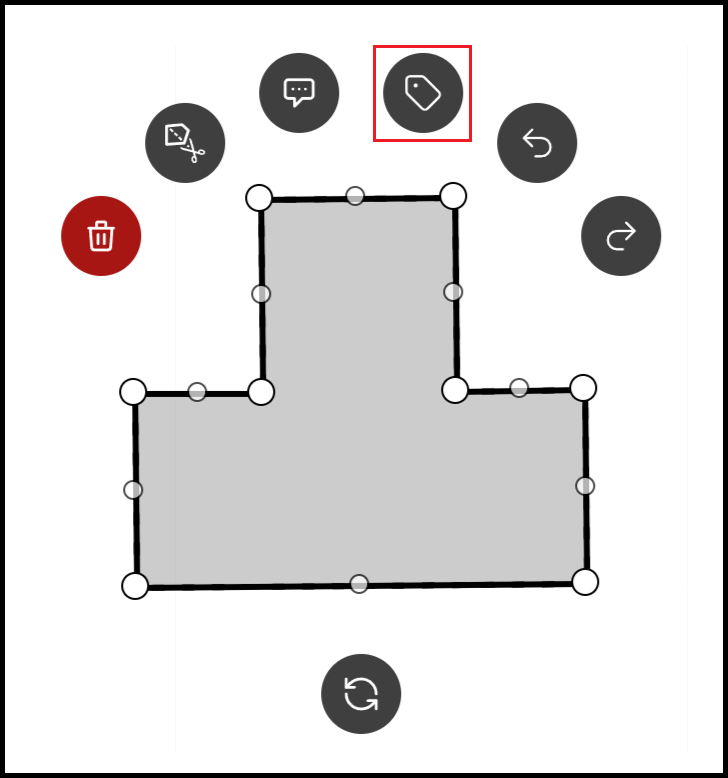
 | Delete Structure - Removes the design from the property. |
 | Cut Segment - Removes a section of the polygon. |
 | Add Annotation - Creates a note bubble that can be positioned anywhere on the site. |
 | Tag Polygon - Identifies a polygon as a specific Build Type. |
 | Undo - Reverts changes made to the shape. |
 | Redo - Reverts the Undo action to the shape. |
 | Rotate - Click & hold to turn the shape 360 degrees in any direction. |
- Left-click the centre of the shape.
- Click Tag Polygon.
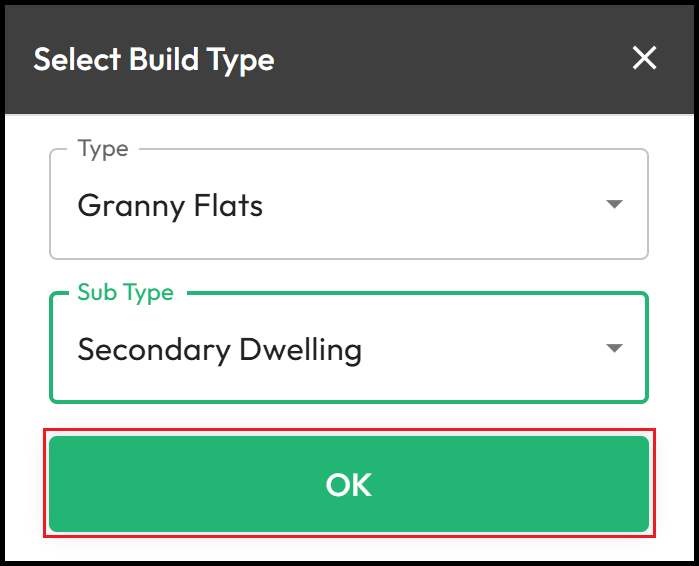
- Select Build Type & Sub Build Type.
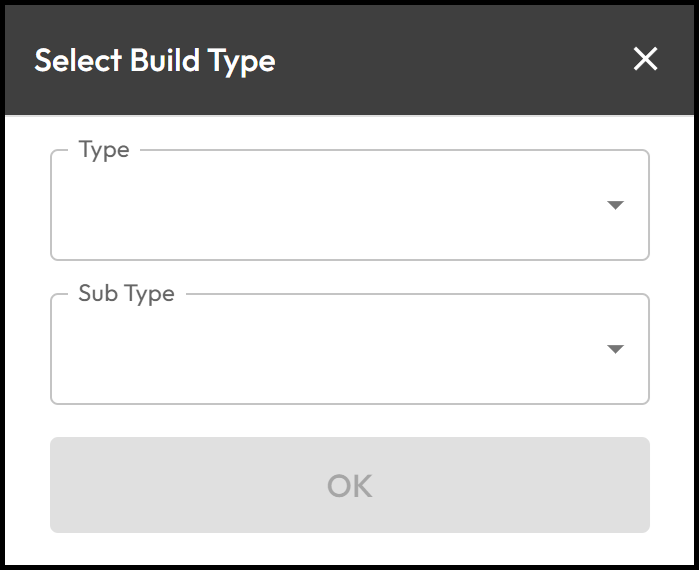
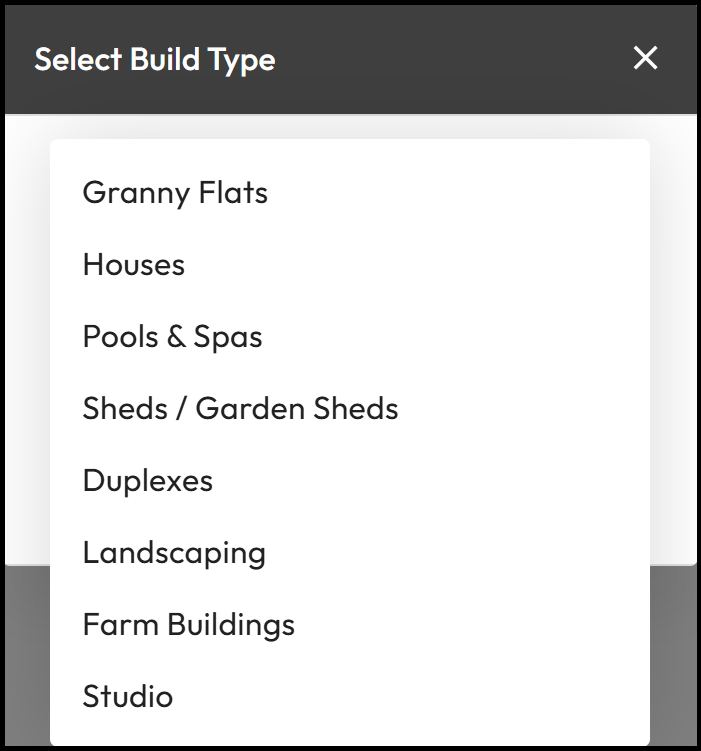
- Select Sub Type.
- Click OK.