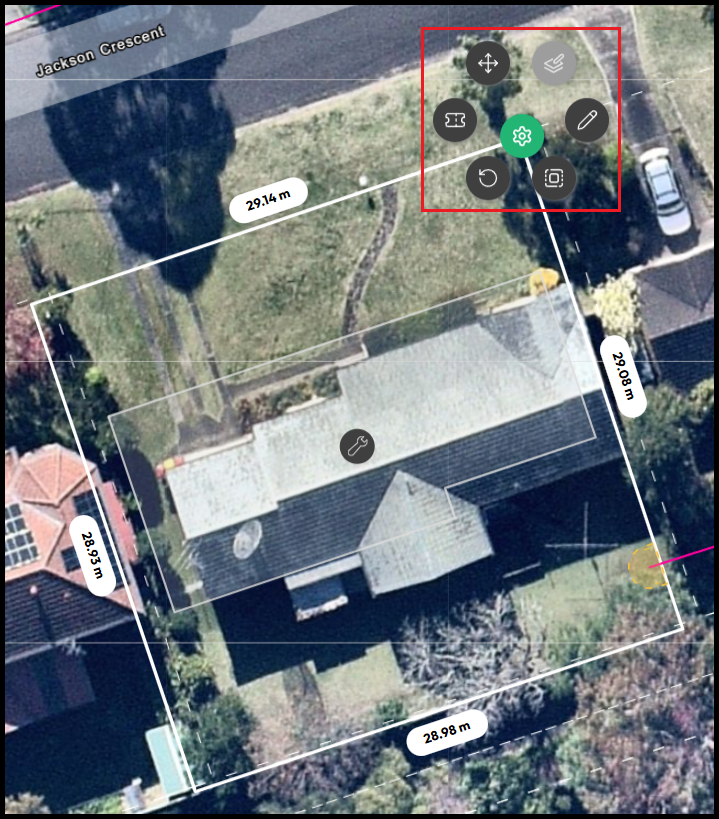
| Gear - Access & manage various aspects of the boundary. |
 | Edit - Edit displayed boundary dimensions & swap boundary frontage on corner lots. |
 | Edit Segment Type - Define or edit boundary labels (Front, Side & Rear Segments). |
 | Drag Lot - Move the boundary to align with the satellite imagery when active. |
 | Enable Easement - Add or identify an easement on a site. |
 | Enable / Disable Edit Plan image - Lock the plan in position so it cannot be moved or edited. |
 | Reset Lot - Clear all changes. |
 | Wrench - Enable existing structures for editing. |
- Click the Gear icon on the corner of the boundary to unlock the boundary.
- Choose from one of the following options:
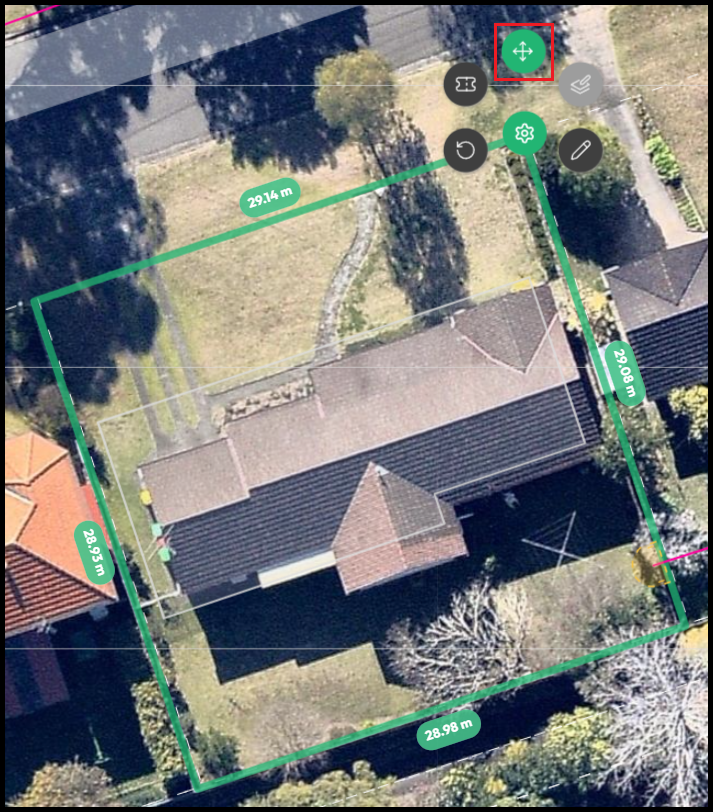
Align the Boundary to the Satellite Imagery
- Click the Gear on the boundary.
- Click Drag Lot.
- Click & hold anywhere inside the property and drag to position the boundary.
- Click Reset Lot to start again.
Adjusting Existing Structures
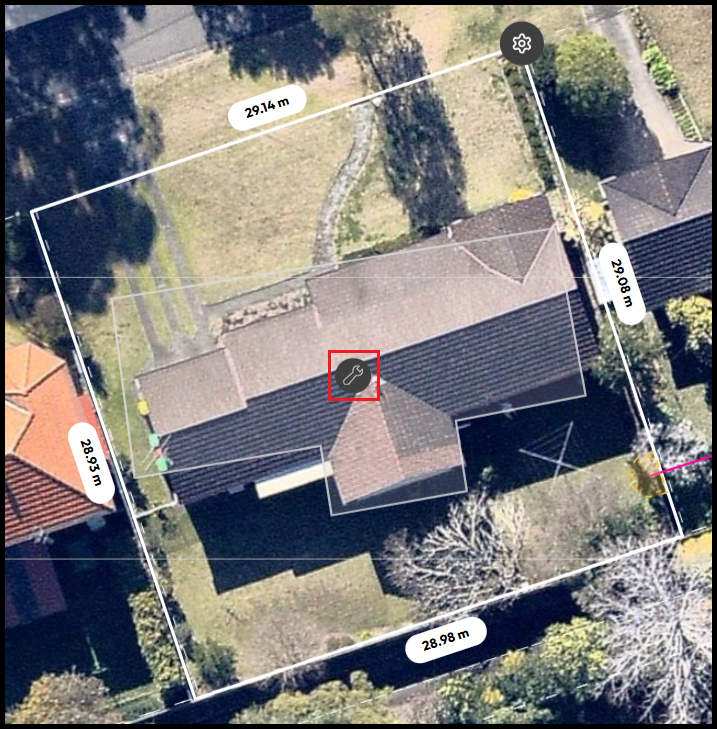
- Hover over the existing structure.
- Click on the Wrench icon to unlock the structure.
- Left-click & hold the large white dots and drag to the correct position.
- Left-click on the small white dots to add additional corner points.
- Right-click on the large white dots to remove them.
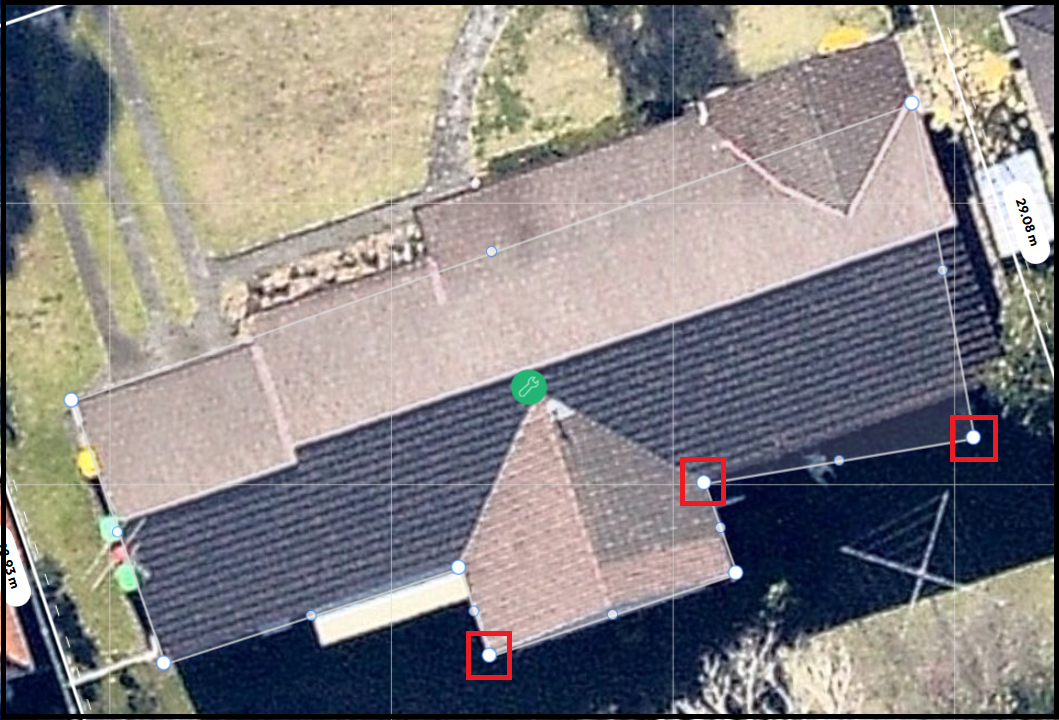
- Once all the large dots are in the correct position, you can add more nodes by clicking the small white dots.
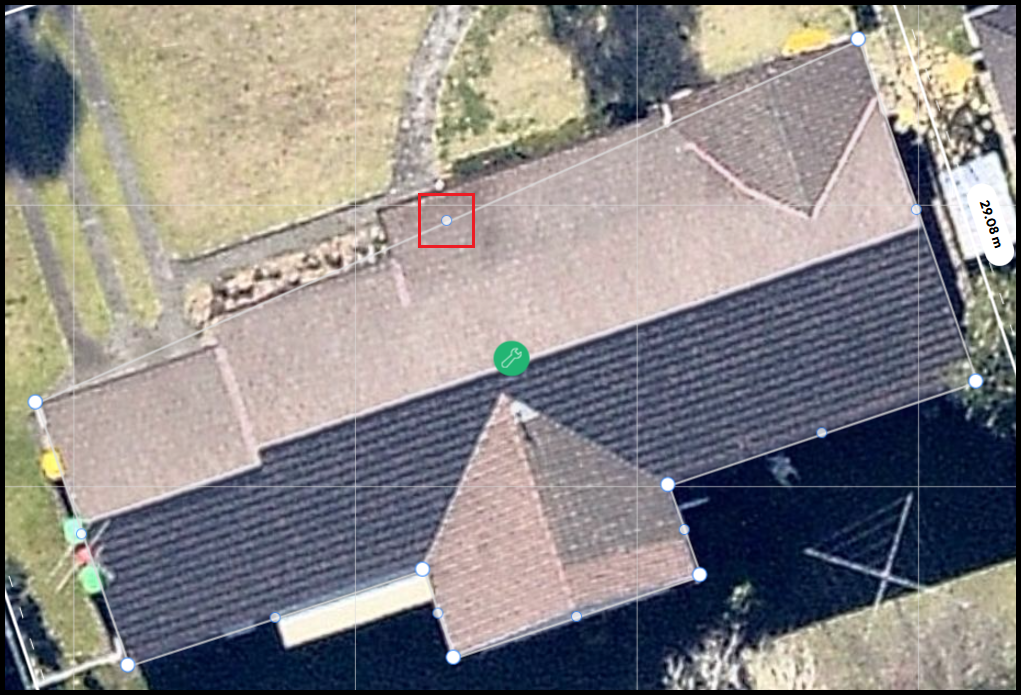
- Continue the process until complete.
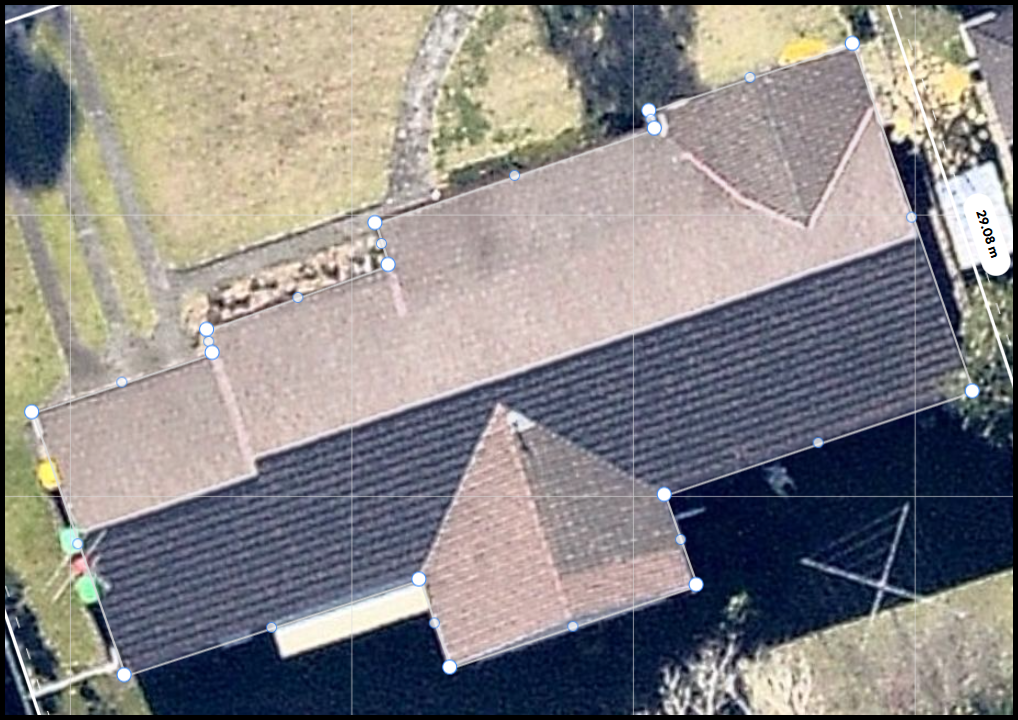
- To confirm the updates, click on the Spanner icon or anywhere on the screen other than the white dots.
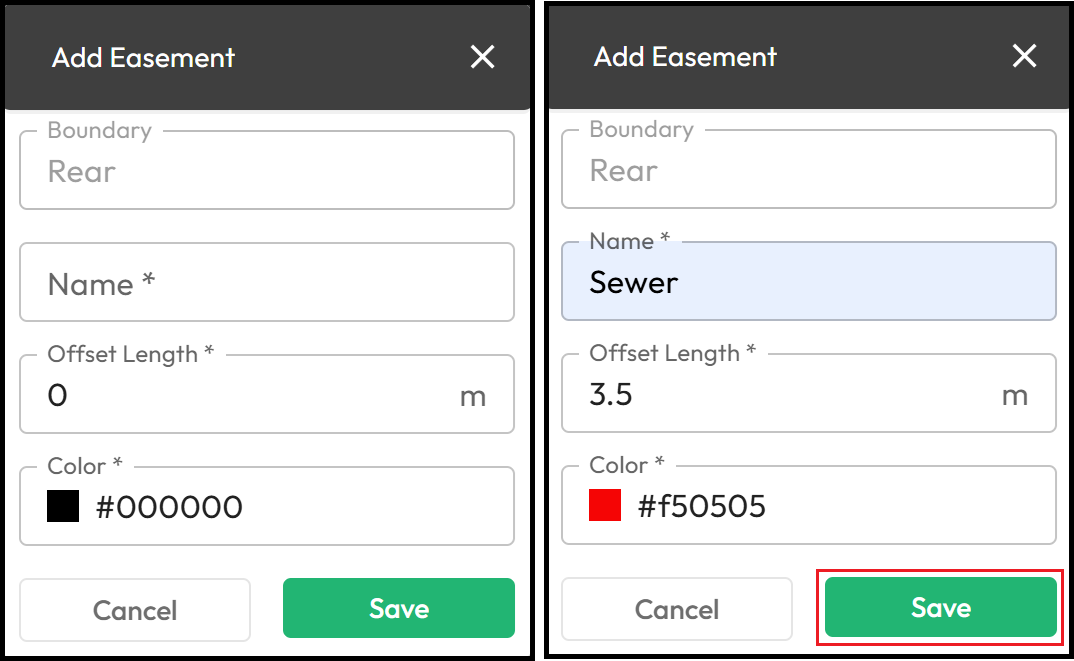
Add an Easement
- Click the Gear on the boundary.
- Click Enable Easement.
- Click Add Easement on the specific boundary.
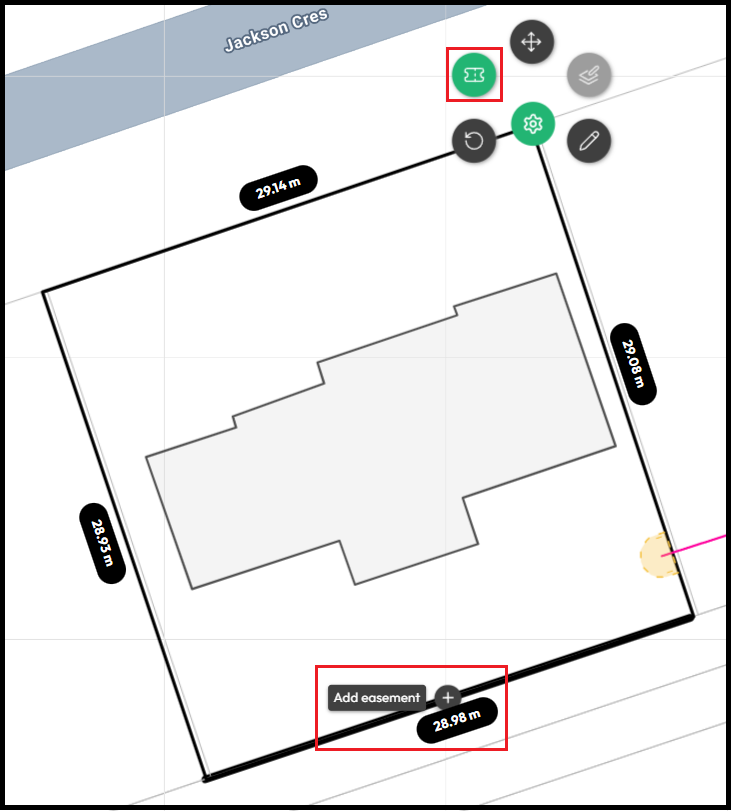
- Enter Easement Name.
- Enter Offset Length (m/ft depending on region.
- Select Color.
- Click Save.
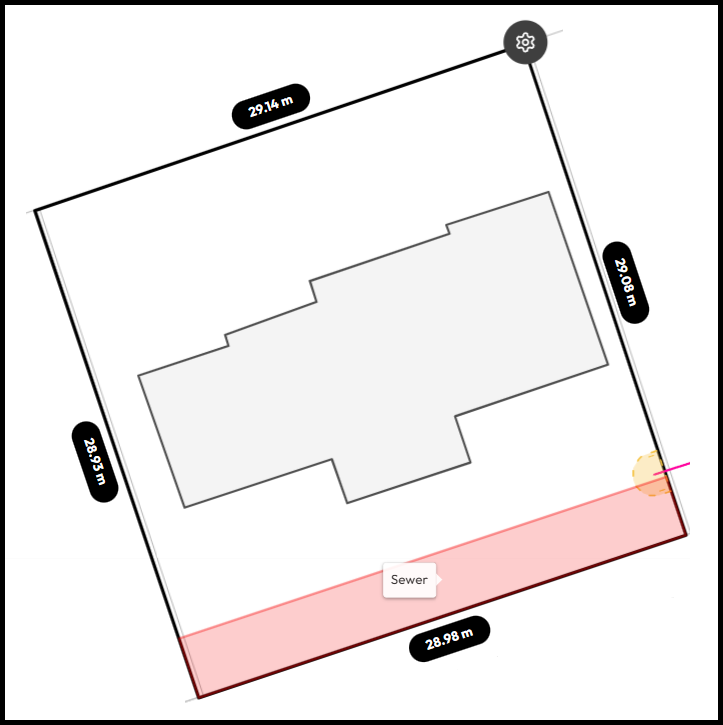
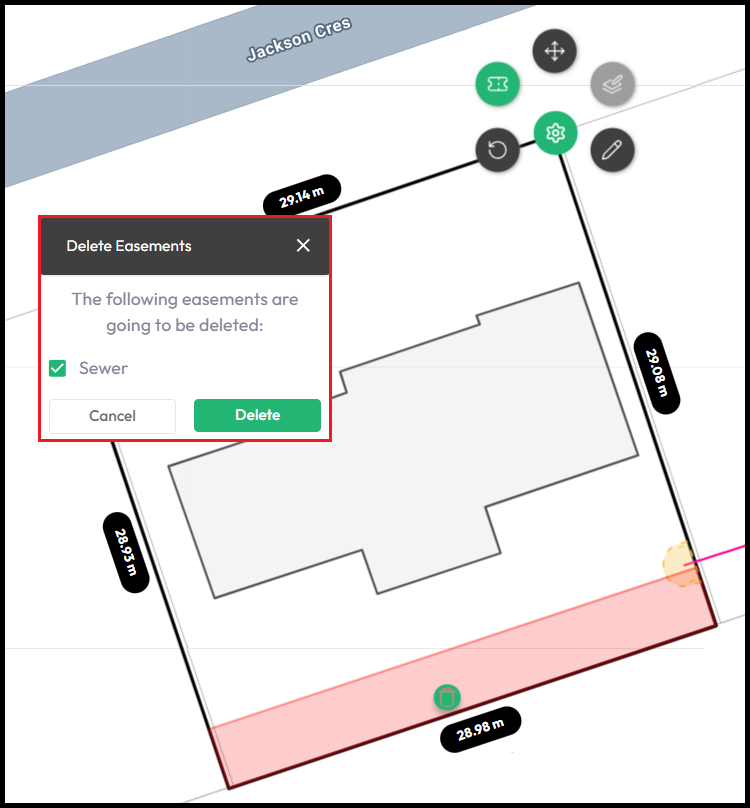
- Click the Green Trash Can Icon.
- Click Delete.
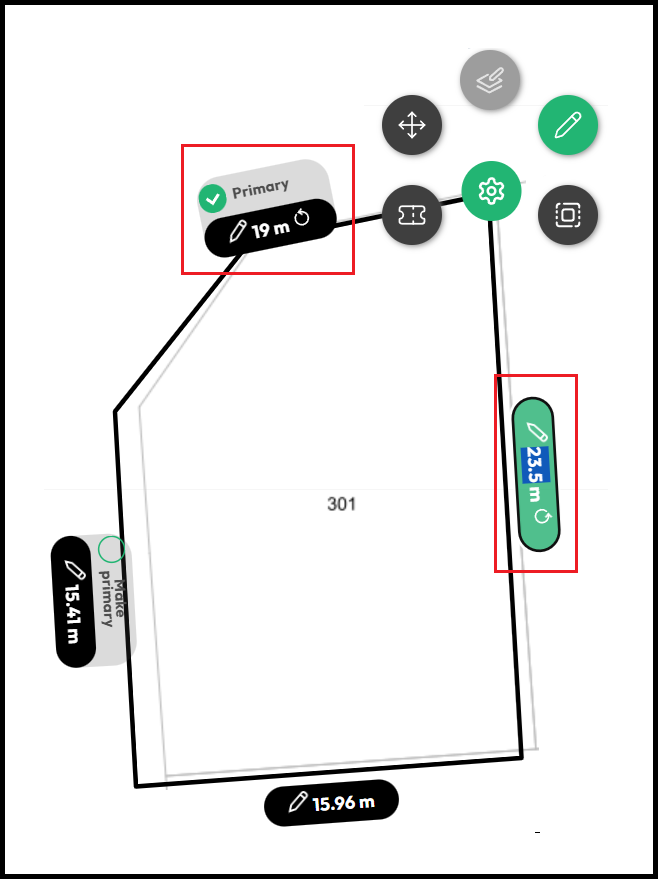
Edit Boundary Dimensions
- Click the Gear on the boundary.
- Click Edit.
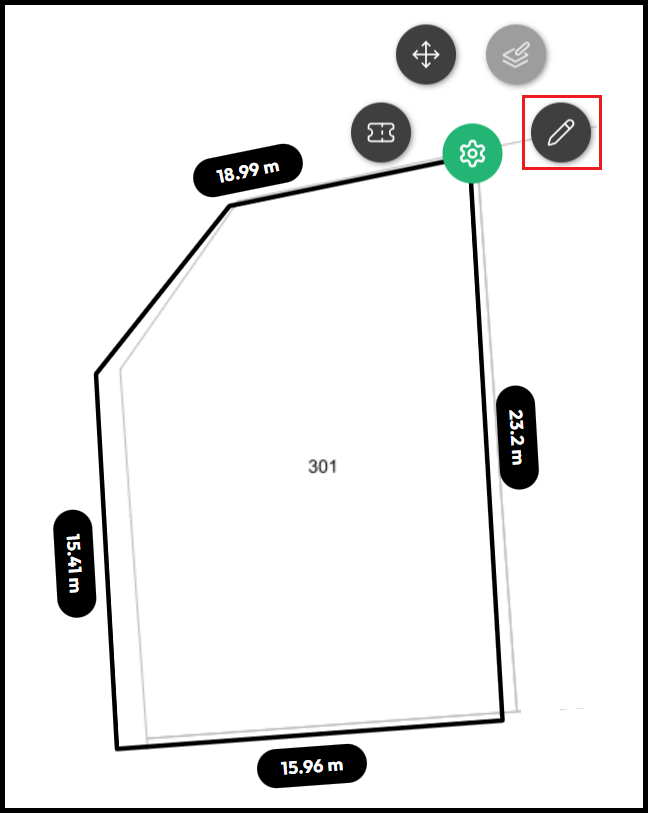
- Click Primary to alternate.
- Click on the boundary measurement to edit.
- Click on the circular arrow to undo the change.
- Select the Gear tool when done to lock in the changes.
Edit Segments
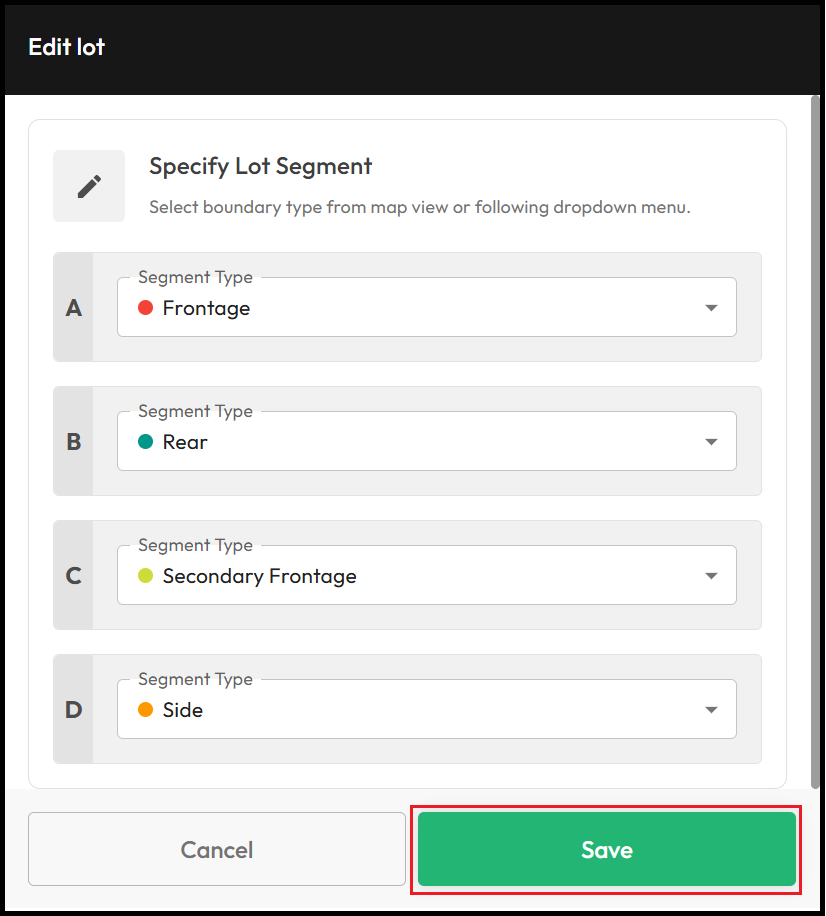
- Click the Gear on the boundary.
- Click Edit Segment Type.
- Select Segment for each boundary.
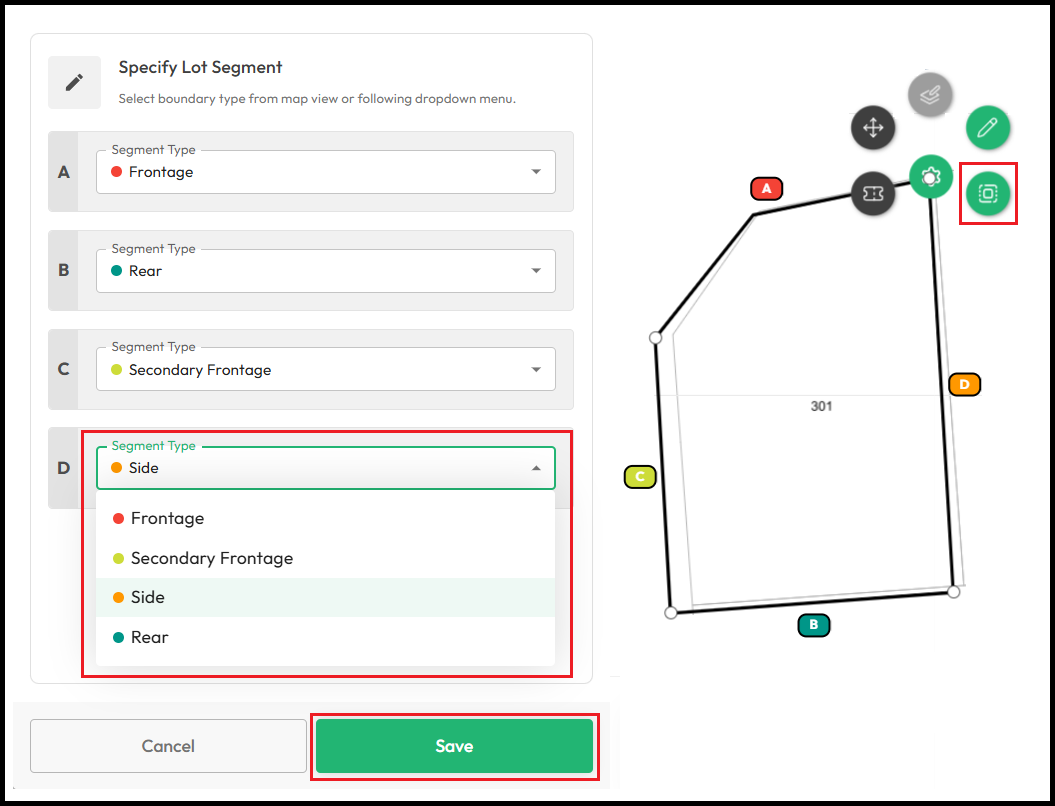
- Click Save.