This article will show you how to access your Canibuild subscription details, lookup usage, billing history, & update your account or payment information. This includes invoices for your monthly subscription & any documents ordered via Marketplace.
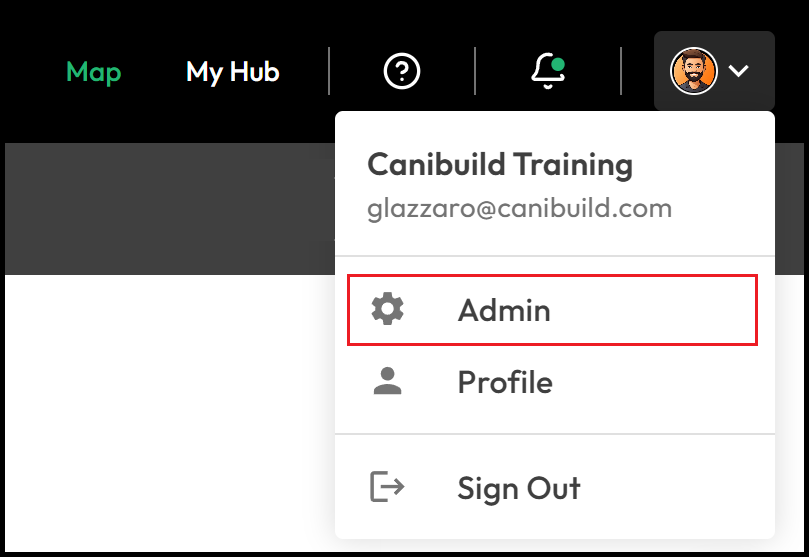
- To access the Admin section Click on your initials on the top right corner of the screen.
- Select Admin from the options.
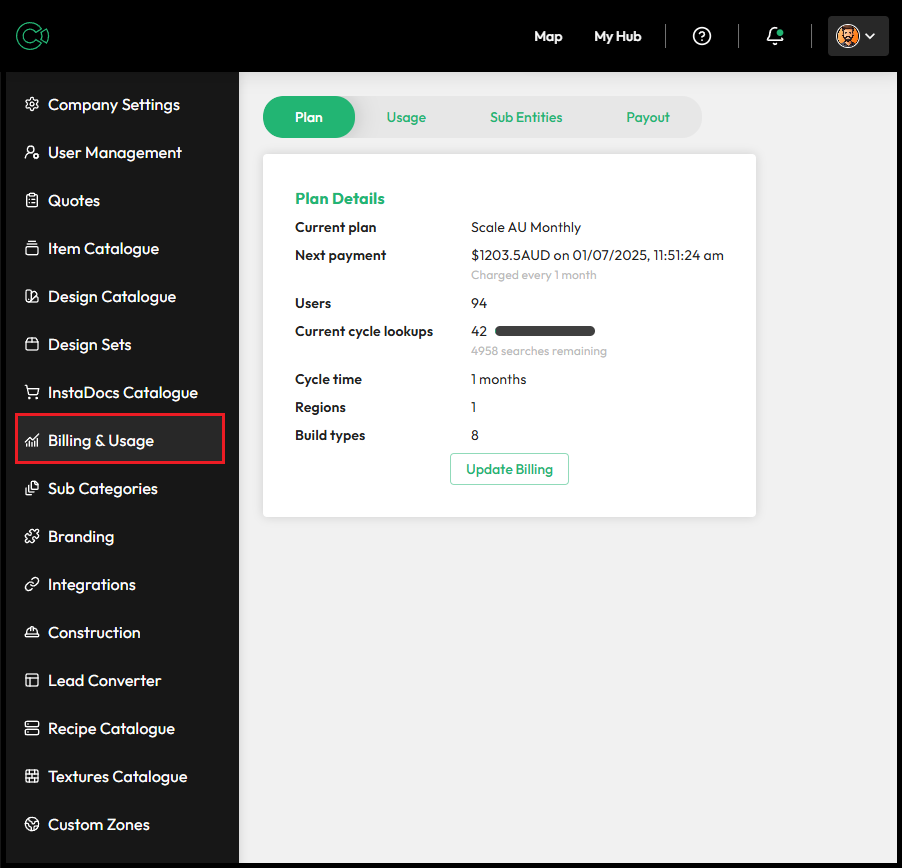
- Click on Billing & Usage.
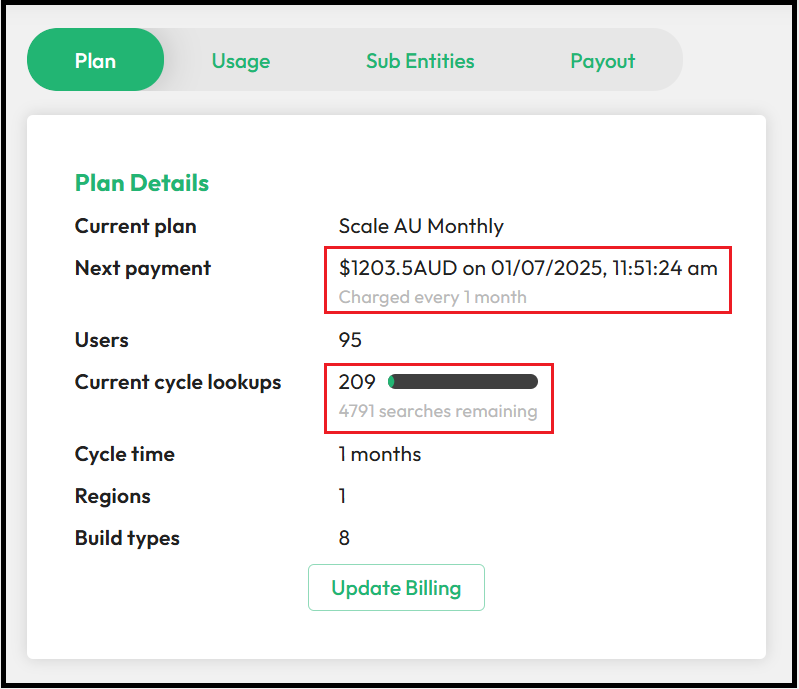
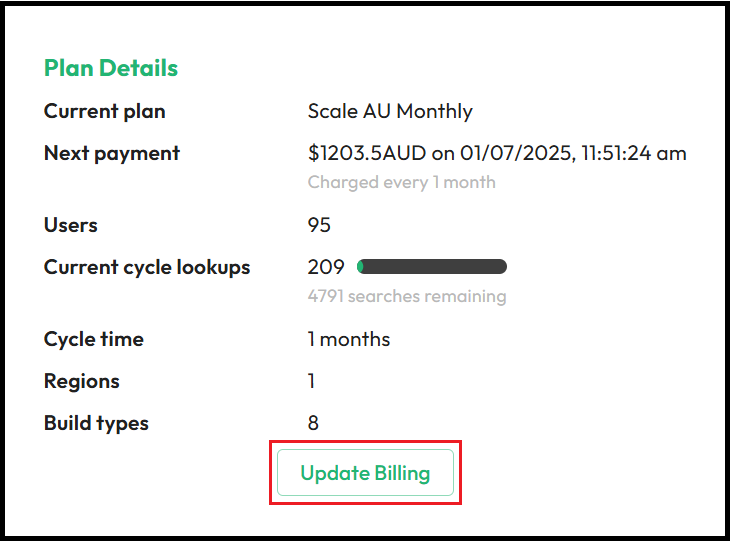
Plan
- View Next Payment.
- View Current Cycle Lookups.
- The payment amount includes any add-ons (not itemised).
- Select Update Billing.
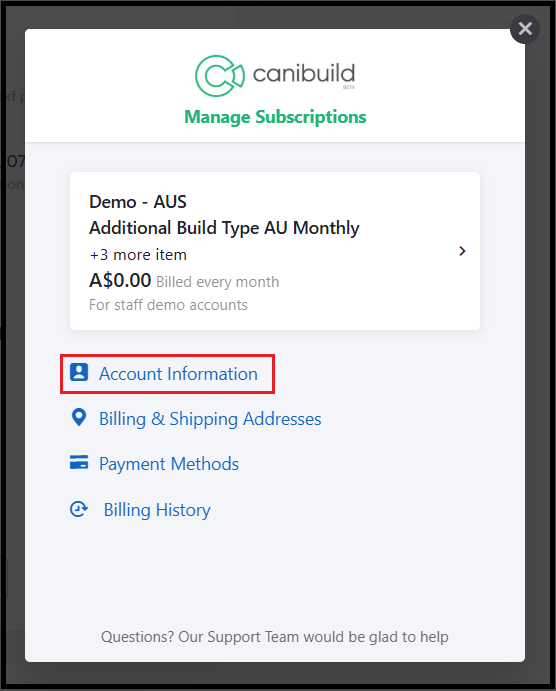
- Select Account Information.
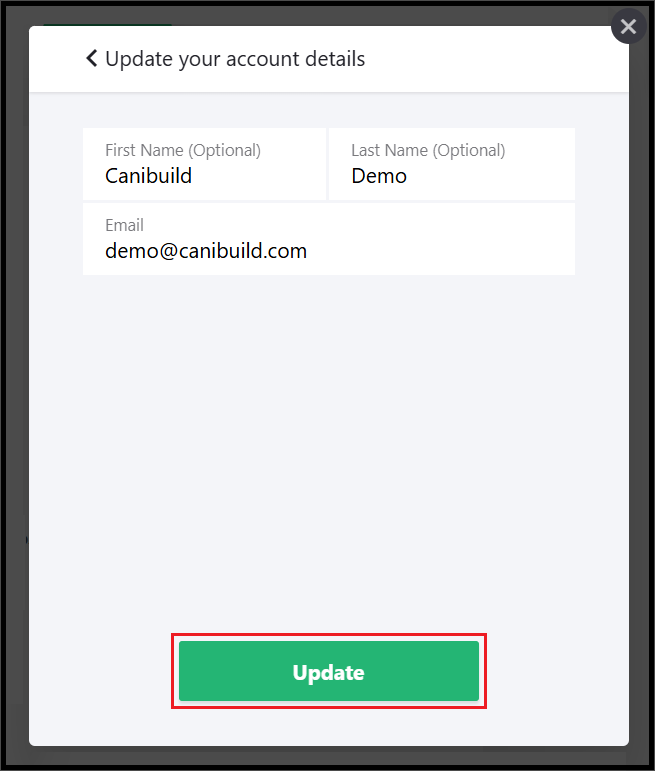
- Update account details.
- Click Update to save changes.
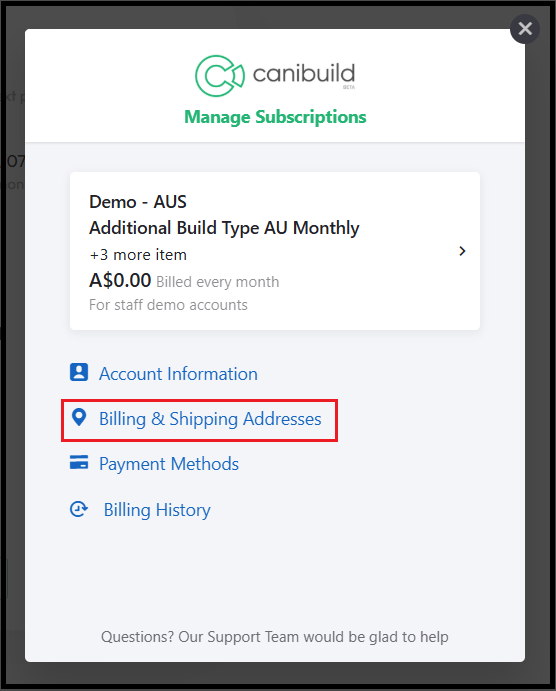
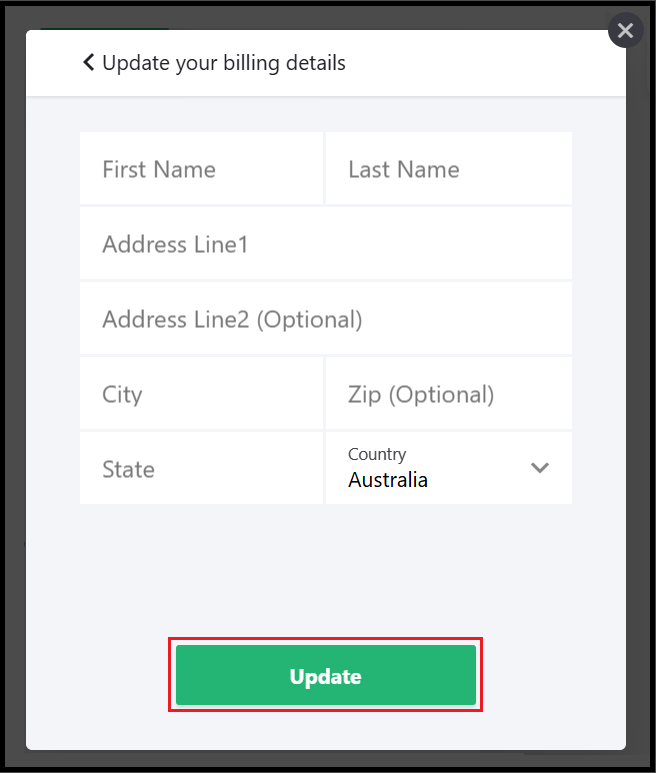
- Select Billing & Shipping Addresses.
- Update billing address details.
- Click Update to save changes.
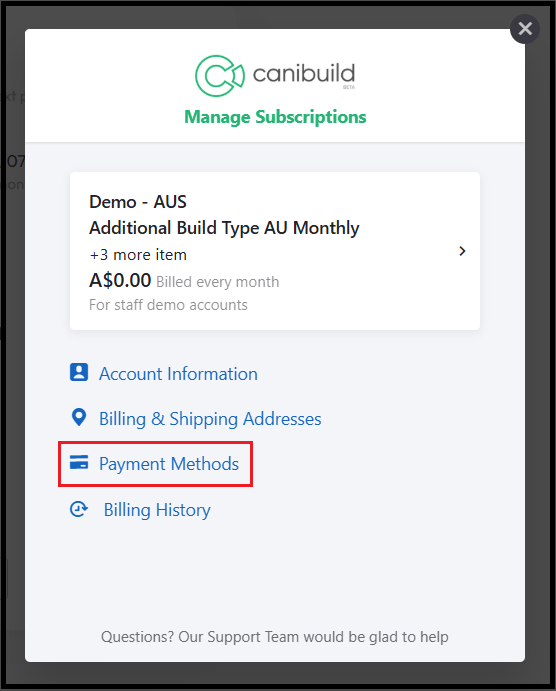
- Select Payment Methods.
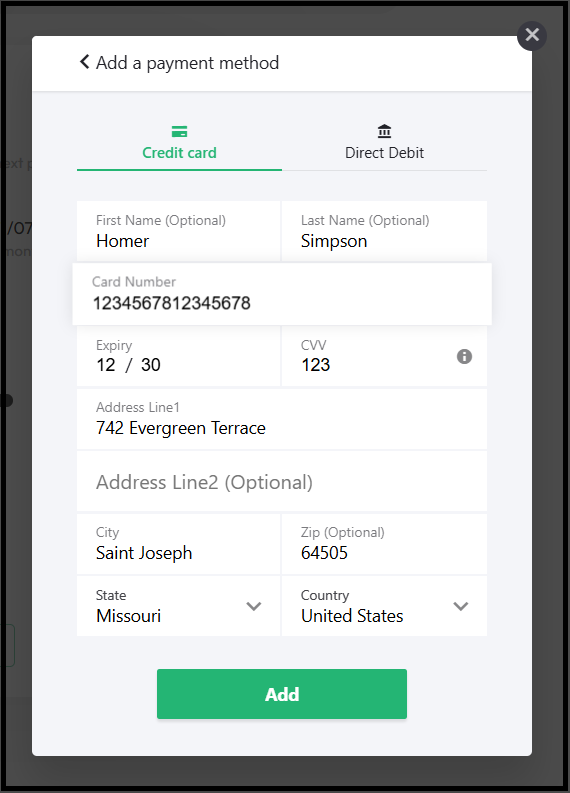
- Select Credit Card.
- Enter Credit Card Details.
- Click Add to update payment information.
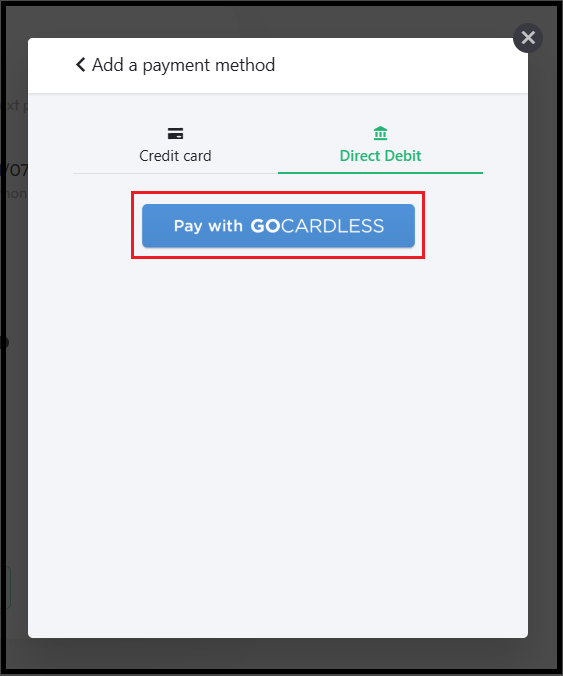
- Select Direct Debit.
- Click Pay with GOCARDLESS.
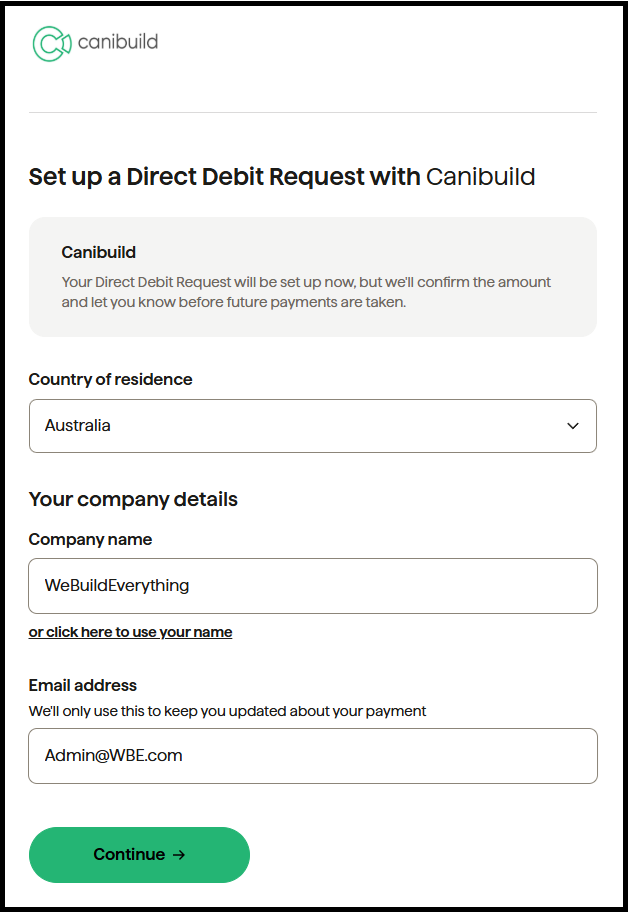
- Enter your Company Details.
- Click Continue.
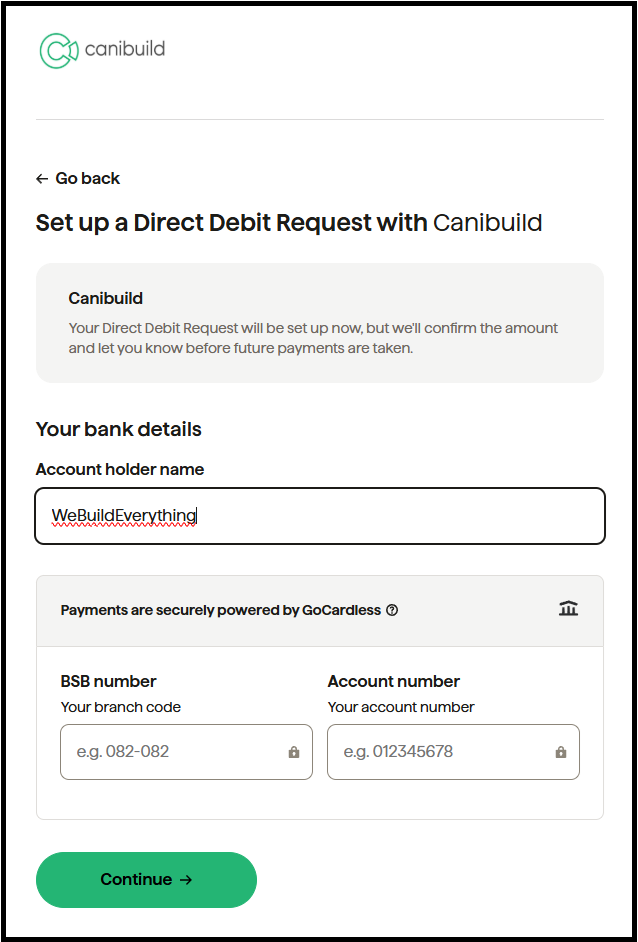
- Enter your Bank Details.
- Click Continue.
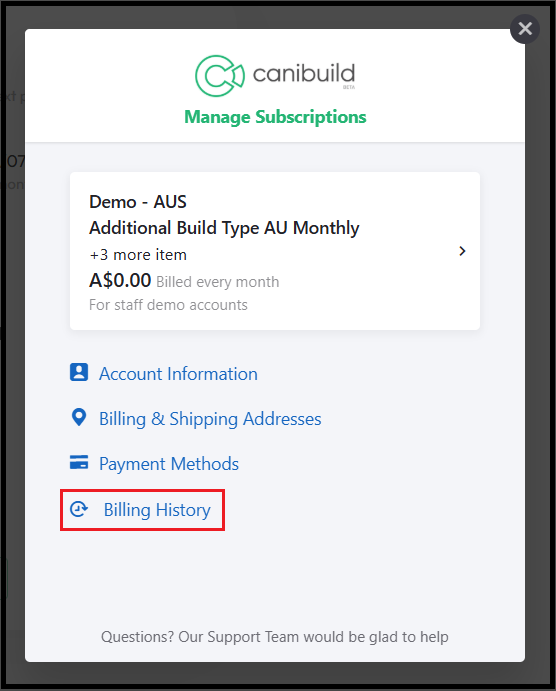
- Select Billing History.
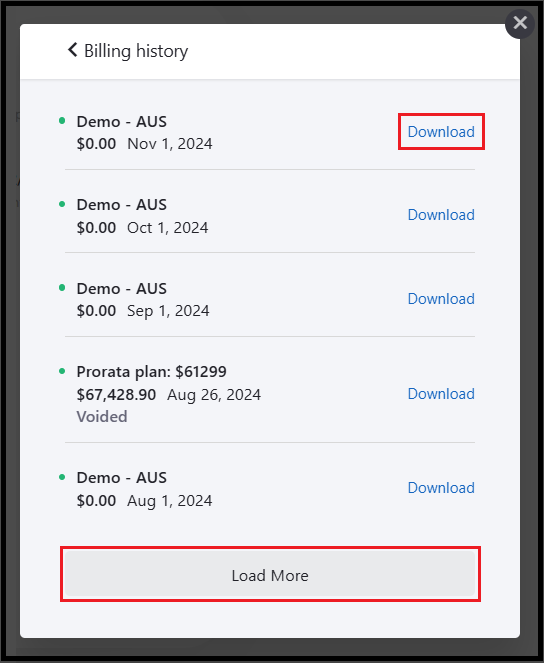
- Click Load More to view complete history.
- Click Download to download an invoice.
Usage
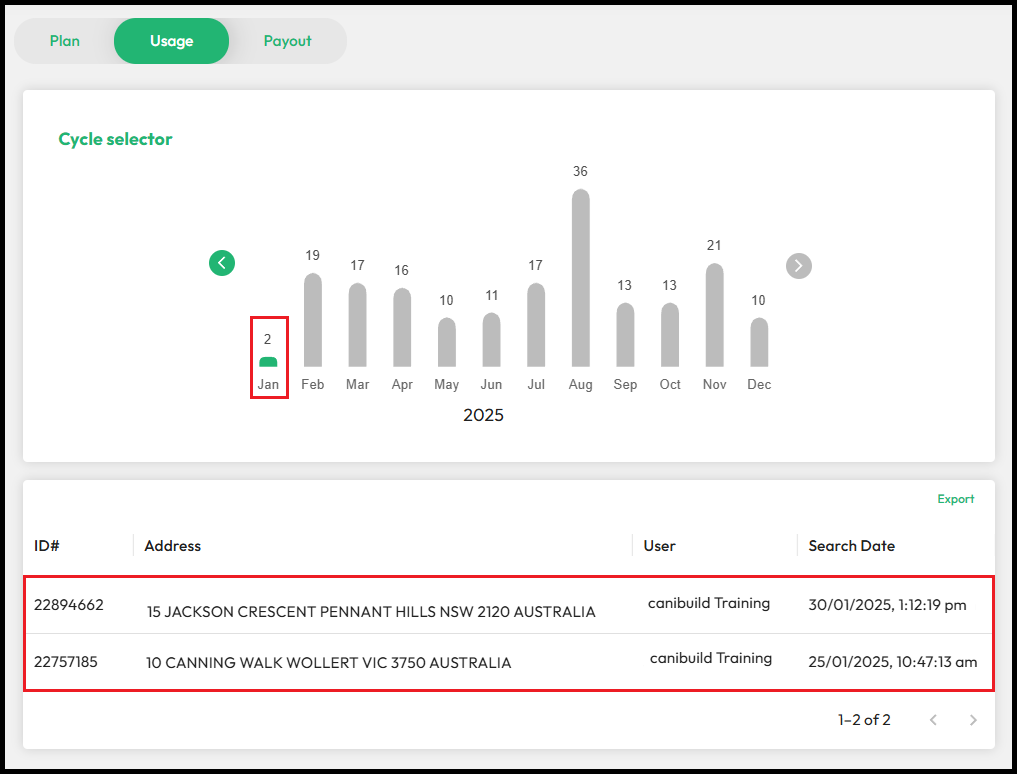
- Click Usage to view a detailed breakdown.
- View monthly lookups & the addresses searched.
- Click Export to download a CSV file of your look ups.
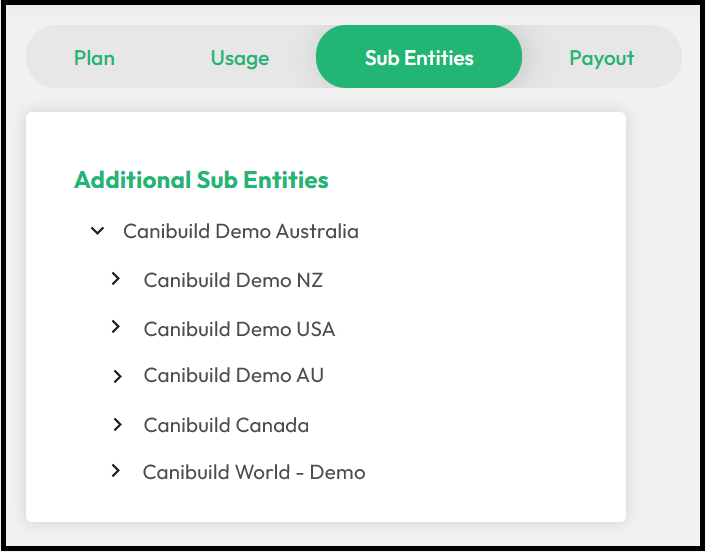
Sub Entities
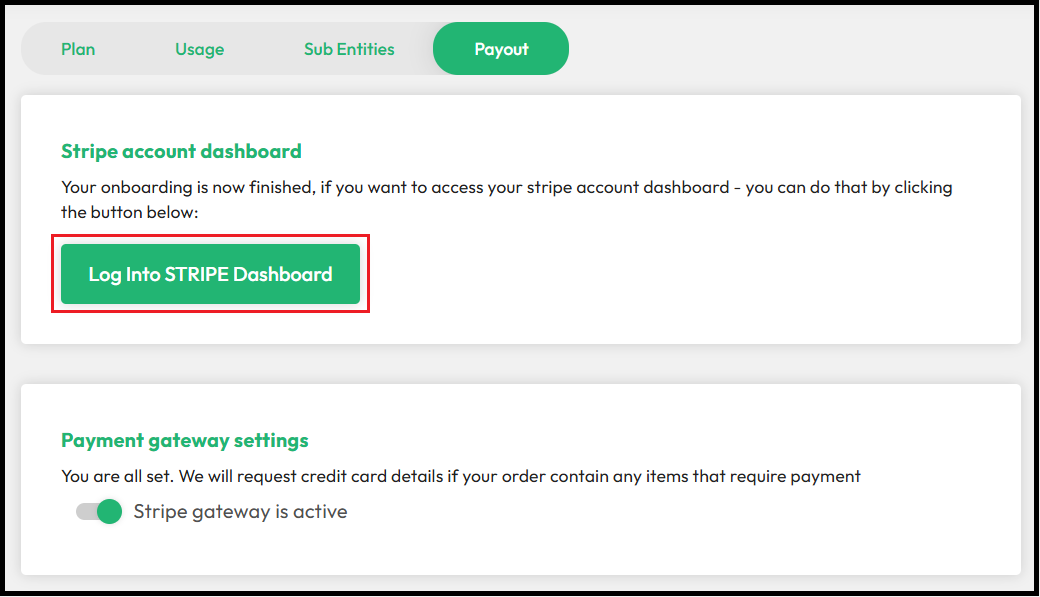
Payout
- Click Log into STRIPE Dashboard to view or make payouts.