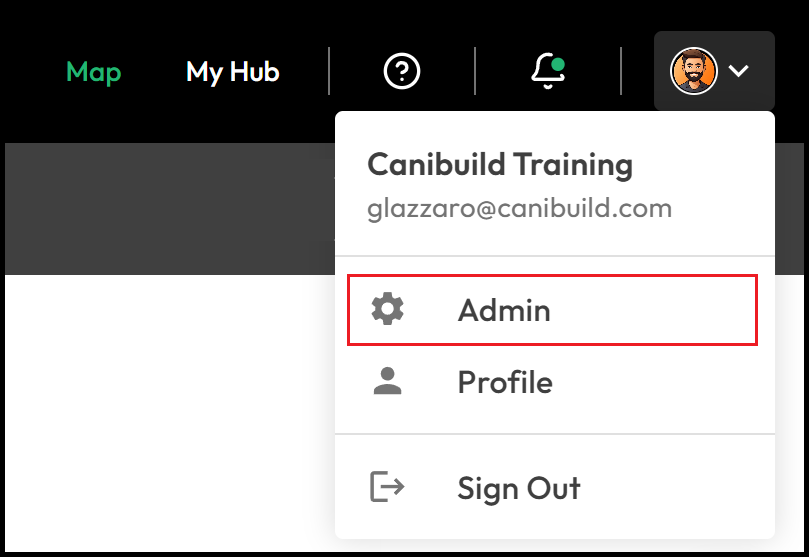
- To access the Admin section Click on your initials on the top right corner of the screen.
- Select Admin from the dropdown menu.
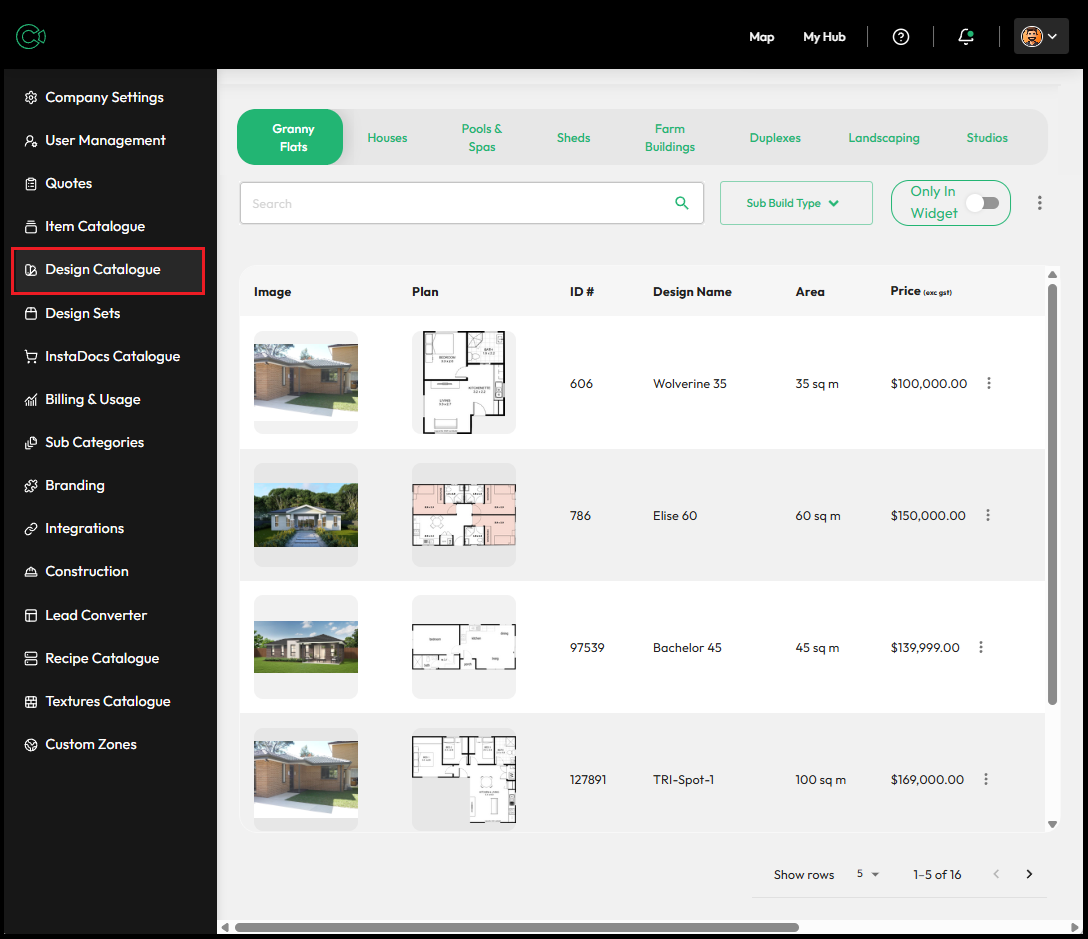
- Click Design Catalogue.
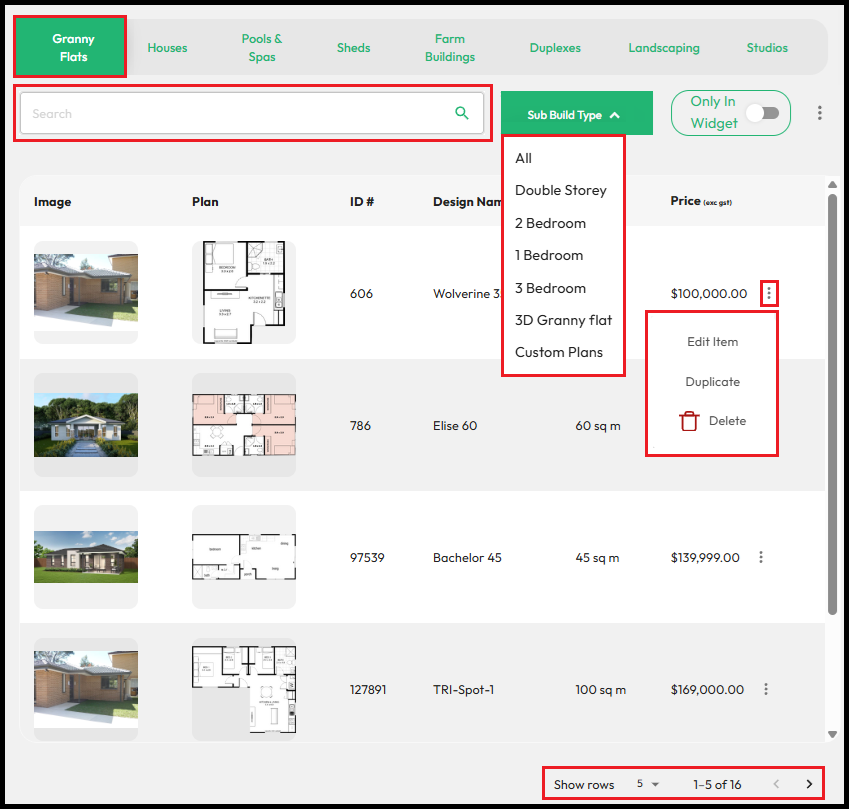
Select a Build Type.
-
Cycle through pages to locate the design.
-
Use the Search Bar to enter a design name.
-
Use Sub Build Type to filter.
-
Click the three dots next to the design.
-
Click Edit.
-
Click Duplicate to create a copy of the design.
-
Click Delete to permanently remove the design.
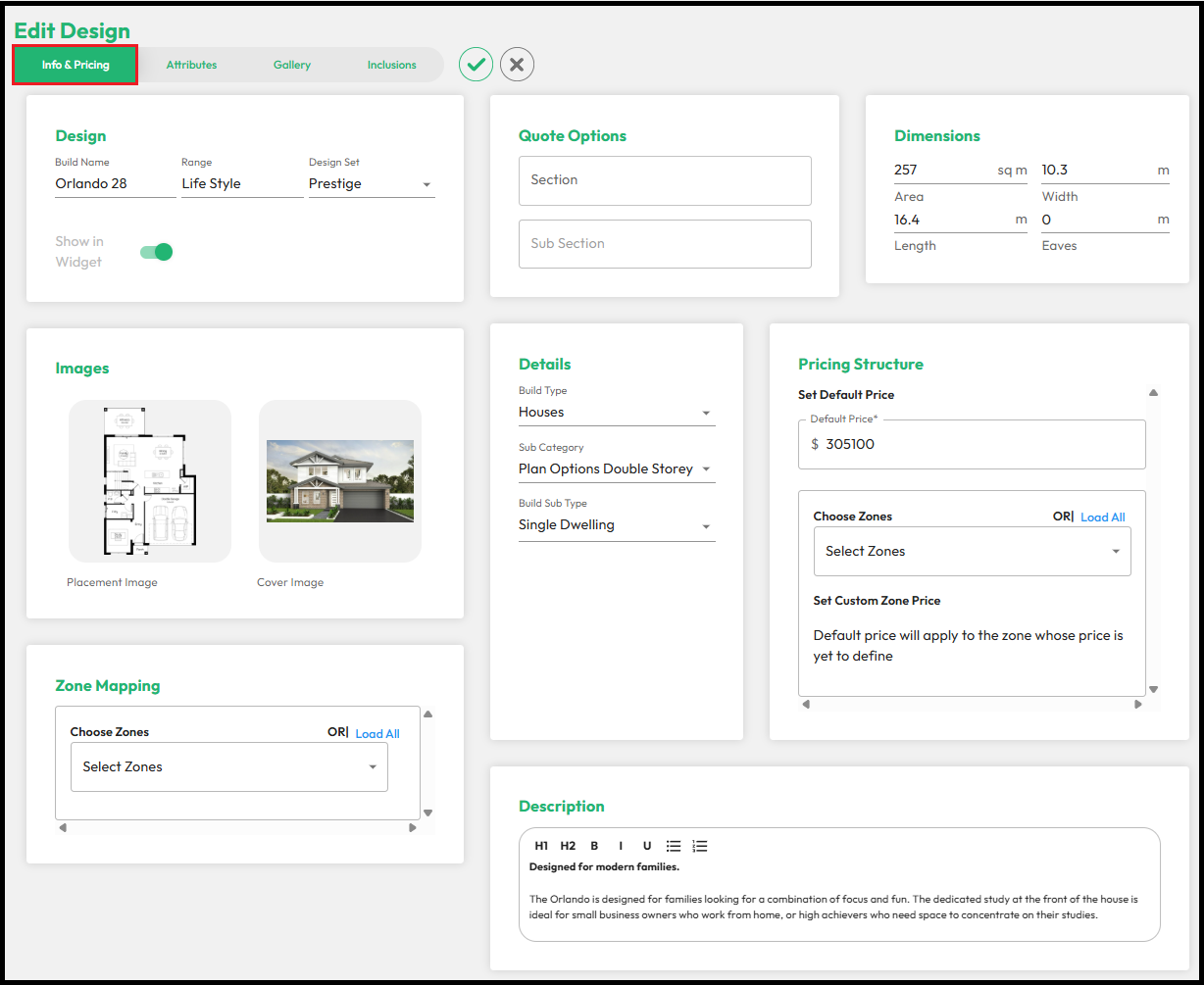
- Select Info & Pricing to edit Design details.
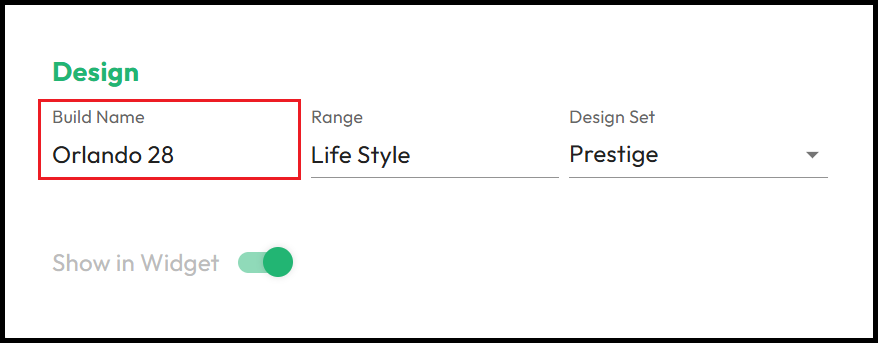
- Edit Build Name.
- Edit Range.
- Select a Design Set.
- Toggle to add to ShowLot.
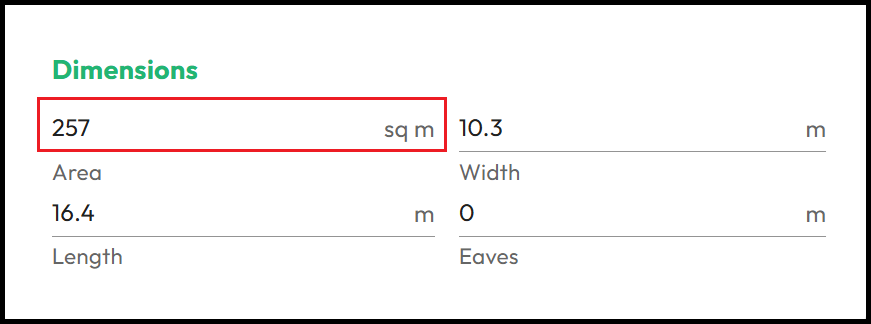
- Edit Area.
- Edit Length.
- Edit Width.
- Edit Eaves.
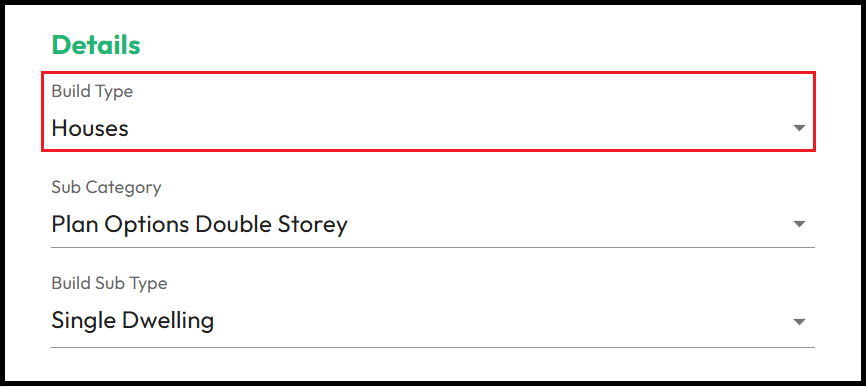
- Select Build Type (Houses, Pools, Granny flat or Shed)
- Select Sub Category.
- Select Build Sub Type.
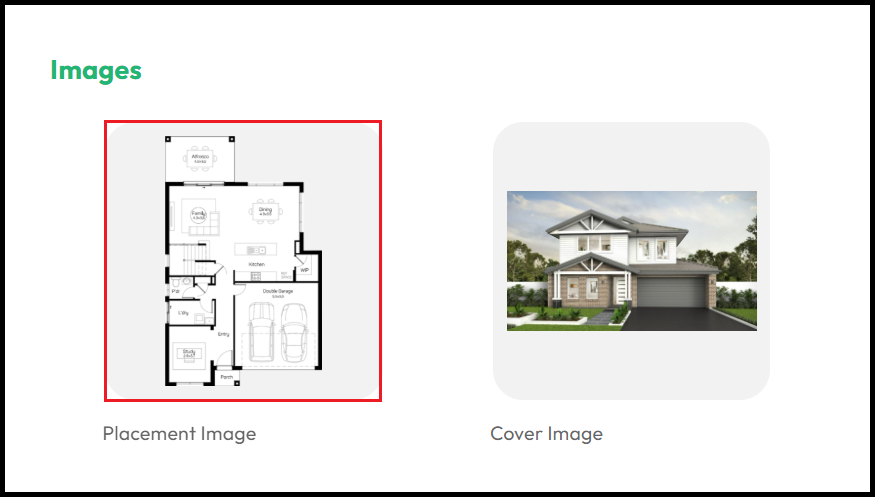
- Click Placement Image to update or manage.
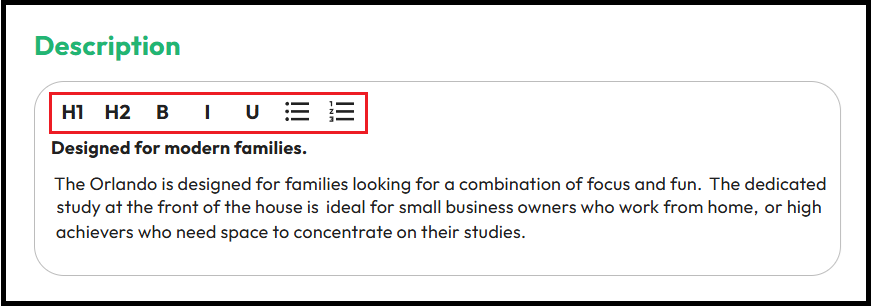
- Add or update a Design Description
- Choose H1 or H2 for preset heading formats.
- Select Bold, Italics or Underline.
- Select to add Dot or Numbered Lists.
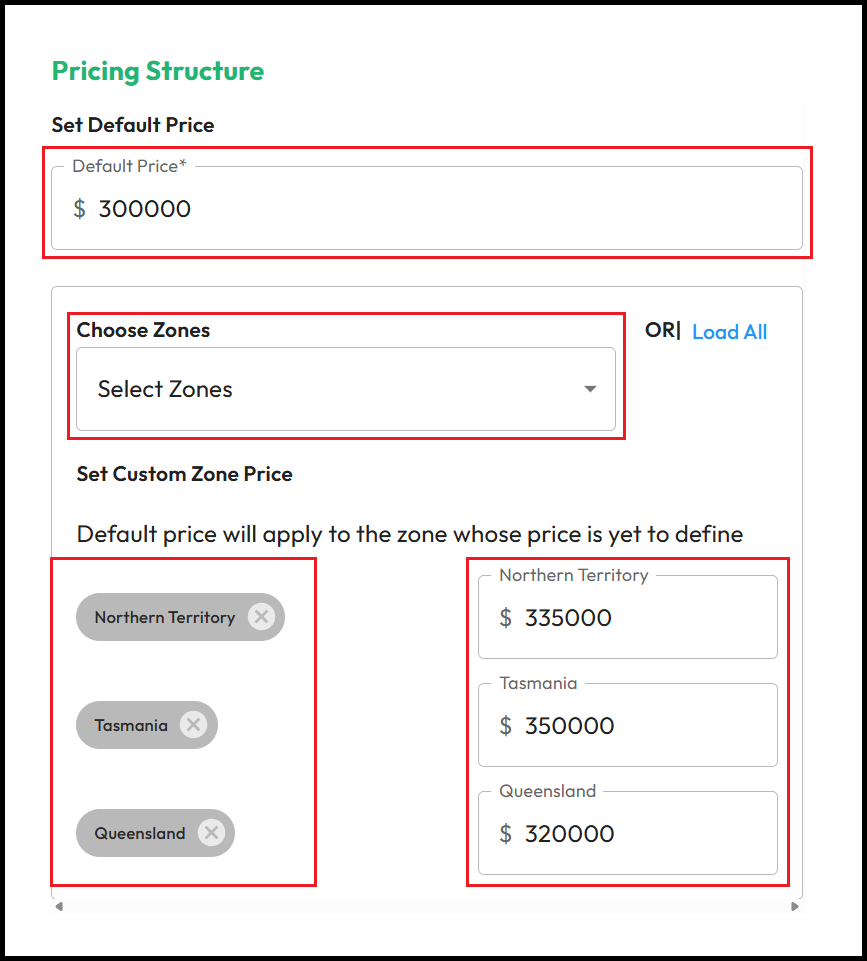
- Enter the Default Price.
- Click Select Zone to add an alternate Price.
- Enter Custom Zone Price.
- Click the X to remove Custom Zone Price.
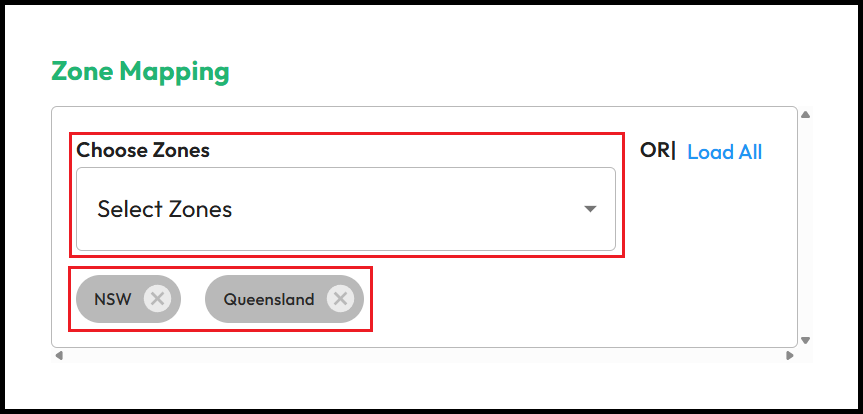
- Click Select Zones.
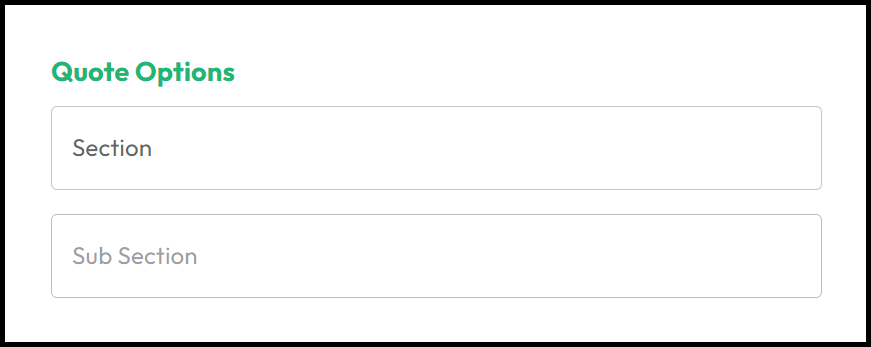
- Select a Quote Section.
- Select a Quote Subsection.