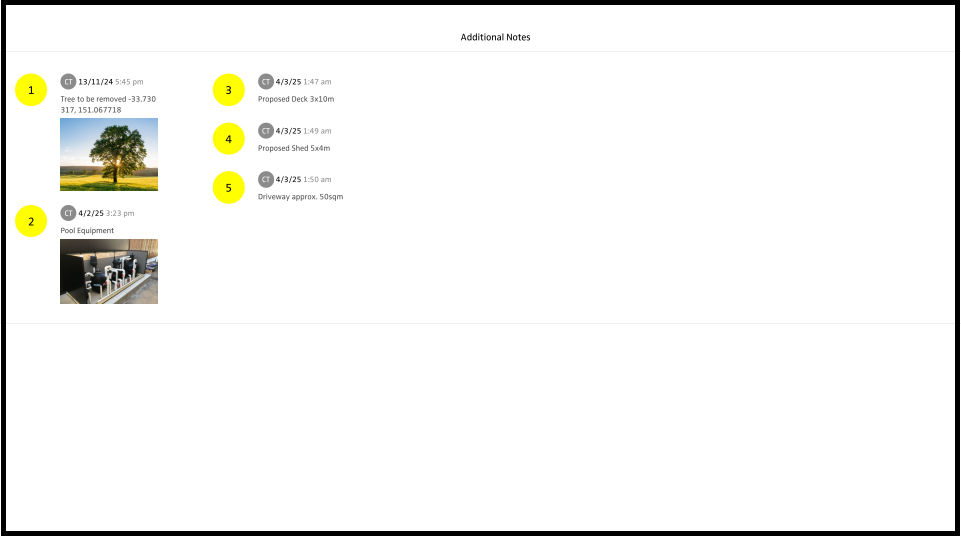
This article explains how to add, edit, & manage annotations on your site plan. Annotations are a valuable way to label and provide additional information directly on your design. They can include text and images, & will appear on the final site.
How to Add an Annotation
-
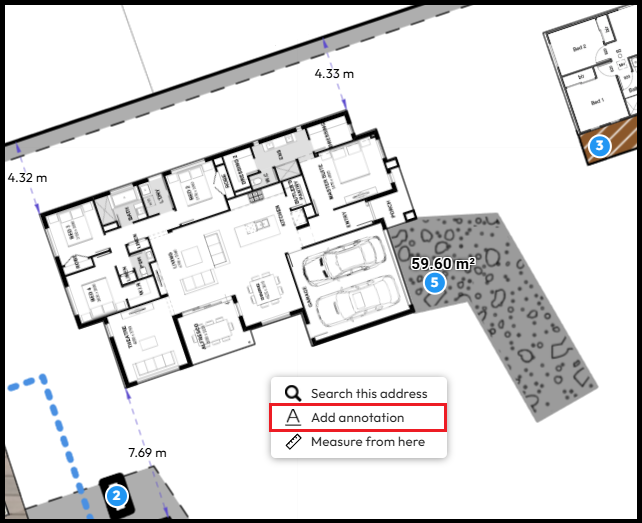
Right-click anywhere on the map.
-
Select Add Annotation.
-
Drag your mouse to the desired location.
-
Left-click to place the annotation.
-
Add text and images as needed.
-
Left-click on the map to minimise the annotation.
OR
-
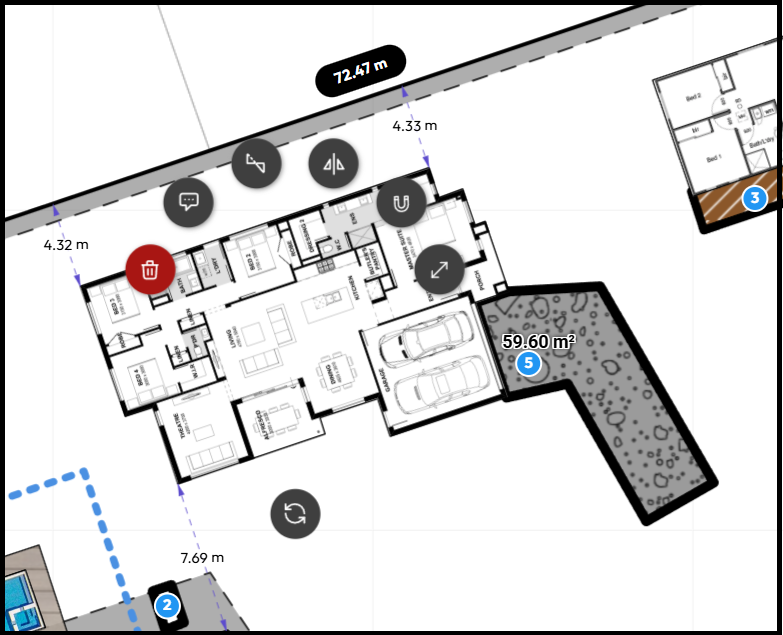
Left-click the centre of any Design or Shape.
-
Select the Add Annotation icon.
-
Drag your mouse to the desired location.
-
Left-click to place the annotation.
-
Add text and images as needed.
-
Left-click on the map to minimise the annotation.
OR
-
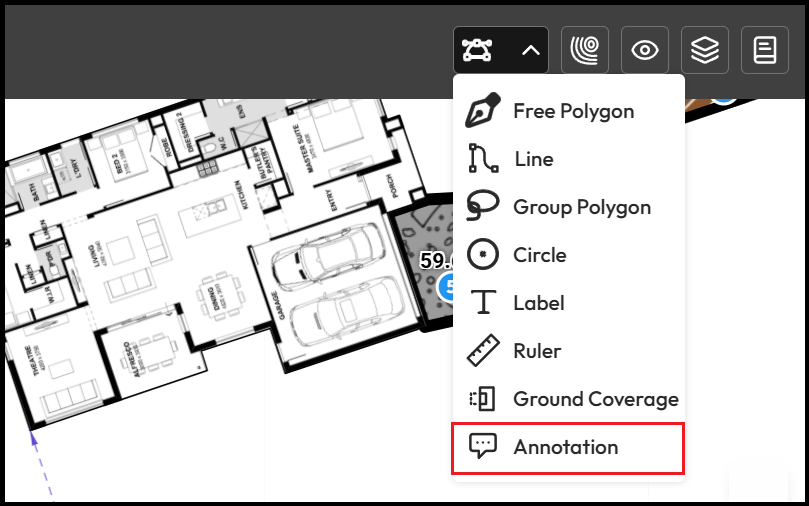
Hover over the Drawing Tools menu (Top Right).
-
Select the Annotation icon.
-
Drag your mouse to the desired location.
-
Left-click to place the annotation.
-
Add text and images as needed.
-
Left-click on the map to minimise the annotation.
How to Edit and Manage Annotations
-
Left-click and hold to move the annotation.
-
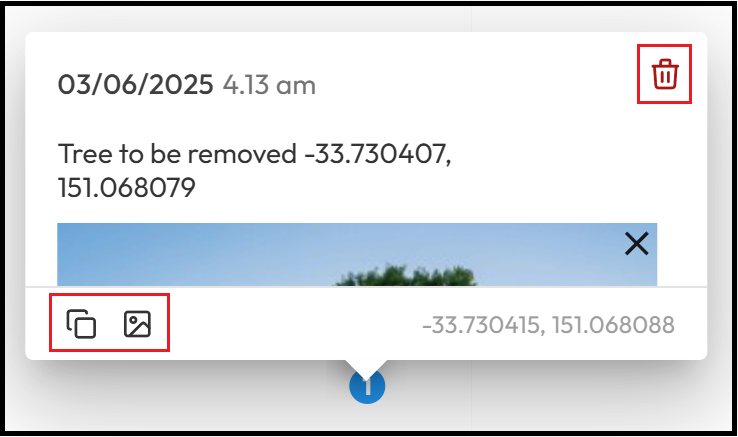
Left-click on the annotation to open the edit window.
-
Enter or update any text in the text box.
-
Click the Copy icon to copy the coordinates.
-
Click the Picture icon to upload an image from your device.
-
Click the Trash Can icon to delete the annotation.
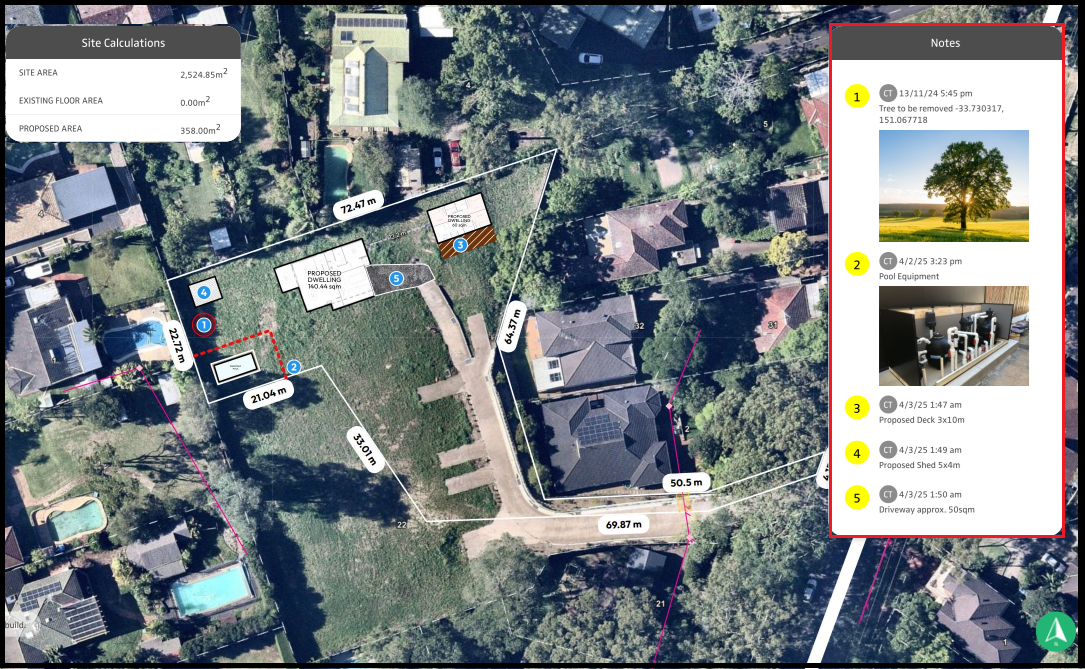
How Do Annotations Appear on the Site Plan
-
Order a Site Plan to view your annotations on the document.
-
Adjust annotation placement using Site Plan Branding settings as needed.
OR