This article will cover how to use the Generate option to order standard Canibuild documents like the Site Plan, Flyer, Storyboard & Proposal. Depending on your subscription or build type you may also have access to H&L Packages or Quotes.
- Set up the site with all relevant details & designs.
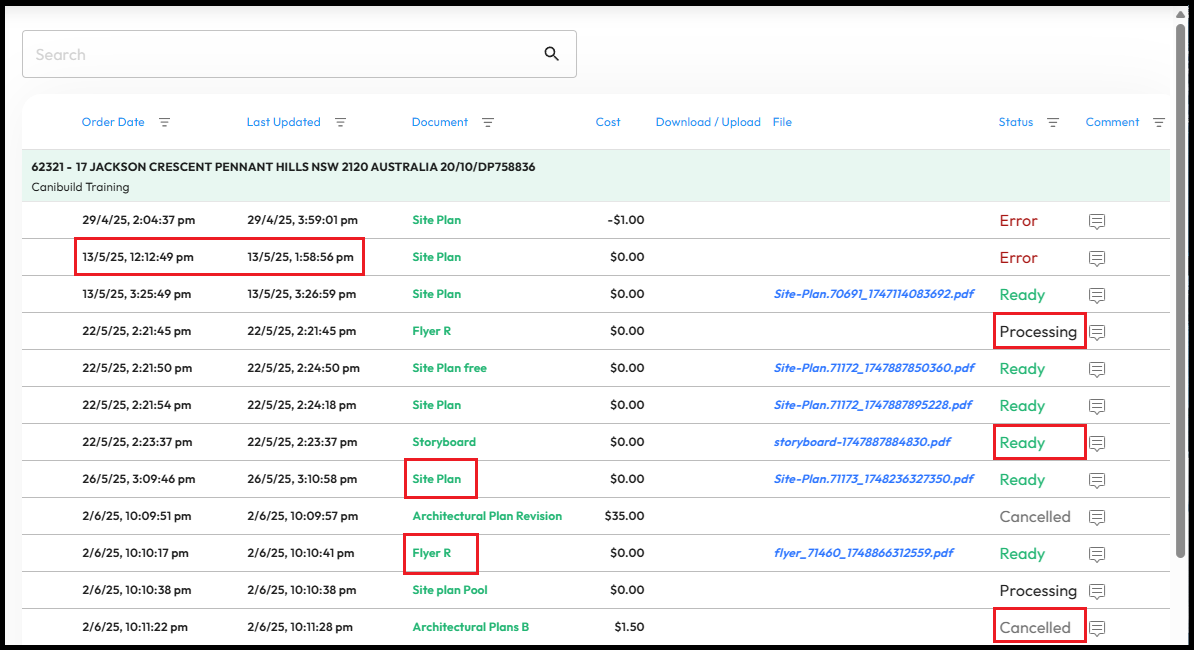
- Click the Generate button on the left panel.
- Select from the list of Documents:
- Site Plan.
- Flyer.
- Proposal.
- Quote.
- Storyboard.
- House & Land.
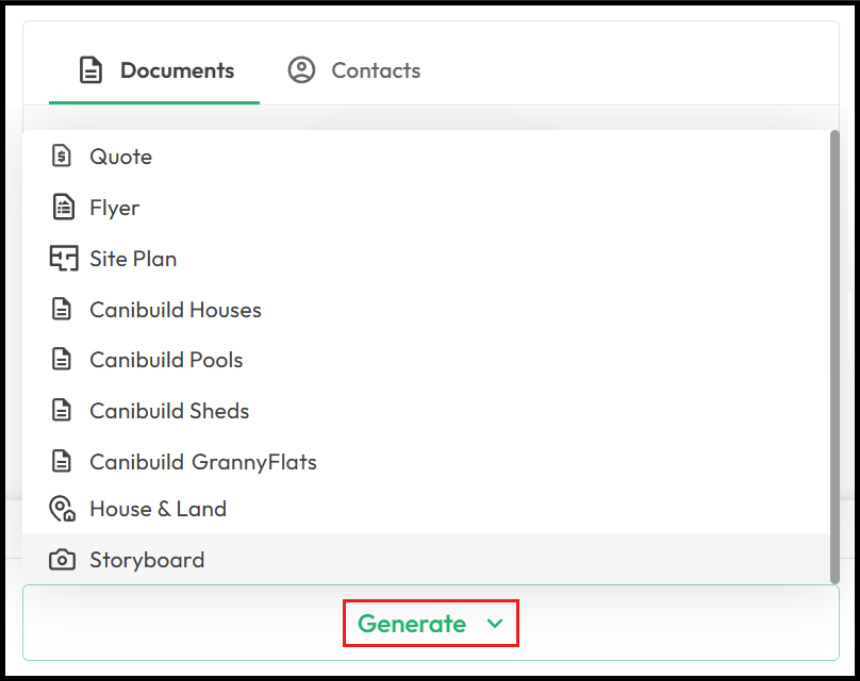
- Click CRM.
- Select Documents to view the status of a document or manually download.
- Click the Plus (+) to select a document.
- Click Actions to export documents:
- Select Send Email.
- Select Copy Link.
- Select Download.
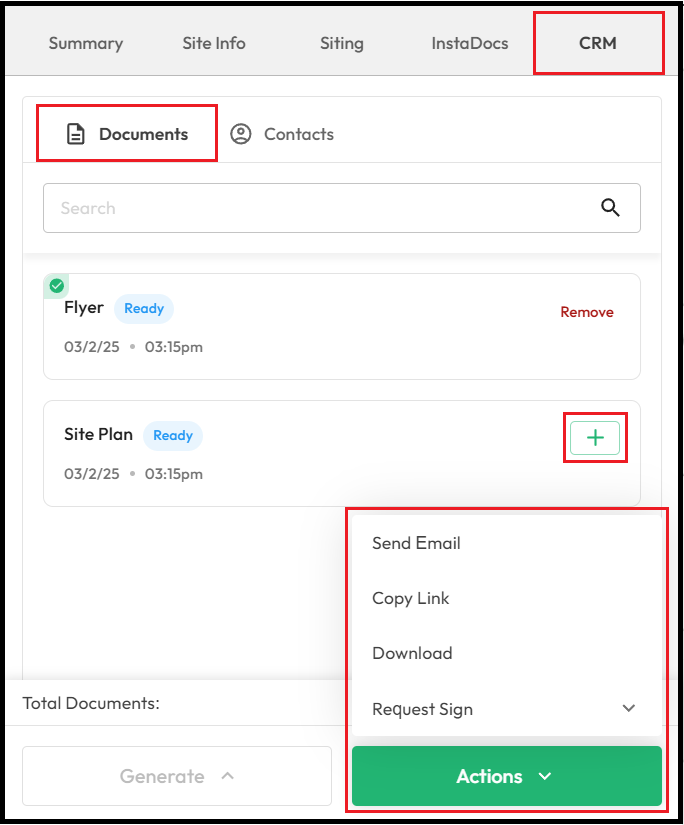
- Click MyHub at the top right of the screen.

-
Click the Orders tab on the left.
-
Search for an address.
-
Click the address to view its associated documents.
-
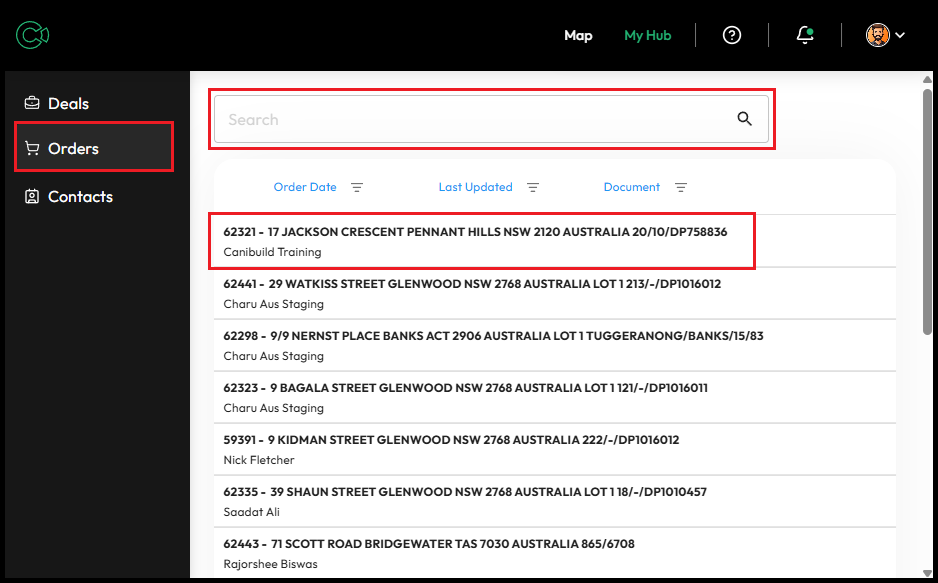
Click the blue link next to a document to download it.
-
All documents remain stored under their respective address.
-
Check the status, price, and date of each document.