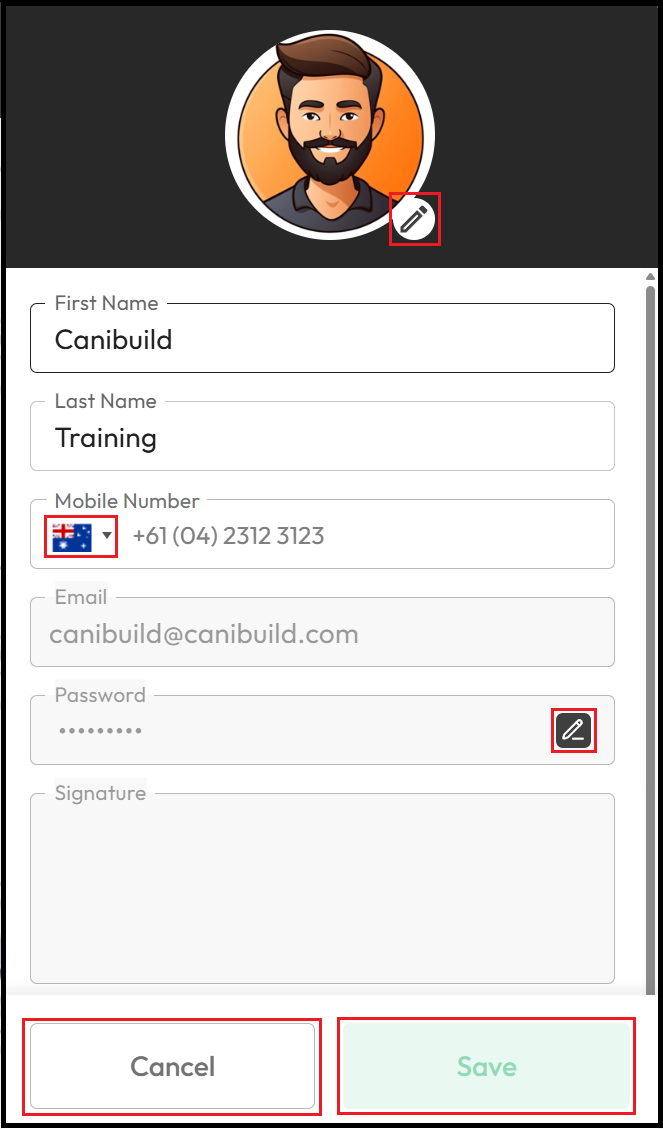
This article explains how to update an individual user’s details, add a profile picture & change the password. These updates are reflected on both the Flyer & Site Plan, so be sure to tailor them to suit your organisation’s preferences.
Editing Profile Details
Accessing the user profile information
-
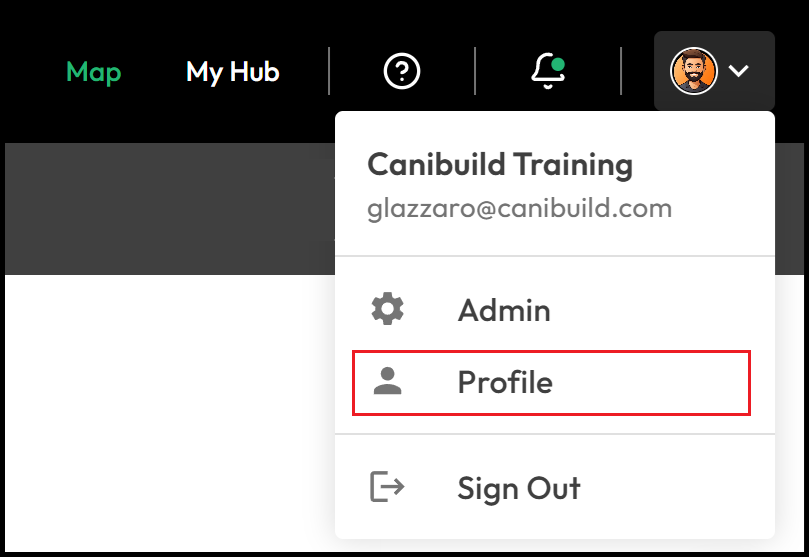
Click your Initials or Profile Image in the top right corner of the screen.
-
Select Profile from the dropdown menu.
Editing Profile Details
-
Click the pencil icon to upload or change the profile image.
-
Edit the Name field if you’d prefer to use a nickname.
-
Click the Flag icon to change your phone number’s region code.
-
Click the black pencil icon next to the password field to update your password.
-
Click Save to button to apply changes..
-
Click Cancel to Exit without saving.