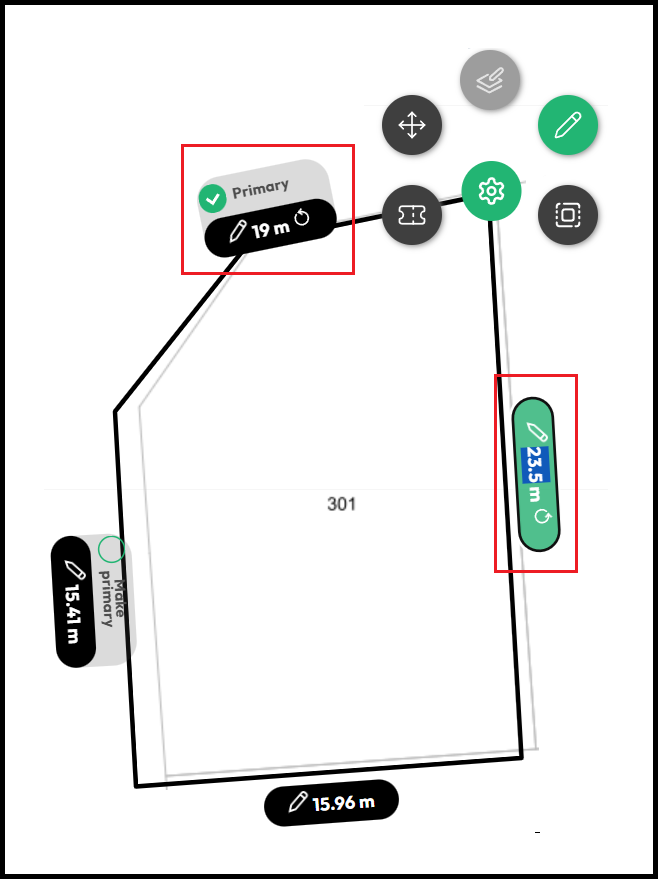
| Gear - Access & manage various aspects of the boundary. |
 | Edit - Edit displayed boundary dimensions & swap boundary frontage on corner lots. |
 | Rotate - Click & hold to turn the lot 360 degrees in any direction. |
 | Delete - Removes the proposed lot. |
Edit Boundary Dimensions
- Click the Gear on the Boundary.
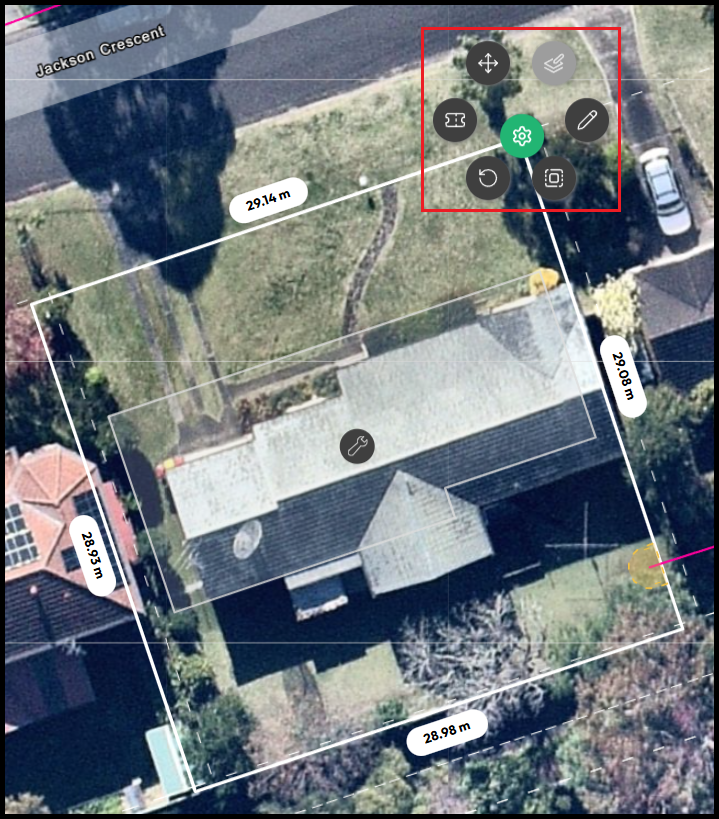
- Click Edit.
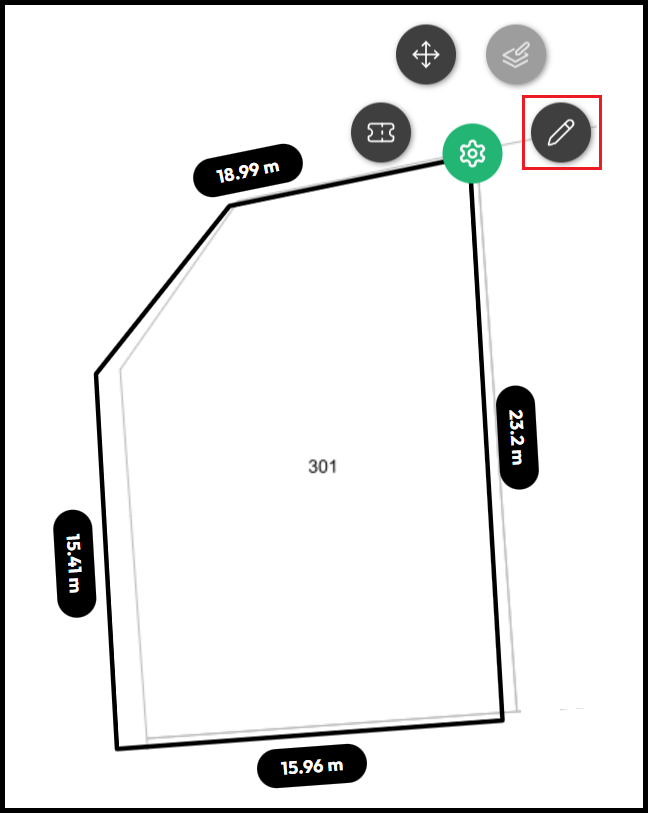
- Click Primary to alternate.
- Click on the boundary measurement to edit.
- Click on the circular arrow to undo the change.
- Select the Gear tool when done to lock in the changes.
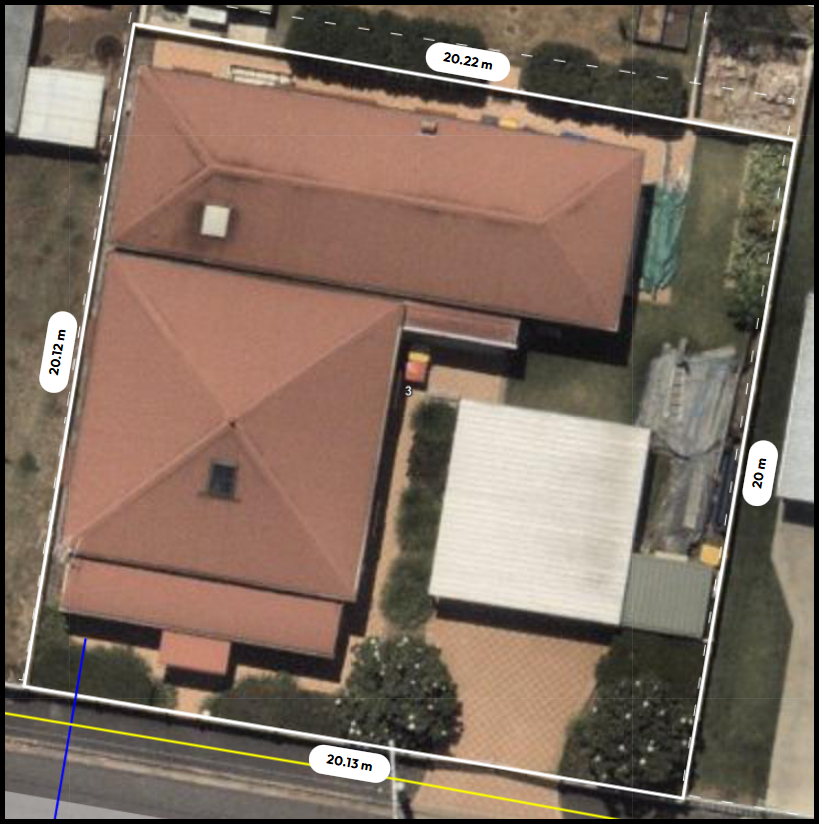
Edit Lot Dimensions
-
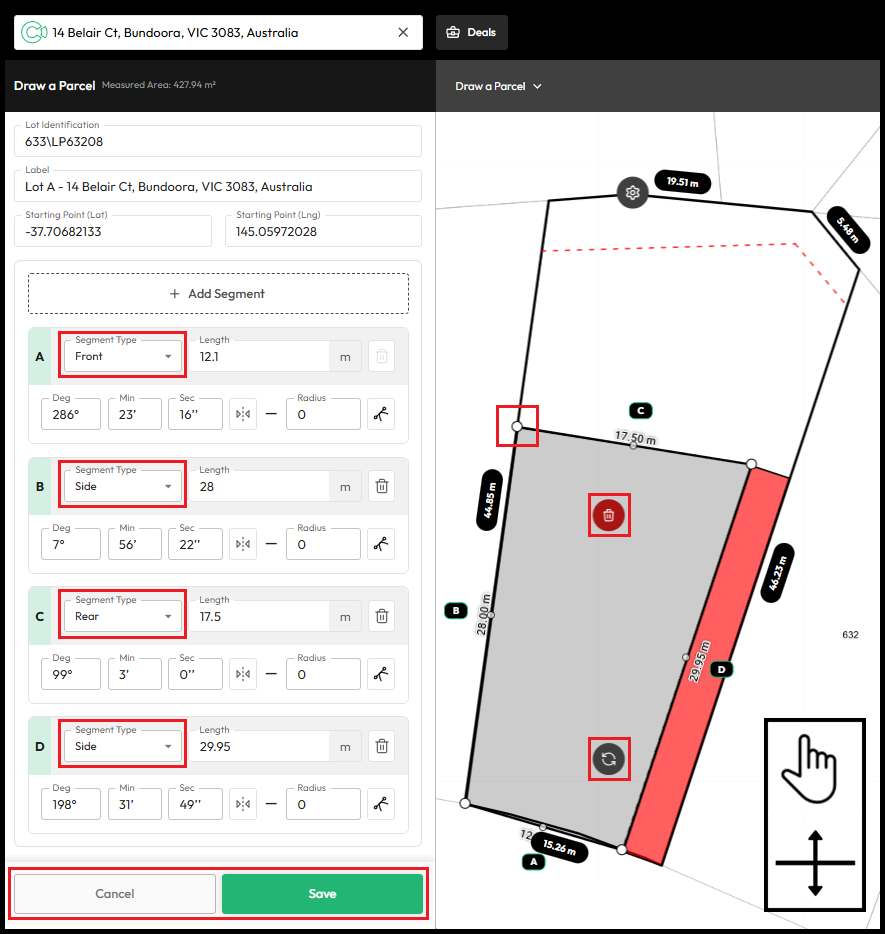
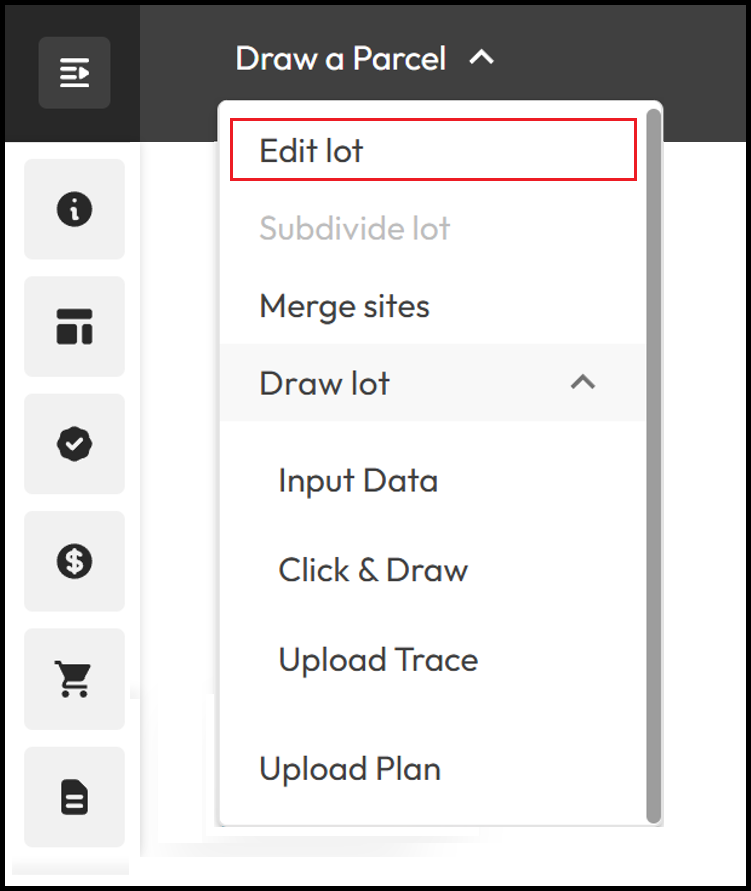
Click Draw a Parcel.
-
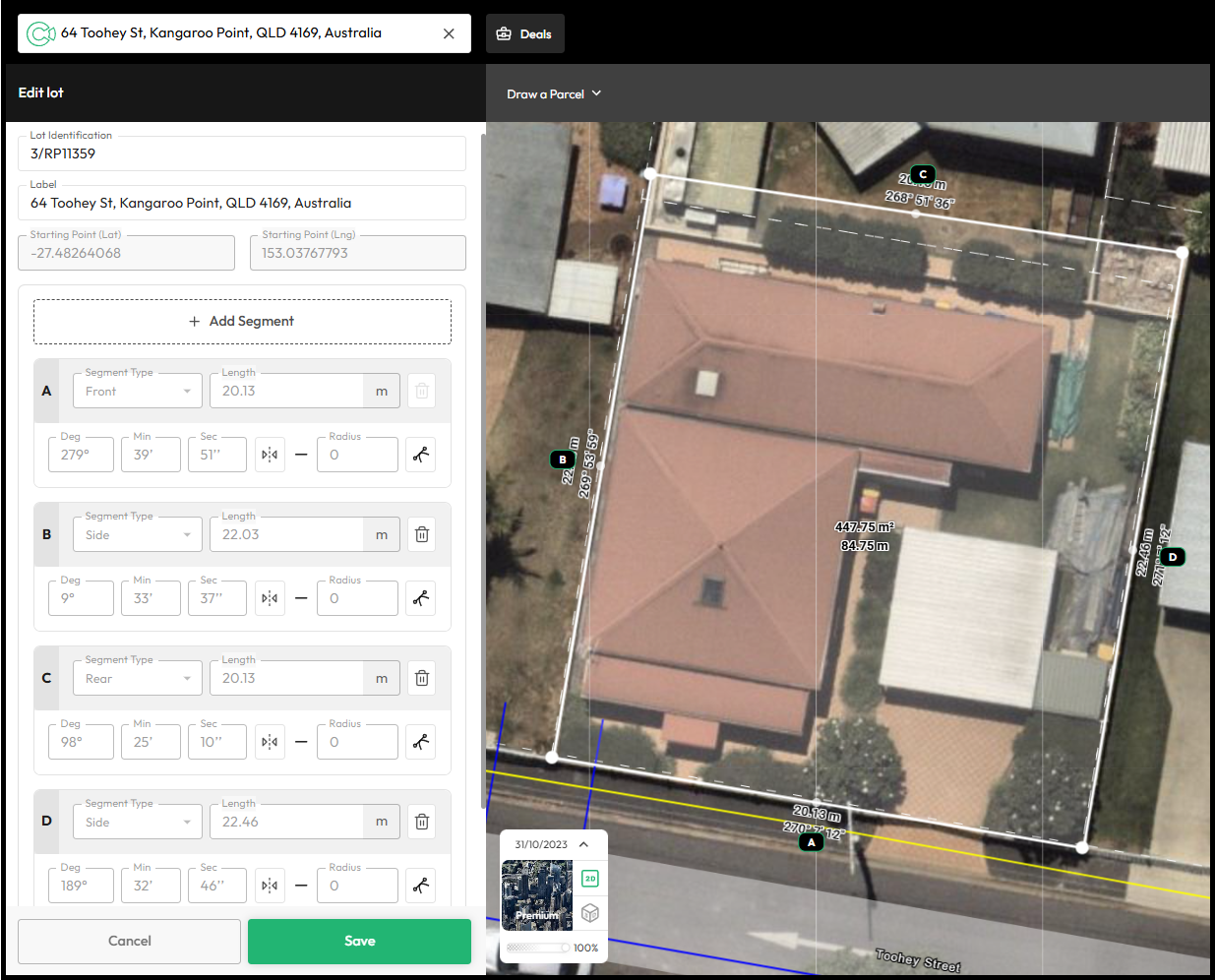
Select Edit Lot.
-
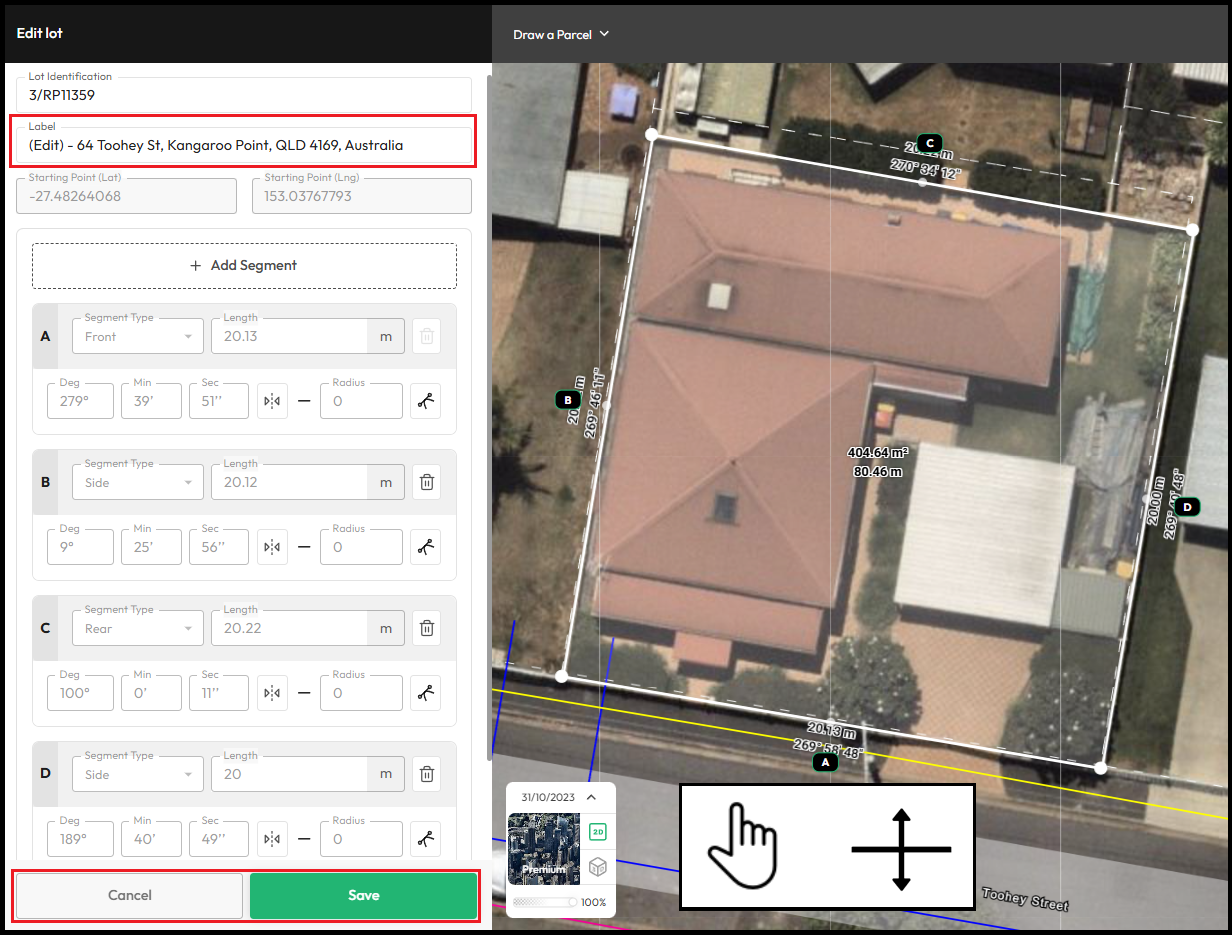
Click & hold a boundary corner with the hand cursor to reposition.
-
Hover over a boundary line with the cross cursor to adjust it.
-
Update the Label.
-
Click Save when complete.
-
Click Cancel to discard changes.
Redraw Lot
-
Search the property to be redrawn or subdivided.
-
Click Additional Info to turn off any extra site data.
-
Click Lookup Layers to turn off trees if necessary.
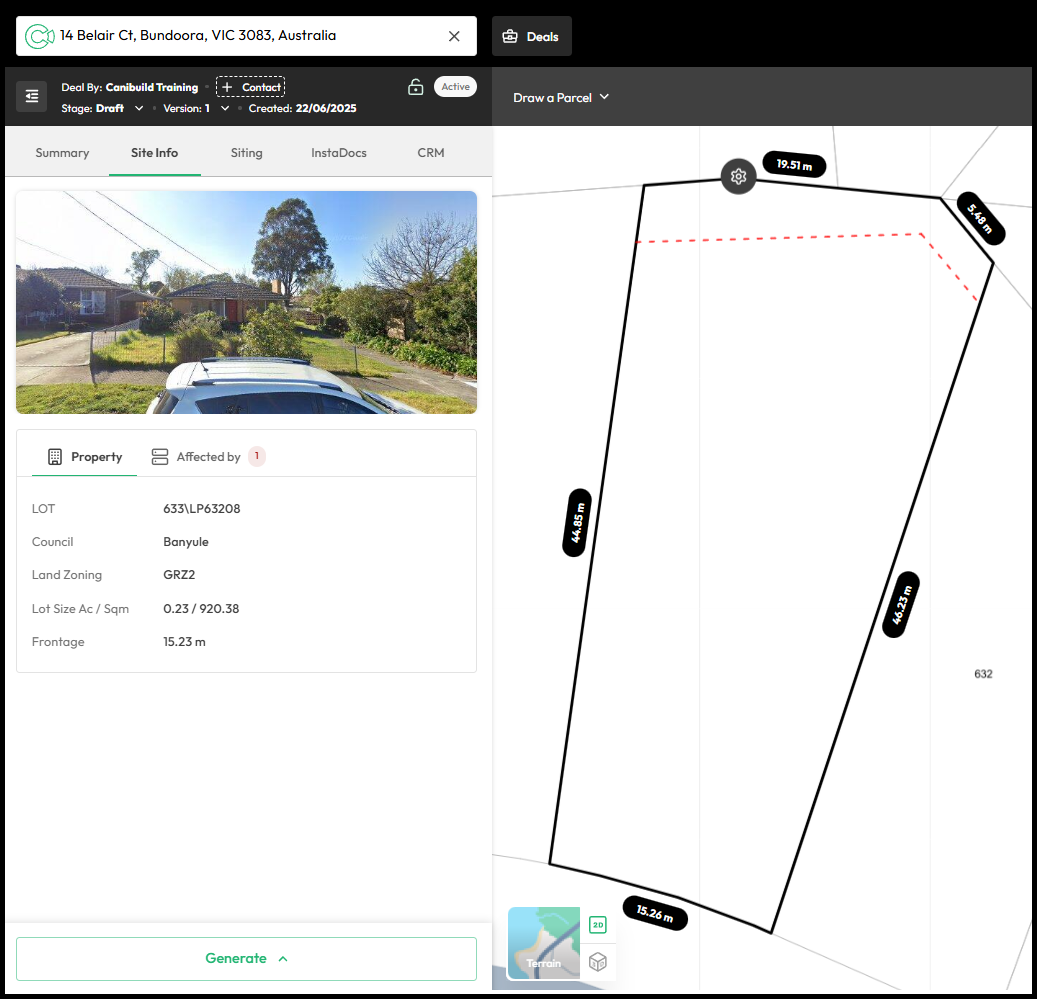
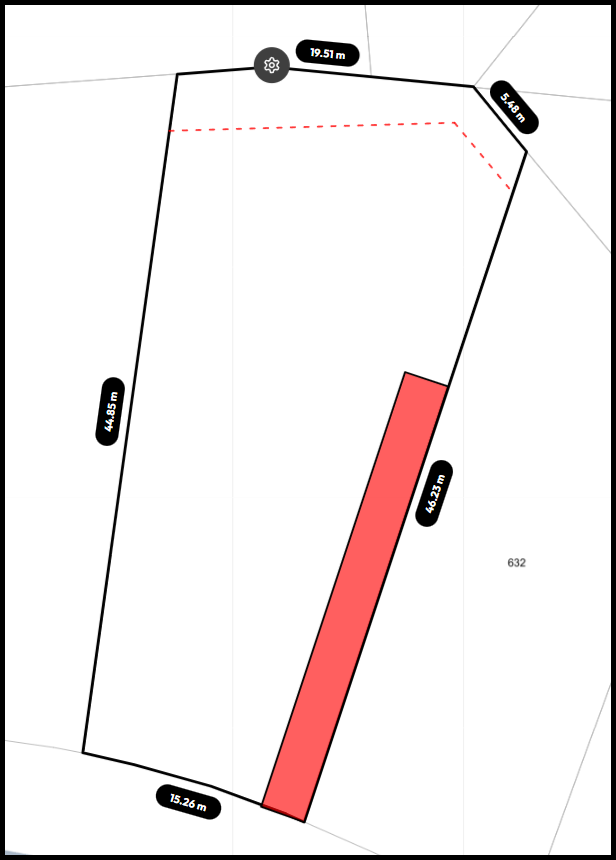
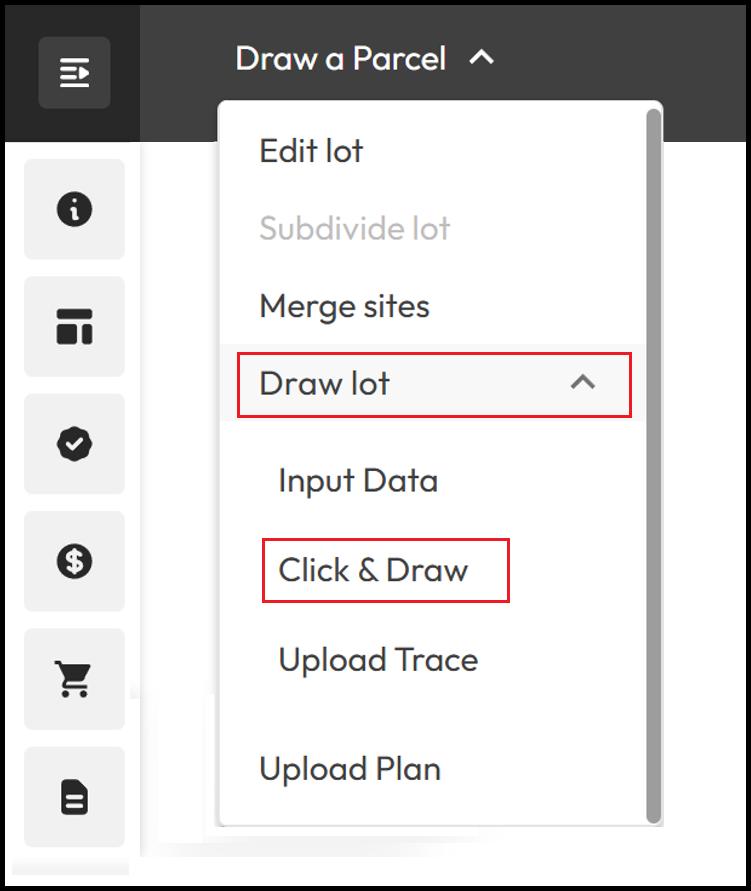
- Click Draw a Parcel.
- Click Draw lot.
- Select Click & Draw.
-
Click on the Starting Point.
-
If Snap is active, each point will snap to a corner.
-
Press Enter to type an exact dimension or Type the Length in the Action Box.
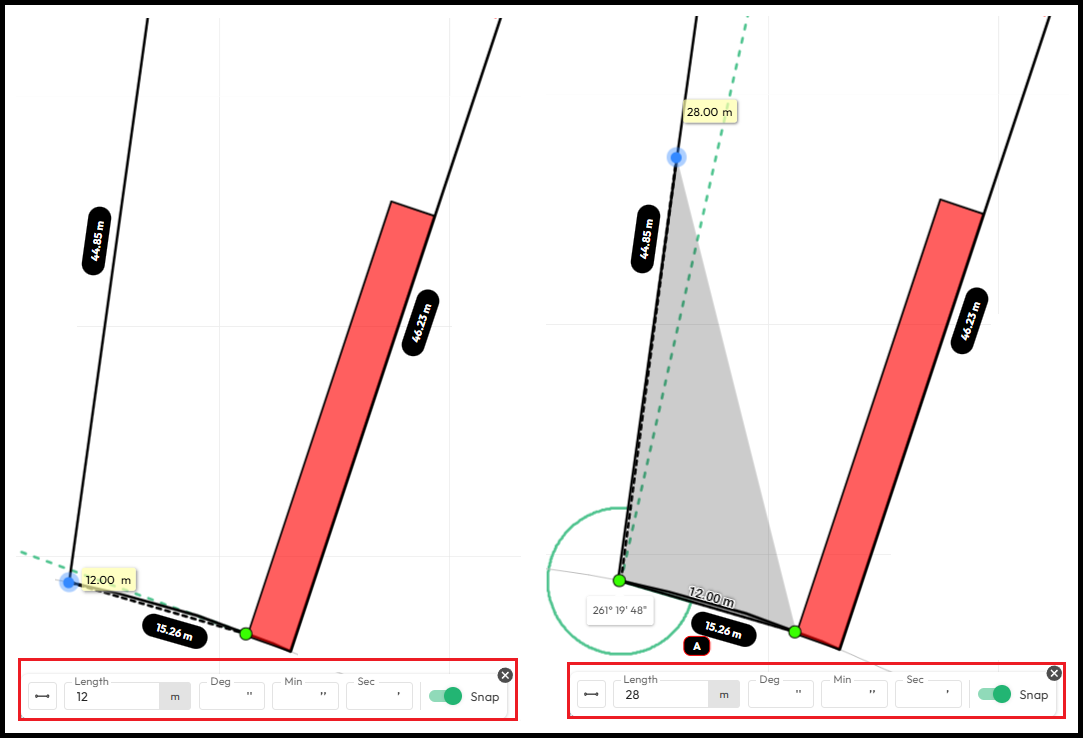
- Click the starting point to close the boundary.
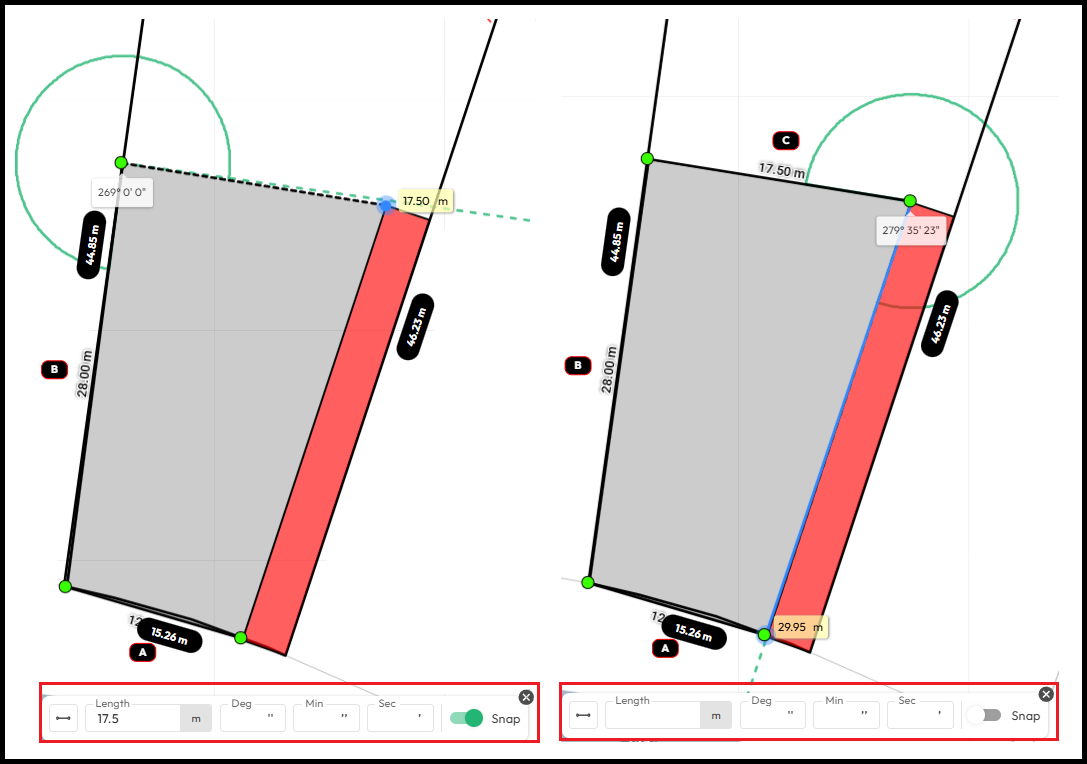
- Left-click to edit the proposed lot.
- Left click & hold on the Rotate button.
- Move your mouse to adjust the rotation.
- Click & hold with the hand cursor to drag the boundary corners to adjust.
- Hover with the cross arrow cursor on a boundary line and drag to the adjust.
-
Edit the Label.
-
Identify each Boundary Type.
-
Click Save when complete.
-
Click the Delete to start again.