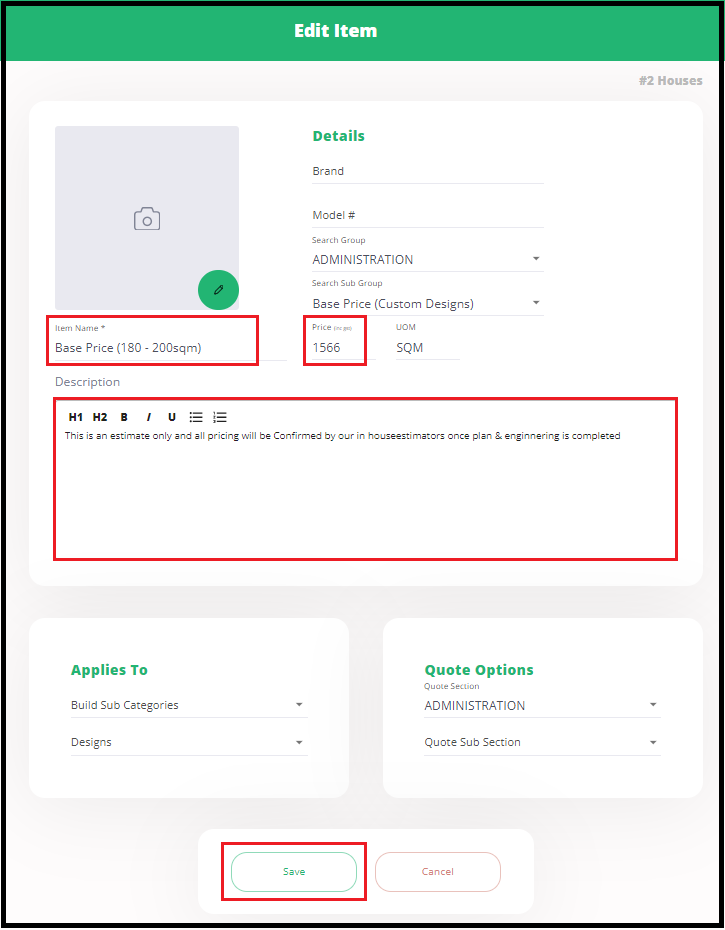
- To access the Admin section Click on your initials on the top right corner of the screen.
- Select Admin from the dropdown menu.
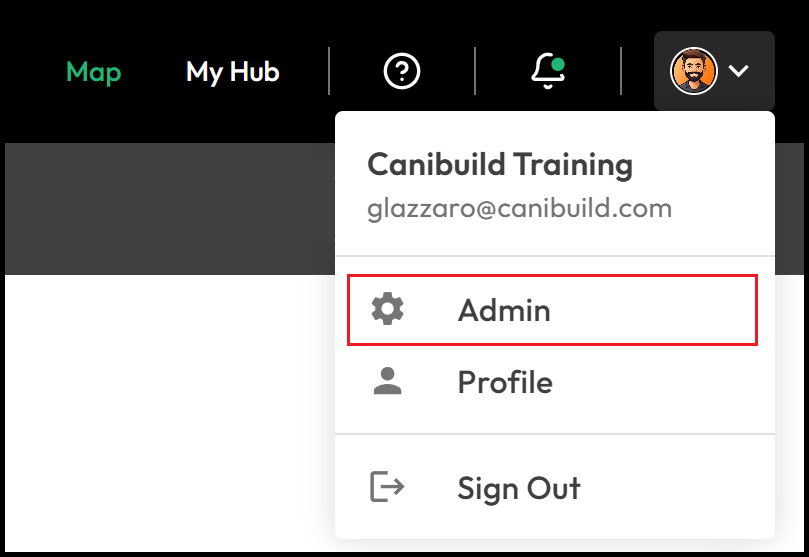
- Click Item Catalogue.
Setting up the Item Catalogue
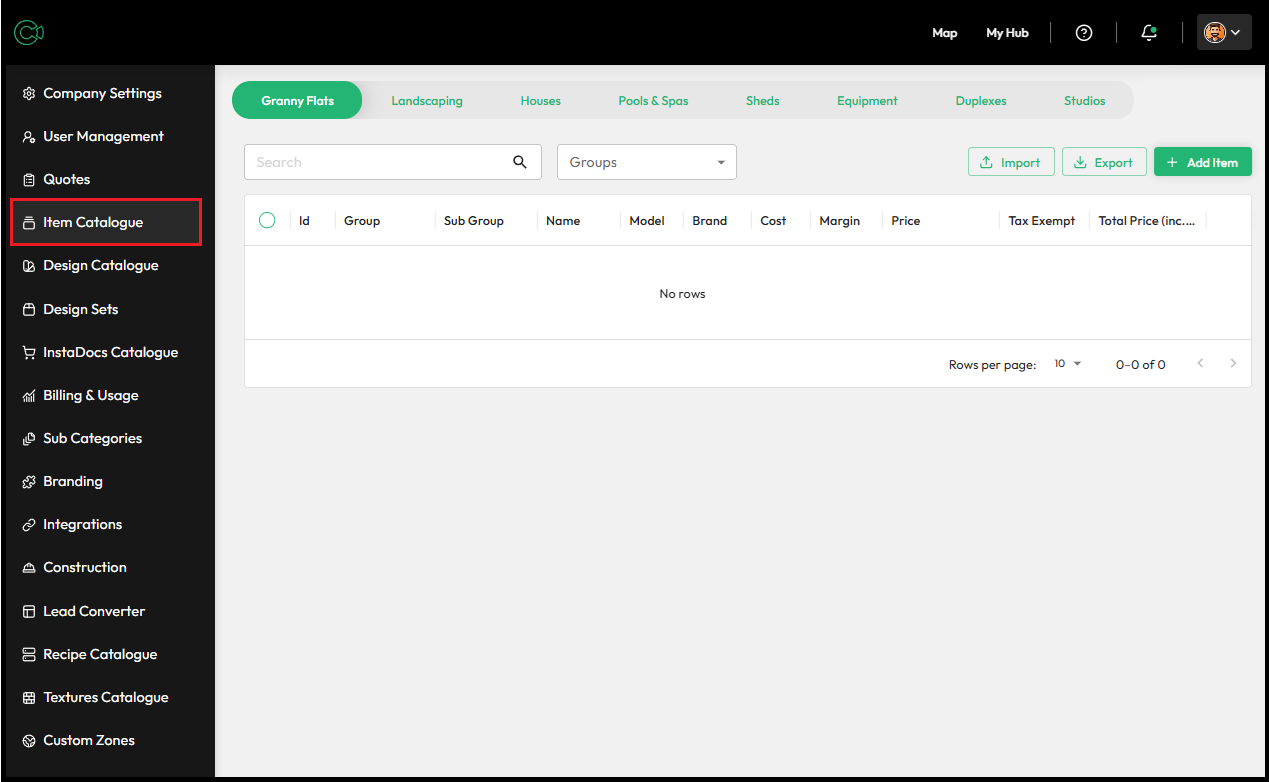
- Click your main Build Type.
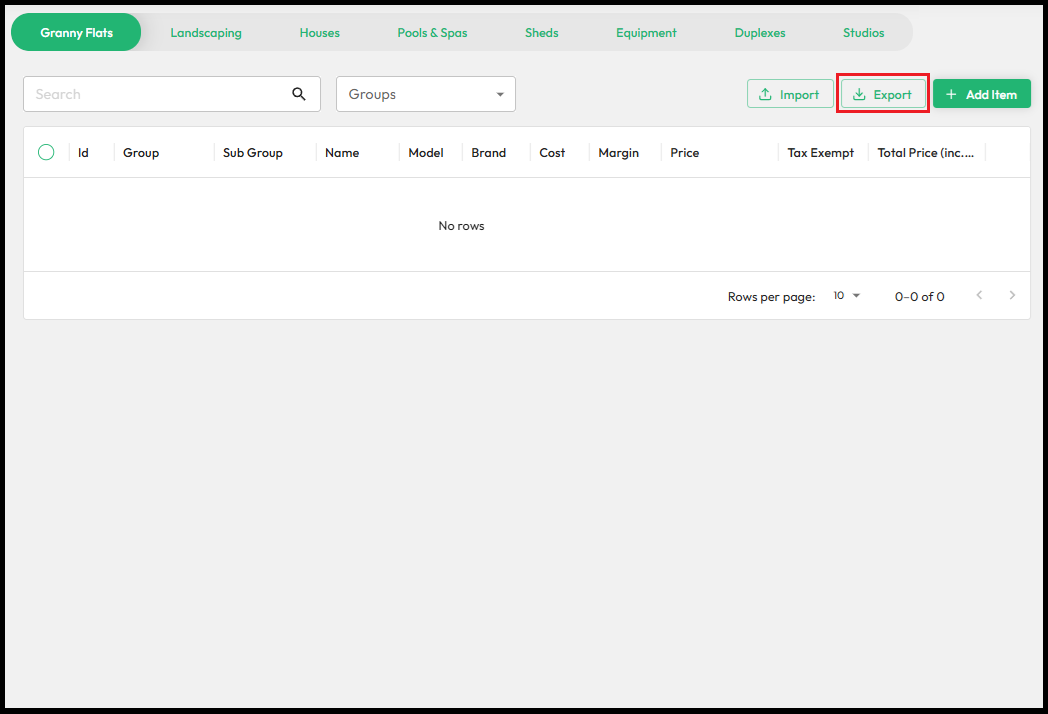
- Click Export to get a blank copy of the item catalogue.
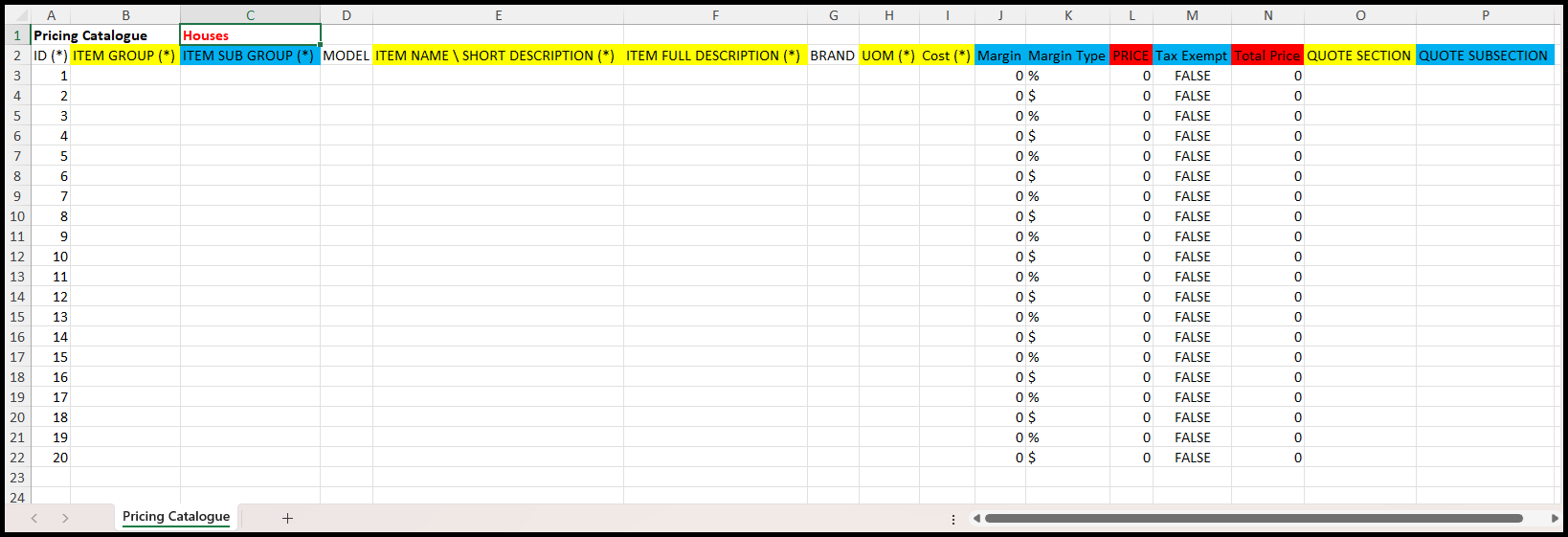
| ID | A unique ID number that is allocated to an item. This is how Canibuild will reference the item & add it to each quote. |
| ITEM GROUP | The main groups that each item will be sorted into. These should be easy for you and your team to navigate. (Create your own or use any of the ones from the sample spreadsheet). |
ITEM SUB GROUP | Subgroups that will split the main group only necessary if the items in a group exceed 10. |
| ITEM NAME \ SHORT DESCRIPTION | A complete list of all add-ons, upgrades or modifications from the base price of the build. (This list cannot have any duplicates and should be detailed enough that your team can identify the item). |
| ITEM FULL DESCRIPTION | The extended description / detail of each item. It should detail to the client exactly what they are getting. Should not be identical to the item name. (It can describe the item, process or any technical jargon required for legal reason. It could also detail what the UOM each represents). Similar items can have the same description. |
| UOM | The overall Unit of Measurement for that item that can be multiplied as the quantity is increased. The main ones could include EA / LM / SQM (EA / LFT / SQFT) alternatively Day or HR can also be used if needed. (Keep consistency as these display on the quote under each other. |
| COST | Base price of each item this does need to be the tax free amount. Tax is based on the value added |
| MARGIN | Enter a value to calculate mark up on each item. This can me left as 0 if the margin is already included in cost. |
| MARGIN TYPE | Either $ or % based on the value entered into margin. |
| PRICE | Automatically calculates on upload. (Cost + Margin = Price) note you can leave margin as 0. |
| TAX EXEMPT | Only necessary if an item is Tax free. The default for this is FALSE unless you enter TRUE. Enter Tax rate in Company settings in app. |
| TOTAL PRICE | Automatically calculates on upload. (Price + Tax Amount = Total Price) |
| QUOTE SECTION | These will determine how all of the items are grouped together on the actual quote. (The easy way to populate is to use the list from the item group or create a simplified list of groupings eg: Design, Approvals, Construction & Extras). |
| QUOTE SUBSECTION | Subheadings on the actual quote PDF. Not always needed depends on how may items will actually display on the quote. |
Sample Item Catalogues
| House | Granny flat / ADU | Pools | Sheds | Landscaping |
| Sample House | Sample Granny Flat | Sample Pool | Sample Shed | Sample Landscaping |
| Sample House USA | Sample ADU USA | Sample Pool USA | Sample Shed USA | Sample Landscaping USA |
Editing the Item Catalogue
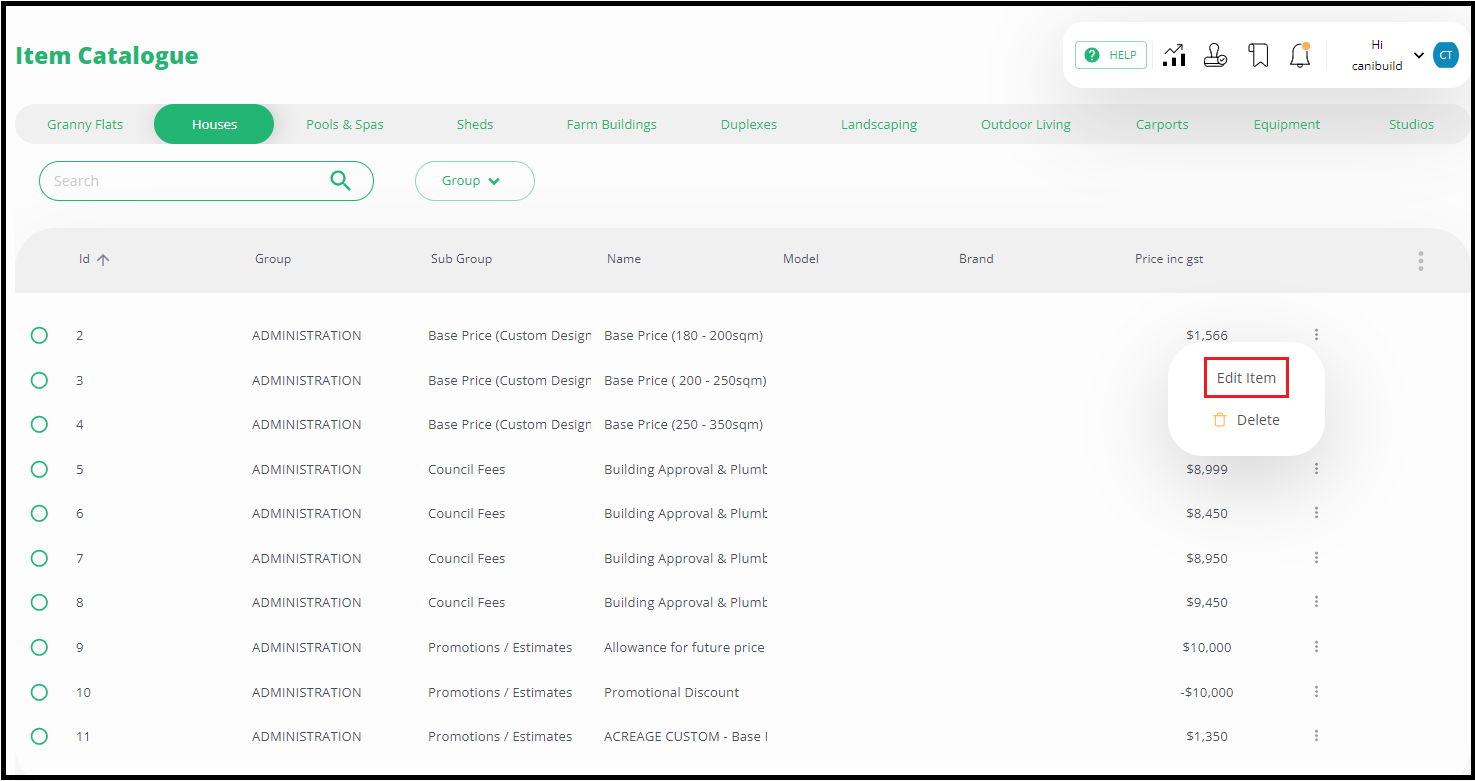
- Click the 3 dots on the item to edit.
- Select Edit item.
- Select Delete to remove an item.
- Enter the new Price.
- Update or edit the Item Name or Description.
- Click Save when finished.