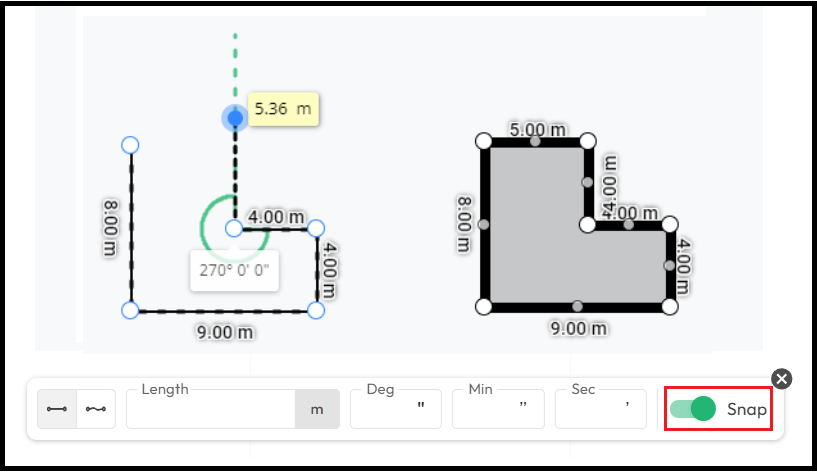
Enter Method
-
Select the Polygon tool.
-
Select the Snap feature.
-
Click anywhere on the screen to start.
-
Drag the line vertically down and let go of the mouse.
-
Press Enter / Return on the keyboard and type the dimension of the line.
-
Press Enter / Return to lock in the dimension.
-
Press Esc to remove the previous point.
-
Repeat on each line as necessary to complete all four sides of the square or rectangle.
-
To terminate, click on the starting point.
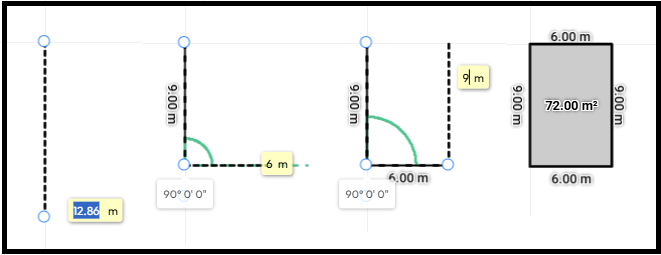
Action Box
-
Select the Polygon tool.
-
Click anywhere on the screen to start.
-
Use the Action Box to alternate between straight / curve lines.
-
Toggle to activate the Snap feature.
-
Press Enter / Return on the keyboard and type the dimension of the line.
-
Press Enter / Return to lock in the dimension.
-
Press Esc to remove the previous point.
-
Repeat on each line as necessary.
-
To terminate, click on the starting point.