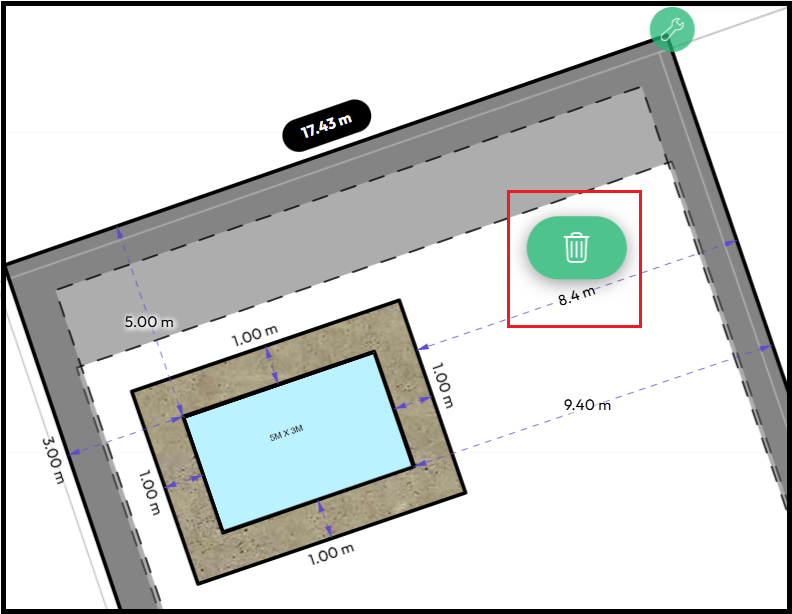
| Ruler - Allows you to draw additional dimensions or measurements between any two points on the site. |
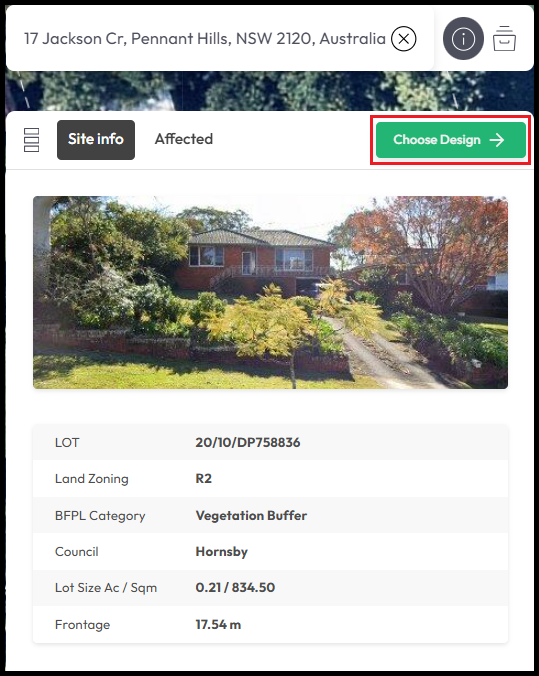
- To access the Design Catalogue click the Choose Design button.
- Use the Search, Sort or Filter options to help find your design.
- The Brain icon is exclusive to filtering House designs.
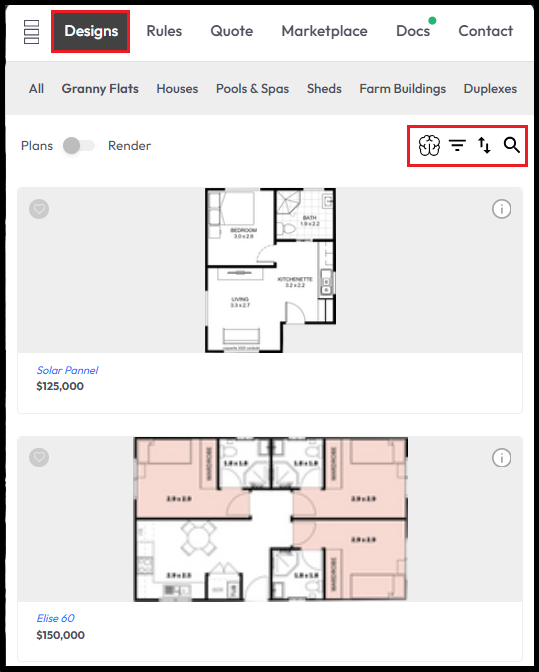
- Left click on the design and it will load up onto the property.
- Repeat the above for the second Design.
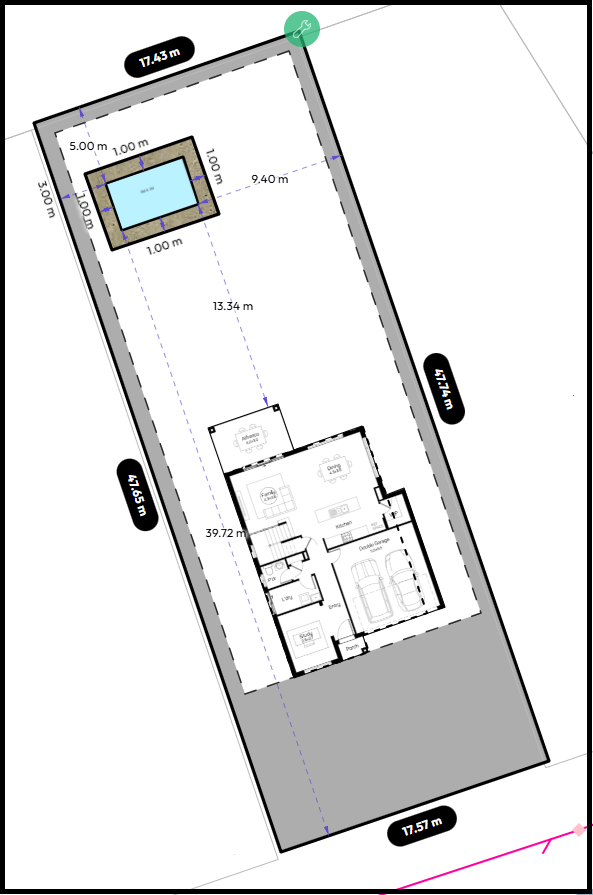
- Click & hold the design drag the design to move it around.
- Use Toggle Snap to square the design to the boundary.
- Click on any of the Blue dimensions to edit the distance.
- Type the new distance & press enter on your keyboard.
- Repeat the above steps for both designs.
- Click Additional Info.
- Toggle Ruler or Structure Setbacks.
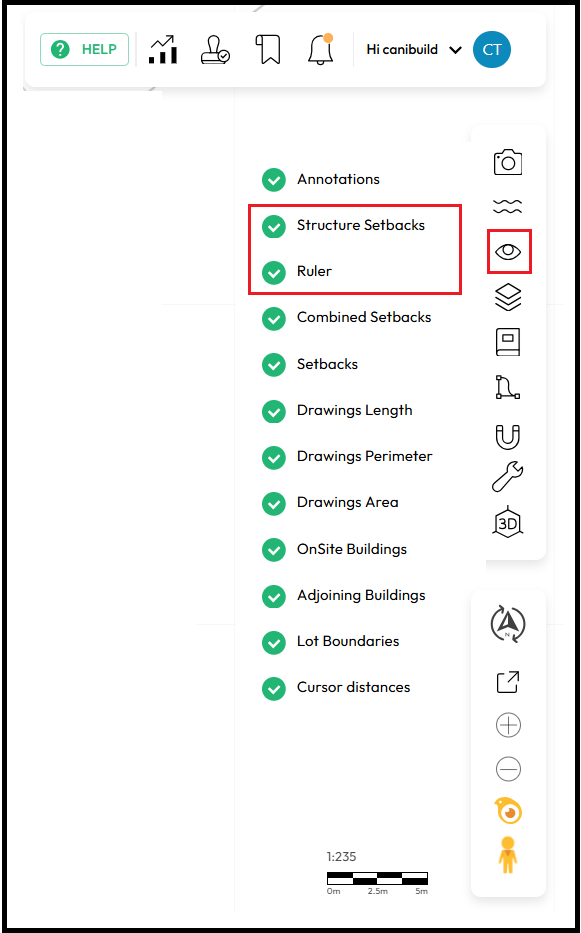
- Turn on Toggle Snap.
- Select the Ruler.
- Click the edge of the design.
- Drag the ruler in the direction of the boundary.
- Press enter on the keyboard to highlight the dimension.
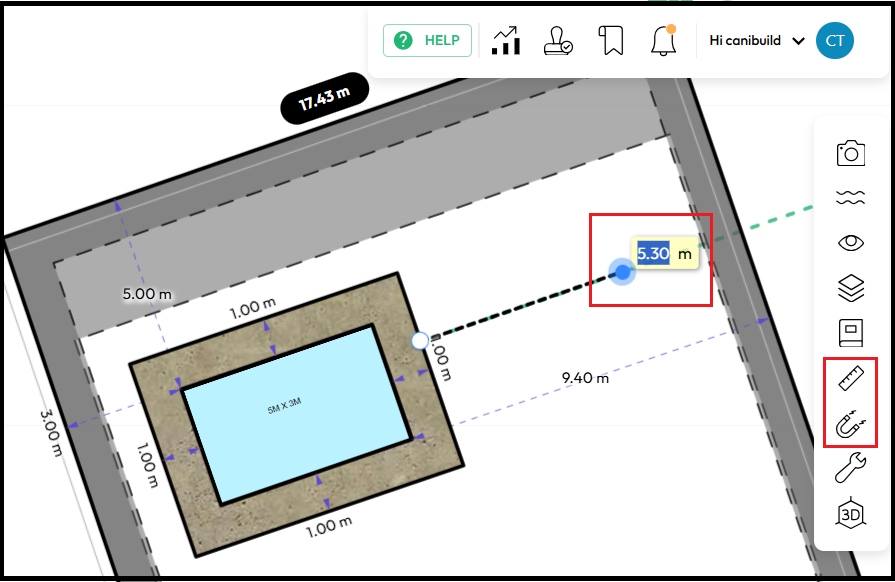
- Type the distance & press enter.
- Click the second white dot to terminate the Ruler.
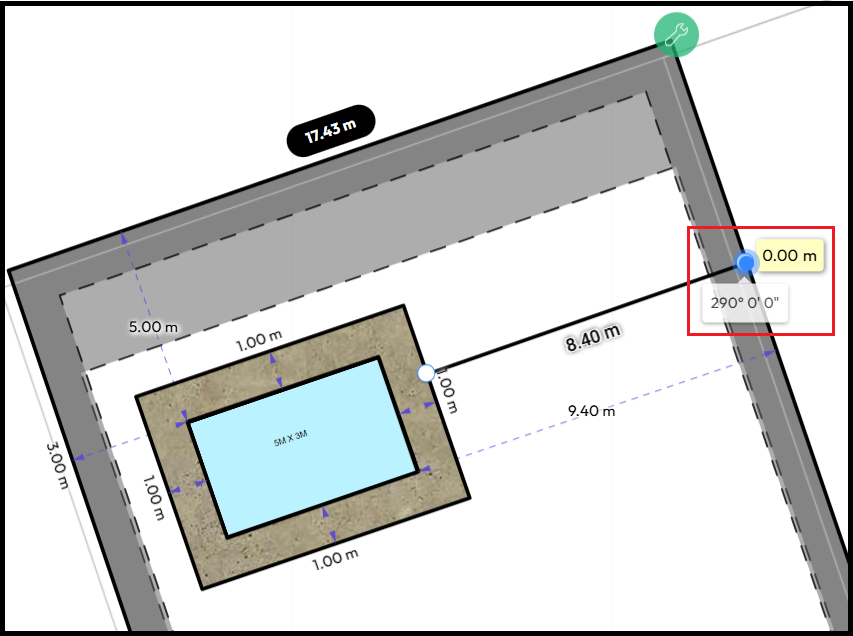
- Left click on a measurement to delete.