This article provides a step-by-step guide to troubleshoot document issues, including accessing Site Plans, Flyers, Proposals or Quotes that aren’t downloading. It explains how to check status, manually download files, & contact support if needed.
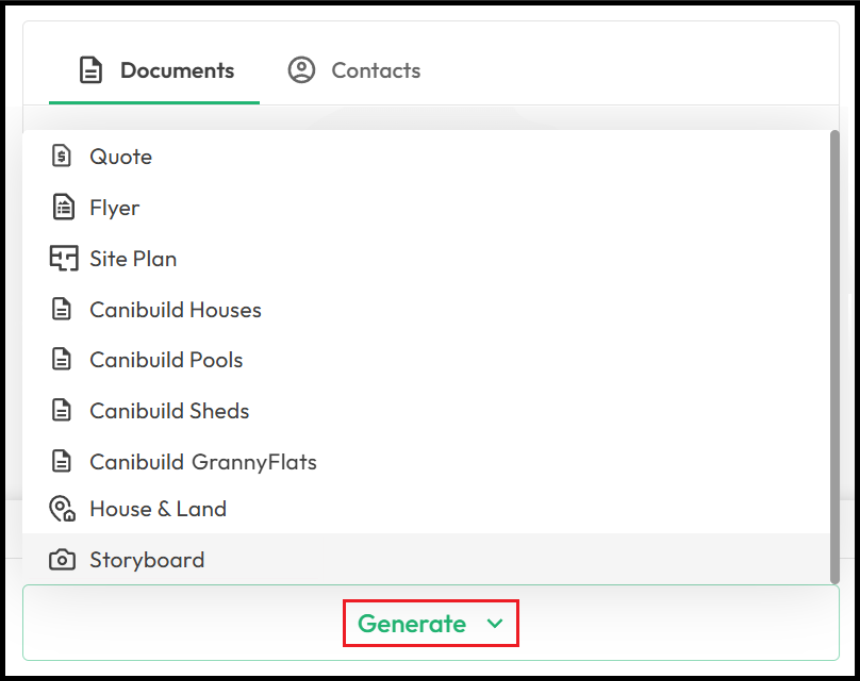
- Click the Generate button on the left panel.
- Select from the list of Documents:
- Site Plan.
- Flyer.
- Proposal.
- Quote.
- Storyboard.
- House & Land.
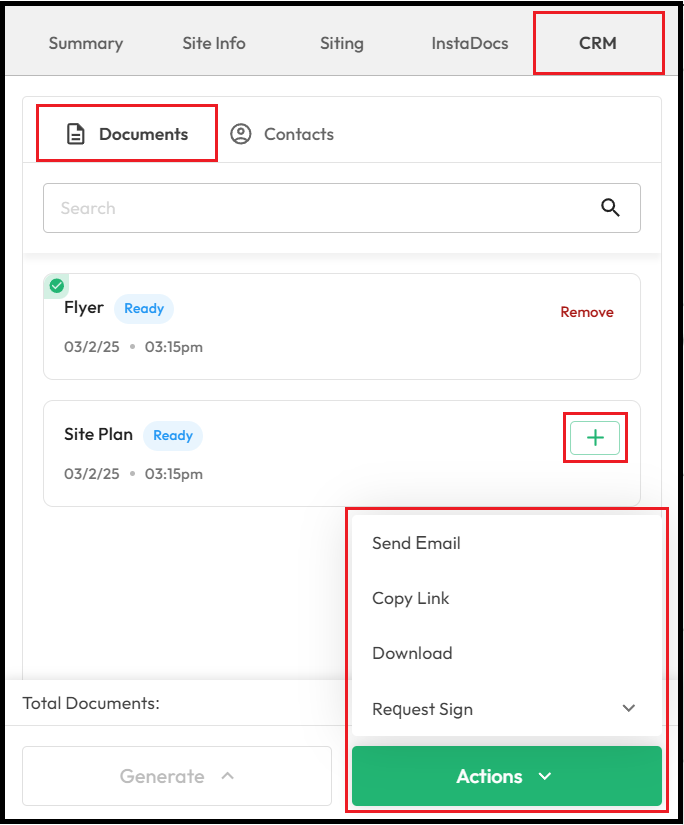
- Click CRM.
- Select Documents to view the status of a document or manually download.
- Click the Plus (+) to select a document.
- Click Actions to export documents:
- Select Send Email.
- Select Copy Link.
- Select Download.
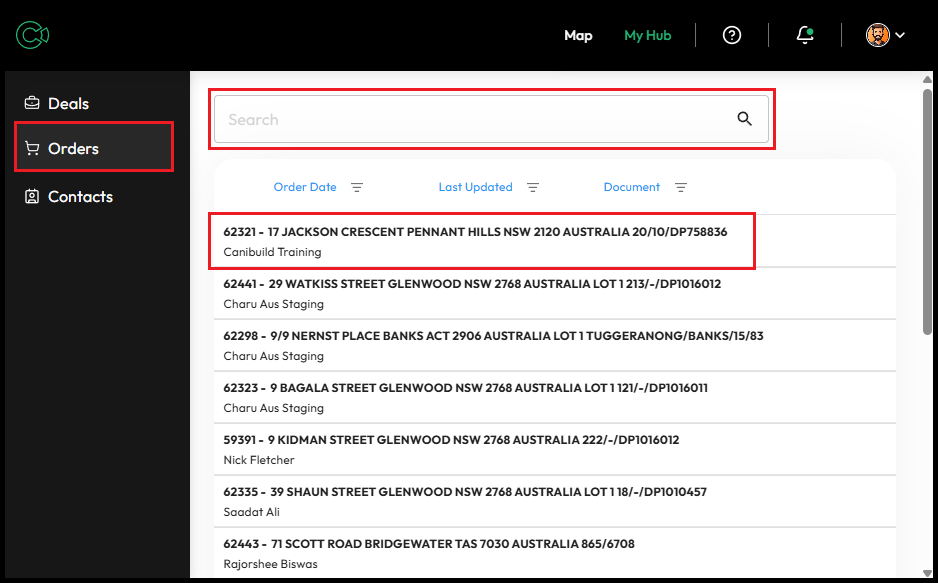
- Click MyHub at the top right of the screen.

-
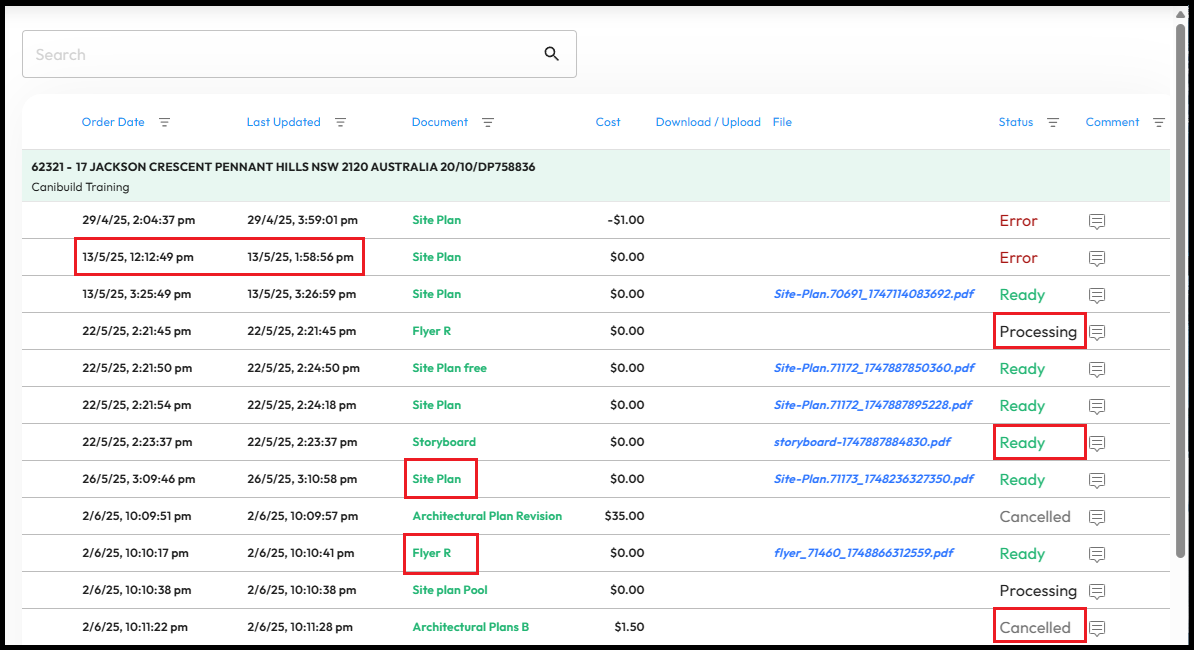
Click the Orders tab on the left.
-
Search for an address.
-
Click the address to view its associated documents.
- Check the status of each document.
- Click the blue link next to a document to download it.
Clear Cache History & Reload (PC)
-
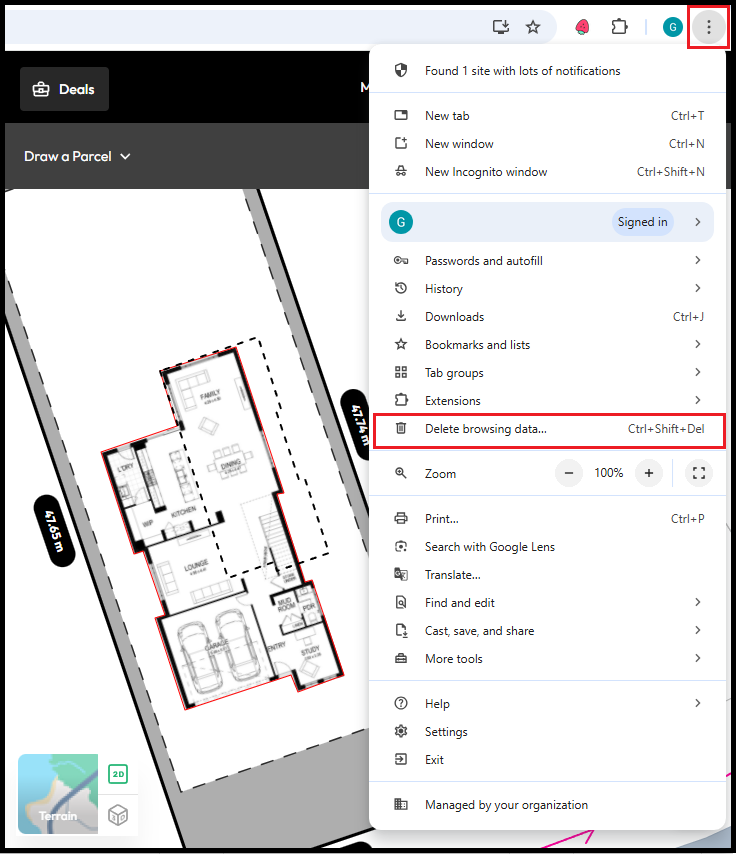
Click the three dots on the top right of the internet browser.
-
Select Delete Browsing Data.
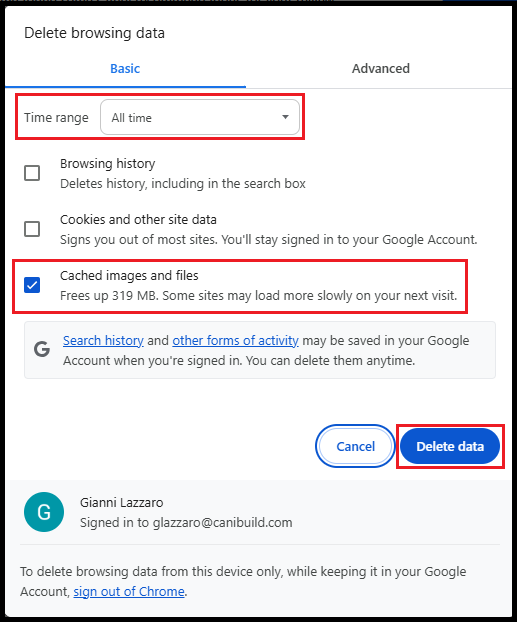
- Select Time Range (All Time).
- Select Cached images & files.
- Click Delete Data.
Clear Cache History & Reload (Mac)
-
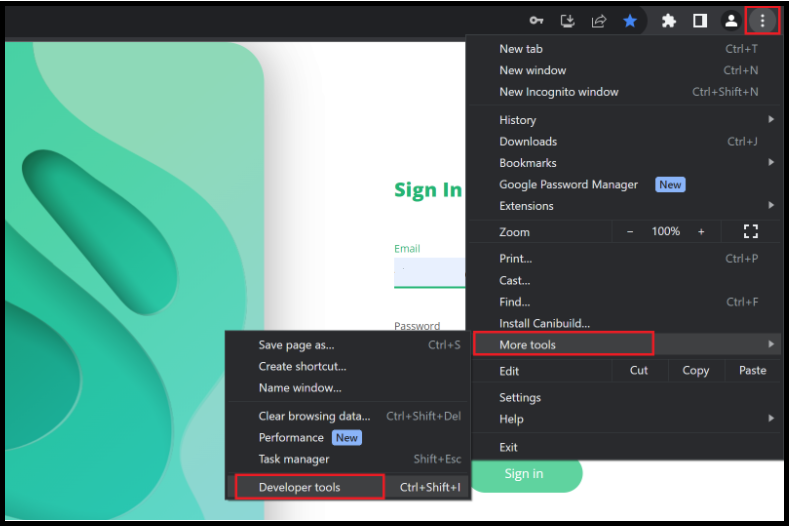
Click the three dots on the top right of the internet browser.
-
Scroll down & click on More Tools.
-
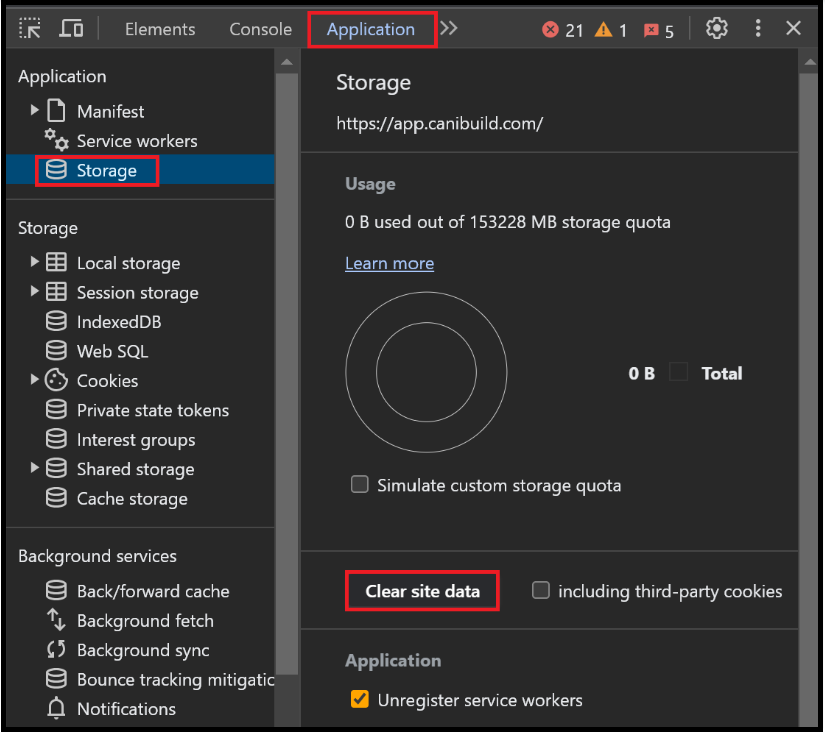
Select Developer Tools.
-
Select Application.
-
Select Storage.
-
Click on Clear Site Data.
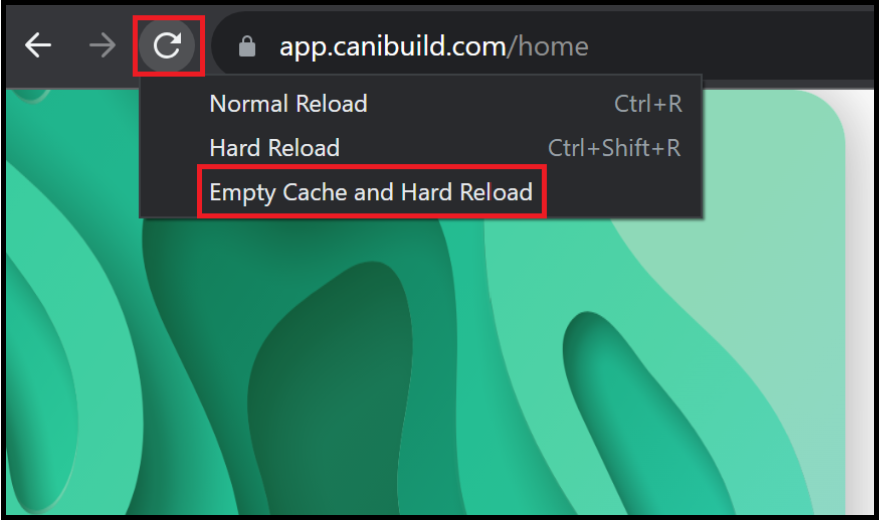
- Right-click on the reload button & select Empty Cache and Hard Reload.
- Reorder the document as before.
Creating an Alternate Deal
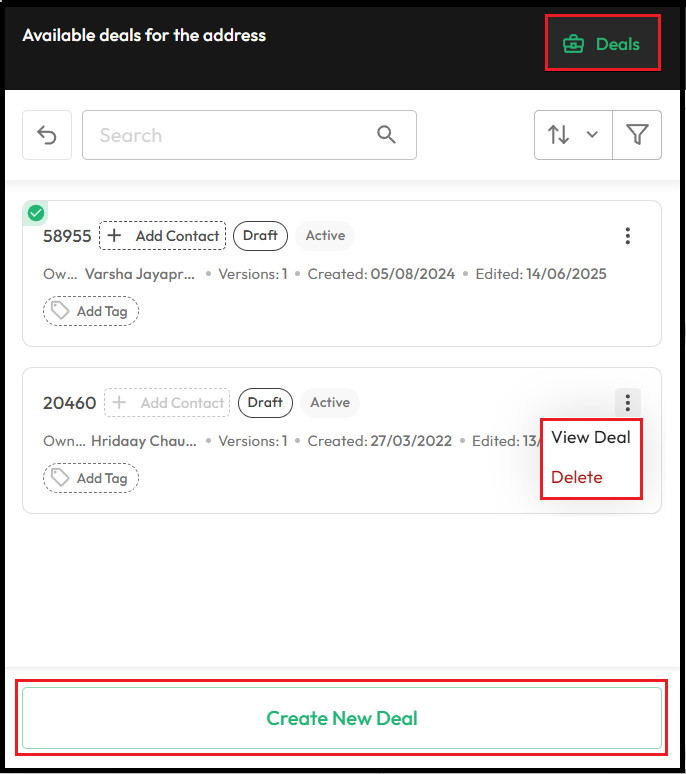
- Click Deals.
- Click Create New Deal.