Close Unnecessary Browser Tabs
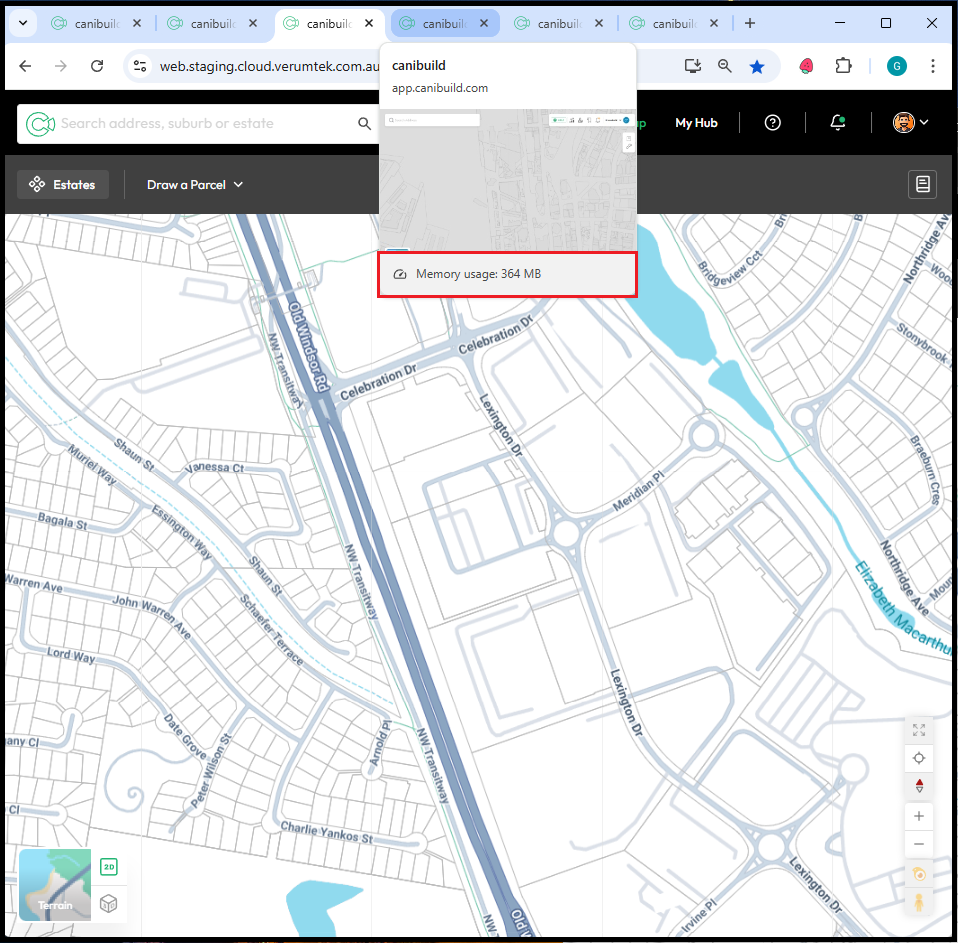
- Close as many unnecessary tabs as possible before using Canibuild.
Relaunch Browser
-
Close and relaunch your internet browser.
-
If an update prompt appears, click Update immediately.

Restart your Device
-
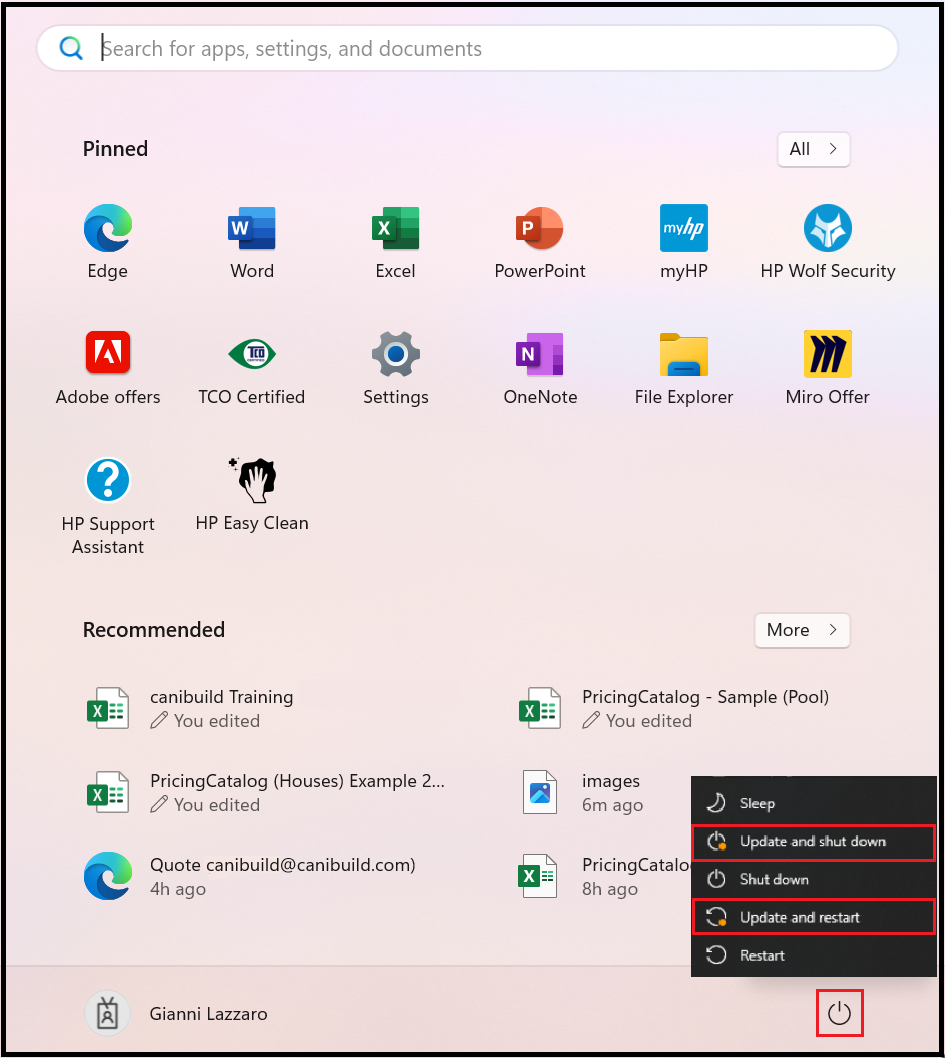
Perform a full restart or shutdown of your device.
-
Run any available system updates.
Clear Cache History & Reload (PC)
-
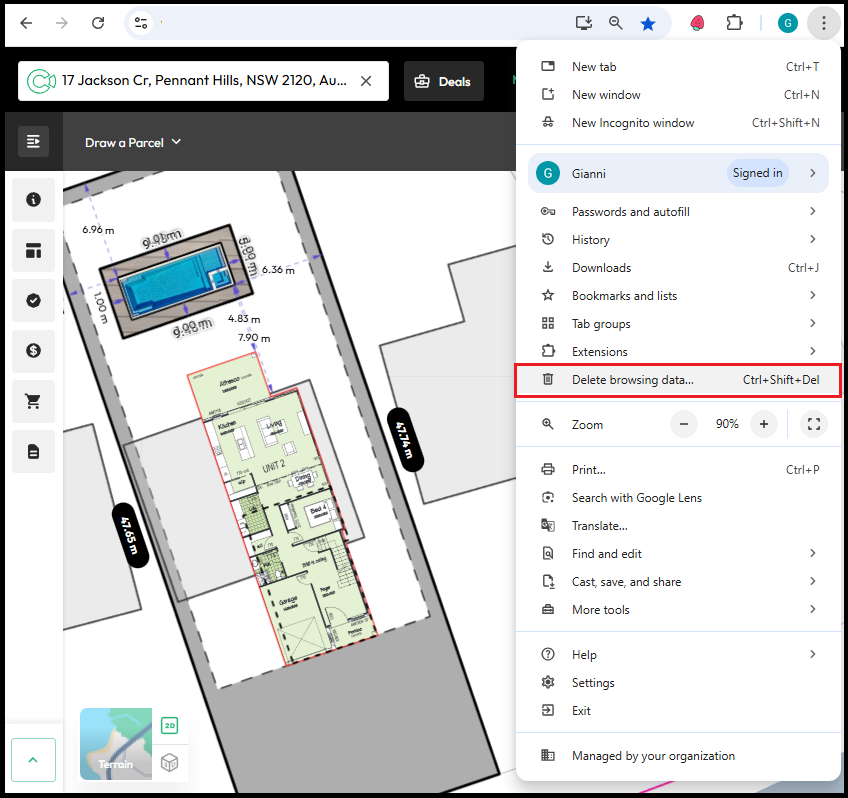
Click the three-dot icon in the top right corner of your browser.
-
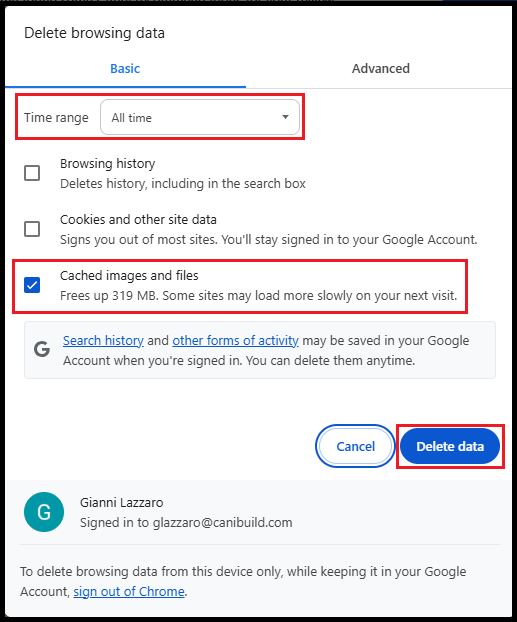
Select Delete Browsing Data.
-
Set Time Range to All Time.
-
Tick Cached images and files.
-
Click Delete Data.
Clear Cache History & Reload (Mac)
-
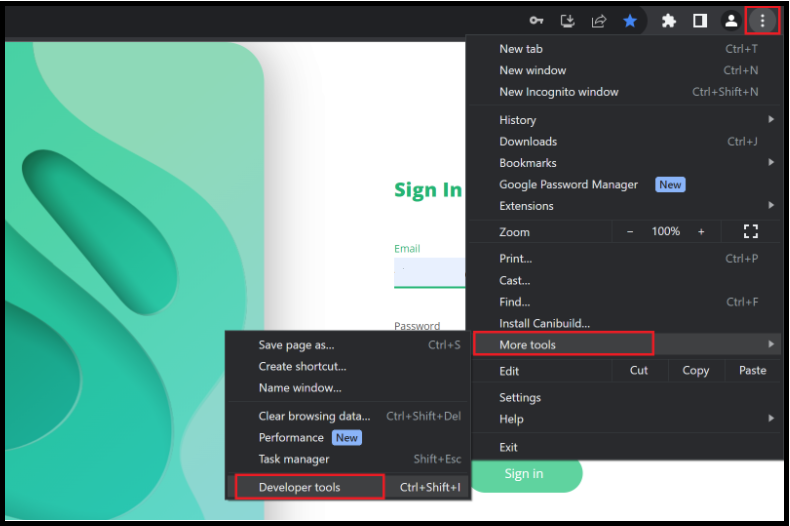
Click the three-dot icon in the top right corner of your browser.
-
Scroll down and click More Tools > Developer Tools.
-
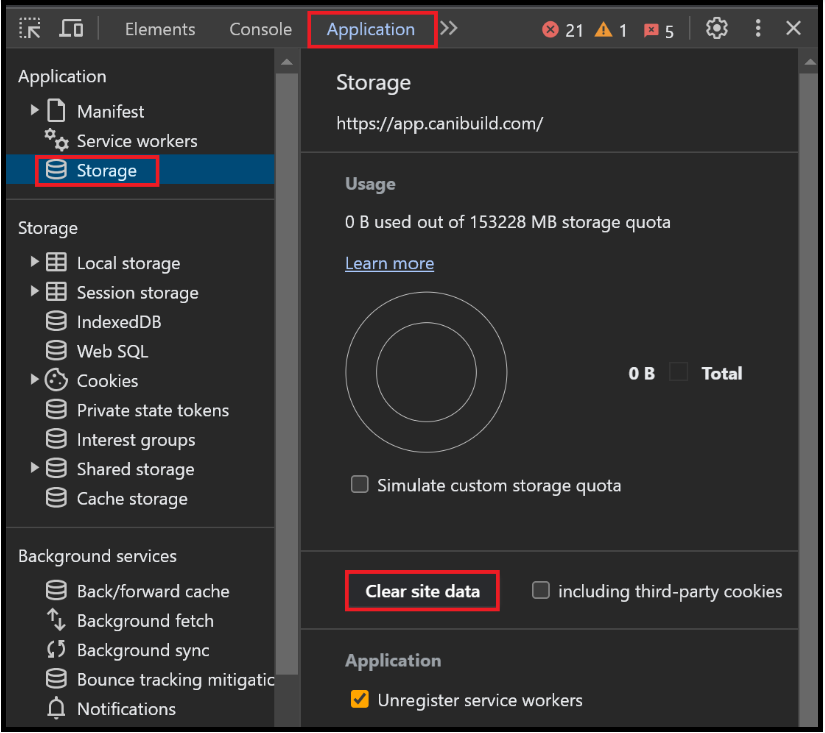
Select the Application tab.
-
Click Storage, then Clear Site Data.
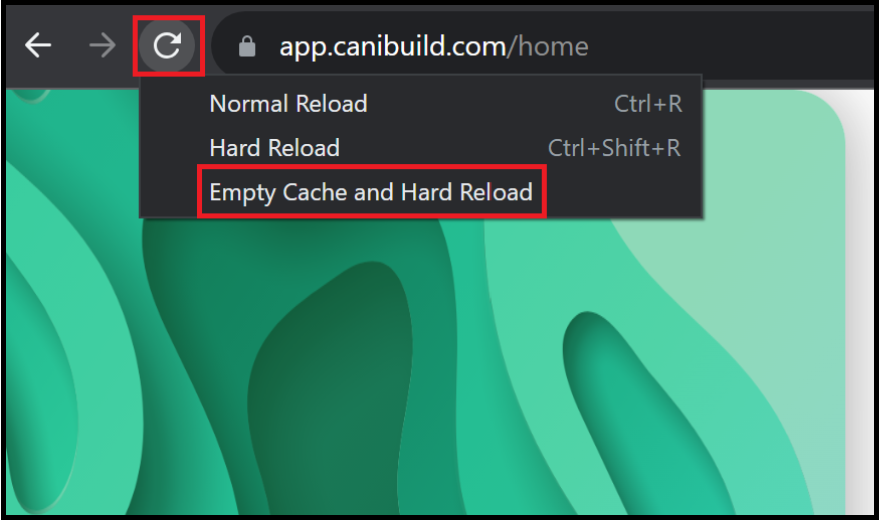
- Right-click the Reload button and select Empty Cache and Hard Reload.
- Reorder the document as before.