How to set up the Quoting feature
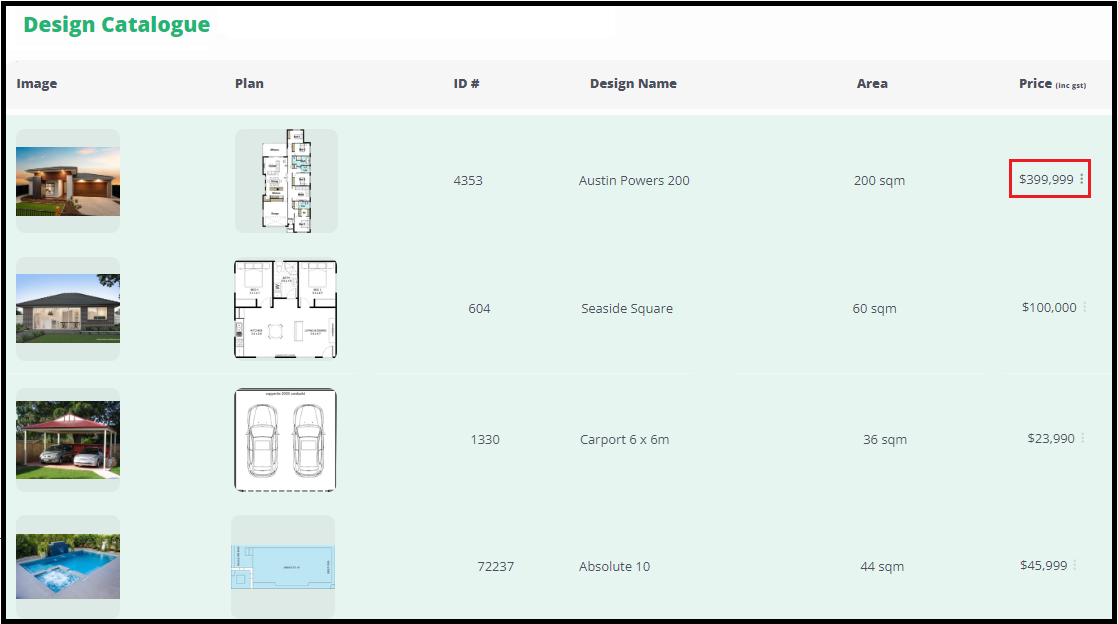
- Populate the spreadsheet according to the table below.
Item Group | 3 to 10 categories to group your items. |
Item Subgroup | If necessary, these are additional groups if you need to divide the main item group. |
Item Short Description | Complete list of all extras, upgrades, or modifications – cannot have any duplicates. |
Item Full Description | Extended description – detail exactly what the end client is getting. (Similar items can have the same description) |
UOM | The Unit Of Measurement (UOM) that price will be multiplied by. Main examples would be EA / LM / SQM / CBM / SqFt / CuFt / HR / Day etc. |
Price | The total dollar value of the item (include % markup). Does not have to include GST. The app can add this later. |
Quote Section | These headings will group all the items on the quote. You can use the Item Group ones or create 3-4 stages like Design, Approval, Construction, and Extras). |
How to generate a Quote
- Set up the site with all relevant details.
- Click the Quote tab to begin adding items.
- The first thing that appears is the base design that was placed on the site.
- An additional item will be added under the design if the choice of façade has a price.
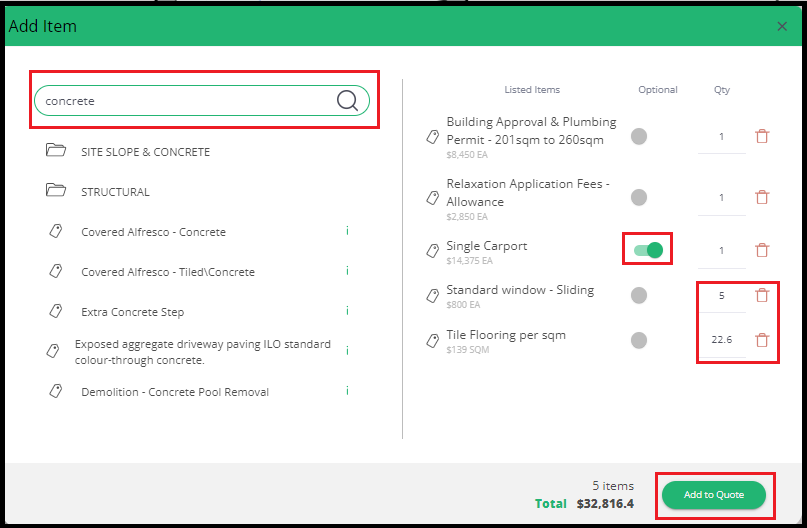
- Click Add Item to select any extras, modifications, or upgrades.
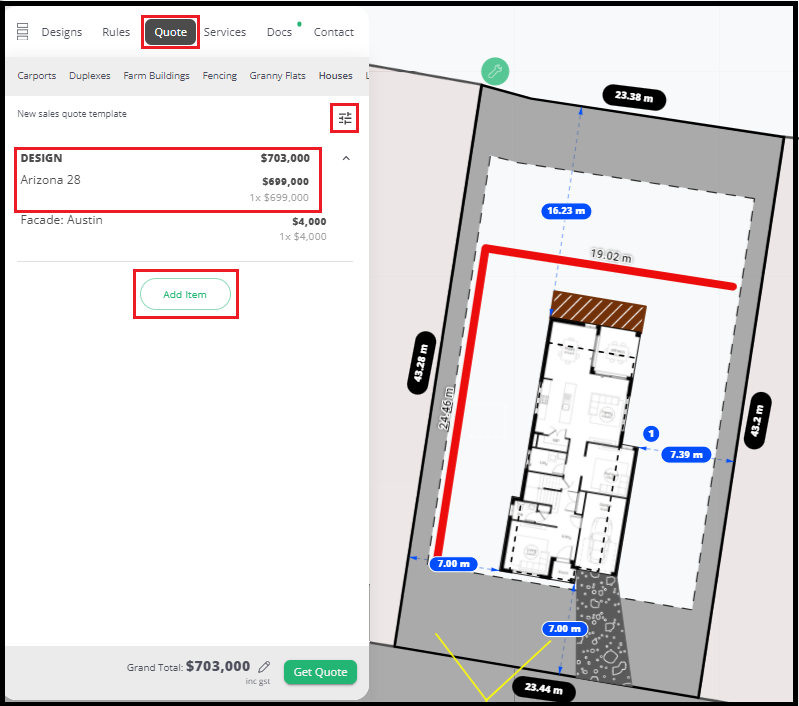
- Choose from the pre-set item template by clicking the icon above the base price.
- Click on the individual folders to locate each item.
- Use the Search bar to quickly find items.
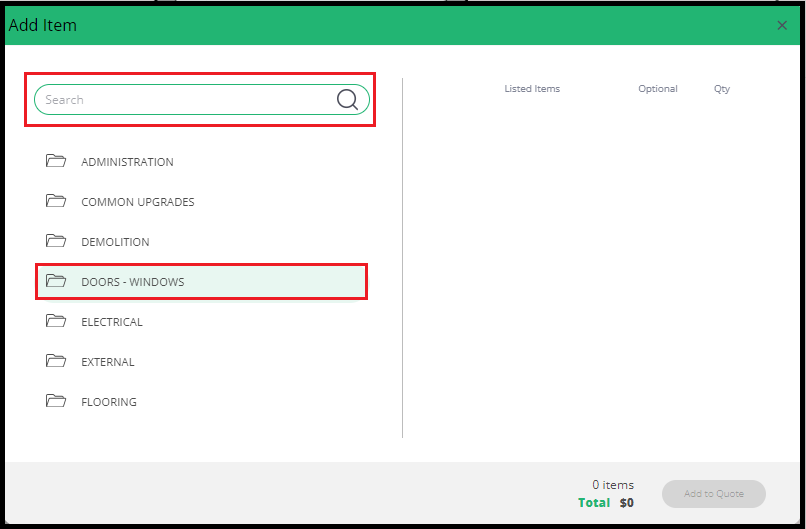
- Click each item to add it to the list.
- Click and edit the quantity values to multiply the items.
- Click the trash can icon to remove an item.
- Click the toggle switch to tag an item as optional.
- Click Add to Quote.
- Repeat until all items are added.
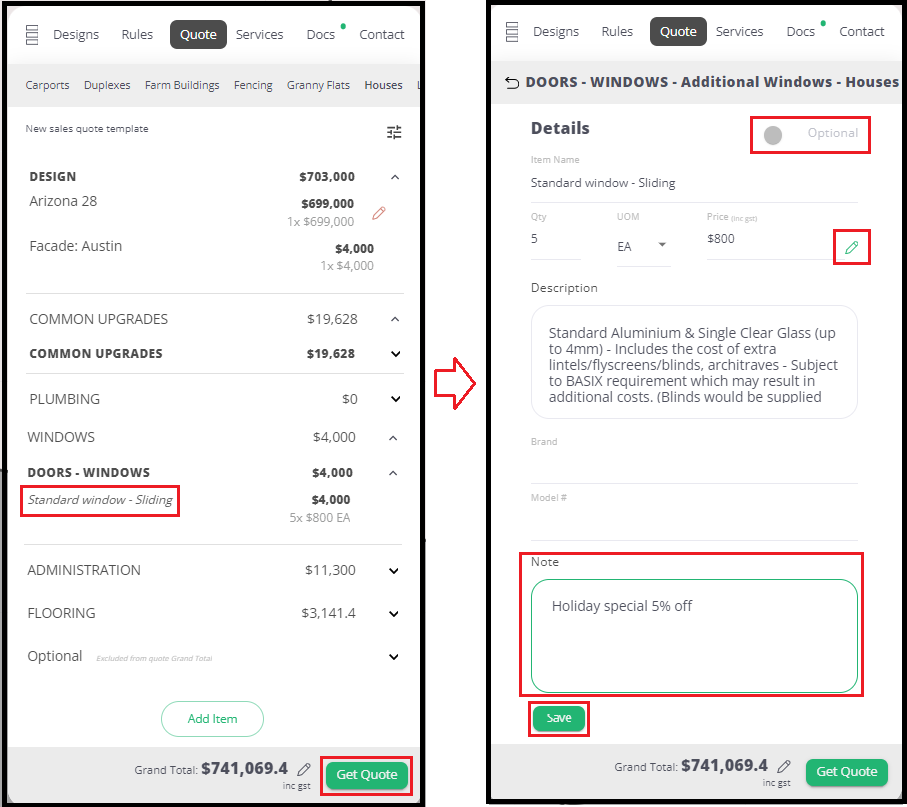
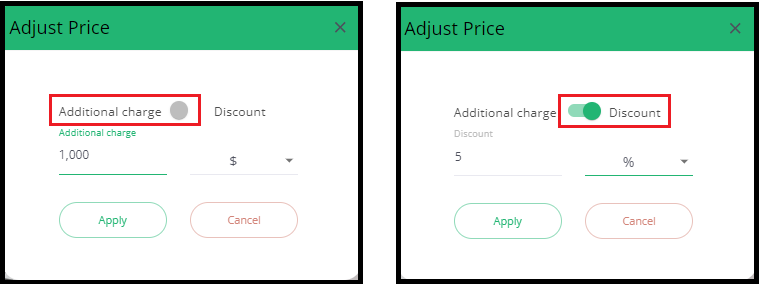
- Click the pencil icons to modify the price.
- Click Get Quote when ready.
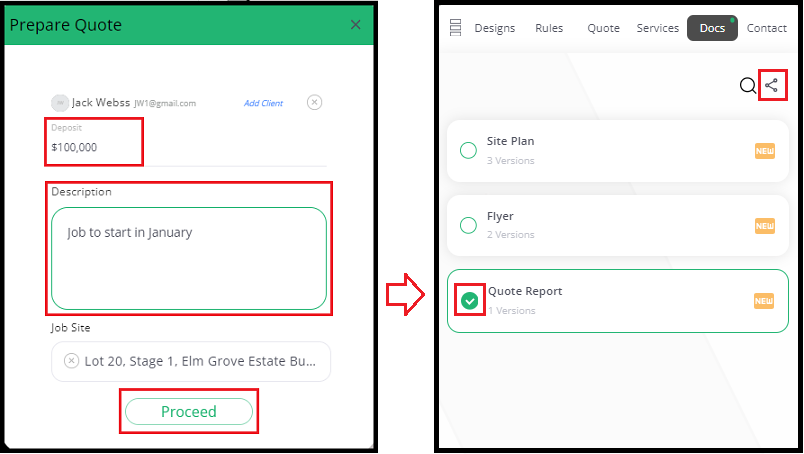
- Populate the Deposit and Description if necessary.
- Click Proceed to generate the quote.
- When the document is ready, select it by clicking the green circle.
- Click the share icon and select Download.
How to edit the Quote template