This article will explain the differences between the standard site plan & Storyboard document. The Storyboard doc comes with a range of customizations including page sizes, scales & multiple display options that can be adjusted for every page.
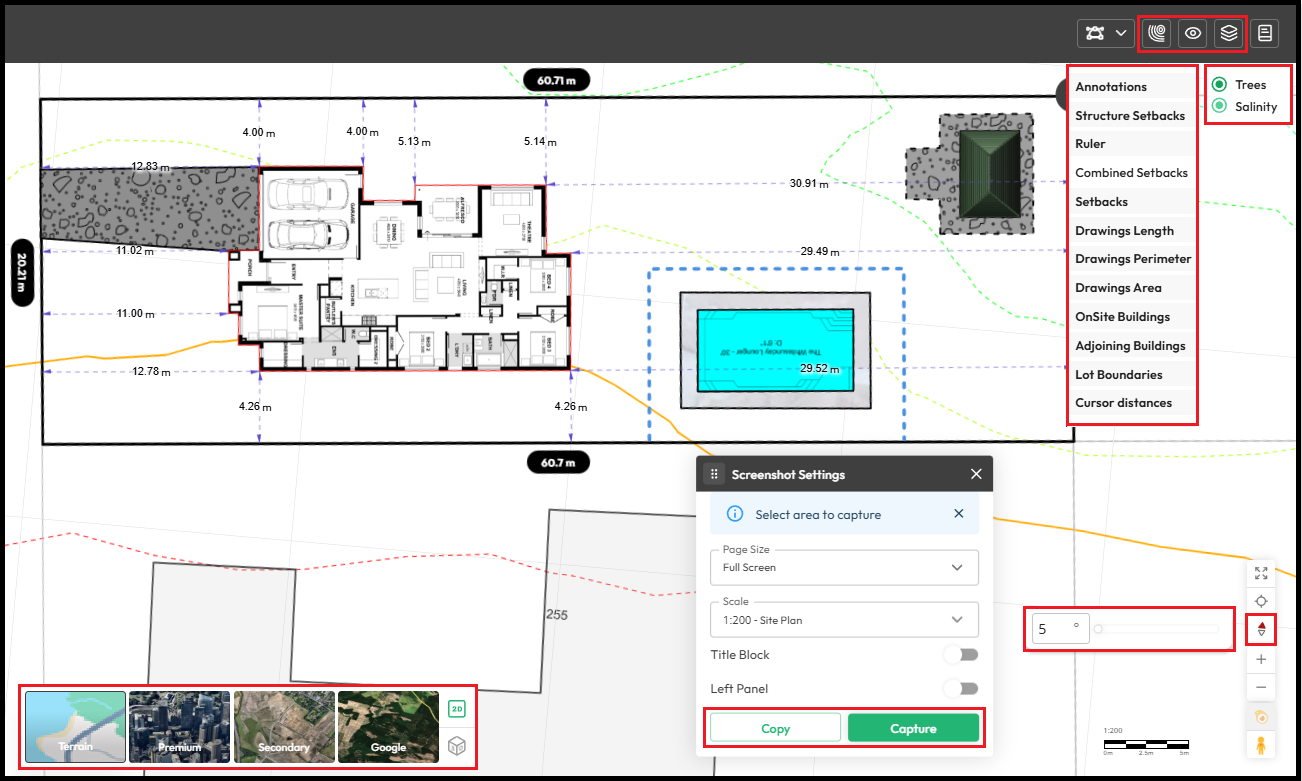
 | Toggle Contours - Display or turn off the elevation lines. |
 | Additional Info - Toggle on & off a range of site information. |
 | Lookup layers - Controls any overlays & turns off trees. |
 | Rotate Map - Change the angle of the lot to square it to the page. |
- Place a Design.
- Set up the site with all relevant details.
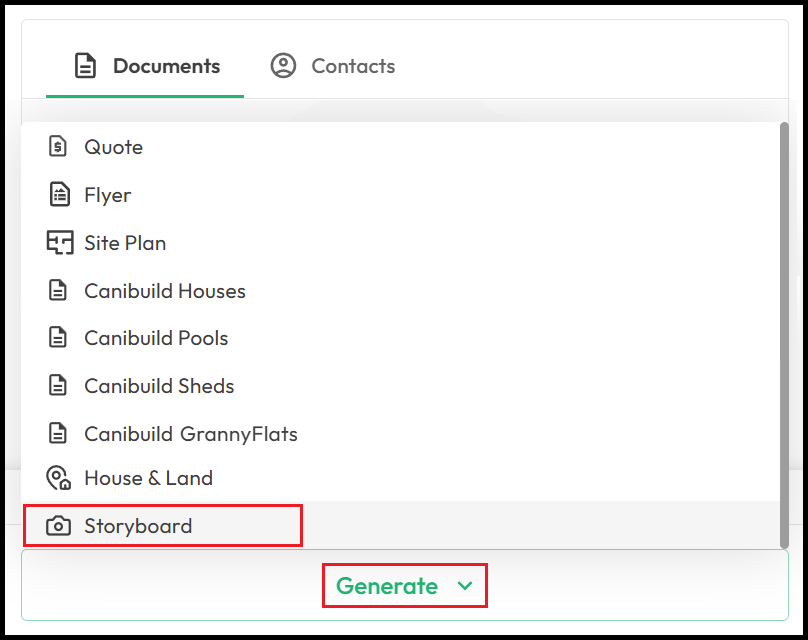
- Click Generate button on the left panel.
- Select Storyboard from the list of Documents.
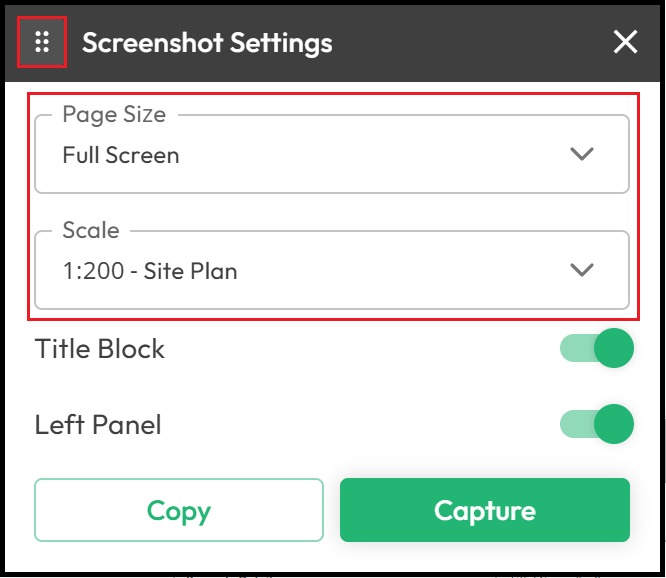
- Click & hold on the Plus on the top-left corner of the menu boxes to move them around.
- Click Page Size & select from the options.
- Click Set Scale & choose the required scale for page one.
- Toggle to Hide/Show the Title Block or Left Panel.
- Click Contours if required.
- Click Additional Info & deselect anything that is not required.
- Click Lookup Layers if required to turn off trees.
- Click the Map to swap between Terrain & Satellite imagery.
- Click Rotate Map to adjust the angle of the lot.
- Click & drag the map to make sure the whole property is visible.
- Click Capture.
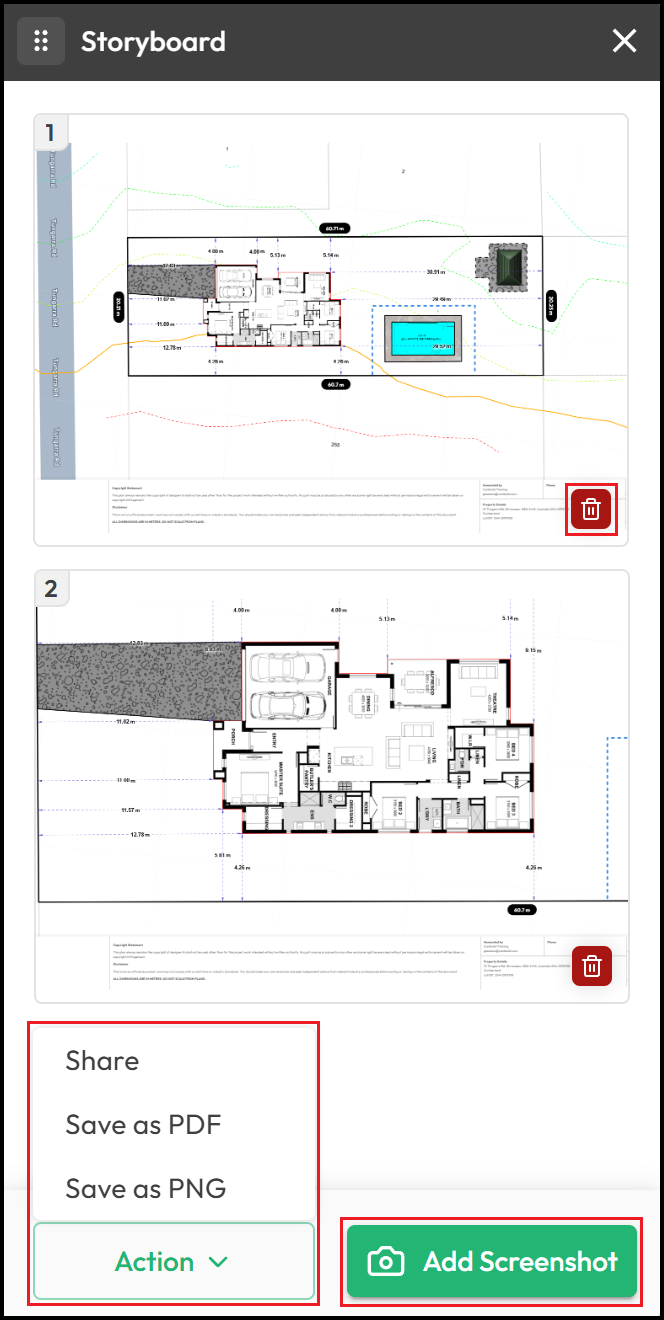
- Click the Red Trash Can to delete a page.
- Click Add Screenshot to add a page.
- Click Action.
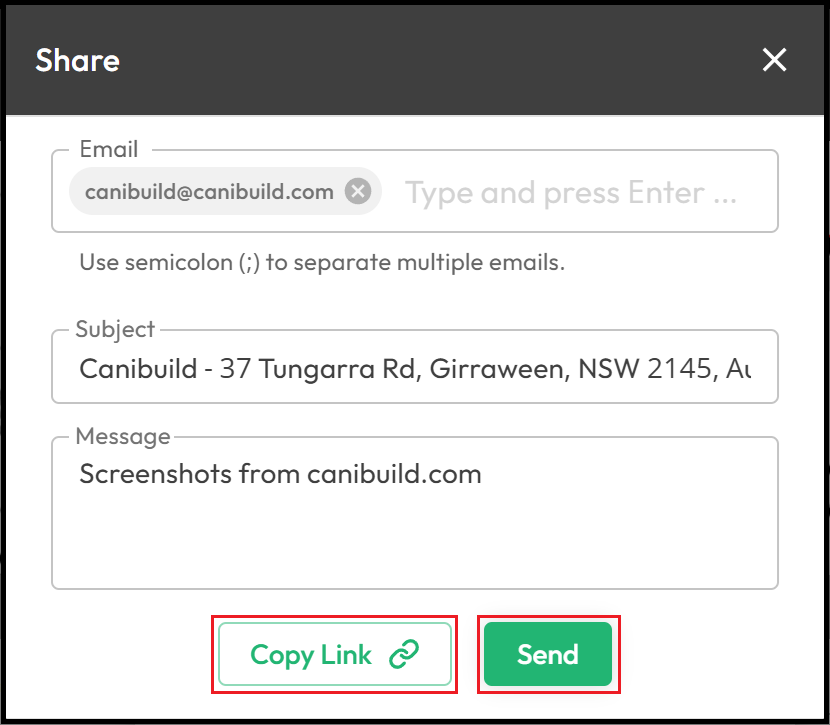
- Share (Sends a link of the document to a selected email).
- Save As PDF (Exports all pages as one complete document).
- Save As PNG (Exports each page as individual images).
- Enter Email.
- Edit Subject or Message.
- Click Copy Link to paste into another email.
- Click Send to finalize email.