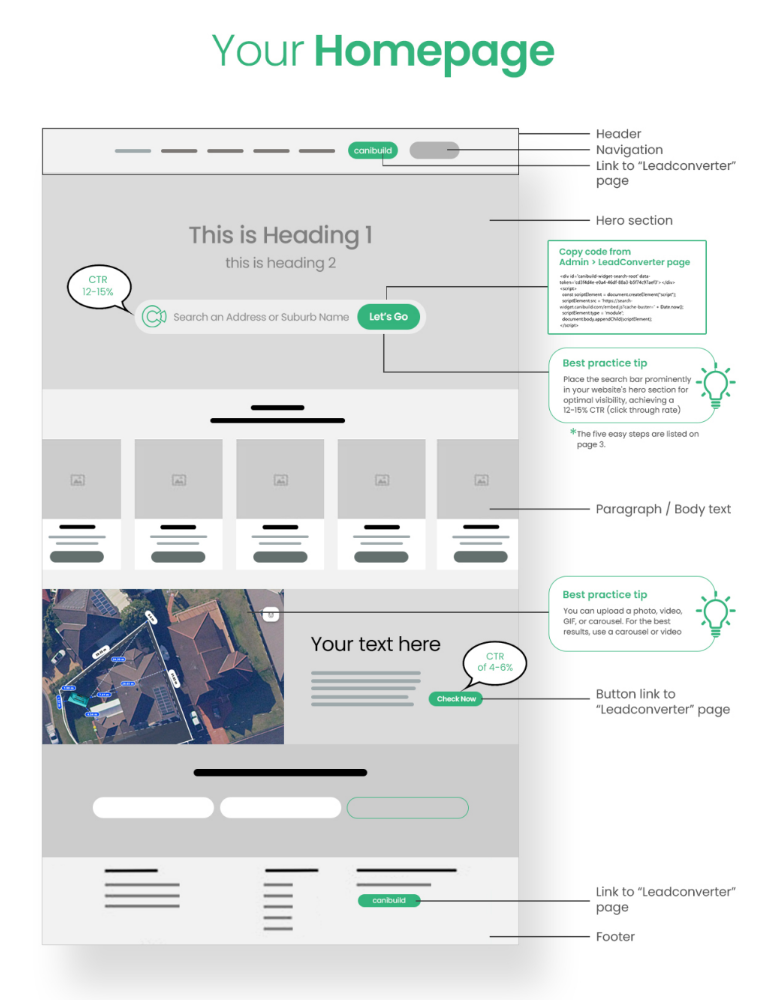
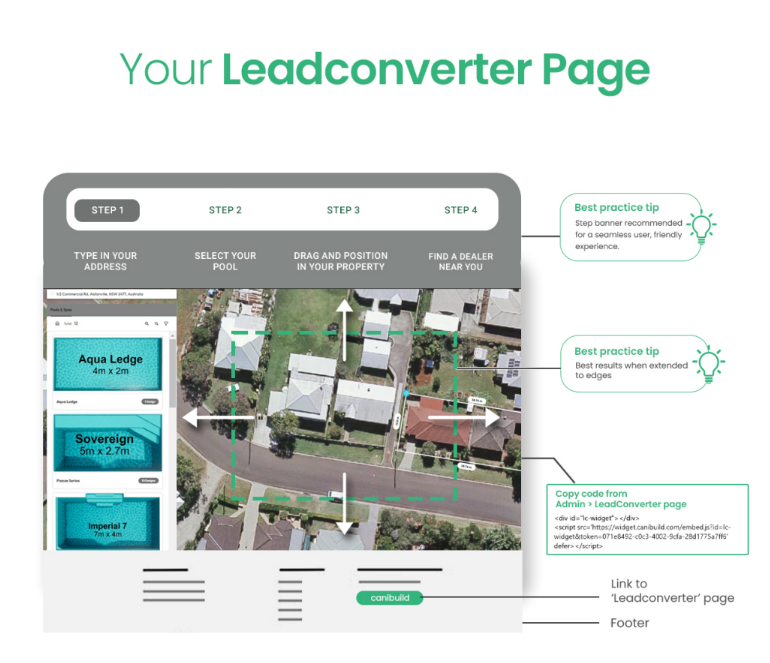
This article provides a complete overview of embedding the Canibuild Widget & Search Bar onto your website. This ensures your visitors can search for an address on your front page and be redirected to your landing page where the ShowLot loads.
| TYPE | The ShowLot uses JavaScript and iFrame. |
| SEO IMPACT | No direct SEO impact. |
| SECURITY | Relies on unique API tokens for pre-nominated domains; hosted securely on AWS servers. |
| PERFORMANCE | Uses a script tag to inject the app after the Dom Content Loaded event, ensuring no initial page load issues |
How to Embed the ShowLot Widget Onto Your Website
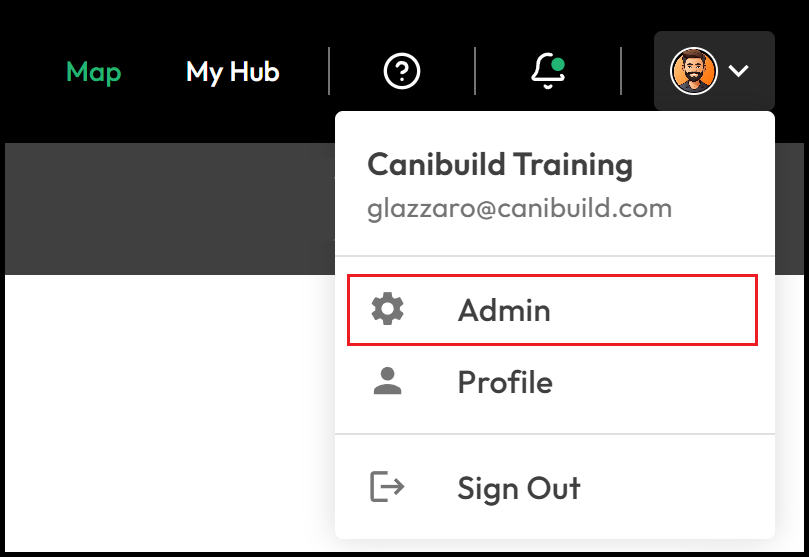
- Access the Admin section by clicking on your initials on the top right corner of the screen.
- Select Admin from the dropdown menu.
-
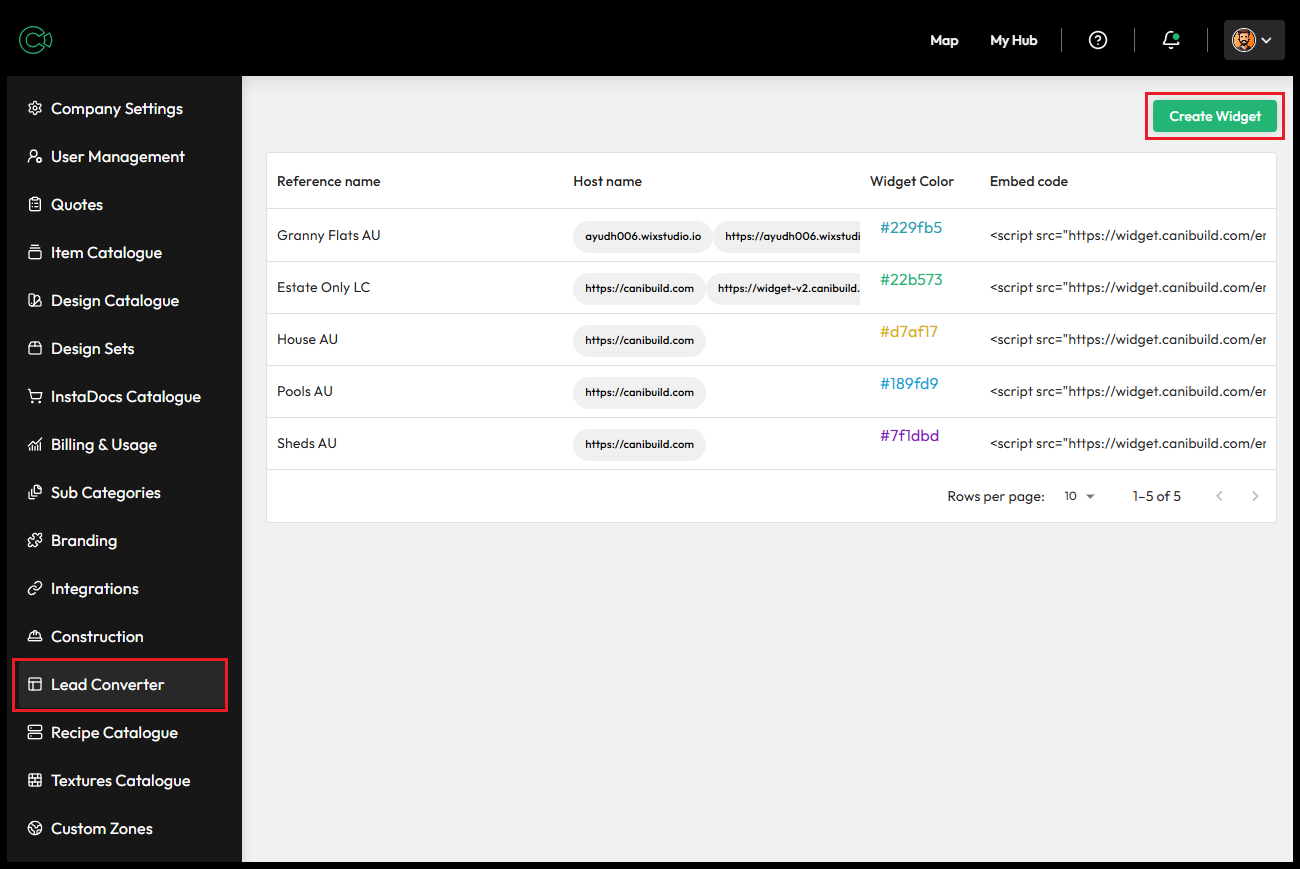
Click ShowLot in the left side panel.
-
Click Create Widget to add a new widget.
OR
- Select the Reference Name of the Widget you would like to embed on your website.
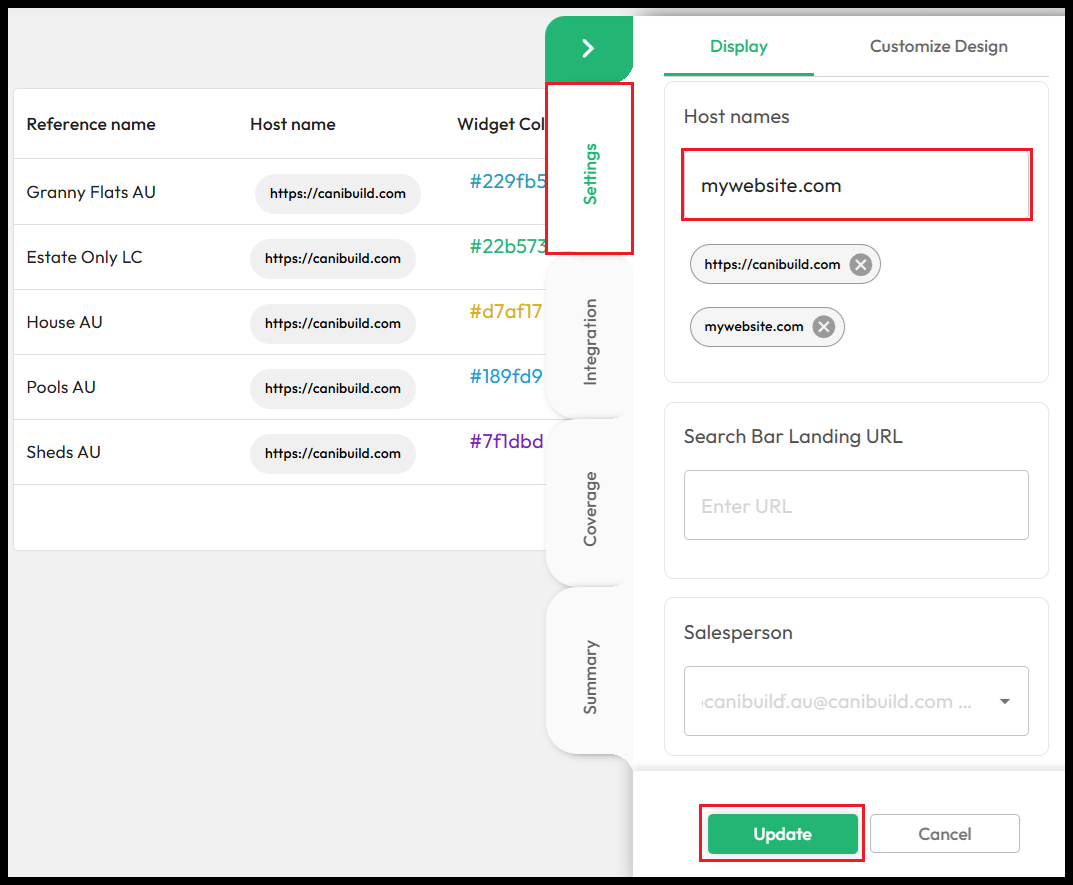
- Select Settings.
- Scroll down to Host names.
- Enter the website URL (Domain Name) where the widget will be embedded.
- Press Enter or Return to add.
- Click Update to save.
- Select Summary.
- Copy the Embedding Code.
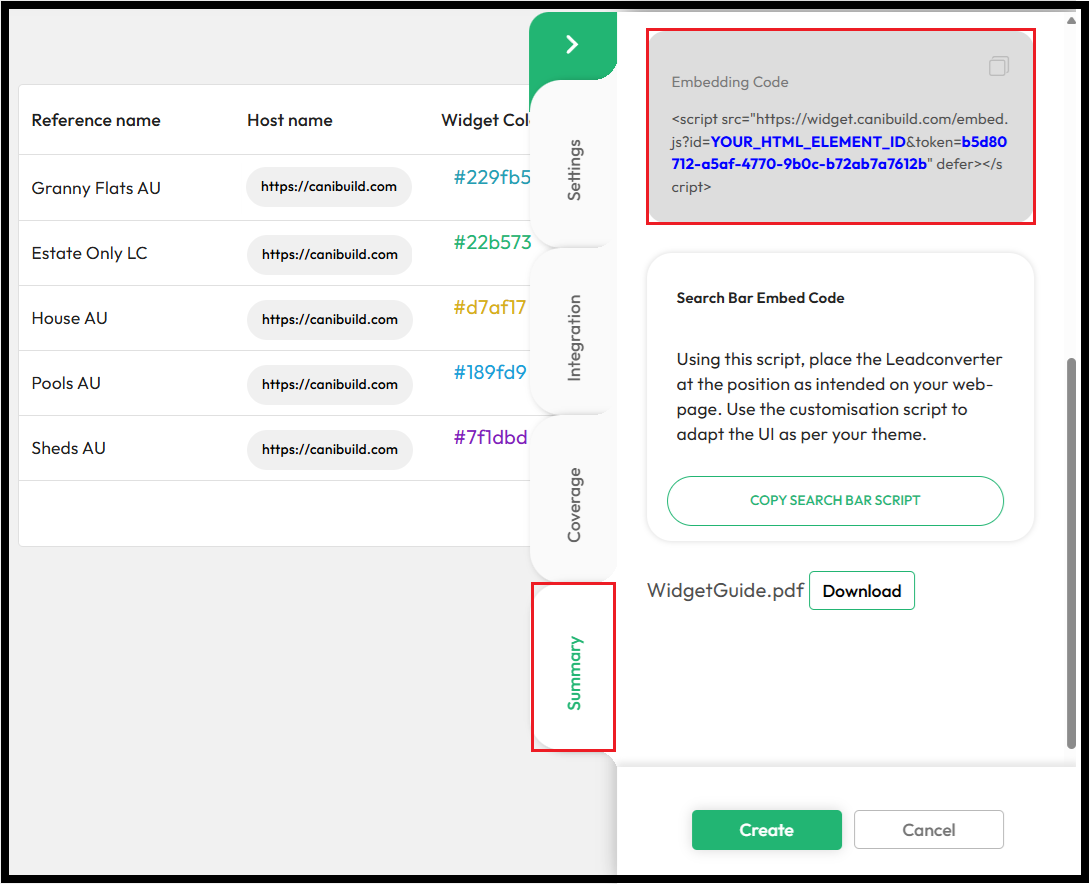
- Paste the code into your website’s HTML at the desired location.
- Locate the id parameter inside the script. (YOUR_HTML_ELEMENT_ID)
-
Copy this id value (or replace it with a string of your choice).
-
Create a div on your webpage with the same id as in the script.
-
Ensure the code also includes your valid data-token, which loads your widget into the div.
-
Save your webpage and refresh the browser to check that the widget loads.

-
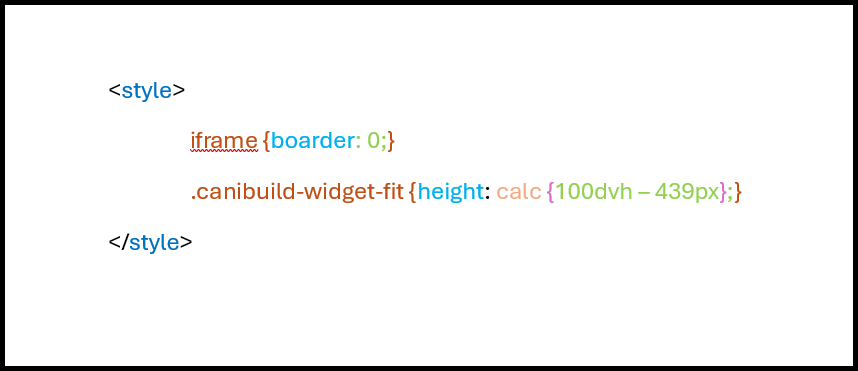
Add this class to your widget’s div to ensure it fits neatly on the page.
-
Refresh the page and confirm the widget displays correctly.

How to Embed the ShowLot Search Bar
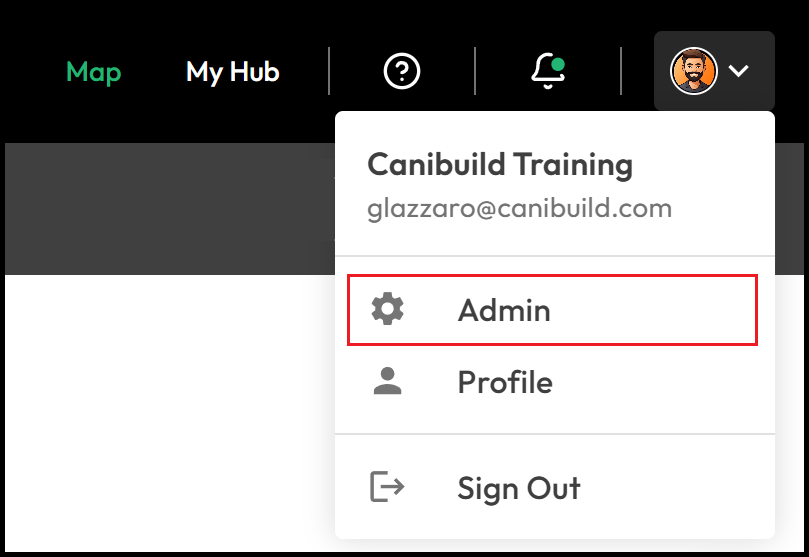
- Access the Admin section by clicking on your initials on the top right corner of the screen.
- Select Admin from the dropdown menu.
-
Click ShowLot in the left side panel.
-
Click Create Widget to add a new widget.
OR
- Select the Reference Name of the Widget you would like to embed on your website.
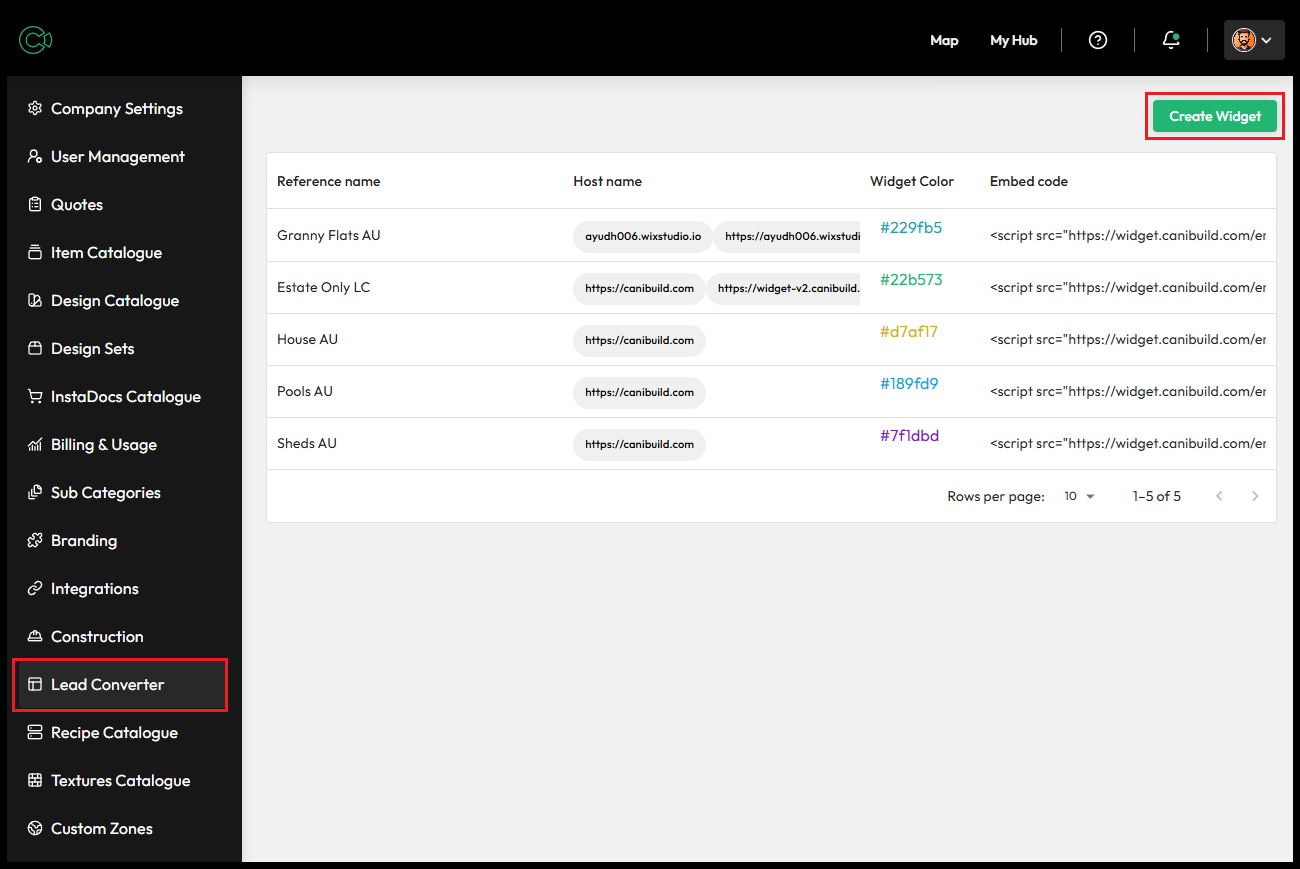
- Select Summary.
- Click Copy Search Bar Script.
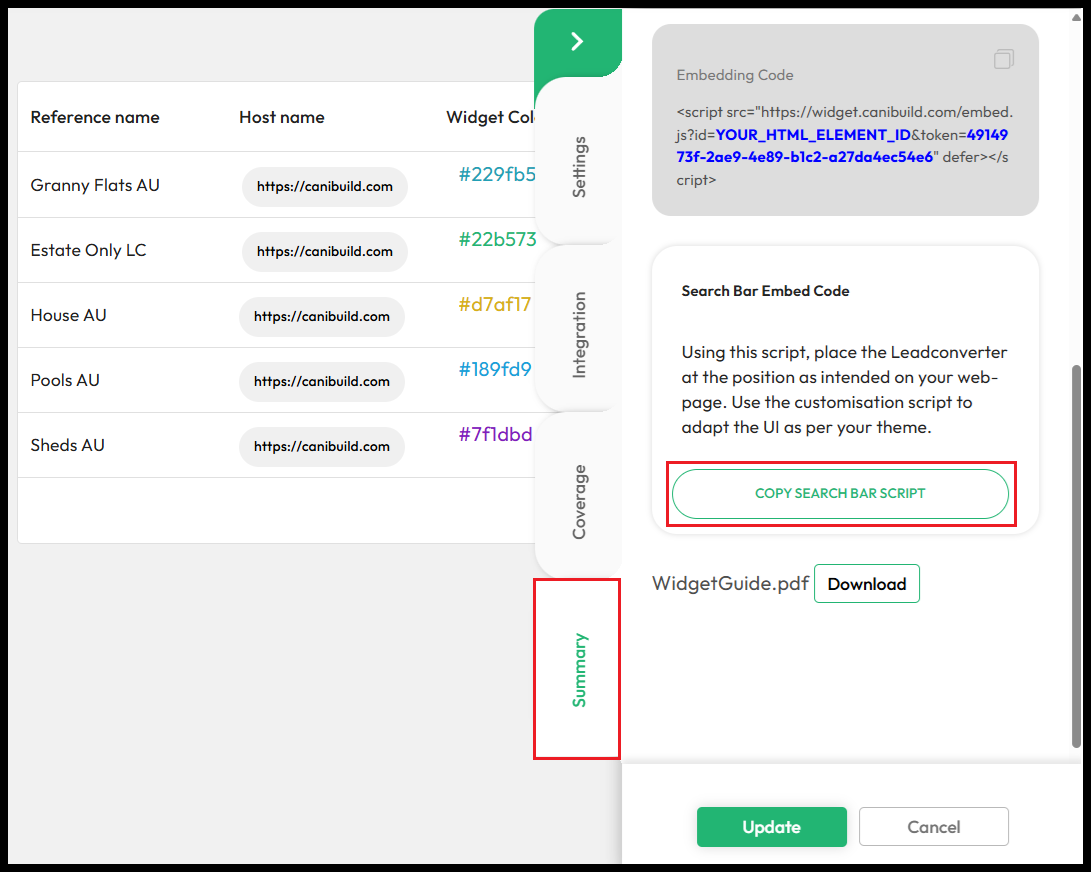
- Click the Copy button to copy the embed code.
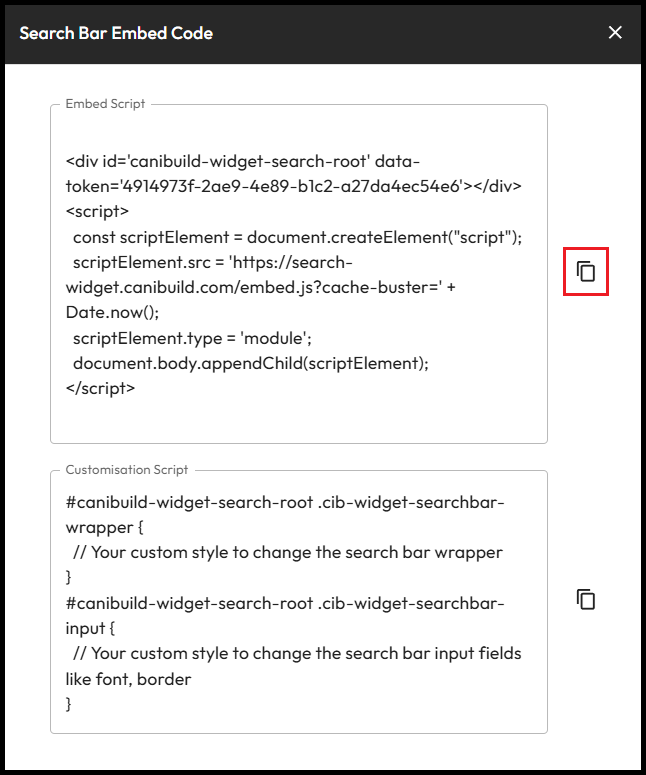
- Paste the embed code into your website’s front page HTML where you want the search bar to appear.
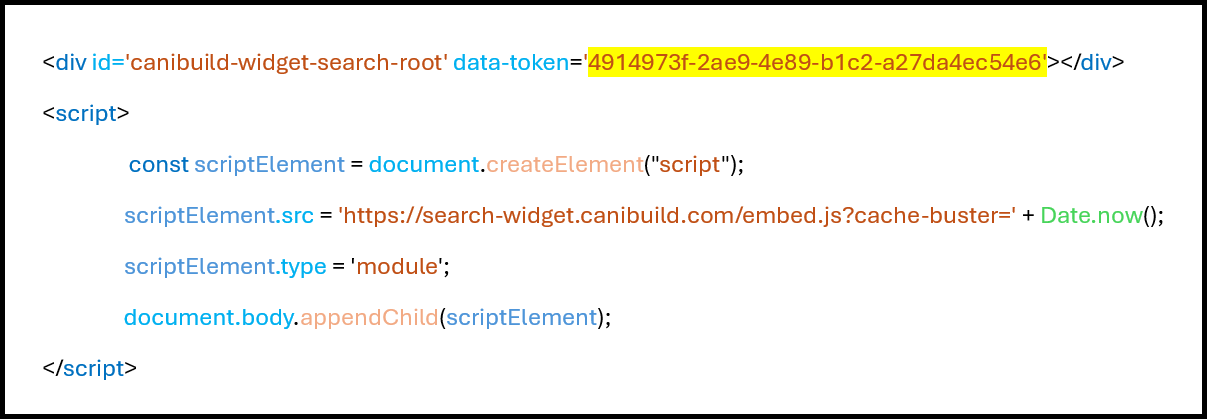
- Save and refresh the page to confirm the search bar appears.

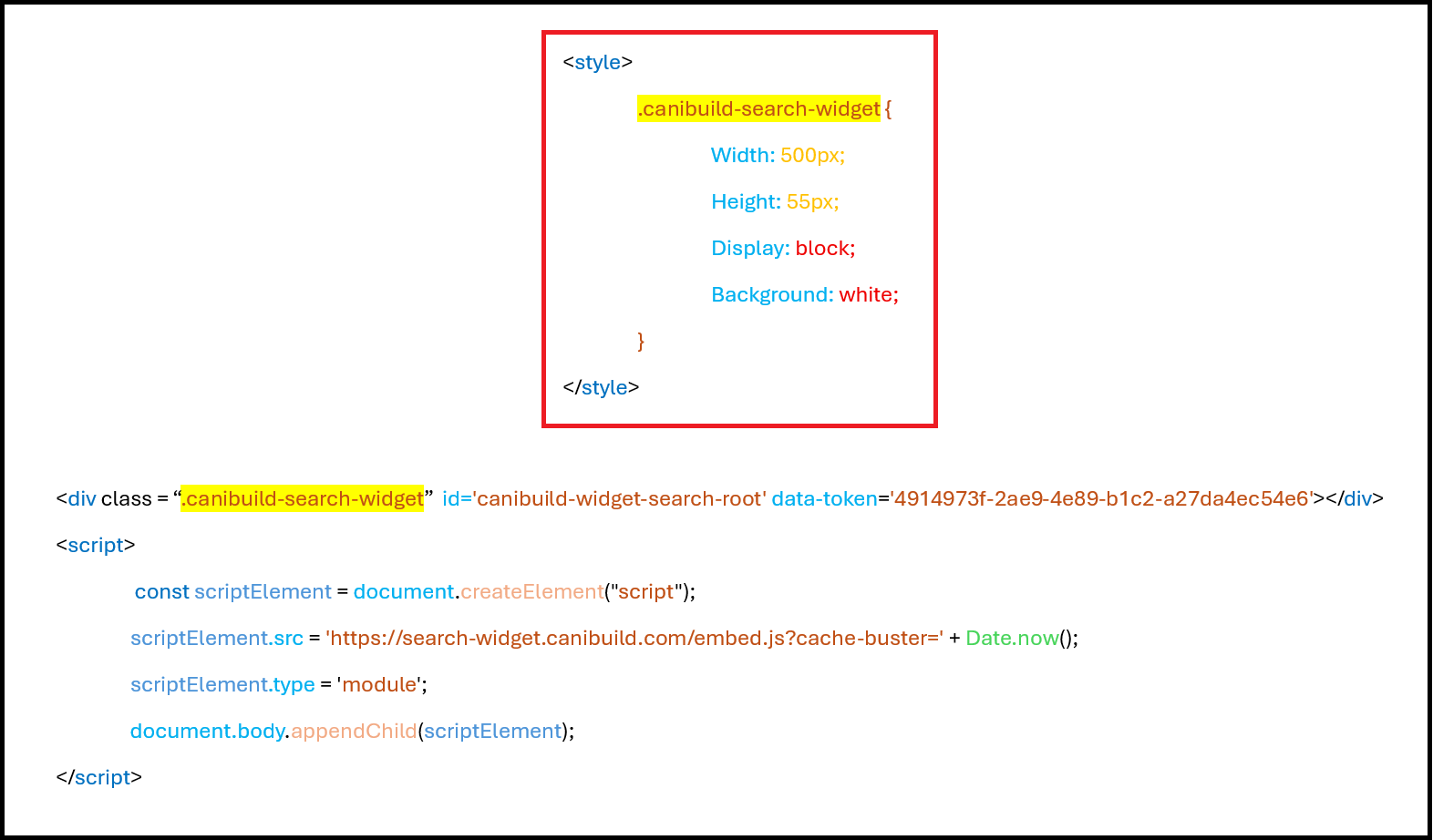
- Create the class for your style similar to the code below.
- Adjust the Width & Height to fit your website.
- Add the class to the div.
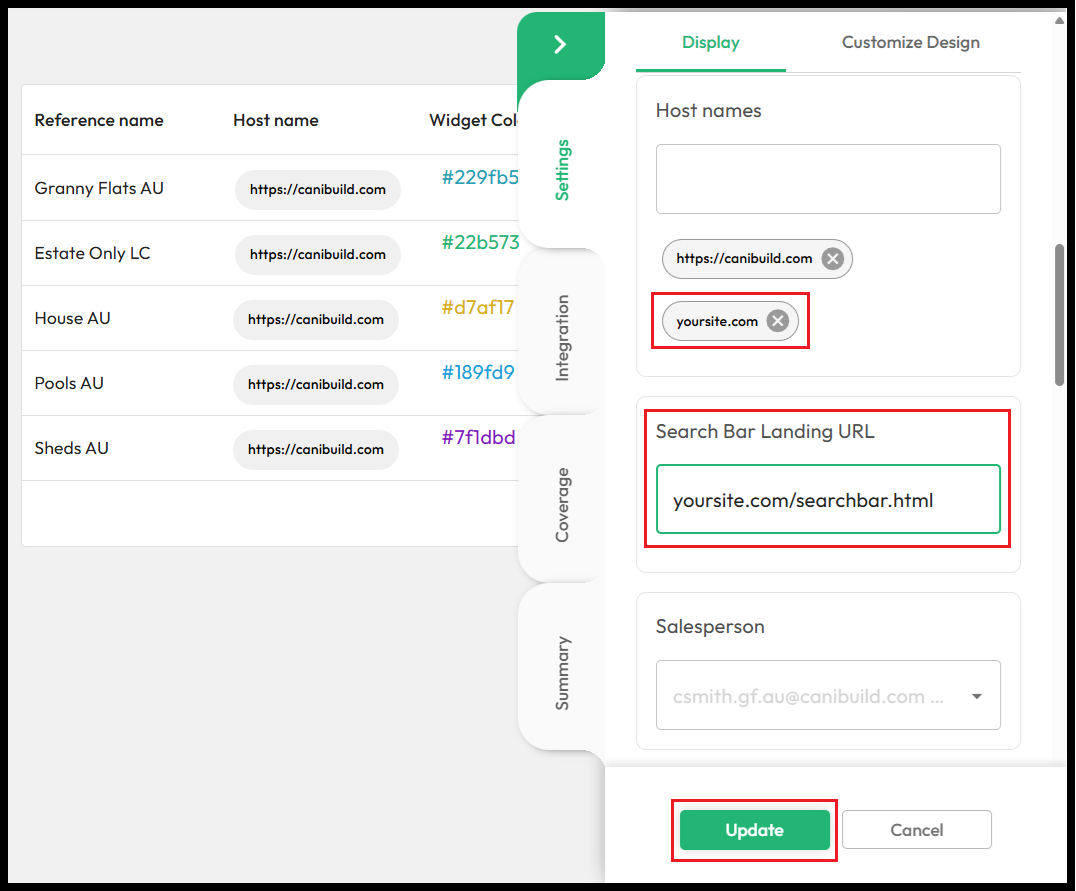
- In Widget Settings find the Search Bar Landing URL field.
- Copy the full URL of your landing page
- Paste the URL into the Search Bar Landing URL field.
- Click Update.
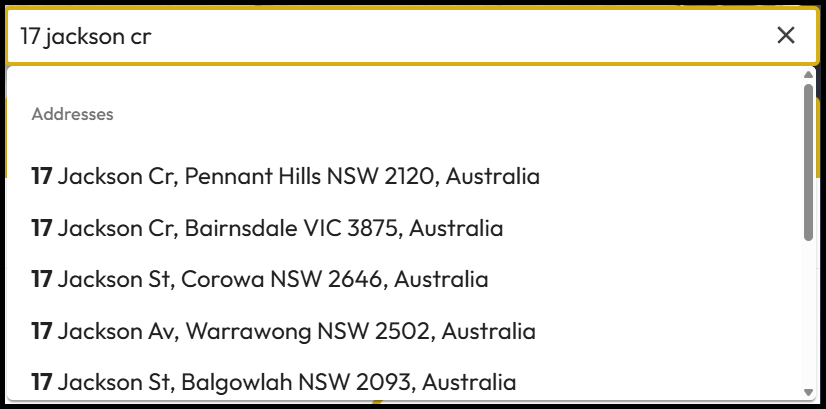
- Type an address to confirm it redirects to your landing page correctly.
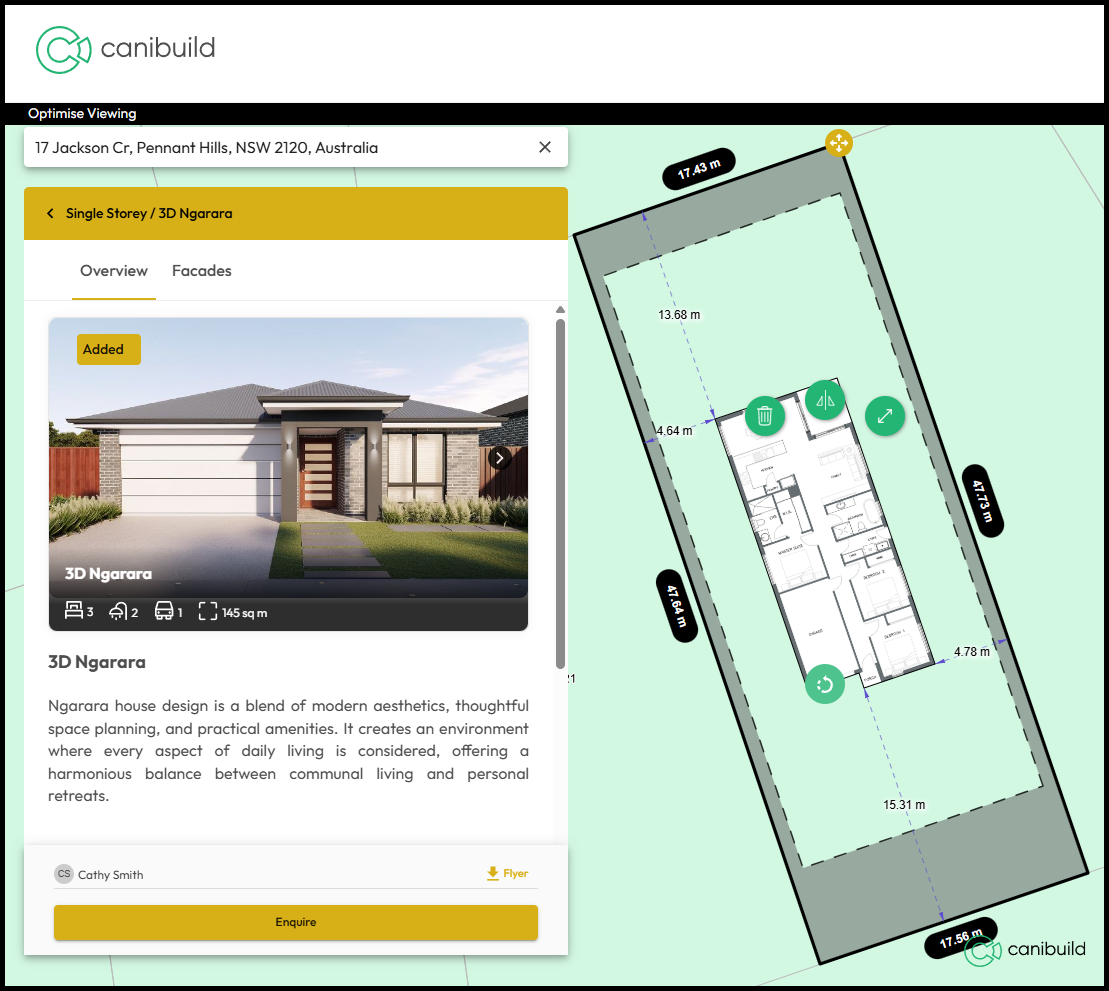
- On the landing page, test the widget by placing a house, moving or rotating it, and checking that contact forms work as expected.
How to Embed the Website Visitor Tracking Code
- Copy the relevant script (based on your country) and embed into the global section of your website code i.e your header or footer.
If United States:
<script
data-id="canibuild-tracker"
data-token="**_{Insert Your Token ID Number}_**"
data-country="USA"
type="module"
src="[https://widget.prod.cloud.verumtek.com.au/tracker-prod.js](https://widget.prod.cloud.verumtek.com.au/tracker-prod.js)">
</script>
If Canada:
<script
data-id="canibuild-tracker"
data-token="**_{Insert Your Token ID Number}_**"
data-country="CAN"
type="module"
src="[https://widget.prod.cloud.verumtek.com.au/tracker-prod.js](https://widget.prod.cloud.verumtek.com.au/tracker-prod.js)">
</script>
If Australia:
<script
data-id="canibuild-tracker"
data-token="**_{Insert Your Token ID Number}_**"
data-country="AUS"
type="module"
src="[https://widget.prod.cloud.verumtek.com.au/tracker-prod.js](https://widget.prod.cloud.verumtek.com.au/tracker-prod.js)">
</script>
If New Zealand:
<script
data-id="canibuild-tracker"
data-token="**_{Insert Your Token ID Number}_**"
data-country="NZL"
type="module"
src="[https://widget.prod.cloud.verumtek.com.au/tracker-prod.js](https://widget.prod.cloud.verumtek.com.au/tracker-prod.js)">
</script>``
Best Practice Guide
Click here to view our ShowLot Implementation Best Practice Guide to get tips how to achieve the greatest performance from your ShowLot widget.