
How to add a design façade
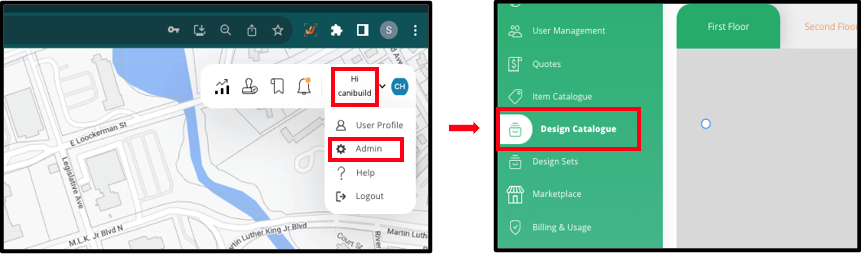
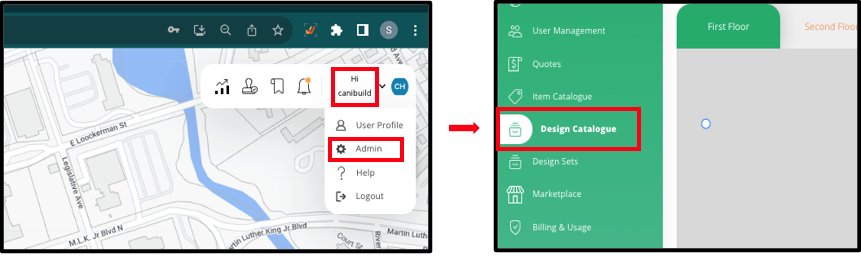
- To access the Admin section Click on your name on the top right of the screen.
- Select Admin from the options.
- Click on Design Catalogue.
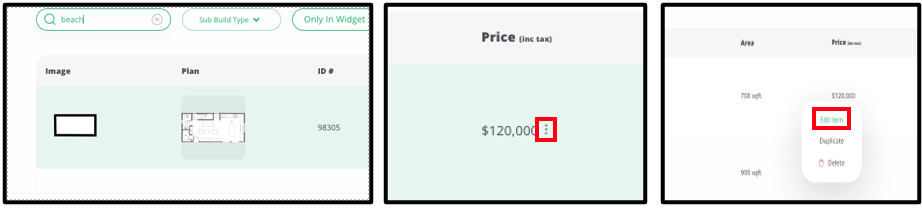
- Search for the desired design, and hover over the card. It will turn green.
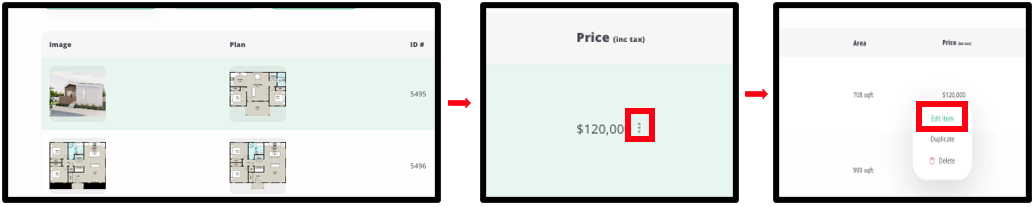
- Click on the small Stacked Dots icon to the right of pricing.
- Click on Edit Item.
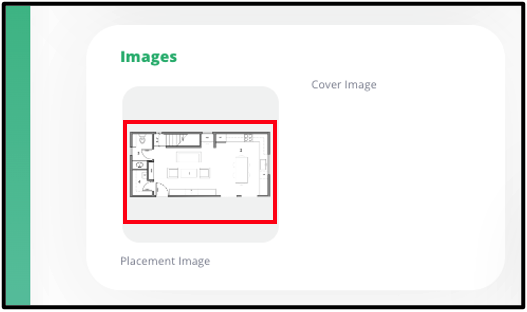
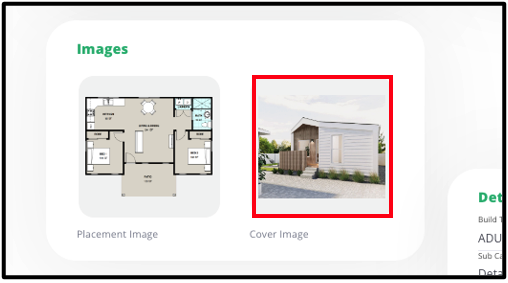
- Click on the design in the box above Placement Image.
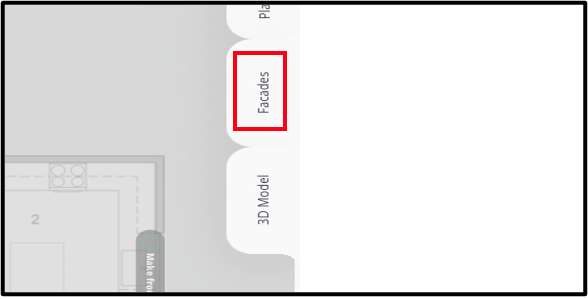
- Click on the Facades tab near the right side of the screen.
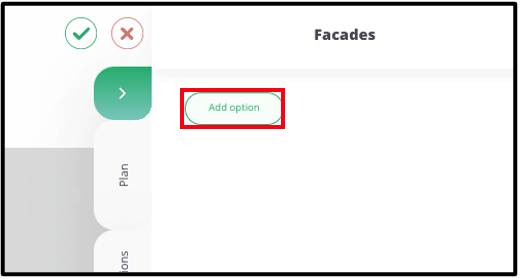
- Click on Add option in the panel on the right side of the screen.
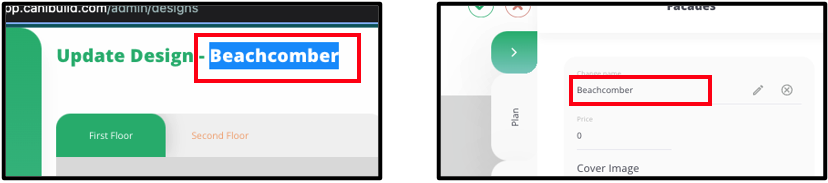
- Copy the design name located near the top right of the screen and after Update Design.
- Paste the copied name into the Change name field in the panel on the right side of the screen or type in a new one.
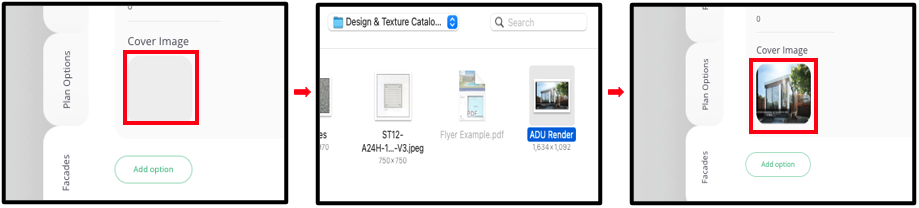
- Click on the grey box under Cover Image.
- Select the desired image from your computer files.
- Click on the green Checkmark icon near the top right of the screen to save your changes.
How to replace a design’s facade
- Click on Hi, {your name} at the top right of the screen.
- Click on Admin.
- Click on Design Catalogue.
- Search for the desired design, and hover over the card. It will turn green.
- Click on the small Stacked Dots icon to the right of pricing.
- Click on Edit Item.
- Click on the image in the box above Cover Image.
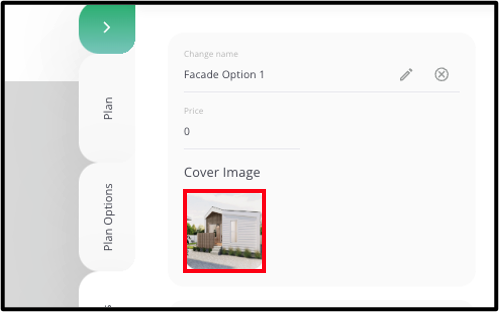
- Click on the image in the panel on the right side of the screen under Cover Image.
- Select the replacement image from your computer files.
- Click on the green Checkmark icon near the top right of the screen to save your changes.