This article will cover how to apply textures to a shape & how to upload custom textures into your Texture Catalogue.
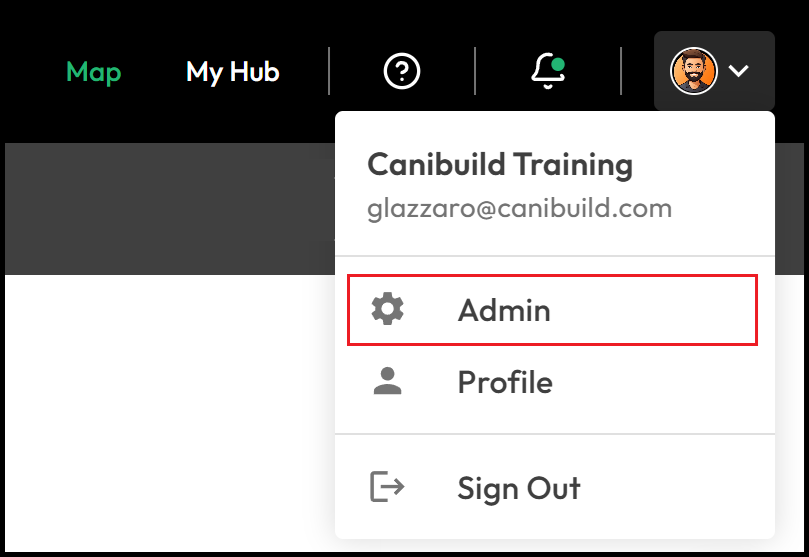
- To access the Admin section Click on your initials on the top right corner of the screen.
- Select Admin from the dropdown menu.
- Select Texture Catalogue.
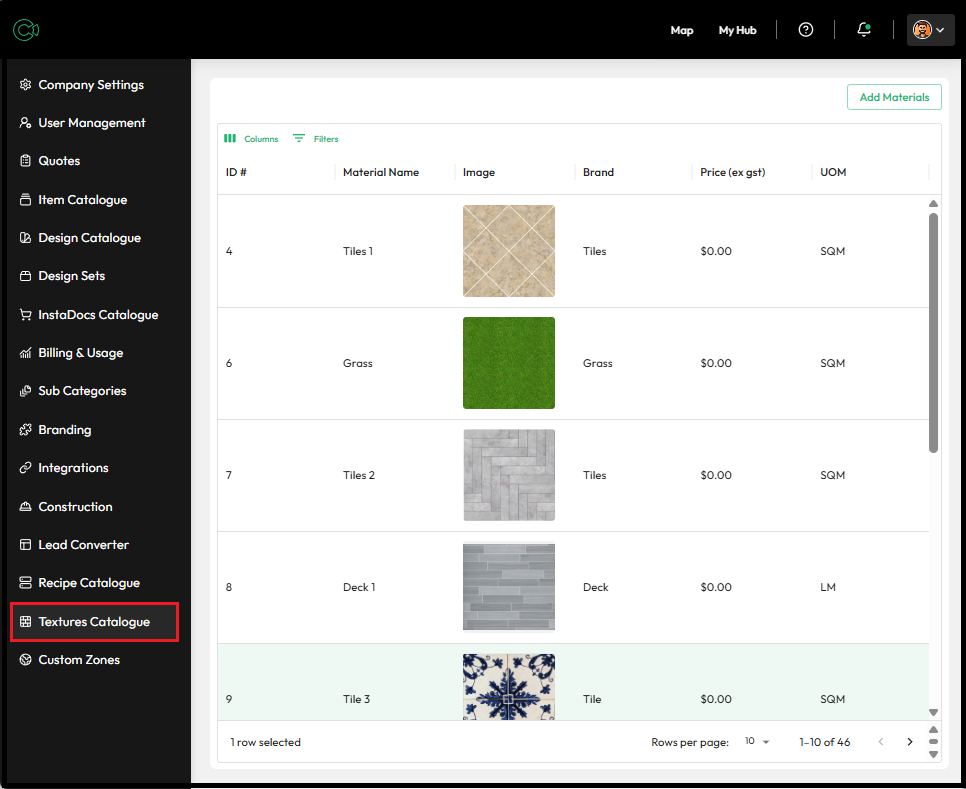
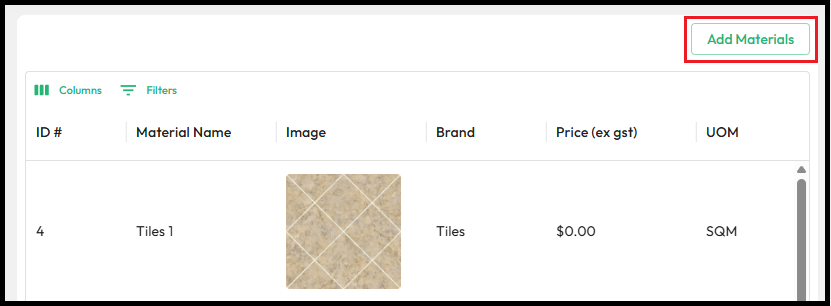
- Click Add Materials.
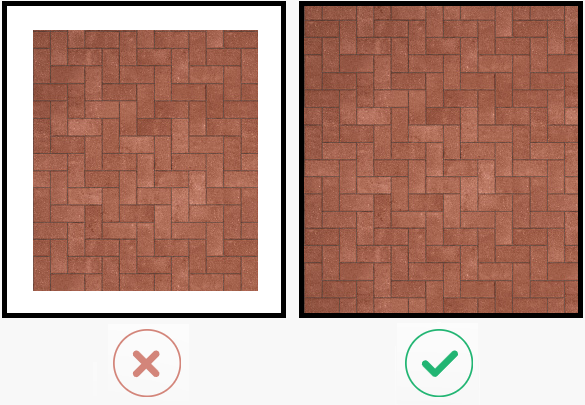
- Click the Pencil icon to add an image.
- Enter information in the text fields:
- Name.
- Brand.
- Texture Set.
- Price.
- UOM.
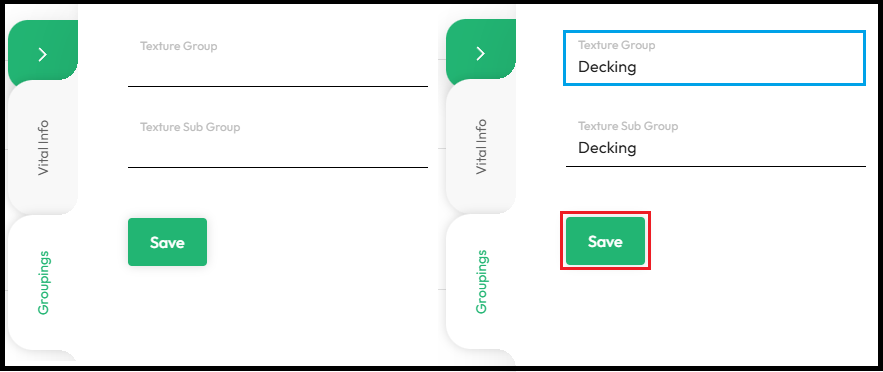
- Click on the Groupings Tab to the left of the editing panel.
- Enter a label for Texture Group & Texture Sub Group.
- Click Save.