This article will show you which parts of the Flyer, Site Plan & Proposal can be customised, and how to set up your branding in Canibuild.
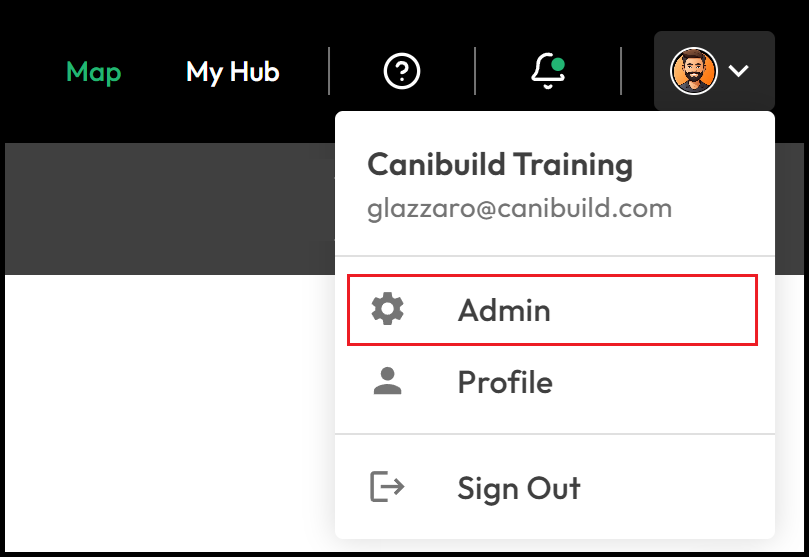
- To access the Admin section Click on your initials on the top right corner of the screen.
- Select Admin from the dropdown menu.
-
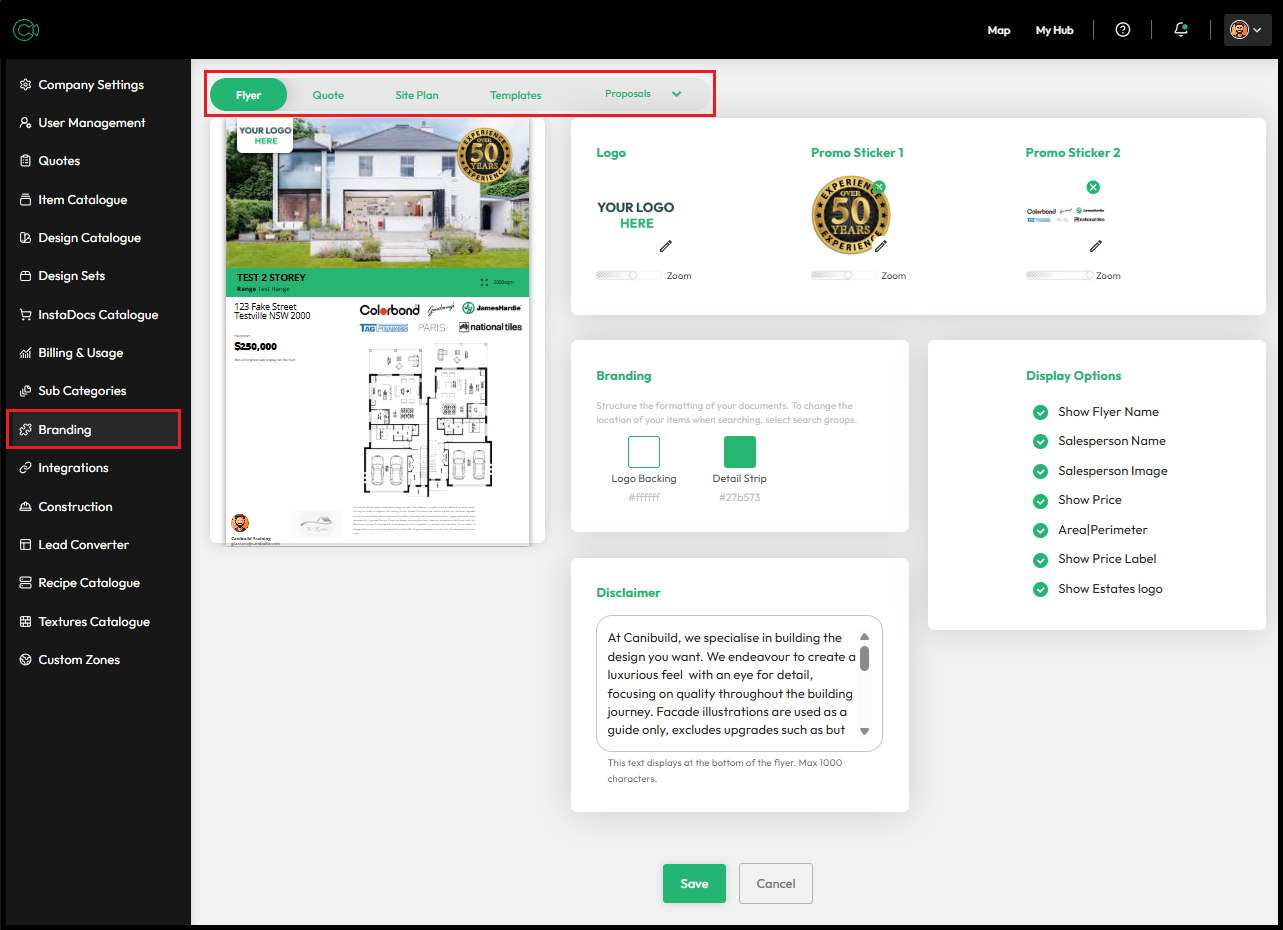
Click Branding.
-
Choose between Flyer, Site Plan, or Proposal to customise.
Flyer
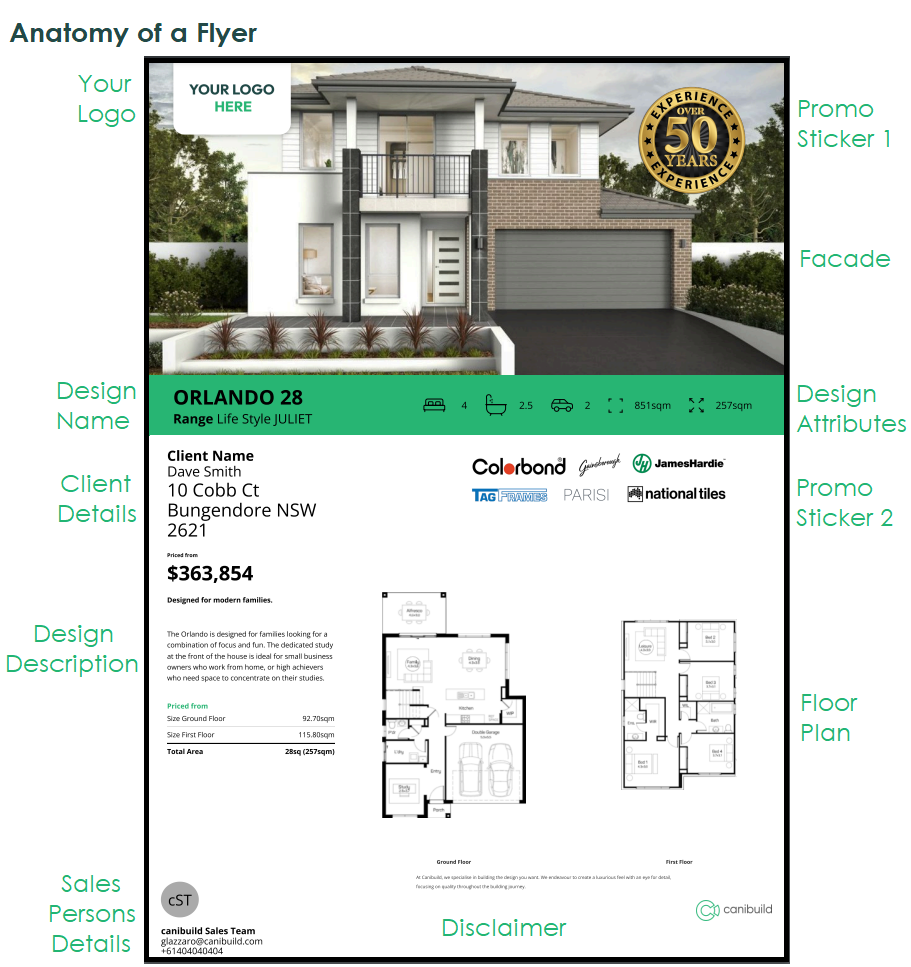
- Click the pencil icon to open your file manager and upload your Logo or Promo Stickers.
- Drag the Zoom slider to adjust logo size.
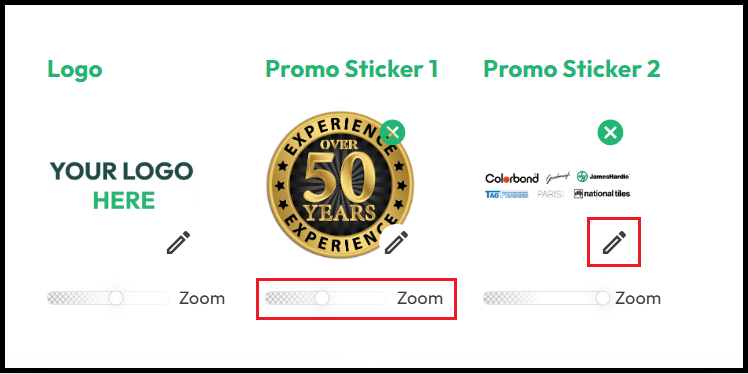
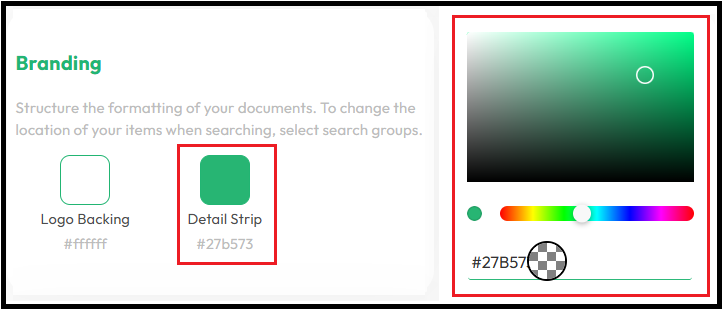
- Click the colour square for Logo Backing or Detail Strip.
-
Move the slider to choose a main colour.
-
Click inside the colour square to fine-tune the shade.
-
Enter a hexadecimal code to match exact company colours.
-
Click the checked circle for a transparent background.
-
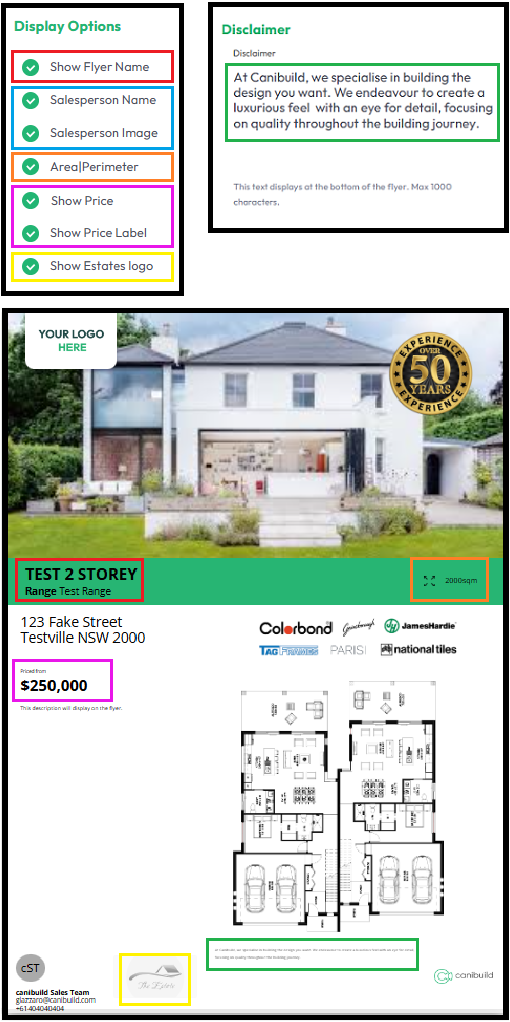
- Click the green circles under Display Options to turn specific elements on or off.
Site Plan
-
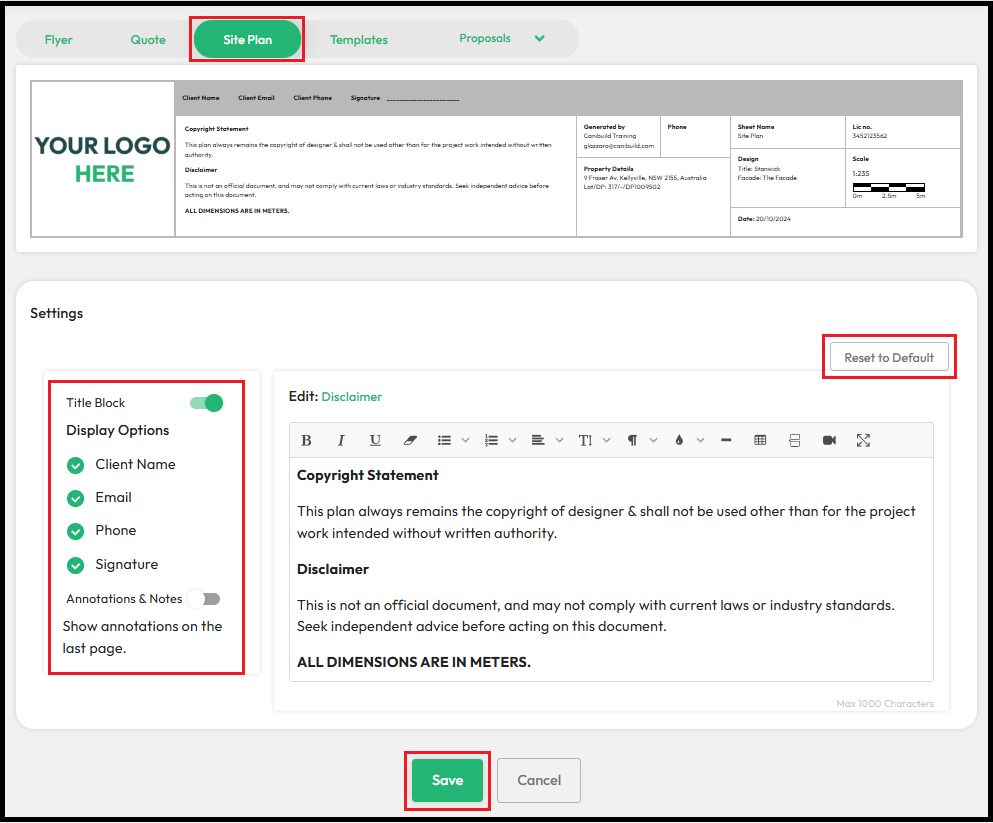
Select Site Plan from the Branding options.
-
Click the green circles under Display Options to enable/disable items.
-
Toggle the Title Block switch to hide client details.
-
Toggle the Annotations switch to move notes to the first or last page.
-
Edit the disclaimer text as needed.
-
Click Reset to Default to revert changes.
-
Click Save to apply changes or Cancel to exit without saving.
Proposal
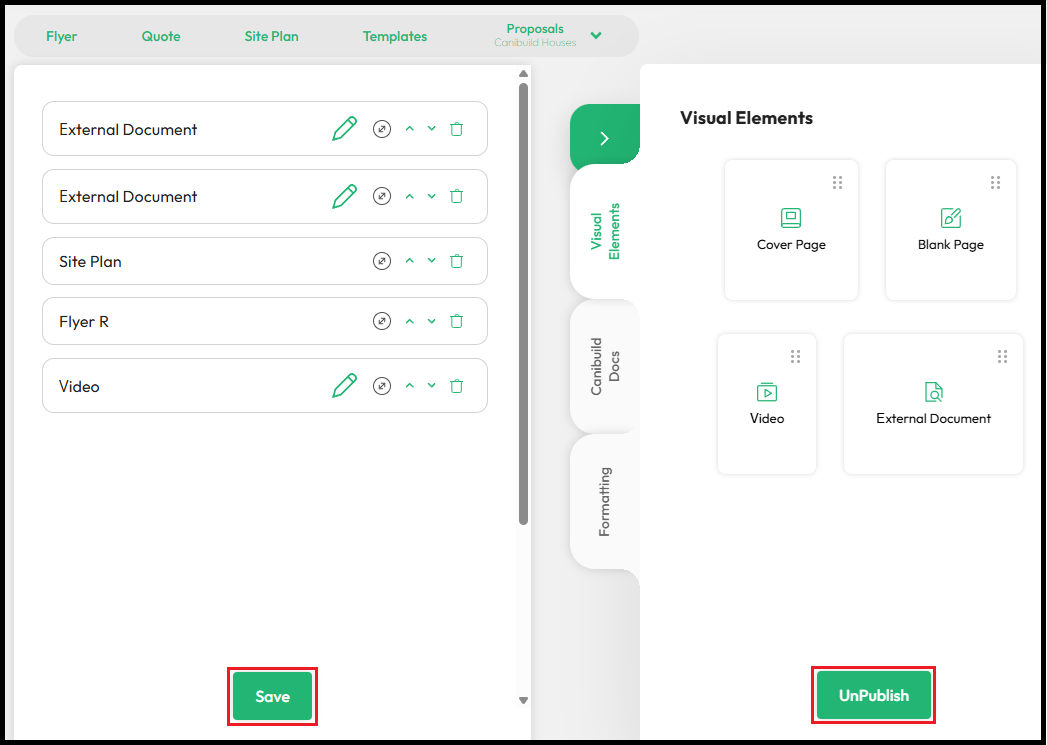
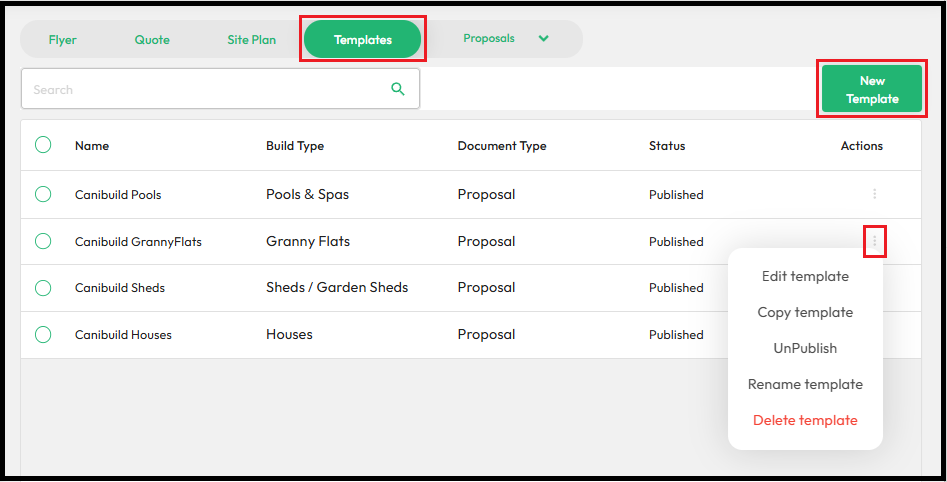
- Select Templates.
- Click the three dots at the end of the row to edit an existing template.
- Click New template to create a new Proposal,
**
**
-
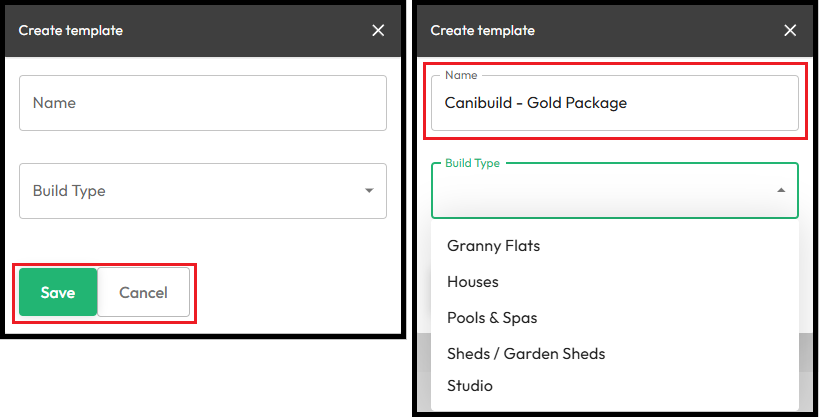
Enter a Name for the proposal.
-
Select the appropriate Build Type.
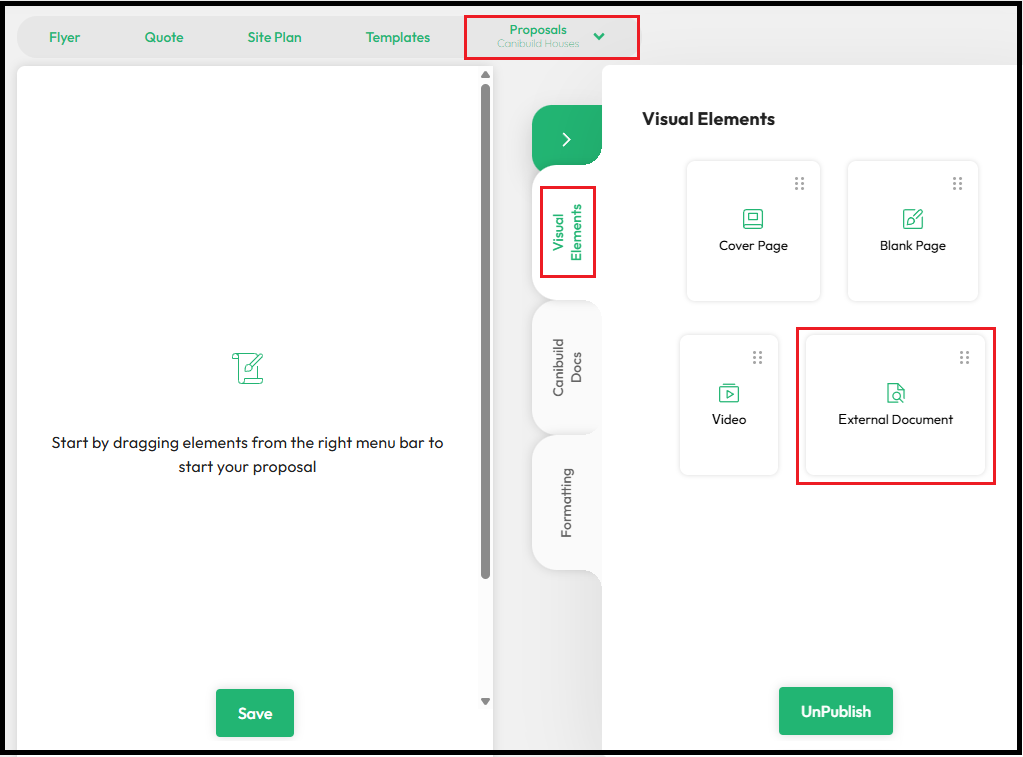
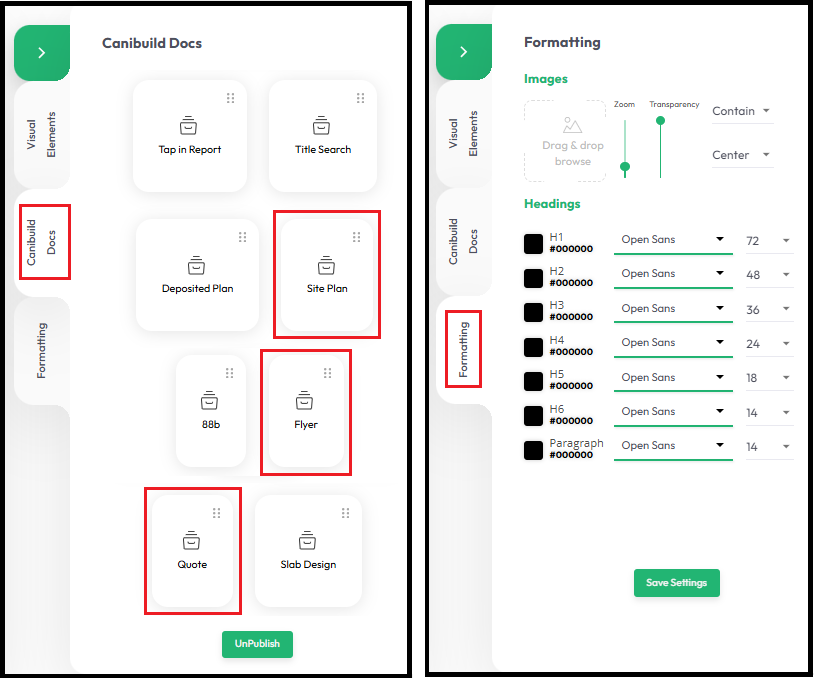
- Click on each of the Visual Elements or Canibuild Docs to populate the template.
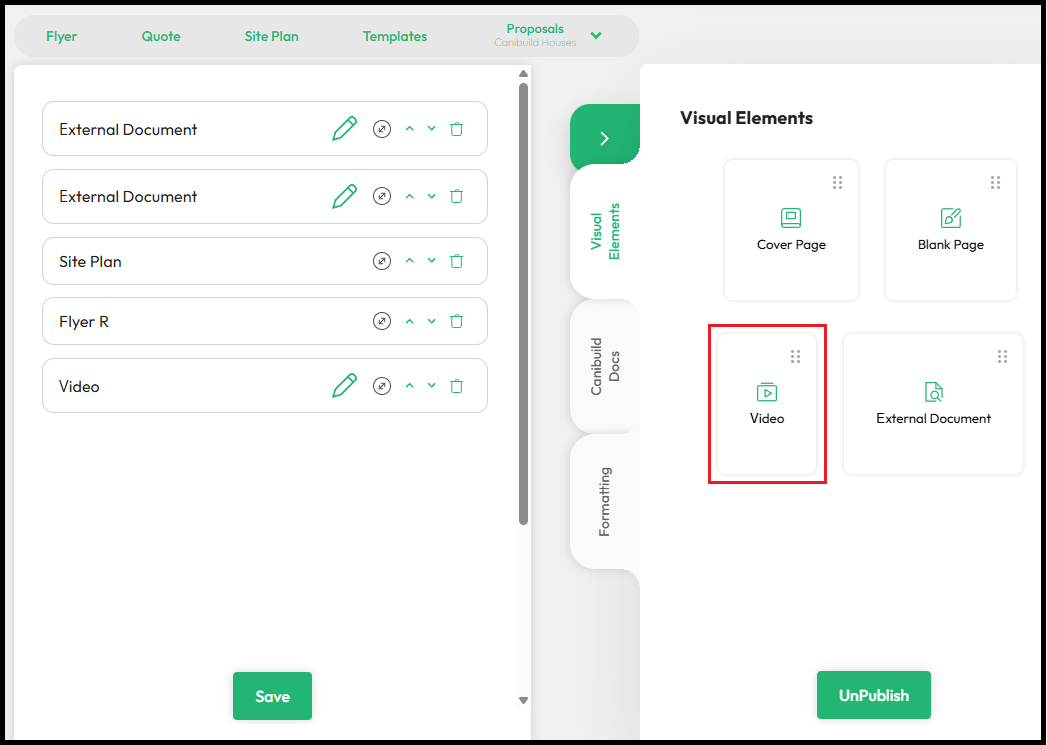
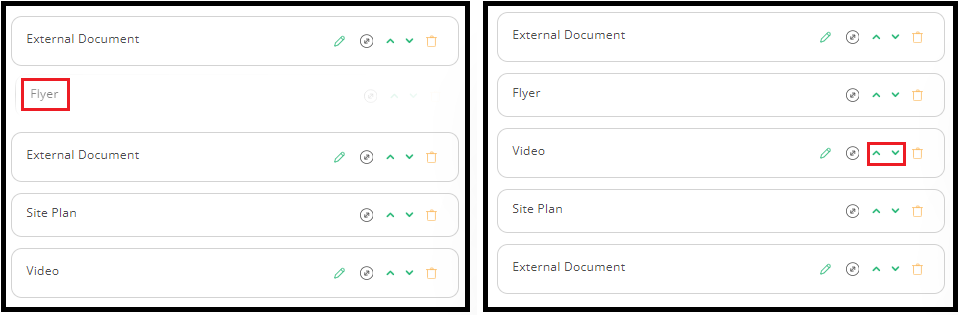
- Click & drag each item to rearrange the order.
OR
- Use the green arrows to move items up or down.
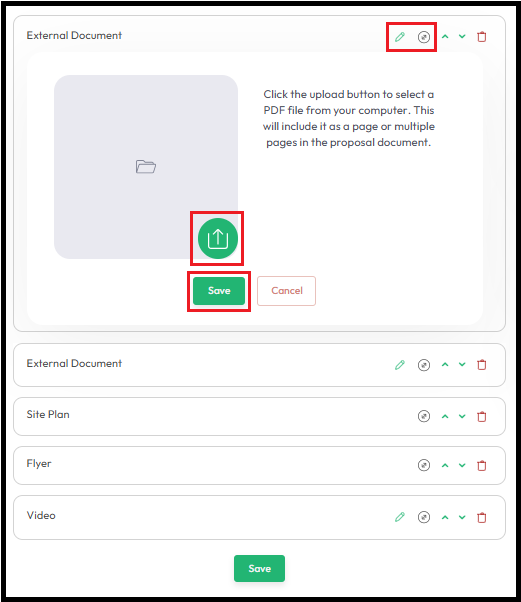
- Click the green pencil icon to edit / add an external doc.
- Click the green upload icon to open file manager.
- Select a PDF document.
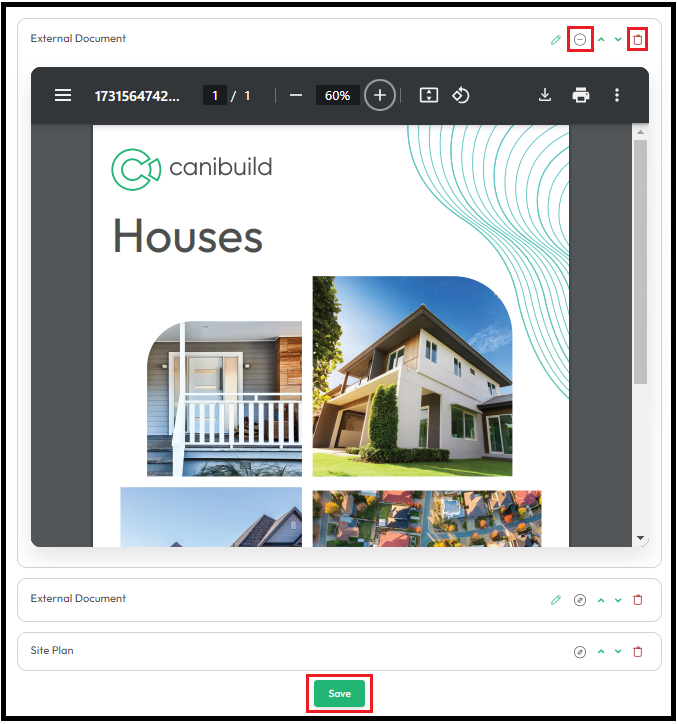
- Click the minimise icon to close the tab.
- Click the Trash can to delete the document if necessary.
- Click the Save button when complete.
- Click the green pencil icon to add a video.
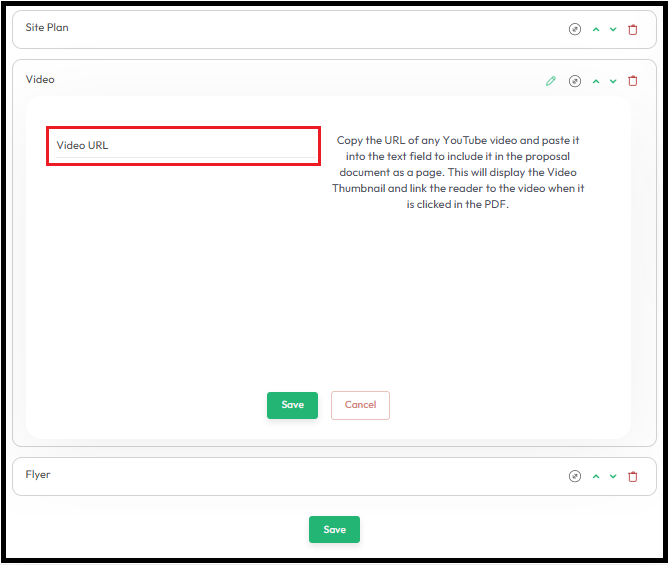
- Copy paste the URL from YouTube.
- Click Save.
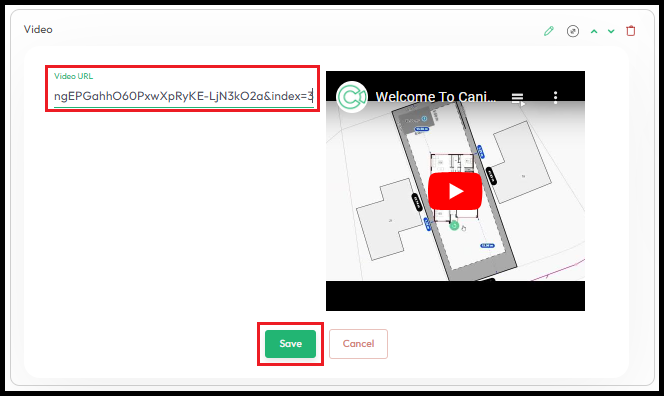
- Click Save once all items are added.
- Click Publish to add the proposal to the Generate tab.