This article shows you how to convert a CAD model from common formats into a .GLB file for uploading into Canibuild. This guide covers what to include, how to maintain correct scale, & how to export using third-party tools for both FBX & Revit files.
Convert FBX to GLB
- Open the Source file.
- Clean up the model by deleting landscaping & unwanted 3D assets.
- Zoom & rotate the model to check for & remove any floating objects.
- Export the cleaned model as FBX.
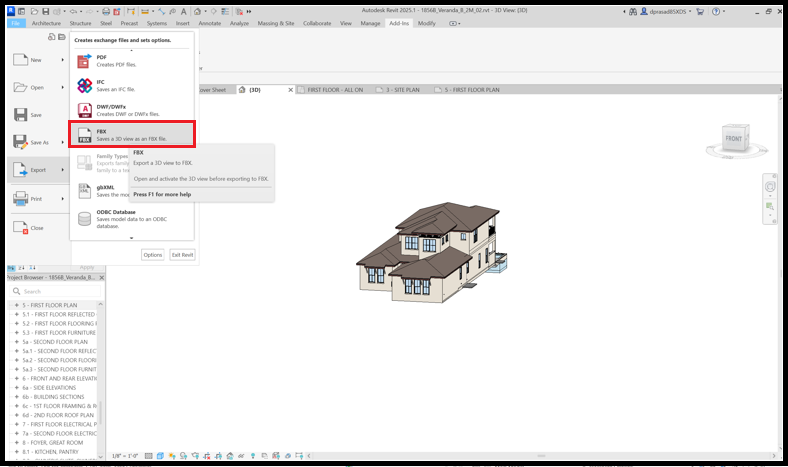
- Open the Image to STL website.
- Select FBX to GLB.
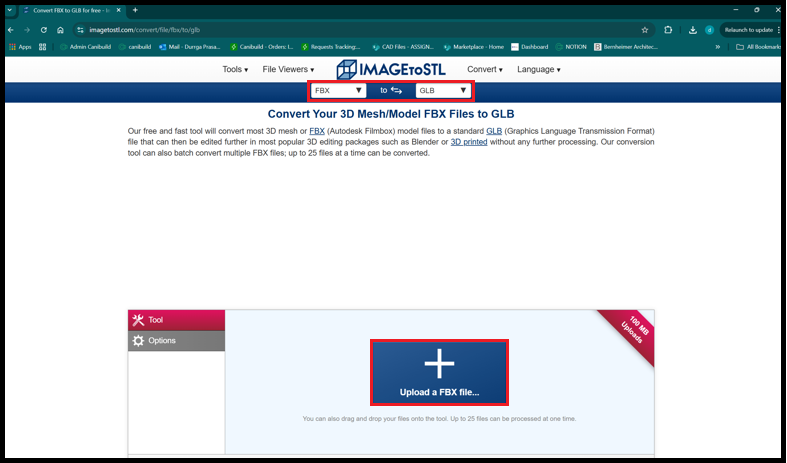
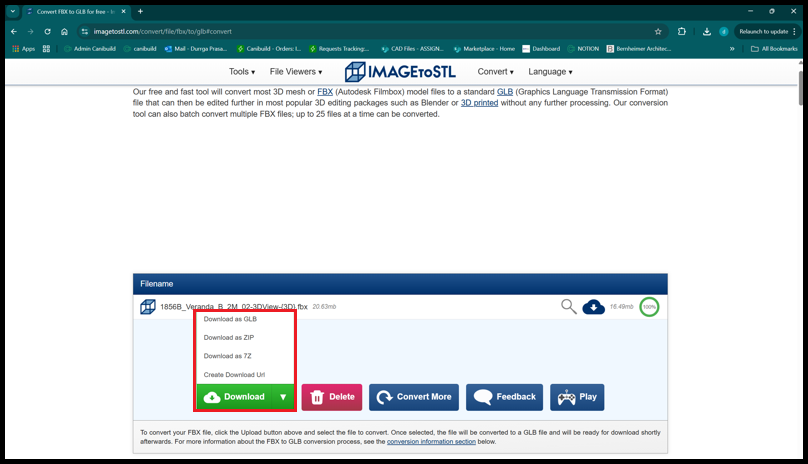
- Click Covert Model.
- Select Download to save the .GLB file.
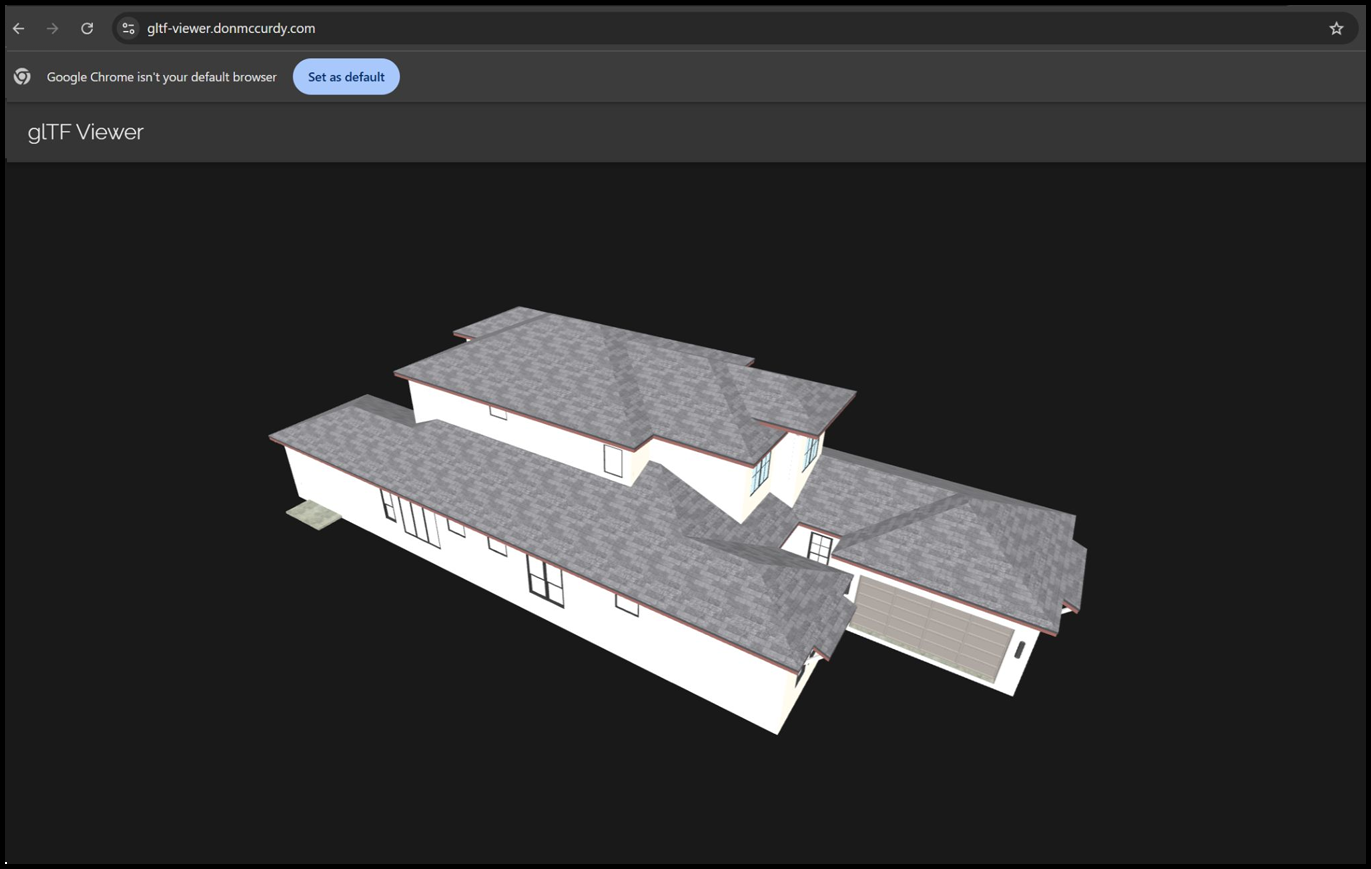
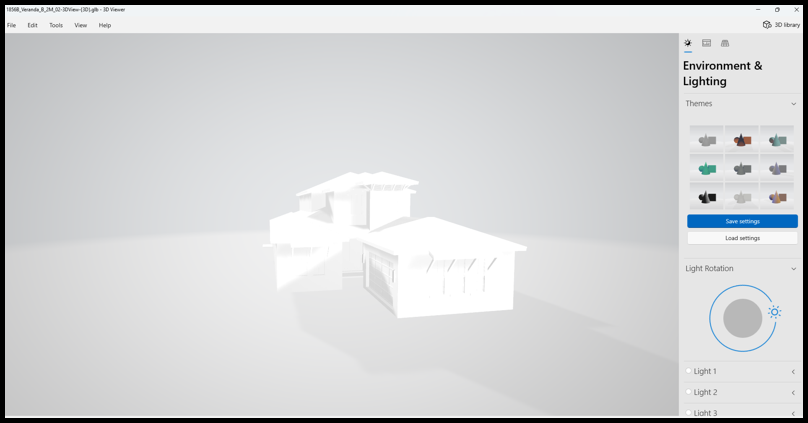
- Use the 3D viewer to confirm the output:
Convert Revit to GLB with plugin LEIA
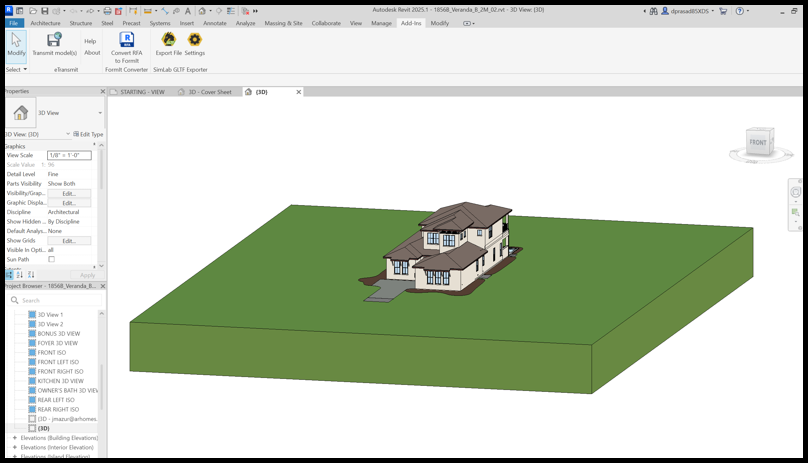
- Open your 3D view in Revit.
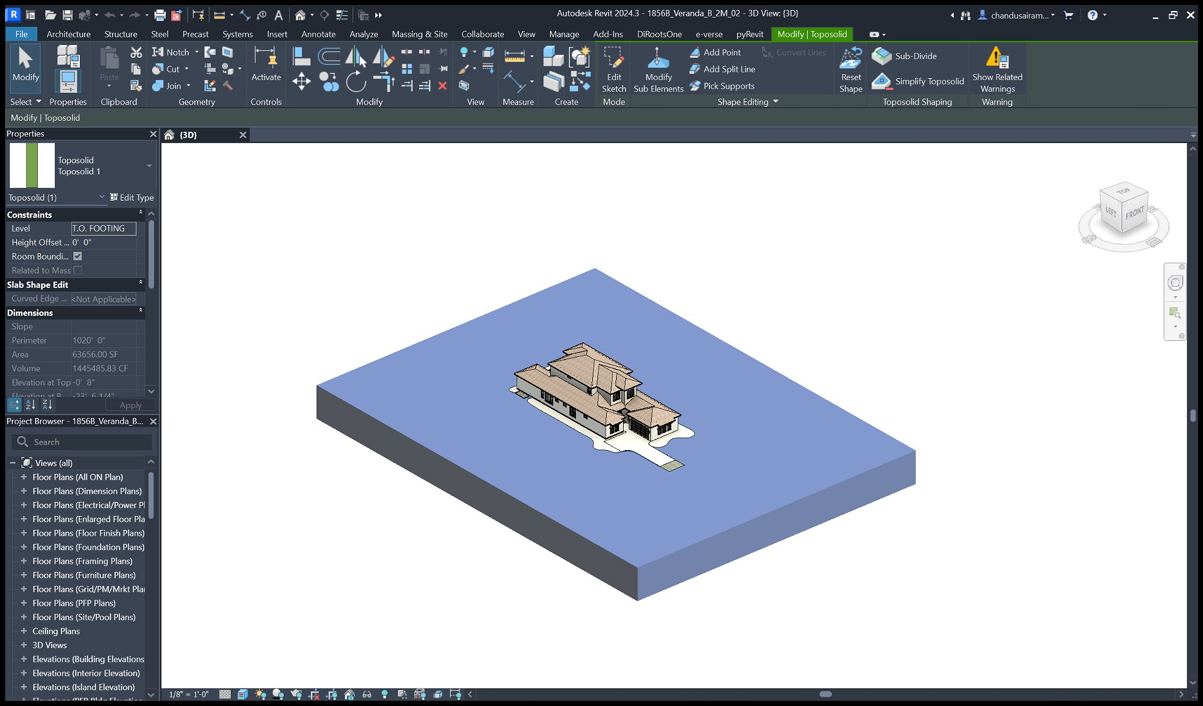
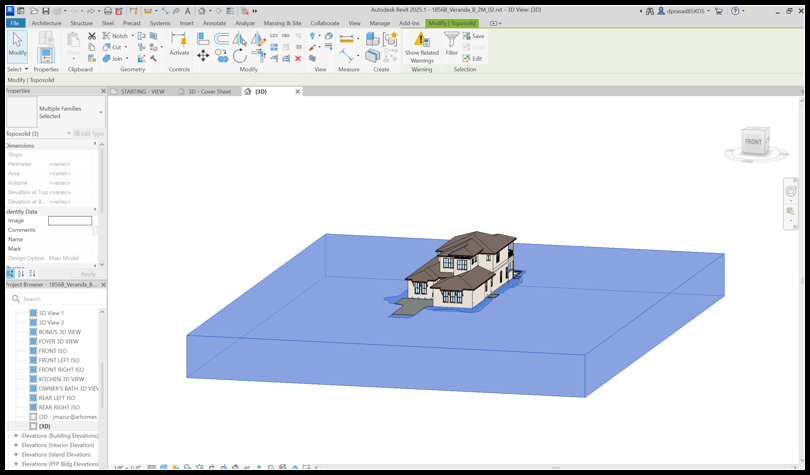
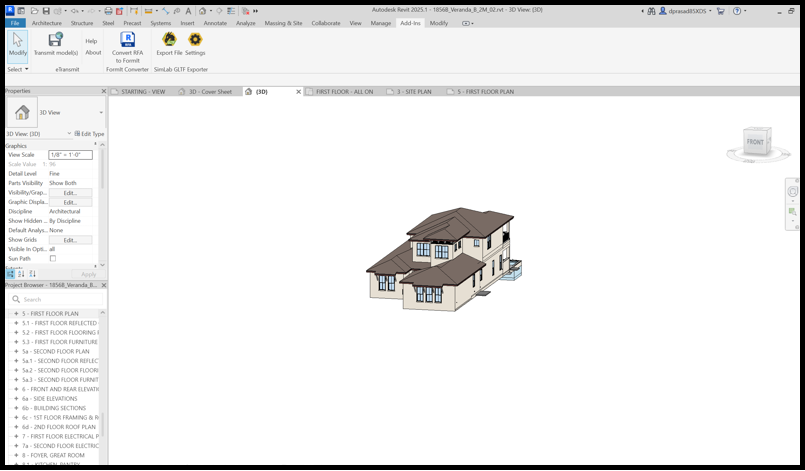
- Delete topography & any other unwanted elements.
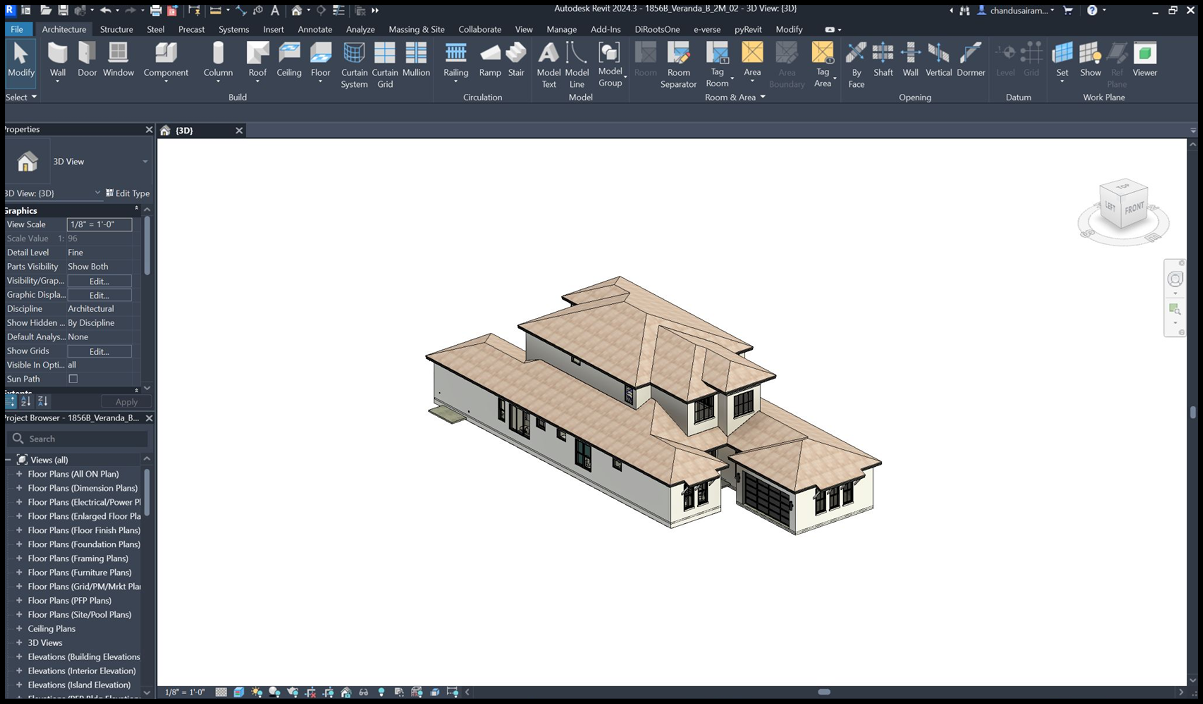
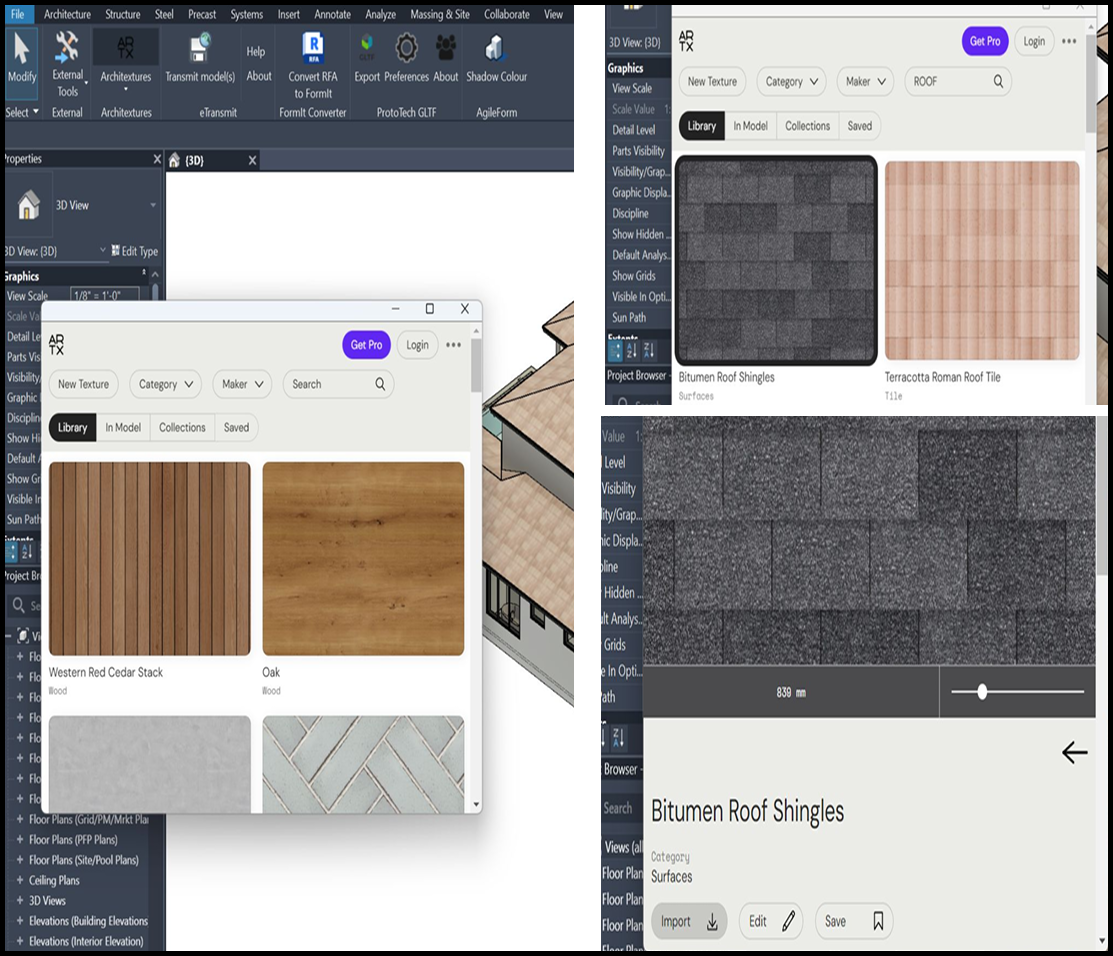
- Update materials using the Architectures plugin:
- Go to the Add-In tab.
- Use the Search feature to find materials (e.g. “roof”).
- Select a material & click Import.
-
Select the roof element in 3D.
-
Click Edit Type to access properties.
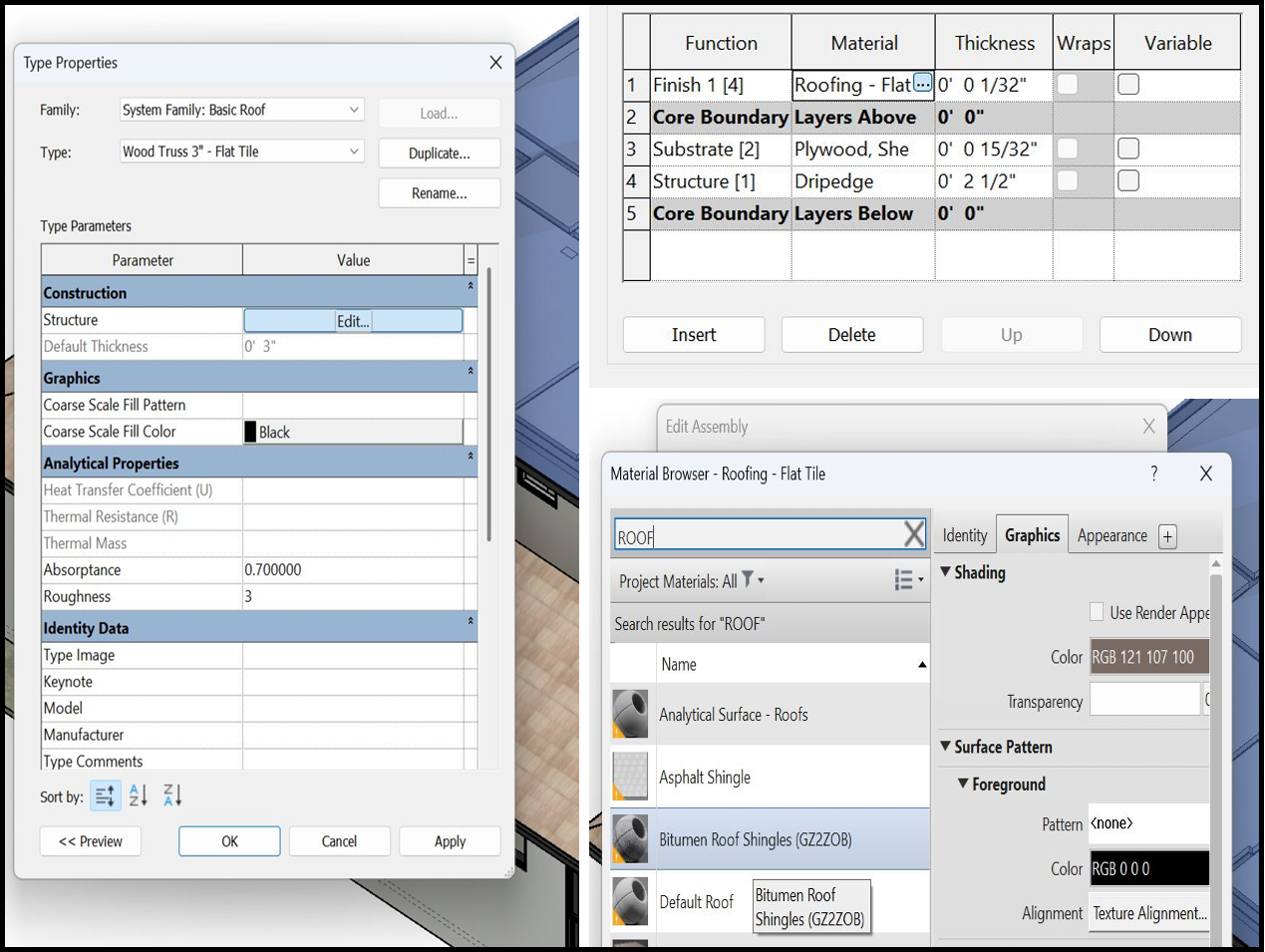
-
Select the E-Verse option.
-
Click the LEIA icon.
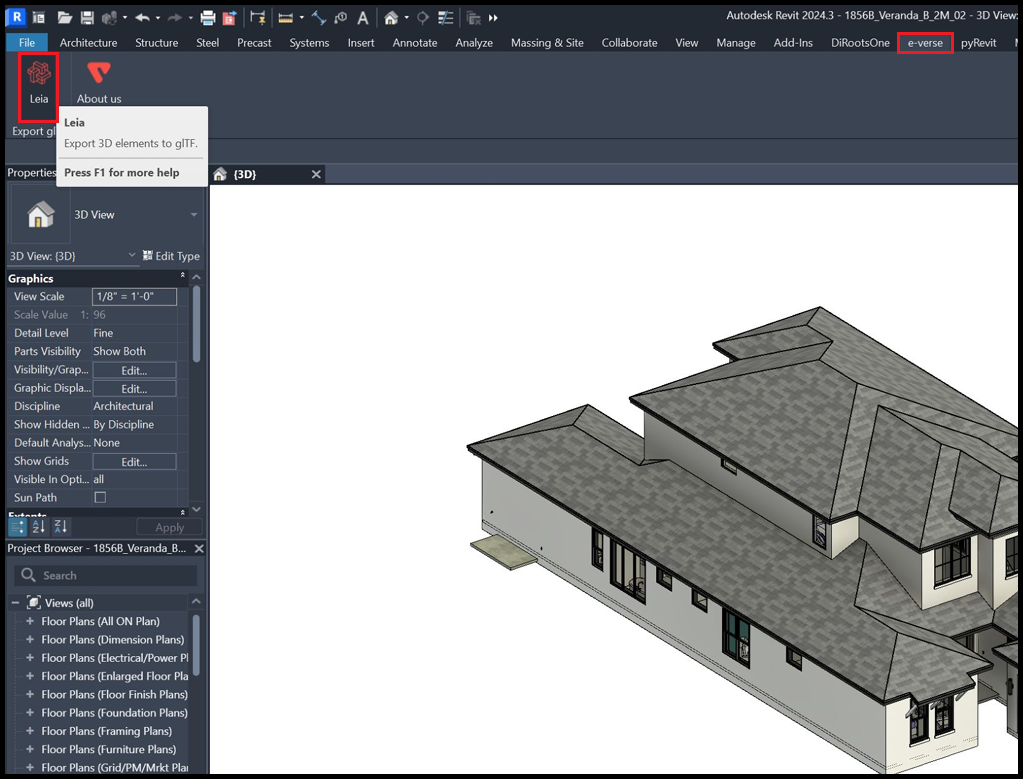
-
Adjust the units (Metres or Feet).
-
Click Export.
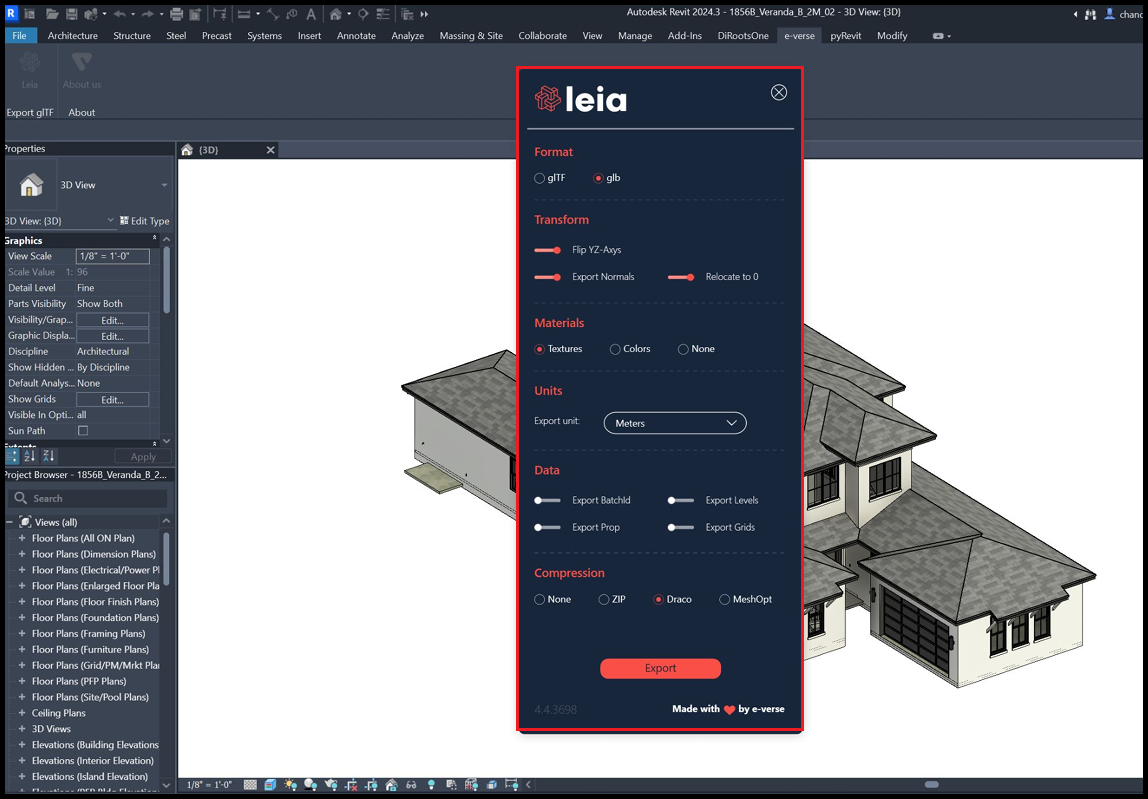
-
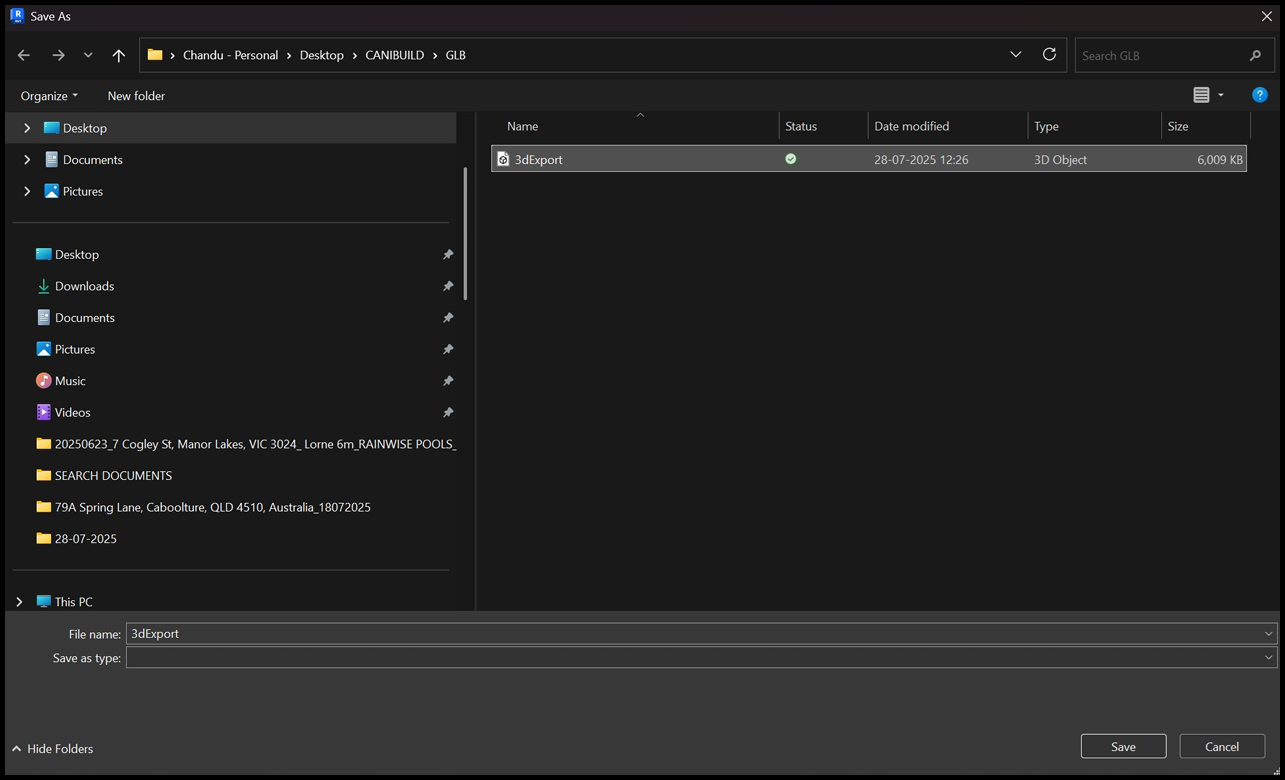
Choose a save location.
-
Click Save.
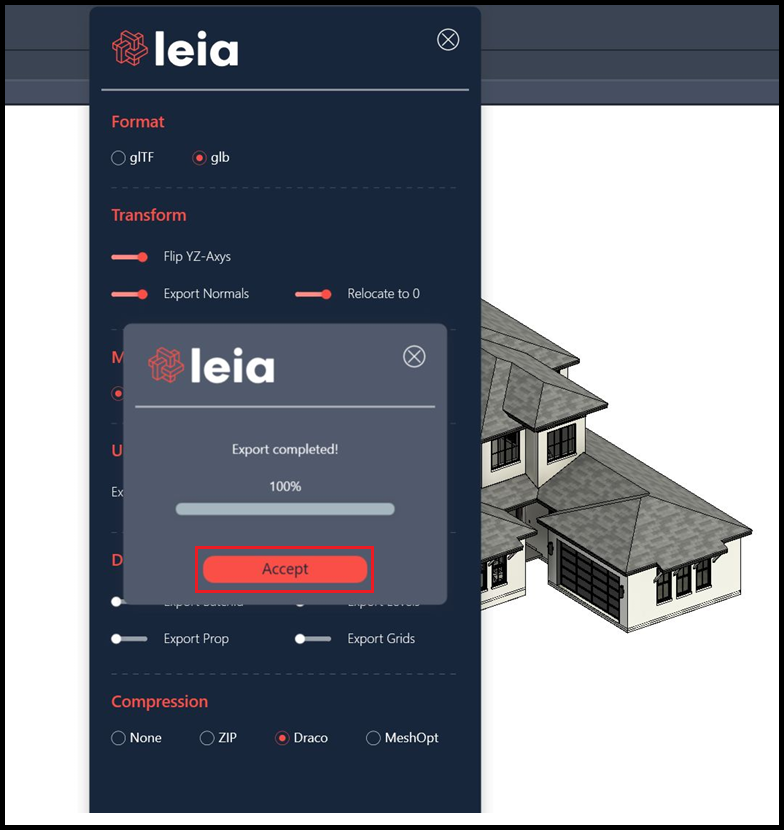
- Click Accept to finalise export.
- Preview the final .GLB using the 3D viewer: