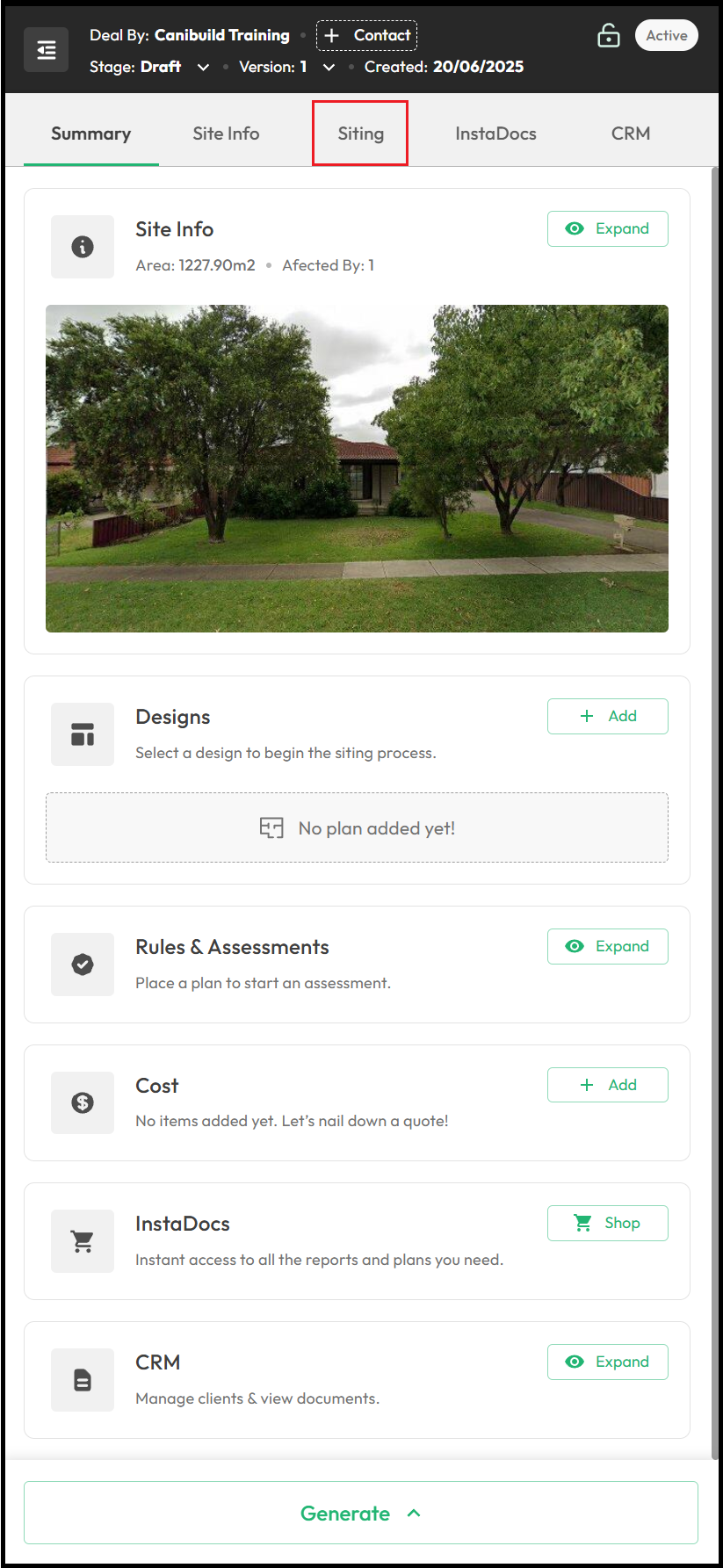
- Click Siting on the left panel.
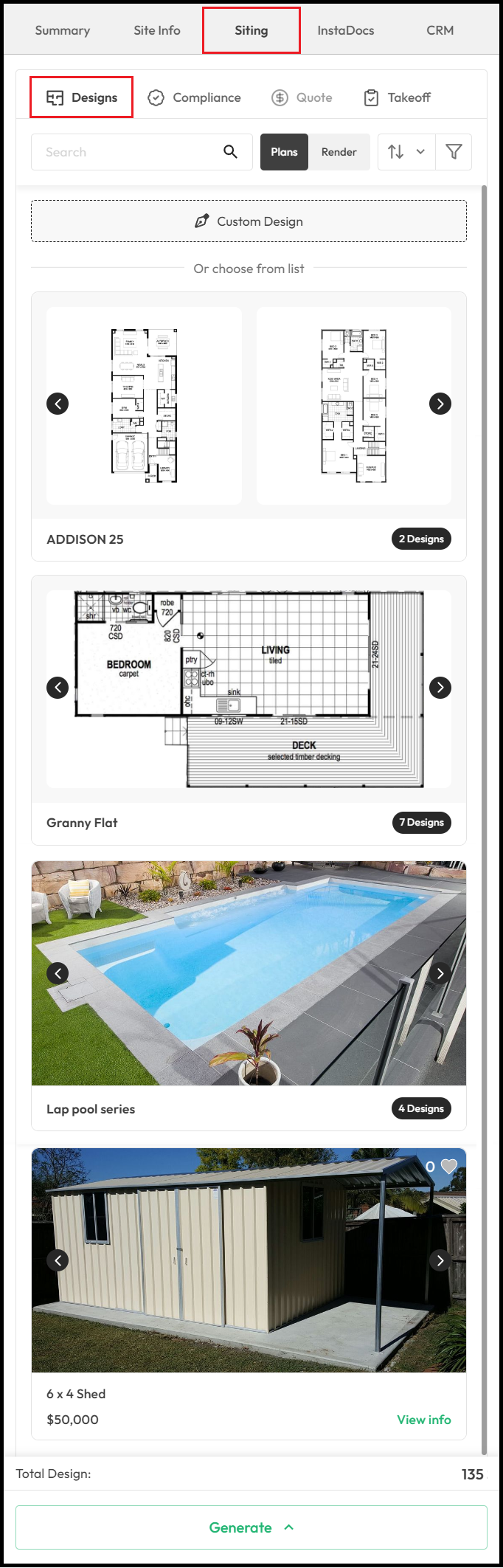
- Click Designs.
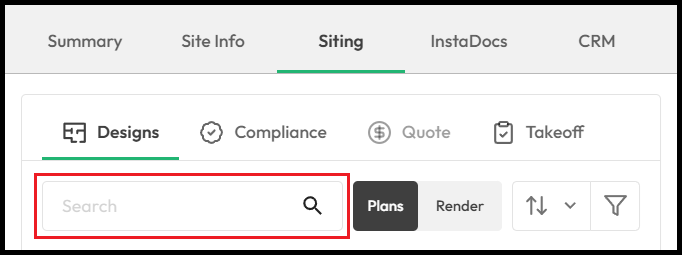
- Click the Search Bar.
- Enter a Design Name.
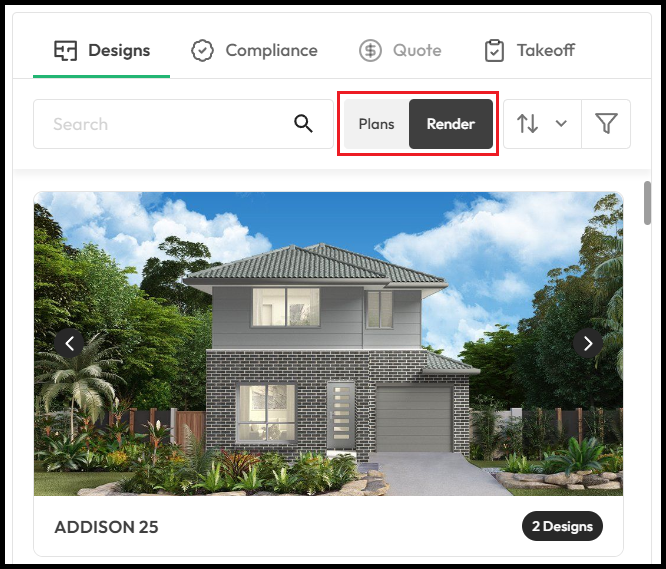
- Toggle between Plans or Render.
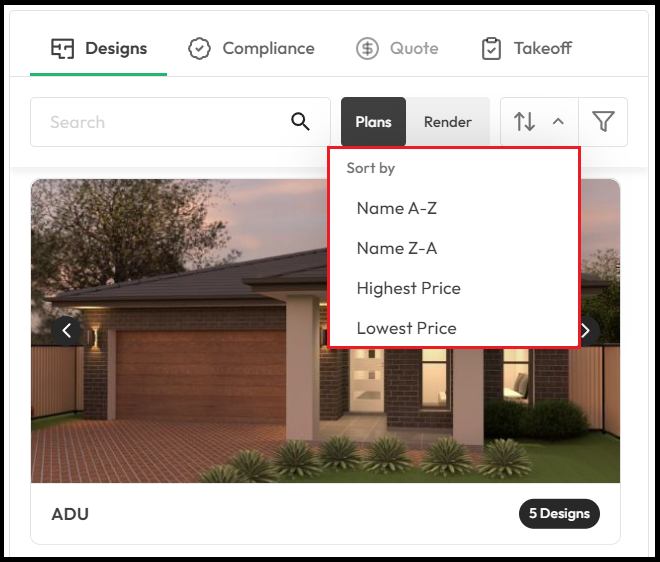
- Click Sort.
- Select:
- Name A-Z.
- Name Z-A.
- Highest Price.
- Lowest Price.
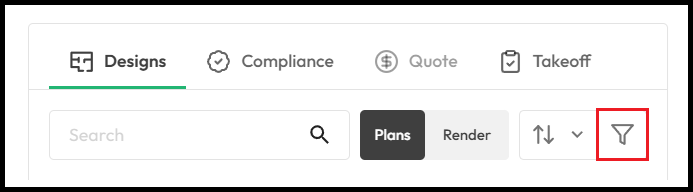
- Click Filter.
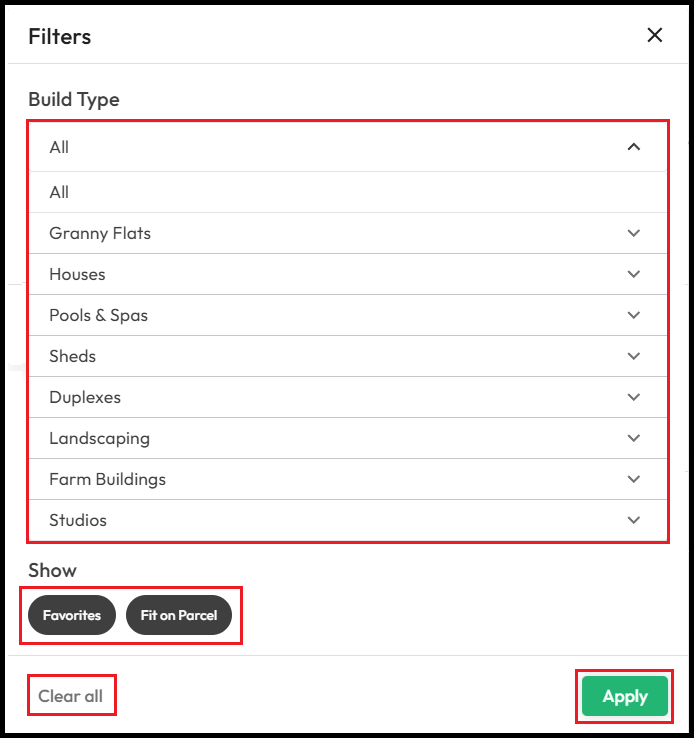
- Select Build Type.
- Select Favorites.
- Select Fit on Parcel.
- Select Clear All to start again.
- Click Apply to filter designs.
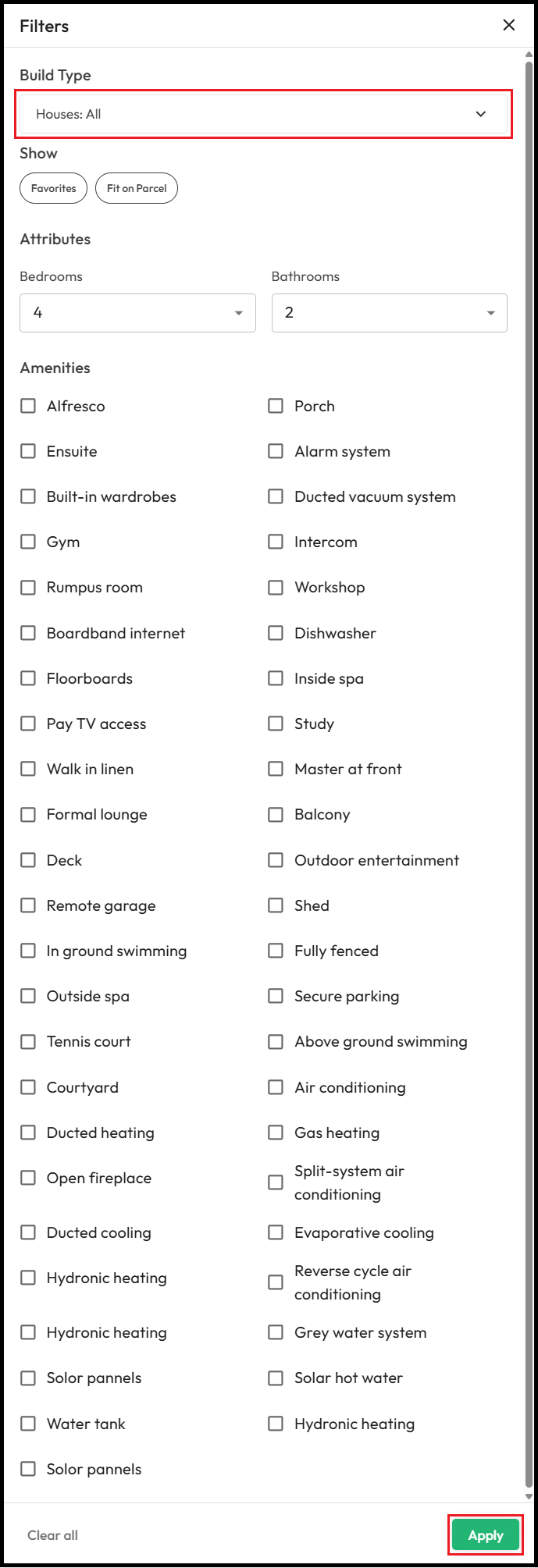
House Filter Options
- Select Houses.
- Select Attributes.
- Select Amenities.
- Click Apply.
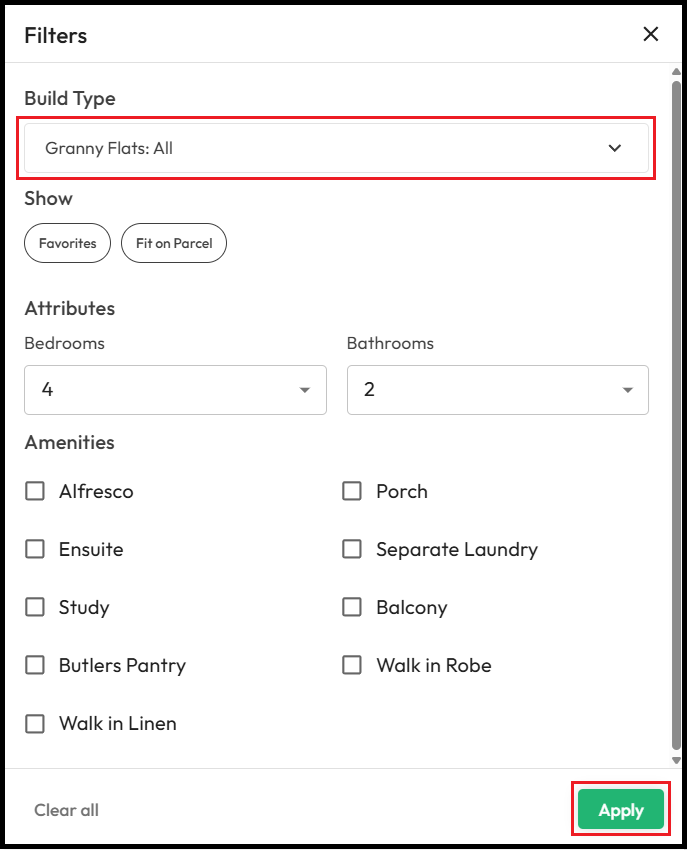
ADU Filter Options
- Select Granny Flats.
- Select Attributes.
- Select Amenities.
- Click Apply.
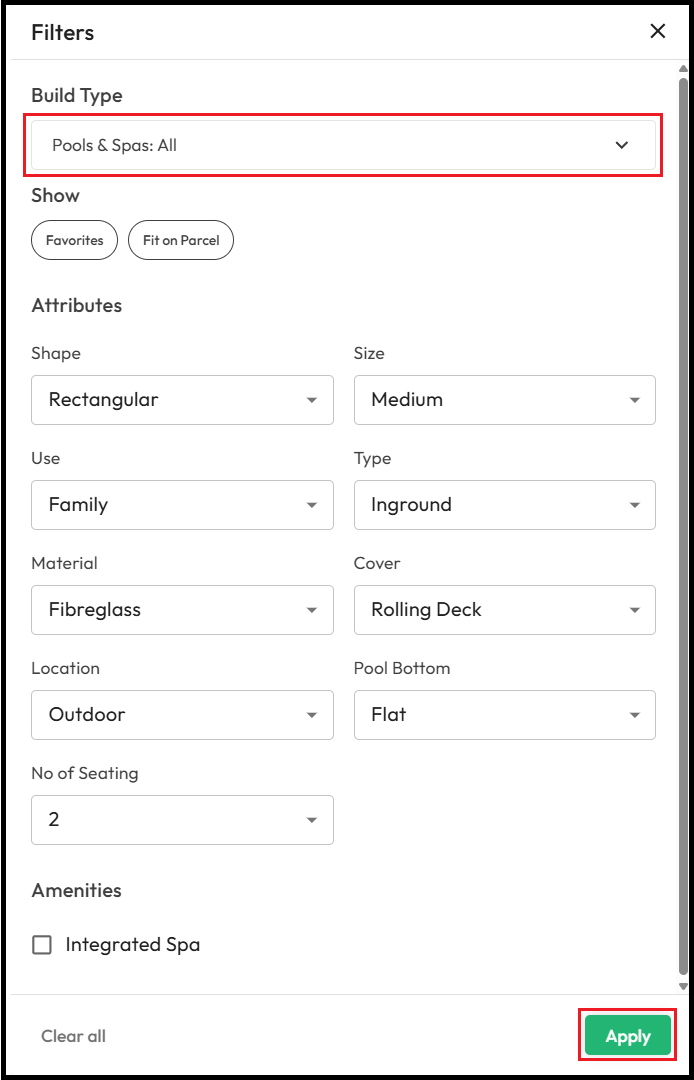
Pool Filter Options
- Select Pools & Spas.
- Select Attributes.
- Select Amenities.
- Click Apply.
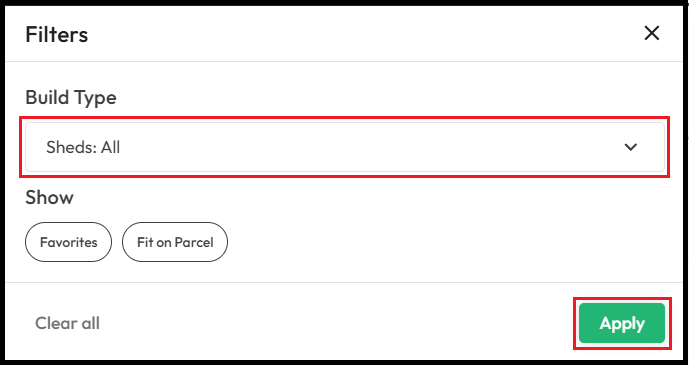
Shed Filter Options
- Select Sheds.
- Click Apply.
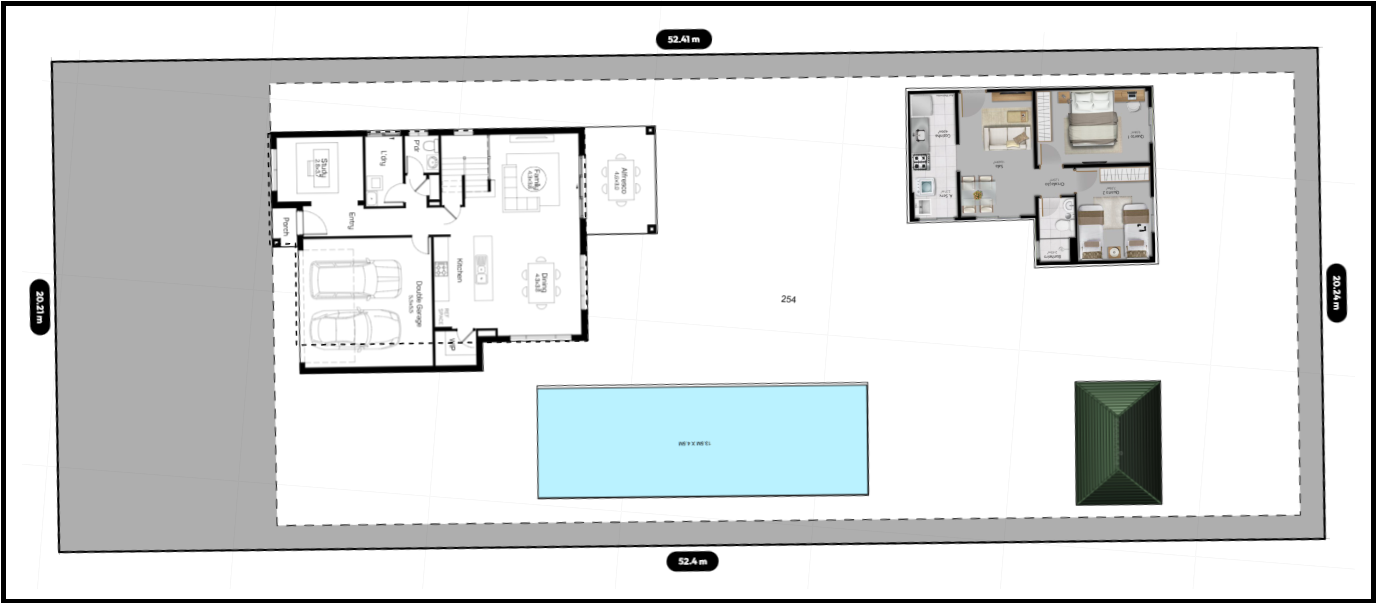
- Click on the Design & it will load up onto the center of the property.