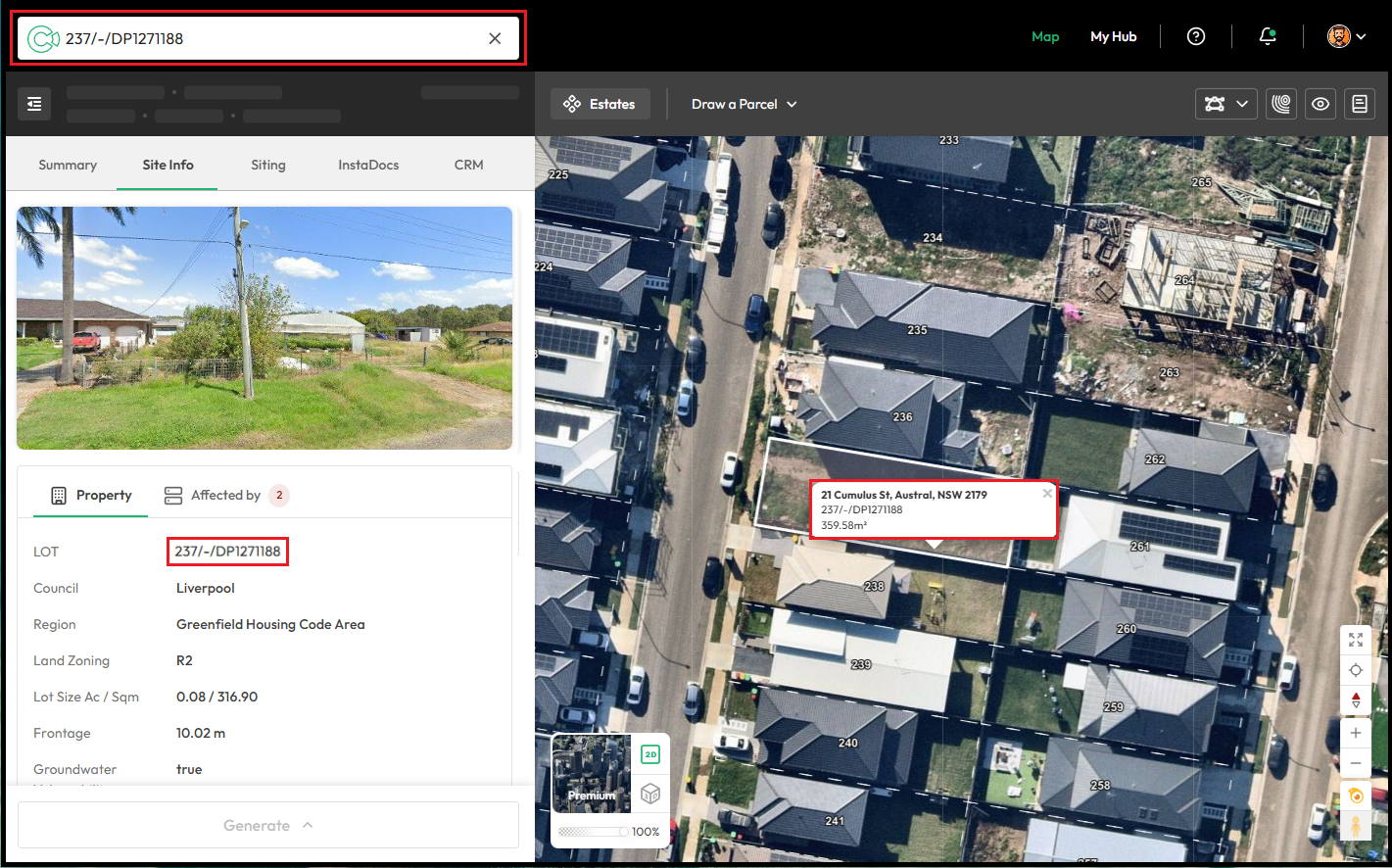
This article explains how to search for a parcel or lot using the Search Address bar, locate previous searches in MyHub & use alternative methods to identify the correct site address.
Search for a registered Address
- Click the Search Address bar.

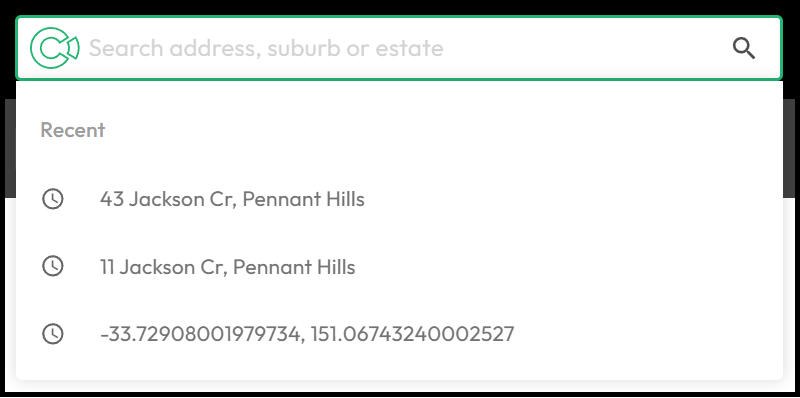
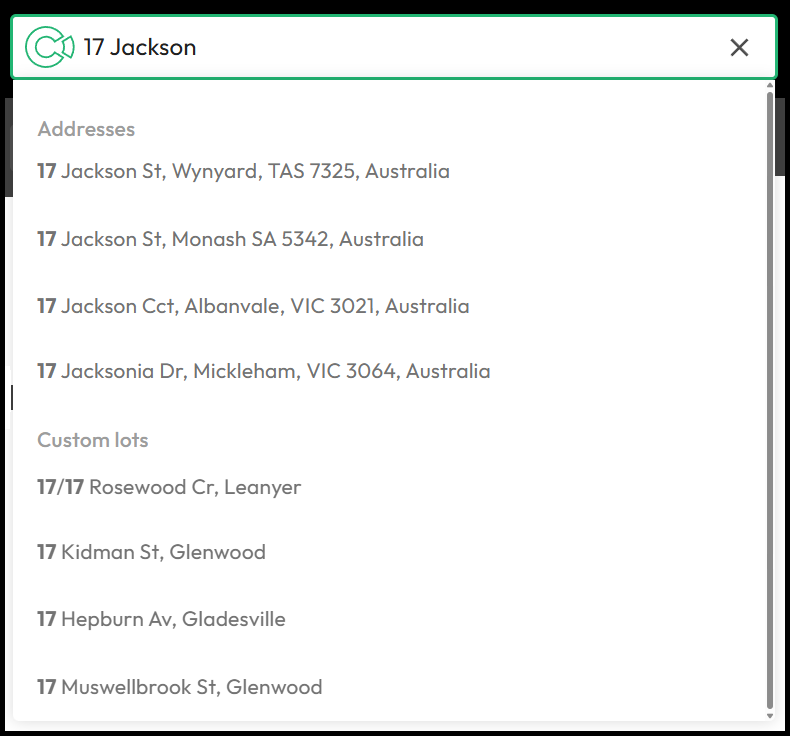
- Enter the street number & name.
- Click the correct match from the auto-generated list.
Unregistered Address / Lots (Subdivisions, Estates or Communities)
- Click Estates to search for unregistered lots.
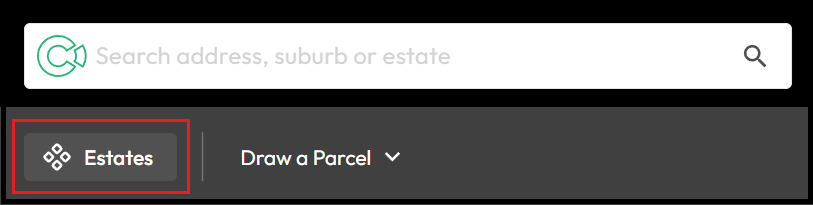
- Click Estates to return home.
- Enter an Estate Name in the search bar.
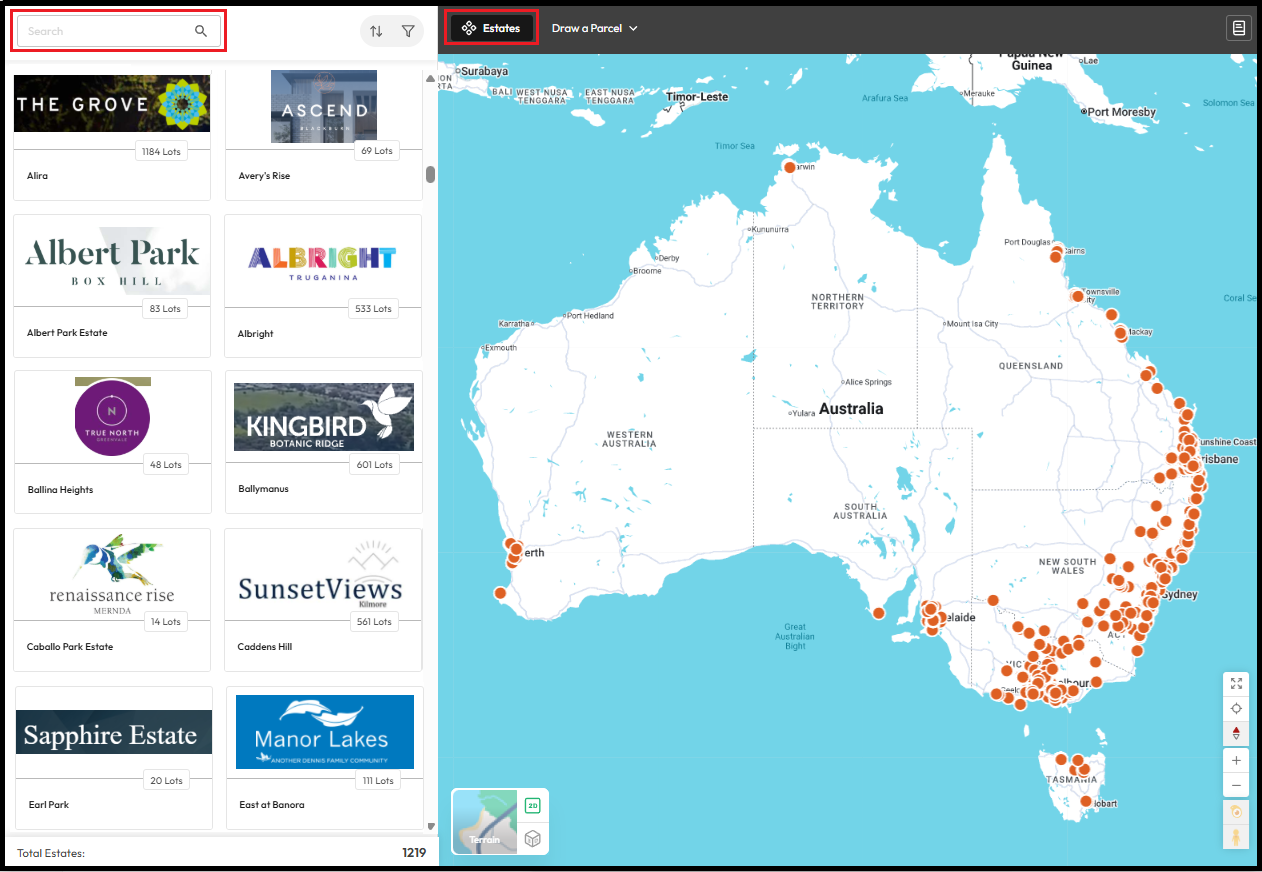
- Click the Filter Icon.
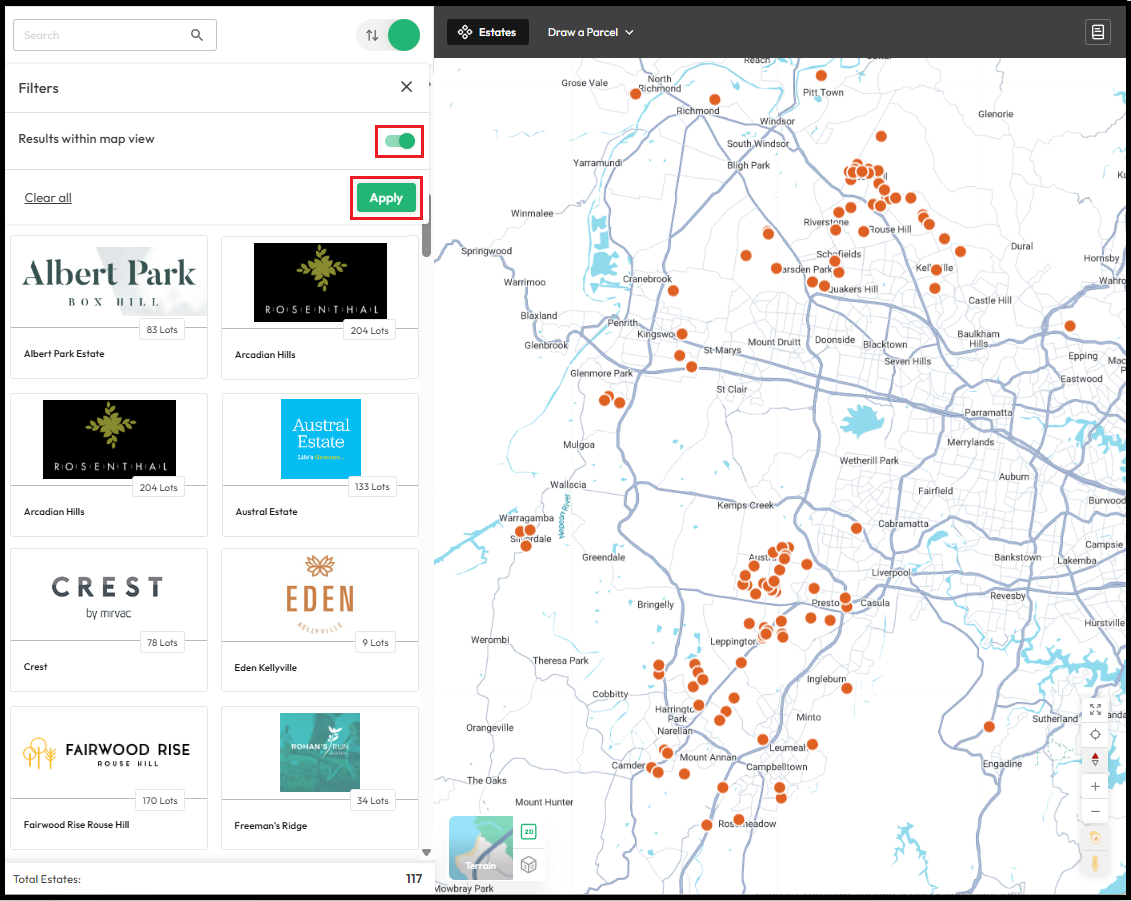
- Zoom in on the map.
- Toggle to reduce results within the map view.
- Click orange dots to access an estate.
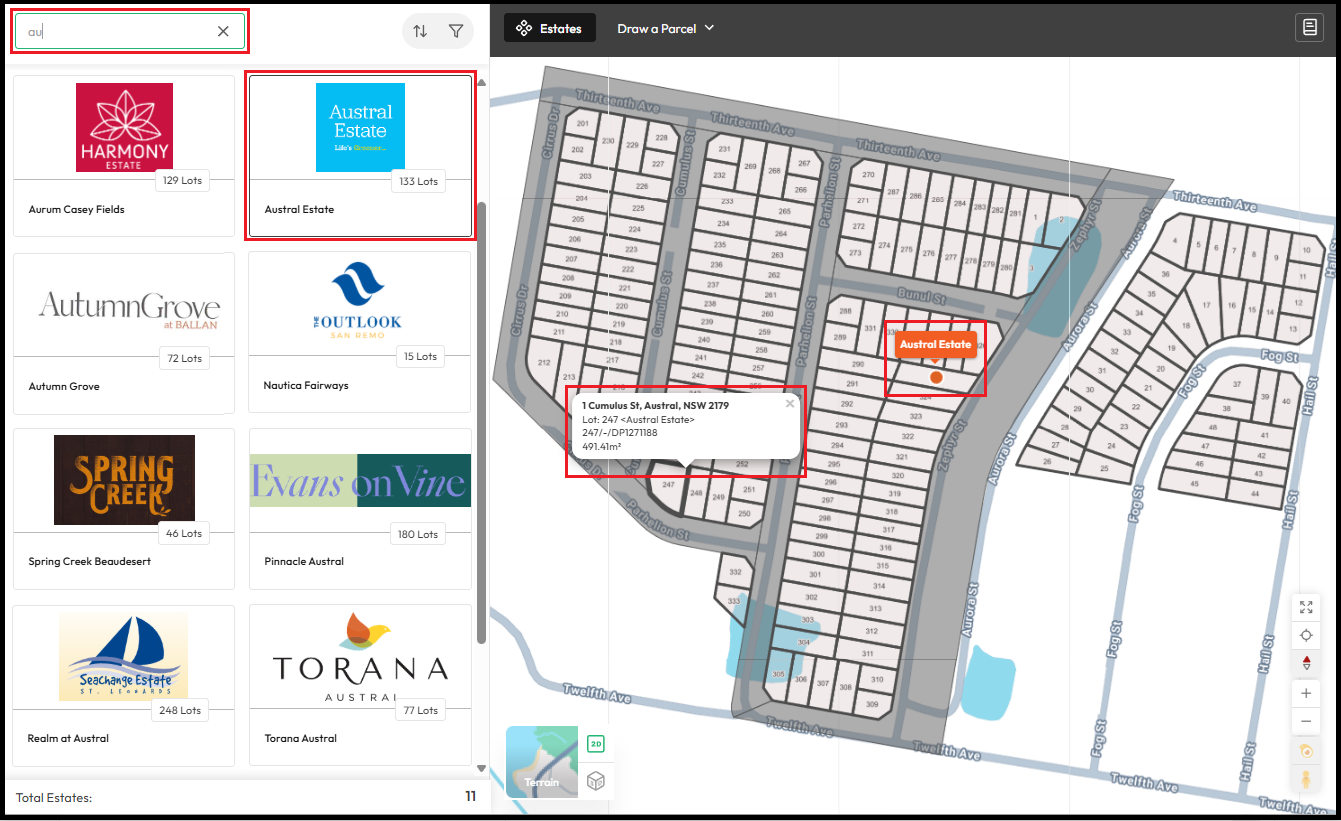
- Enter a location or estate name.
- Click on the correct subdivision.
- Hover over a parcel to view the lot details.
- Click on the lot to begin working on the site.
Search by Coordinates (Latitude & Longitude)
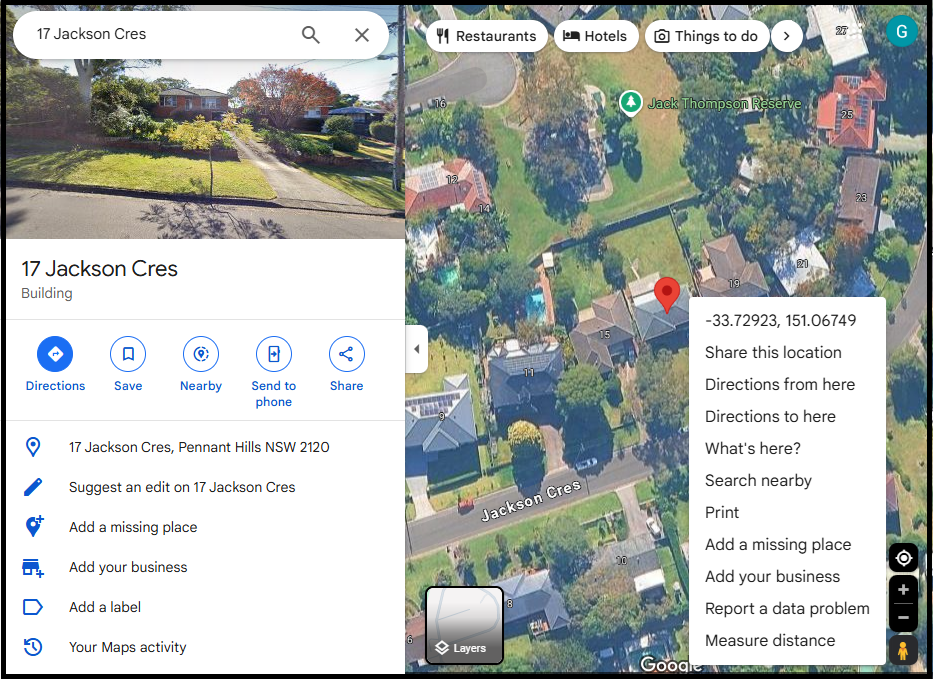
- Search for the address in Google Maps.
- Right-click on the red pin.
- Click on the latitude & longitude to copy them.
- Paste the coordinates into the search bar (include a comma & space between them)
- Press Enter.
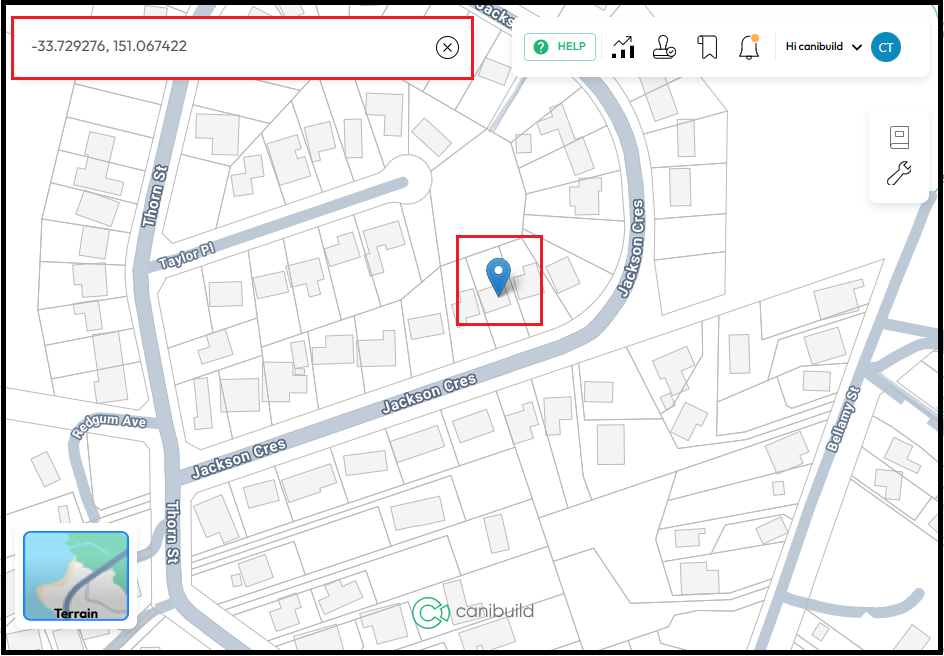
- Switch to satellite imagery.
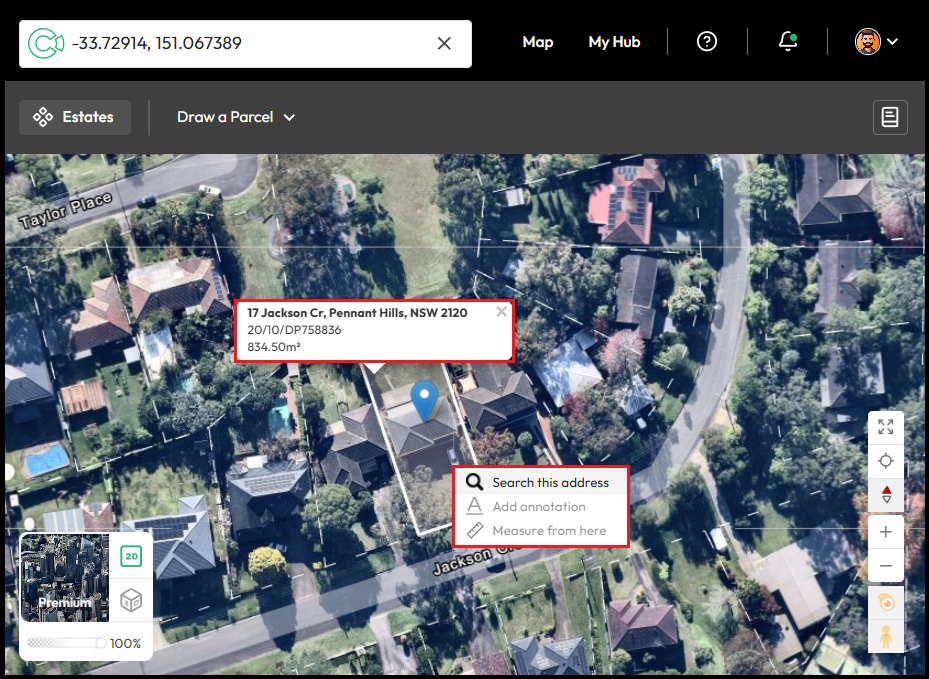
- Hover over the parcel to view lot details.
- Right-click & select Search this address.
Lot ID Number (DP or APN)
- Locate the site’s DPID (AU/NZ) or APN (US).
- Copy the ID into the search bar.
- Press Enter.